 TutorialKart.com
How to Define Administrator Groups in SAP HR
In SAP HR, administrator groups are used to default the responsible Personnel Administration, Time, and Payroll administrators for an employee. These values are commonly maintained in Organizational Assignment infotype 0001, and the defaulting logic is controlled through the SAP feature PINCH.
This tutorial explains the SAP HR configuration steps to define administrator groups, maintain the related feature, and understand how the administrator group is used during employee master data maintenance.
Administrator Groups in SAP HR and Their Use in IT0001
In SAP, you can maintain three types of administrators for every employee.
- PA administrator
- Time admiinistrator
- Payroll administrator
These administrators help identify the HR user or team responsible for employee master data, time administration, and payroll-related processing. The administrator group works as a grouping key so that the correct administrators can be proposed based on organizational or personnel-related conditions.
In SAP system, above three administrator groups are defaulted into a single group using PINCH feature.
Role of Feature PINCH in SAP HR Administrator Group Defaulting
The SAP HR feature PINCH is used to default the administrator group. During personnel administration processing, the system evaluates the decision tree maintained in the feature and proposes the relevant administrator group for the employee.
The decision logic can be based on fields such as personnel area, personnel subarea, employee group, employee subgroup, or other available structure fields depending on the business requirement. After the feature is configured and activated, the default value can flow into the employee’s organizational assignment data.
Configuration Access for Define Administrator Groups in SAP HR
Refer below step by step configuration steps for creating a new administrator group in SAP HR.
Navigation
| SAP R/3 Role Menu | Define new administrator group in SAP |
| Transaction Code | PE03 |
| SAP Menu Path | SPRO > Personnel management > Personnel administration > Organizational data > Organizational assignment > Define administrator groups. |
You can start from the SAP Reference IMG path, or directly use transaction code PE03 to maintain the relevant feature. If your organization uses transport management, make sure the configuration is recorded in the correct customizing request.
Step 1 – Open SAP Customizing with Transaction Code SPRO
Step 1 :- Execute Tcode “SPRO” from command field.
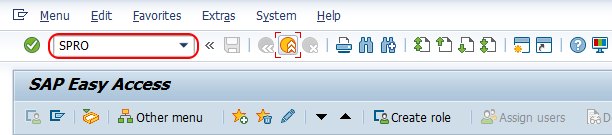
The SPRO transaction takes you to the SAP Customizing screen, where HR configuration activities are maintained.
Step 2 – Display SAP Reference IMG for Personnel Administration
Step 2 : – Choose “Display SAP Reference IMG” or press function key F5 from your keyboard.
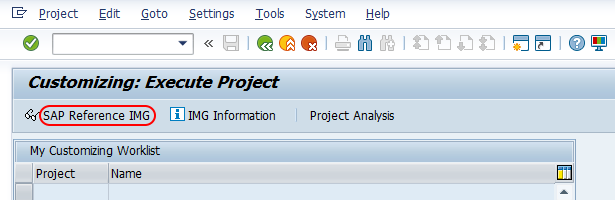
This opens the IMG structure. From here, you can navigate to the organizational assignment configuration under Personnel Administration.
Step 3 – Choose Define Administrator Groups in SAP HR IMG
Step 3 : – From display IMG : SAP customizing implementation guide screen, follow the navigation menu PM > PA > Organizational data > Organizational assignment and choose img activity “define administrator groups”.
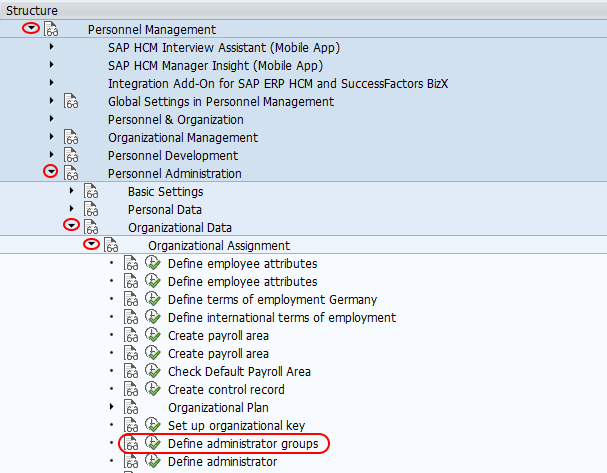
This activity takes you to feature maintenance. In this configuration, the administrator group is defaulted by maintaining the decision logic for the relevant feature.
Step 4 – Maintain the SAP HR Administrator Group Feature in PE03
Step 4 : – From features initial screen, enter the new administrator group name in the given field of Feature. You are required to enter upto 5 digits key in the field. Now click on create (shift+f6) button for creating the new administrator groups in SAP.
Note : – If you don’t get below screen, execute transaction code “PE03” from SAP command field.
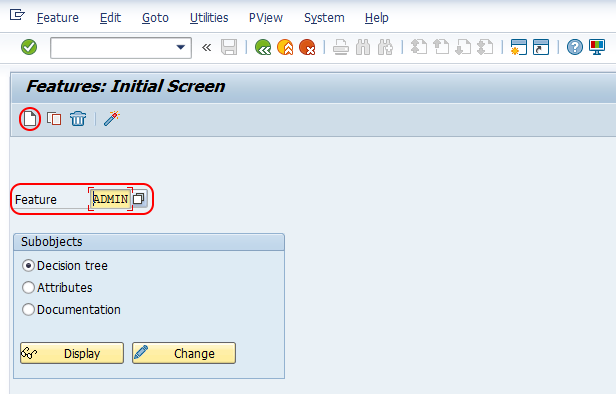
When maintaining administrator group defaulting, check the feature name carefully before creating or changing entries. In many SAP HR systems, the standard feature used for administrator group defaulting is PINCH. Use the display option first if you want to review the existing decision tree before making changes.
Step 5 – Enter Attributes for SAP HR Administrator Group Feature
Step 5 : – From edit feature ADMIN: Attribute screen update the following details.
- Title : – Enter the descriptive title of administrator group in SAP.
- Feature : – Under this field, update the responsible person’s SAP user id, choose the option changes only by person responsible if required. By choosing this option, only assigned responsible person are allowed to change any feature activities.
- Structure/ field name : – Update the responsible person user id and check the option “changes only by person responsible”. If you check this option, responsible person is only allowed to change structures and field names in SAP.
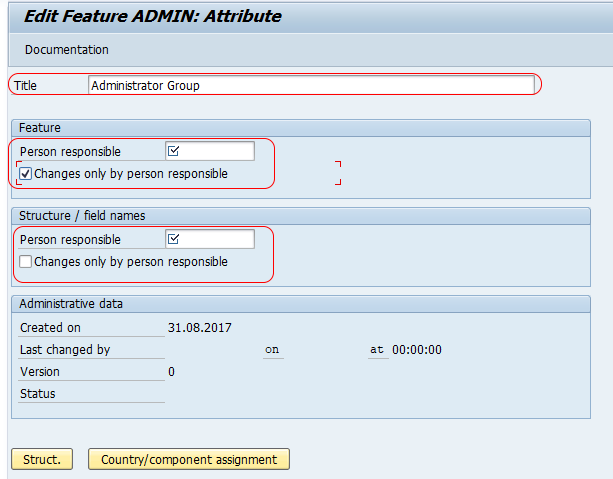
Click on save button and save the configured details.
After saving the attribute details, maintain the feature decision tree as required. The return value should point to the administrator group that has to be proposed for employees matching the decision criteria.
Activate and Test SAP HR Administrator Group Defaulting
After the feature is maintained, activate it so that the system can use the latest decision logic. Then test the configuration with a sample employee scenario before moving the change to a productive system.
- Check whether the employee belongs to the expected personnel area, personnel subarea, employee group, or employee subgroup used in the feature.
- Create or change the employee’s Organizational Assignment infotype 0001 in a test client.
- Verify whether the expected administrator group is proposed.
- Confirm the related PA administrator, Time administrator, and Payroll administrator values.
- If the wrong group is defaulted, review the sequence and conditions in the feature decision tree.
Common Issues While Defining Administrator Groups in SAP HR
If administrator group values are not defaulting correctly in SAP HR, check the configuration and master data together. Most issues occur because the feature logic does not match the employee’s organizational data or the feature was changed but not activated.
| Issue | What to Check |
|---|---|
| Administrator group is blank in IT0001 | Check whether feature PINCH has a valid return value for the employee’s organizational data. |
| Wrong administrator group is defaulted | Review the order of feature decision nodes and confirm that the employee matches the intended condition. |
| Changes are not reflected during testing | Confirm that the feature was saved and activated after maintenance. |
| User cannot change the feature | Check feature attributes, responsible person settings, and authorization access. |
| Administrator values are missing after group defaulting | Verify the administrator table maintenance for PA, Time, and Payroll administrator assignments. |
Best Practices for SAP HR Administrator Group Configuration
- Use clear administrator group keys and descriptions so that HR support teams can understand the purpose of each group.
- Keep the feature decision tree simple and aligned with actual HR responsibility rules.
- Do not create too many small variations unless they are needed for separate administrator responsibility.
- Test the configuration with employees from different personnel areas and employee groups.
- Document the business rule behind each administrator group return value.
- Transport the configuration only after validating the defaulting behavior in a test system.
Frequently Asked Questions on SAP HR Administrator Groups
What is an administrator group in SAP HR?
An administrator group in SAP HR is a grouping key used to assign or default the responsible HR administrators for an employee. It is used with Personnel Administration, Time, and Payroll administrator assignments.
Which SAP HR infotype stores administrator details for an employee?
Administrator details are commonly seen in Organizational Assignment infotype 0001. This infotype stores important organizational information for the employee, including administrator-related fields used in HR processing.
Which feature is used to default administrator group in SAP HR?
The feature commonly used to default administrator group in SAP HR is PINCH. It is maintained through feature maintenance, usually accessed using transaction code PE03 or through the SAP HR IMG path.
Why is the SAP HR administrator group not defaulting correctly?
The administrator group may not default correctly if the feature decision logic does not match the employee’s organizational data, the feature is not activated, or the related administrator table entries are incomplete.
Can different employee groups have different SAP HR administrator groups?
Yes. If the business process requires it, the feature decision tree can be maintained so that different employee groups, personnel areas, or other conditions return different administrator groups.
QA Checklist for Define Administrator Groups in SAP HR
- Confirmed that the tutorial explains PA administrator, Time administrator, and Payroll administrator usage.
- Confirmed that the SAP HR administrator group defaulting role of feature PINCH is described.
- Verified that transaction code PE03 and the SPRO IMG navigation are included.
- Checked that existing screenshots and image URLs are preserved without changes.
- Included testing steps for administrator group defaulting in Organizational Assignment infotype 0001.
- Added troubleshooting points for blank or incorrect administrator group defaulting.
Conclusion on Defining Administrator Groups in SAP HR
Successfully we have defined new administrator groups in SAP HR. After configuration, test the feature logic with sample employee records and confirm that the expected PA, Time, and Payroll administrators are proposed correctly in the organizational assignment data.