 TutorialKart.com
Open a URL from an Android App in the Default Browser
An Android app can open a web page in the user’s browser by sending an implicit intent with Intent.ACTION_VIEW and an http or https URI.
In this tutorial, we create an application in which tapping a button opens the associated URL outside the app. Android selects an installed application that can handle the web address. Depending on the user’s settings, the URL may open immediately in the default browser or Android may display an app chooser.
From the following screenshot, when user clicks on the button, a new Browser Activity is displayed over this Android Application, with the URL specified for that page.
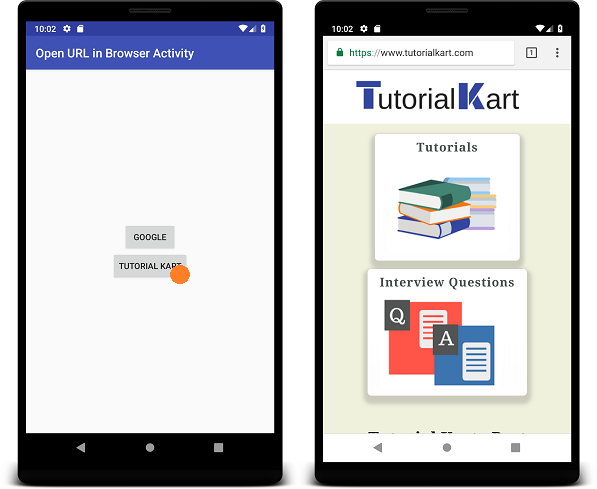
Use ACTION_VIEW to Open a Web URL in Android
To open an URI in a browser window separately, use android.content.Intent.ACTION_VIEW. ACTION_VIEW is used to display data to the user using the most reasonable presentation. For example, when used on a mailto, ACTION_VIEW opens a mail compose window; and when used on tel: , ACTION_VIEW displays call dialer.
For a website, provide a complete URI that includes the https:// or http:// scheme. A value such as www.example.com without a scheme may not be recognized as a web address.
Following are the detailed steps to create ACTION_VIEW for opening a URL.
Step 1: Create an Intent for ACTION_VIEW.
val openURL = Intent(android.content.Intent.ACTION_VIEW)Step 2: Set Uri as data for the intent.
openURL.data = Uri.parse("https://www.tutorialkart.com/")Step 3: Start Activity with the intent.
startActivity(openURL)Android ACTION_VIEW URL Syntax in Kotlin
The same operation can be written in a compact form by passing the action and URI to the Intent constructor.
val browserIntent = Intent(
    Intent.ACTION_VIEW,
    Uri.parse("https://www.example.com/")
)
startActivity(browserIntent)
Example – Android Application to Open URL in Default Browser
Create an Android Project and replace the following layout file, activity_main.xml, and MainActivity.kt file.
activity_main.xml
<?xml version="1.0" encoding="utf-8"?>
<LinearLayout xmlns:android="http://schemas.android.com/apk/res/android"
    xmlns:tools="http://schemas.android.com/tools"
    android:orientation="vertical"
    android:gravity="center"
    android:layout_width="match_parent"
    android:layout_height="match_parent"
    tools:context=".MainActivity">

    <Button
        android:id="@+id/googleBtn"
        android:text="Google"
        android:layout_width="wrap_content"
        android:layout_height="wrap_content" />
    <Button
        android:id="@+id/tutorialkartBtn"
        android:text="Tutorial Kart"
        android:layout_width="wrap_content"
        android:layout_height="wrap_content" />

</LinearLayout>
MainActivity.kt
package com.tutorialkart.openurlinbrowseractivity

import android.support.v7.app.AppCompatActivity
import android.os.Bundle
import kotlinx.android.synthetic.main.activity_main.*
import android.content.Intent
import android.net.Uri


class MainActivity : AppCompatActivity() {

    override fun onCreate(savedInstanceState: Bundle?) {
        super.onCreate(savedInstanceState)
        setContentView(R.layout.activity_main)

        googleBtn.setOnClickListener {
            val openURL = Intent(android.content.Intent.ACTION_VIEW)
            openURL.data = Uri.parse("https://www.google.com/")
            startActivity(openURL)
        }

        tutorialkartBtn.setOnClickListener {
            val openURL = Intent(android.content.Intent.ACTION_VIEW)
            openURL.data = Uri.parse("https://www.tutorialkart.com/")
            startActivity(openURL)
        }
    }
}
Run this Android Application, and click on any of the buttons, to open the respective URL separately in default Browser activity.
Open a URL with View Binding in a Current Android Project
The original example uses Kotlin Android Extensions synthetic view references. Current Android projects can use View Binding to access the button safely.
private lateinit var binding: ActivityMainBinding

override fun onCreate(savedInstanceState: Bundle?) {
    super.onCreate(savedInstanceState)

    binding = ActivityMainBinding.inflate(layoutInflater)
    setContentView(binding.root)

    binding.tutorialkartBtn.setOnClickListener {
        val url = Uri.parse("https://www.tutorialkart.com/")
        val browserIntent = Intent(Intent.ACTION_VIEW, url)
        startActivity(browserIntent)
    }
}
Handle the Case When No Browser Can Open the URL
Most Android devices have an application that can handle an https URL. However, calling startActivity() can fail if no compatible activity is available. You can catch ActivityNotFoundException and show an appropriate message instead of allowing the app to close unexpectedly.
import android.content.ActivityNotFoundException
import android.content.Intent
import android.net.Uri
import android.widget.Toast

fun openUrl(url: String) {
    val browserIntent = Intent(Intent.ACTION_VIEW, Uri.parse(url))

    try {
        startActivity(browserIntent)
    } catch (exception: ActivityNotFoundException) {
        Toast.makeText(
            this,
            "No application is available to open this link.",
            Toast.LENGTH_SHORT
        ).show()
    }
}
Call the function with a complete web address:
openUrl("https://www.tutorialkart.com/")Show an Android App Chooser for the Browser Intent
Normally, Android uses the user’s default handler for web links. To explicitly display a chooser, wrap the browser intent with Intent.createChooser().
val url = Uri.parse("https://www.example.com/")
val browserIntent = Intent(Intent.ACTION_VIEW, url)
val chooser = Intent.createChooser(browserIntent, "Open link with")

startActivity(chooser)
A chooser is useful when the user should select an application for that particular action. It is not required when the normal default-browser behavior is preferred.
Open a URL in a Specific Android Browser
You can target a browser by assigning its package name to the intent, but this approach should be used only when the application has a specific requirement. The selected browser may not be installed, and package availability can differ across devices.
val chromeIntent = Intent(
    Intent.ACTION_VIEW,
    Uri.parse("https://www.example.com/")
).apply {
    setPackage("com.android.chrome")
}

try {
    startActivity(chromeIntent)
} catch (exception: ActivityNotFoundException) {
    val defaultBrowserIntent = Intent(
        Intent.ACTION_VIEW,
        Uri.parse("https://www.example.com/")
    )
    startActivity(defaultBrowserIntent)
}
For general web links, leaving the package unset is usually more reliable because it respects the user’s chosen browser and works with any compatible application.
Browser Intent and Android WebView Serve Different Purposes
An ACTION_VIEW intent opens the URL in an external application, usually a browser. A WebView renders web content inside your application’s own activity. Use a browser intent when the user should leave the app to view the page with normal browser controls. Use a WebView only when displaying web content inside the app is part of the application design and its navigation, security, and lifecycle are handled appropriately.
Common Problems When Opening Android URLs
- The URL does not open: Verify that it begins with
https://orhttp://. - The app closes after tapping the button: Catch
ActivityNotFoundExceptionin case no activity can handle the URI. - The wrong app opens: Android may use the user’s default link handler. Use a chooser when the user should select an app.
- A specific browser cannot be found: Do not assume that a browser package such as Chrome is installed. Provide a fallback to a normal
ACTION_VIEWintent. - The click does nothing: Confirm that the listener is attached to the correct button and that the click is not intercepted by another view.
Frequently Asked Questions About Opening URLs in Android
How do I open a URL in the default browser from Kotlin?
Create an intent with Intent.ACTION_VIEW and a parsed web URI, and then pass the intent to startActivity().
Do I need the INTERNET permission to open an external browser?
No. Your app is asking another installed application to handle the URL. The INTERNET permission is required when your own app directly performs network operations, but it is not required merely to launch an external browser with ACTION_VIEW.
How can I let the user choose which browser opens the URL?
Wrap the browser intent with Intent.createChooser() and start the chooser intent.
Can I force an Android URL to open in Chrome?
You can set the intent package to com.android.chrome, but Chrome may not be installed. Handle the failure and fall back to an unrestricted browser intent.
Should I use ACTION_VIEW or WebView to display a website?
Use ACTION_VIEW to open the page in an external browser. Use a WebView when the website must appear inside your app and you are prepared to manage WebView configuration and navigation.
Android Open URL Tutorial QA Checklist
- Every sample web address includes an
https://orhttp://scheme. - The default solution uses
Intent.ACTION_VIEWwithUri.parse(). - The tutorial explains that Android may use a default browser or display a chooser.
- The error-handling example catches
ActivityNotFoundException. - The specific-browser example includes a fallback when the requested package is unavailable.
- The tutorial distinguishes an external browser intent from an in-app WebView.
- The original layout, Kotlin example, image, video, and internal tutorial link remain unchanged.
Conclusion
In this Kotlin Android Tutorial, we learned how to open URL from Android Application in default browser. Create an ACTION_VIEW intent with a complete web URI, and pass it to startActivity(). For production code, also handle the case in which no compatible browser activity is available.