 TutorialKart.com
Set an Action on an Android Snackbar in Kotlin
The Snackbar.setAction() method adds a text button to a Snackbar. When the user taps the action, Android runs the supplied click listener. Snackbar actions are commonly used for operations such as Undo, Retry, or Dismiss.
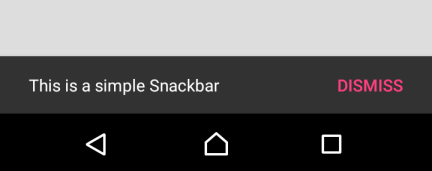
The following screenshot shows a Snackbar containing a message and an action displayed beside it.
Snackbar setAction() Syntax
Create the Snackbar with Snackbar.make(), call setAction() with the action label and click listener, and then call show().
Snackbar.make(view, message, duration)
    .setAction(actionText) {
        // Handle the Snackbar action
    }
    .show()
The Views-based Material Snackbar API provides these setAction() variants:
setAction(int resId, View.OnClickListener listener)uses a string resource for the action label.setAction(CharSequence text, View.OnClickListener listener)uses the supplied text as the action label.
Kotlin trailing-lambda syntax can be used instead of explicitly constructing a View.OnClickListener.
Add the Material Components Dependency for Snackbar
For a current Android project, use the Material Components for Android library. Add the dependency to the app module and use the version selected for your project.
dependencies {
    implementation("com.google.android.material:material:<version>")
}
The original example below was written for the legacy Android Support Library. Its dependency and imports are retained so that the historical example remains complete. New applications should use AndroidX and com.google.android.material.snackbar.Snackbar.
Legacy dependency used by the original example:
android {
    compileSdkVersion 26
    ...
}

dependencies {
    ...
    implementation 'com.android.support:design:26.1.0'
    ...
}
Modern Kotlin Snackbar with a Dismiss Action
The following Views-based example displays a Snackbar when a button is tapped. Selecting DISMISS calls dismiss() on that Snackbar.
import android.os.Bundle
import android.widget.Button
import androidx.appcompat.app.AppCompatActivity
import com.google.android.material.snackbar.Snackbar

class MainActivity : AppCompatActivity() {

    override fun onCreate(savedInstanceState: Bundle?) {
        super.onCreate(savedInstanceState)
        setContentView(R.layout.activity_main)

        val button = findViewById<Button>(R.id.btn)

        button.setOnClickListener { view ->
            val snackbar = Snackbar.make(
                view,
                "This is a simple Snackbar",
                Snackbar.LENGTH_LONG
            )

            snackbar.setAction("DISMISS") {
                snackbar.dismiss()
            }

            snackbar.show()
        }
    }
}
For labels that appear in the interface, a string resource is preferable to hard-coded text because it supports translation.
<resources>
    <string name="snackbar_message">Item removed</string>
    <string name="snackbar_undo">UNDO</string>
</resources>Snackbar.make(view, R.string.snackbar_message, Snackbar.LENGTH_LONG)
.setAction(R.string.snackbar_undo) {
restoreRemovedItem()
}
.show()Original Android Snackbar Set Action Example
In this original example, the activity displays DISMISS as the Snackbar action. The listener prints a message when the action is selected.
activity_main.xml
<?xml version="1.0" encoding="utf-8"?>
<LinearLayout xmlns:android="http://schemas.android.com/apk/res/android"
    xmlns:tools="http://schemas.android.com/tools"
    android:orientation="vertical"
    android:gravity="center"
    android:background="#DDDDDD"
    android:layout_width="match_parent"
    android:layout_height="match_parent"
    tools:context=".MainActivity">

    <Button
        android:id="@+id/btn"
        android:background="#FFFFFF"
        android:textAllCaps="false"
        android:padding="10sp"
        android:layout_width="wrap_content"
        android:layout_height="wrap_content"
        android:text="Show Snackbar"
         />

</LinearLayout>
MainActivity.kt
package com.tutorialkart.snackbarexample

import android.support.v7.app.AppCompatActivity
import android.os.Bundle
import android.support.design.widget.Snackbar
import android.view.View
import kotlinx.android.synthetic.main.activity_main.*

class MainActivity : AppCompatActivity() {

    override fun onCreate(savedInstanceState: Bundle?) {
        super.onCreate(savedInstanceState)
        setContentView(R.layout.activity_main)

        btn.setOnClickListener {
            val snack = Snackbar.make(it,"This is a simple Snackbar",Snackbar.LENGTH_LONG)
            snack.setAction("DISMISS", View.OnClickListener {
                // executed when DISMISS is clicked
                System.out.println("Snackbar Set Action - OnClick.")
            })
            snack.show()
        }
    }
}
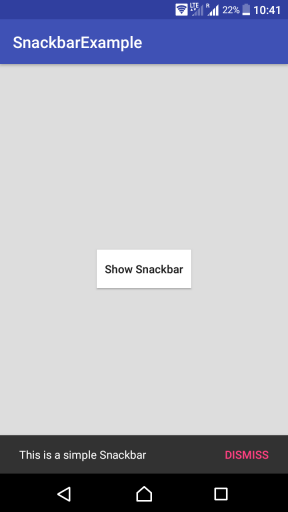
Run the application and select Show Snackbar. The Snackbar appears near the bottom of the screen with its message and DISMISS action.
How the Snackbar Action Listener Works
Snackbar.make()creates a Snackbar associated with the supplied view.setAction()adds the action label and registers its listener.show()displays the configured Snackbar.- When the user selects the action, the listener runs and the Snackbar is dismissed.
The view passed to Snackbar.make() must belong to the visible layout. Snackbar searches upward from that view for a suitable parent, such as a CoordinatorLayout or the activity content view.
Choosing a Snackbar Duration for an Action
Snackbar.LENGTH_SHORTdisplays the message briefly and may not give every user enough time to select an action.Snackbar.LENGTH_LONGis suitable for many messages that include a short action such as Undo.Snackbar.LENGTH_INDEFINITEkeeps the Snackbar visible until it is dismissed or replaced. Use it carefully so that it does not remain on screen unnecessarily.
The action should be concise and directly connected to the message. For example, pair “Item removed” with “UNDO” or “Connection failed” with “RETRY”. Do not place multiple decisions in a single Snackbar action.
Android Snackbar Action Compared with a Toast
A Toast displays a short message but does not provide a built-in action button. A Snackbar appears within the application interface and can include one action through setAction(). Use a Snackbar when the message relates to the current screen and the user may need to respond.
Common Snackbar setAction() Problems
- Snackbar does not appear: Confirm that
show()is called after configuring the action. - Unresolved Snackbar reference: Add the Material Components dependency and import
com.google.android.material.snackbar.Snackbar. - Action does nothing: Put the required operation inside the lambda or click listener passed to
setAction(). - Snackbar overlaps interface elements: Use a suitable layout structure, such as
CoordinatorLayout, when the Snackbar must coordinate with other Material components. - Action disappears too quickly: Select a duration that gives the user adequate time to read the message and choose the action.
Snackbar setAction() Frequently Asked Questions
How do I add an action to a Snackbar in Kotlin?
Call setAction() after creating the Snackbar. Pass the action label and a lambda containing the operation that should run when the user selects it.
Why is my Snackbar action not being displayed?
Check that the action text is not empty, that setAction() is called on the same Snackbar instance, and that show() is called after the Snackbar is configured.
Does selecting a Snackbar action dismiss the Snackbar?
Yes. After the action listener runs, the Snackbar is normally dismissed. You can also call dismiss() explicitly when that makes the intended behavior clearer.
Can an Android Snackbar contain more than one action?
The standard Snackbar API provides one action through setAction(). If the user must choose among several options, use a dialog or another interface designed for multiple actions.
Should I use a Snackbar or Toast for an Undo action?
Use a Snackbar because it supports an action button. A Toast is intended for a passive message and does not include a standard Undo action.
Snackbar setAction() Editorial QA Checklist
- Verify that the Material Components dependency used by the project resolves successfully.
- Confirm that the activity imports
com.google.android.material.snackbar.Snackbarin AndroidX projects. - Test that the Snackbar appears when the source button or view is selected.
- Test that the action listener performs the stated operation exactly once.
- Check that the message and action labels remain readable with the app theme and accessibility font sizes.
- Confirm that the Snackbar duration gives users enough time to select the action.
Summary of Android Snackbar setAction()
In this Kotlin Android Tutorial, we learned how to add an action listener to a Snackbar using setAction(). Create the Snackbar, configure its action, and call show(). Use a brief action label such as Undo, Retry, or Dismiss, and place the corresponding operation inside the action listener.