 TutorialKart.com
Draw a Circle Border on Android Canvas
In our previous tutorial, Draw Shape on Canvas, we learned how to draw shapes such as an oval on a Canvas. A circle is a special case of an oval in which the horizontal and vertical radii are equal.
Android provides the Canvas.drawCircle() function for drawing a circle. To draw only its border, configure a Paint object with Paint.Style.STROKE. The paint color controls the border color, while strokeWidth controls its thickness.
Canvas drawCircle() Parameters for a Circle Border
The relevant Canvas function has the following form:
canvas.drawCircle(centerX, centerY, radius, paint)centerXis the horizontal coordinate of the circle’s center.centerYis the vertical coordinate of the circle’s center.radiusis the distance from the center to the circle’s outer path.paintdefines whether the circle is filled or outlined and specifies its color, stroke width, and rendering options.
Canvas coordinates are measured from the top-left corner. The x-coordinate increases toward the right, and the y-coordinate increases toward the bottom.
Steps to Draw a Circle Border with Paint
- Create a
Paintobject. - Set the paint style to
Paint.Style.STROKE. This draws the circumference without filling the interior. - Set
strokeWidthto the required border thickness. - Set the circle border color.
- Enable anti-aliasing to smooth the curved edge.
- Choose the center coordinates and radius.
- Pass the coordinates, radius, and configured paint to
Canvas.drawCircle().
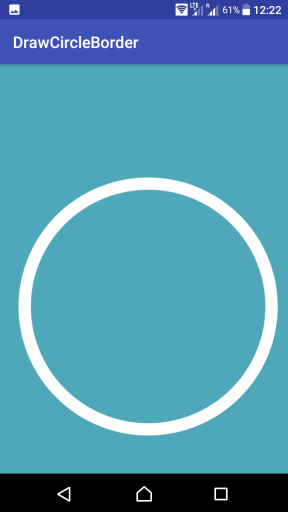
The following image shows the expected result: a white circle border drawn over a colored Canvas.
Example: Draw a Circle Border in a Kotlin Android Activity
Create an Android application with an Empty Activity, and then replace the contents of the layout and activity files with the following code. This is a legacy View-based example that draws onto a Bitmap and displays the result through an ImageView.
activity_main.xml
<?xml version="1.0" encoding="utf-8"?>
<android.support.constraint.ConstraintLayout xmlns:android="http://schemas.android.com/apk/res/android"
    xmlns:tools="http://schemas.android.com/tools"
    android:layout_width="match_parent"
    android:layout_height="match_parent"
    tools:context=".MainActivity">

    <ImageView
        android:id="@+id/imageV"
        android:layout_width="match_parent"
        android:layout_height="match_parent"/>

</android.support.constraint.ConstraintLayout>
MainActivity.kt
package com.tutorialkart.drawshapeoncanvas

import android.graphics.Canvas
import android.graphics.Color
import android.support.v7.app.AppCompatActivity
import android.os.Bundle
import kotlinx.android.synthetic.main.activity_main.*
import android.graphics.Bitmap
import android.graphics.Paint
import android.graphics.drawable.BitmapDrawable
import android.util.DisplayMetrics


class MainActivity : AppCompatActivity() {

    override fun onCreate(savedInstanceState: Bundle?) {
        super.onCreate(savedInstanceState)
        setContentView(R.layout.activity_main)

        val bitmap = Bitmap.createBitmap(700, 1000, Bitmap.Config.ARGB_4444)
        val canvas = Canvas(bitmap)

        // canvas background color
        canvas.drawARGB(255, 78, 168, 186);

        var paint = Paint()
        paint.setColor(Color.parseColor("#FFFFFF"))
        paint.setStrokeWidth(30F)
        paint.setStyle(Paint.Style.STROKE)
        paint.setAntiAlias(true)
        paint.setDither(true)

        // get device dimensions
        val displayMetrics = DisplayMetrics()
        windowManager.defaultDisplay.getMetrics(displayMetrics)
        // circle center
        System.out.println("Width : "+displayMetrics.widthPixels)
        var center_x = (displayMetrics.widthPixels/2).toFloat()
        var center_y = (displayMetrics.heightPixels/2).toFloat()
        var radius = 300F

        // draw circle
        canvas.drawCircle(center_x, center_y, radius, paint)
        // now bitmap holds the updated pixels

        // set bitmap as background to ImageView
        imageV.background = BitmapDrawable(getResources(), bitmap)
    }
}
Run the application on an Android device or emulator. The configured Paint object causes the Canvas to draw the circle as a white outline with a stroke width of 30 pixels.
Important Sizing Detail for Canvas Circle Borders
A stroke is centered on the circle’s geometric path. For example, a 30-pixel stroke extends approximately 15 pixels inside the specified radius and 15 pixels outside it. If the circle is positioned close to a Canvas edge, part of the border can be clipped.
Keep the center at least radius + strokeWidth / 2 away from each relevant edge. When drawing into a bitmap, calculate the center from the bitmap dimensions rather than unrelated screen dimensions:
val centerX = bitmap.width / 2f
val centerY = bitmap.height / 2f
val strokeWidth = 30f
val radius = minOf(bitmap.width, bitmap.height) / 2f - strokeWidth / 2f

paint.style = Paint.Style.STROKE
paint.strokeWidth = strokeWidth
canvas.drawCircle(centerX, centerY, radius, paint)
This calculation keeps the complete circle border within the bitmap. The original example uses a fixed-size bitmap but derives its center from display dimensions, so the result may be clipped or displaced on devices whose display size differs from the bitmap size.
Using Density-Independent Border Widths
The Android graphics Canvas API uses pixels. If a border should have a similar physical appearance across screens with different densities, convert a density-independent value to pixels before assigning it to strokeWidth.
val borderWidthDp = 4f
val borderWidthPx = borderWidthDp * resources.displayMetrics.density
paint.strokeWidth = borderWidthPx
Draw a Circle Border with Jetpack Compose Canvas
In Jetpack Compose, use the Compose Canvas composable and pass a Stroke as the drawing style. Values expressed with dp must be converted to pixels inside the drawing scope.
import androidx.compose.foundation.Canvas
import androidx.compose.foundation.layout.size
import androidx.compose.runtime.Composable
import androidx.compose.ui.Modifier
import androidx.compose.ui.geometry.Offset
import androidx.compose.ui.graphics.Color
import androidx.compose.ui.graphics.drawscope.Stroke
import androidx.compose.ui.unit.dp

@Composable
fun CircleBorder() {
    Canvas(modifier = Modifier.size(240.dp)) {
        val borderWidth = 6.dp.toPx()
        val radius = size.minDimension / 2f - borderWidth / 2f

        drawCircle(
            color = Color.Blue,
            radius = radius,
            center = Offset(size.width / 2f, size.height / 2f),
            style = Stroke(width = borderWidth)
        )
    }
}
Subtracting half the border width from the radius keeps the entire stroke inside the Compose Canvas.
Common Circle Border Rendering Problems
- The circle appears filled: Verify that the paint style is
Paint.Style.STROKE, notPaint.Style.FILL. - The border is cut off: Reduce the radius or move the center inward by at least half the stroke width.
- The circle looks jagged: Enable anti-aliasing by using
Paint(Paint.ANTI_ALIAS_FLAG)or callingsetAntiAlias(true). - The circle is off-center: Calculate its coordinates from the dimensions of the Canvas or bitmap being drawn.
- The border thickness varies visually between devices: Convert the desired width from
dpto pixels.
Circle Border Implementation Checklist
- Confirm that the paint or drawing style is configured for a stroke.
- Check that the center coordinates use the actual Canvas dimensions.
- Leave room for half the stroke width outside the circle path.
- Convert density-independent measurements when using the graphics Canvas API.
- Test the drawing at more than one screen size and density.
- Use anti-aliasing for a smooth circular edge.
Android Circle Border FAQs
How do I draw only the border of a circle on Android Canvas?
Set the Paint style to Paint.Style.STROKE, specify its color and stroke width, and pass it to Canvas.drawCircle().
How do I change the thickness of an Android circle border?
Assign the required pixel value to paint.strokeWidth. For consistent sizing across screen densities, convert the desired value from dp to pixels first.
Why is part of my Canvas circle border clipped?
The stroke extends on both sides of the circle path. If the radius reaches the Canvas boundary, the outer half of the stroke lies outside the drawable area. Reduce the radius by at least half the stroke width.
How is a circle border drawn in Jetpack Compose?
Call drawCircle() inside a Compose Canvas and set its style parameter to Stroke(width = ...). Convert a width declared in dp by calling toPx() inside the drawing scope.
Summary of Drawing a Circle Outline on Android
In this Kotlin Android Tutorial, we used Paint.Style.STROKE with Canvas.drawCircle() to draw a circle border. We also covered stroke clipping, density-aware border widths, bitmap-based positioning, and the corresponding Jetpack Compose Canvas approach.