 TutorialKart.com
Get Screen Width and Height in Kotlin Android
Android applications can read the dimensions of the window in which an Activity is displayed. The appropriate API depends on whether the application needs the current app-window size, the usable content area after system-bar insets, or the physical display size.
On Android 11 and later, WindowMetrics is the preferred API for obtaining the current window bounds. Older applications commonly use DisplayMetrics through WindowManager.defaultDisplay, as demonstrated in the original example on this page.
Screen Size, Window Size, and Usable Content Area
These measurements are related, but they are not always identical:
- Window size: The bounds allocated to the application window. In split-screen, freeform, or foldable layouts, this can be smaller than the physical display.
- Usable content area: The part of the window left after accounting for system UI such as status bars, navigation bars, and display cutouts.
- Physical display size: The dimensions of the complete device display. This is usually not the correct value for sizing an Activity’s UI.
For responsive interfaces, prefer the current window or the measured size of the relevant view instead of assuming that the Activity always occupies the complete display.
Get Current Window Width and Height on Android 11 or Later
For API level 30 and later, read currentWindowMetrics.bounds. The returned width and height are measured in pixels.
val bounds = windowManager.currentWindowMetrics.bounds
val widthPixels = bounds.width()
val heightPixels = bounds.height()
The bounds describe the current application window. They respond more appropriately than physical display measurements when the Activity runs in multi-window mode.
Get the Usable Android Window Size Excluding System Bars
The current window bounds can include areas occupied by system bars and display cutouts. If the required result is the usable area, obtain the relevant insets and subtract them from the bounds.
import android.os.Build
import android.view.WindowInsets

if (Build.VERSION.SDK_INT >= Build.VERSION_CODES.R) {
    val windowMetrics = windowManager.currentWindowMetrics
    val bounds = windowMetrics.bounds
    val insets = windowMetrics.windowInsets.getInsetsIgnoringVisibility(
        WindowInsets.Type.systemBars() or WindowInsets.Type.displayCutout()
    )

    val usableWidth = bounds.width() - insets.left - insets.right
    val usableHeight = bounds.height() - insets.top - insets.bottom
}
Whether system-bar insets should be subtracted depends on the layout. An edge-to-edge application may intentionally draw behind the bars and handle insets at the view or composable level.
Legacy Steps to Get Android Width and Height with DisplayMetrics
The original example uses the older DisplayMetrics approach. Its steps are:
- Create a
DisplayMetricsobject. - Pass that object to the display’s
getMetrics()method. - Read the width from
displayMetrics.widthPixels. - Read the height from
displayMetrics.heightPixels.
This approach appears in older Android projects. Access through defaultDisplay is deprecated on newer Android versions, so new applications should use window metrics where available.
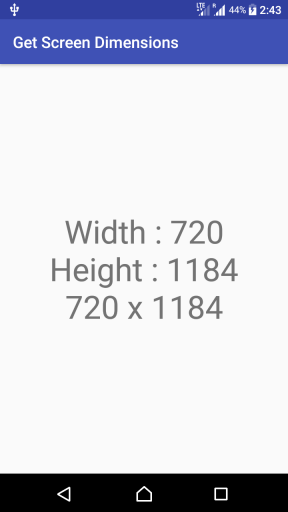
The following screenshot shows the width and height obtained programmatically and displayed in a TextView.
DisplayMetrics Code for Android Screen Width and Height
The following legacy snippet obtains the display dimensions in pixels:
val displayMetrics = DisplayMetrics()
windowManager.defaultDisplay.getMetrics(displayMetrics)

var width = displayMetrics.widthPixels
var height = displayMetrics.heightPixels
Kotlin Android Example Using DisplayMetrics and TextView
In the following example, the Activity obtains the display width and height and shows the result in a TextView. This code reflects older Android Support Library and Kotlin synthetic-view-access patterns.
activity_main.xml
<?xml version="1.0" encoding="utf-8"?>
<android.support.constraint.ConstraintLayout xmlns:android="http://schemas.android.com/apk/res/android"
    xmlns:tools="http://schemas.android.com/tools"
    android:layout_width="match_parent"
    android:layout_height="match_parent"
    tools:context=".MainActivity">

    <TextView
        android:id="@+id/textV"
        android:textSize="30px"
        android:layout_width="match_parent"
        android:layout_height="match_parent"/>

</android.support.constraint.ConstraintLayout>
MainActivity.kt
package com.tutorialkart.drawshapeoncanvas

import android.support.v7.app.AppCompatActivity
import android.os.Bundle
import kotlinx.android.synthetic.main.activity_main.*
import android.util.DisplayMetrics


class MainActivity : AppCompatActivity() {

    override fun onCreate(savedInstanceState: Bundle?) {
        super.onCreate(savedInstanceState)
        setContentView(R.layout.activity_main)

        // get device dimensions
        val displayMetrics = DisplayMetrics()
        windowManager.defaultDisplay.getMetrics(displayMetrics)

        var width = displayMetrics.widthPixels
        var height = displayMetrics.heightPixels

        textV.text = width.toString() + " x " +height.toString()
    }
}
When the Activity runs, the TextView displays the width followed by the height, such as 1080 x 1920. The actual result depends on the device, orientation, window mode, and API used.
Convert Android Window Dimensions from Pixels to dp
Screen and window APIs normally return pixels. Android layouts commonly use density-independent pixels, or dp. Divide the pixel measurement by the display density to convert it to dp.
val density = resources.displayMetrics.density
val widthDp = widthPixels / density
val heightDp = heightPixels / density
Do not treat a pixel value as a dp value. Two devices can report different pixel dimensions while providing a similar amount of layout space in density-independent units.
Measure the Available Size of a Specific Android View
If the purpose is to size or position content inside a particular view, measuring that view is usually more accurate than reading the complete window. View dimensions are available after the layout pass.
myView.doOnLayout { view ->
    val viewWidth = view.width
    val viewHeight = view.height
}
This approach accounts for the actual space assigned by the parent layout, including constraints, padding, sibling views, and window configuration.
Read the Available Size in Jetpack Compose
In Jetpack Compose, prefer layout-aware APIs when a composable needs to respond to its available space. BoxWithConstraints exposes the maximum width and height in dp.
import androidx.compose.foundation.layout.BoxWithConstraints
import androidx.compose.material3.Text
import androidx.compose.runtime.Composable

@Composable
fun AvailableSize() {
    BoxWithConstraints {
        Text(text = "$maxWidth x $maxHeight")
    }
}
This reports the constraints supplied to the composable rather than assuming that it occupies the entire device display.
Handle Android Screen Size Changes Correctly
Window dimensions can change while an application is running. Common causes include device rotation, split-screen resizing, freeform windows, folding and unfolding a device, and showing the application on another display.
- Do not store the initial dimensions as permanent device properties.
- Read or observe the current dimensions when the layout depends on them.
- Use responsive layouts instead of selecting positions from a single fixed screen size.
- Measure the target view or composable when only a local content area matters.
- Account for system-bar and cutout insets when calculating usable space.
Android Screen Dimension Editorial QA Checklist
- Identify whether the example measures the app window, usable content area, physical display, or a specific view.
- State that returned window and display measurements are in pixels.
- Use
WindowMetricsfor current Android examples and labeldefaultDisplaycode as legacy. - Check the result in portrait, landscape, and multi-window modes.
- Verify whether system bars and display cutouts must be included or excluded.
- Avoid using one startup measurement as a permanent value when the window can resize.
Kotlin Android Screen Width and Height FAQs
What is the recommended way to get window width and height on modern Android?
On Android 11 and later, use windowManager.currentWindowMetrics.bounds. Its width() and height() methods return the current application-window dimensions in pixels.
Why is windowManager.defaultDisplay deprecated?
The older display API is based on display-level assumptions that do not represent resizable application windows as well as WindowMetrics. Modern Android applications can run in split-screen, freeform, foldable, and other window configurations.
Does Android return screen dimensions in pixels or dp?
DisplayMetrics and WindowMetrics dimensions are expressed in pixels. Divide a pixel value by resources.displayMetrics.density when a density-independent value is required.
Do current window bounds exclude the status and navigation bars?
Not necessarily. The bounds describe the window, while WindowInsets describes areas occupied by system UI and cutouts. Subtract the appropriate insets only when the calculation requires a content area that excludes them.
Should an Android layout use the physical screen size?
Usually not. A responsive layout should use its current window constraints or the measured size of the relevant view or composable. This works better when the window is resized or does not occupy the complete display.
Summary of Android Window Dimension APIs
In this Kotlin Android Tutorial, we obtained Android width and height using the legacy DisplayMetrics approach and the modern WindowMetrics API. For layout decisions, use the current window, its insets, or the measured size of the relevant view instead of assuming that the application always occupies the physical display.