 TutorialKart.com
In our previous tutorial, we learned how to create a new Android application with Kotlin support. In this Android Tutorial, we shall learn how to convert Java files in an Android application to Kotlin files or classes using Android Studio.
Android projects can contain both Java and Kotlin source files, so you do not have to convert the entire application in one attempt. A safer approach is to convert one activity, fragment, utility class, or model class at a time, run the app, and then review the converted Kotlin code for nullability, imports, Android lifecycle methods, and Java interoperability.
Quick information: Existing Java classes can be converted to Kotlin classes from Android Studio by opening the Java file and choosing the following menu option.
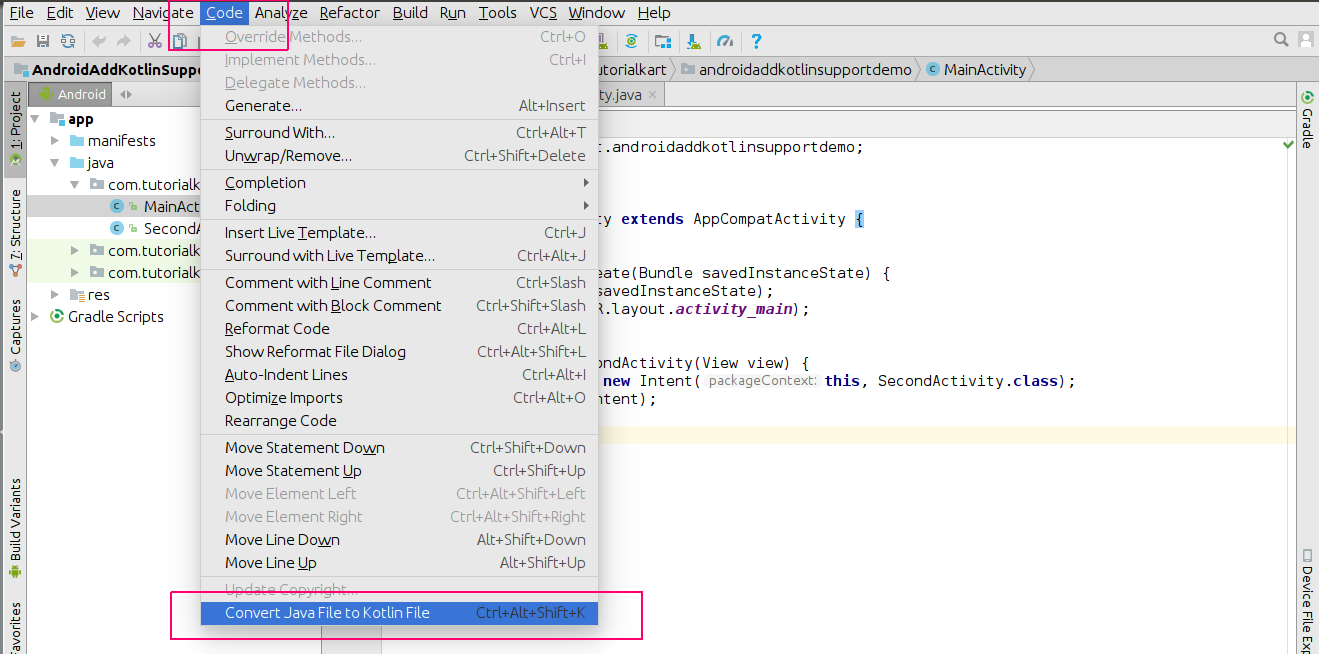
(Studio’s Menu Bar) Code -> Convert Java File to Kotlin File |
What Android Studio changes when Java files are converted to Kotlin
When Android Studio converts a Java file to Kotlin, it rewrites the syntax of the selected file and saves it with a .kt extension. The converter usually handles common Java patterns such as class declarations, method overrides, listeners, getters and setters, imports, and basic nullability. The conversion is useful, but it is not a replacement for code review. After conversion, read the Kotlin file and confirm that the app behavior is the same.
- Java classes become Kotlin classes with Kotlin property and function syntax.
- Java methods become Kotlin functions, often with shorter syntax.
- Nullability may need review because Java types do not always express whether a value can be null.
- Android lifecycle methods remain the same in purpose, but they use Kotlin override syntax.
- Java and Kotlin can remain side by side while you migrate the app gradually.
Before converting Java files in an Android project to Kotlin
Prepare the project before using the Java-to-Kotlin converter. This reduces build errors after conversion and makes it easier to identify the source of a problem.
- Open the project in a recent Android Studio version.
- Make sure the Java version of the app builds and runs before conversion.
- Commit or back up the project so that converted files can be compared with the Java files.
- Convert a small group of files first instead of converting the entire app at once.
- Check whether the project uses annotation processors, generated code, or Java frameworks that may need extra Kotlin configuration.
- Run unit tests, instrumentation tests, or at least the main app flow after each conversion step.
Java Activity code and Kotlin Activity code after conversion
The following small example shows the type of syntax change you can expect when an Android Activity is converted from Java to Kotlin.
public class MainActivity extends AppCompatActivity {
    @Override
    protected void onCreate(Bundle savedInstanceState) {
        super.onCreate(savedInstanceState);
        setContentView(R.layout.activity_main);
    }
}class MainActivity : AppCompatActivity() {
override fun onCreate(savedInstanceState: Bundle?) {
super.onCreate(savedInstanceState)
setContentView(R.layout.activity_main)
}
}Notice that Kotlin uses : for inheritance, fun for functions, and Bundle? to show that the saved instance state can be null. This is why converted Kotlin files should be reviewed instead of accepted blindly.
Convert Java files in Android Application to Kotlin files or classes
Now, we shall see a step by step process of how to convert Java files in Android Application to Kotlin files and run the application on an Android phone.
Step 1: Open the existing Java Android Studio project
Start Android Studio and click on “Open an existing Android Studio project”. Browse to the project folder and open the Android application that currently contains Java files.
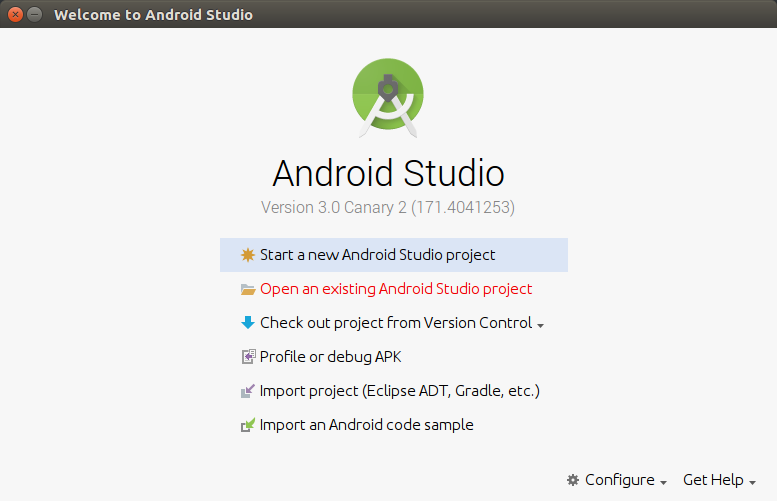
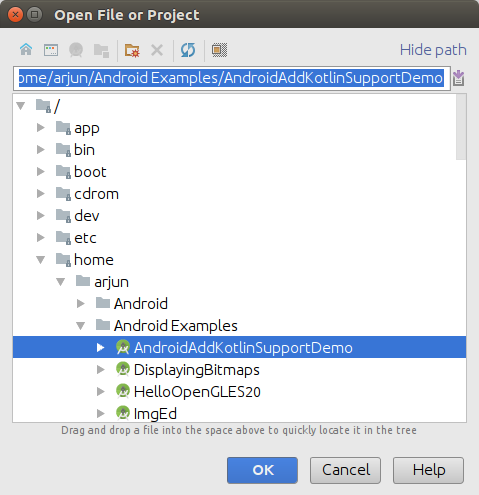
In this already existing Android Studio project, we have two activities namely “MainActivity.java” and “SecondActivity.java”
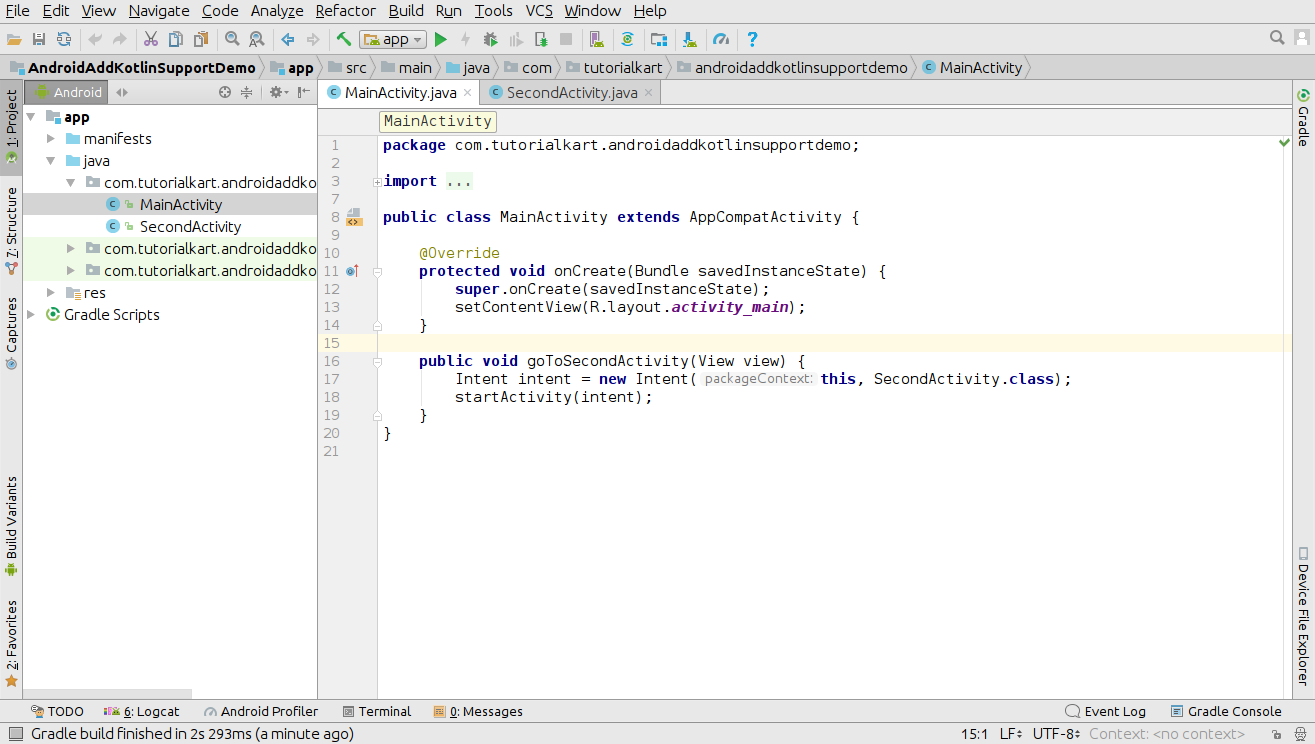
Step 2: Use Android Studio Code menu to convert Java file to Kotlin file
Open MainActivity.java. Click on Code in the menu bar, and then click Convert Java File to Kotlin File. Android Studio converts the selected Java file into a Kotlin file and changes the extension from .java to .kt.
Repeat the same process for each Java class in your Android project that you want to convert to Kotlin. For a real application, convert related files in small batches and test the app after each batch.
Step 3: Configure Kotlin in the Android project when prompted
If Android Studio displays a message such as “Kotlin not configured”, click the Configure link shown in the message. Keep the suitable default options in the “Configure Kotlin in Project” dialog box and click OK.
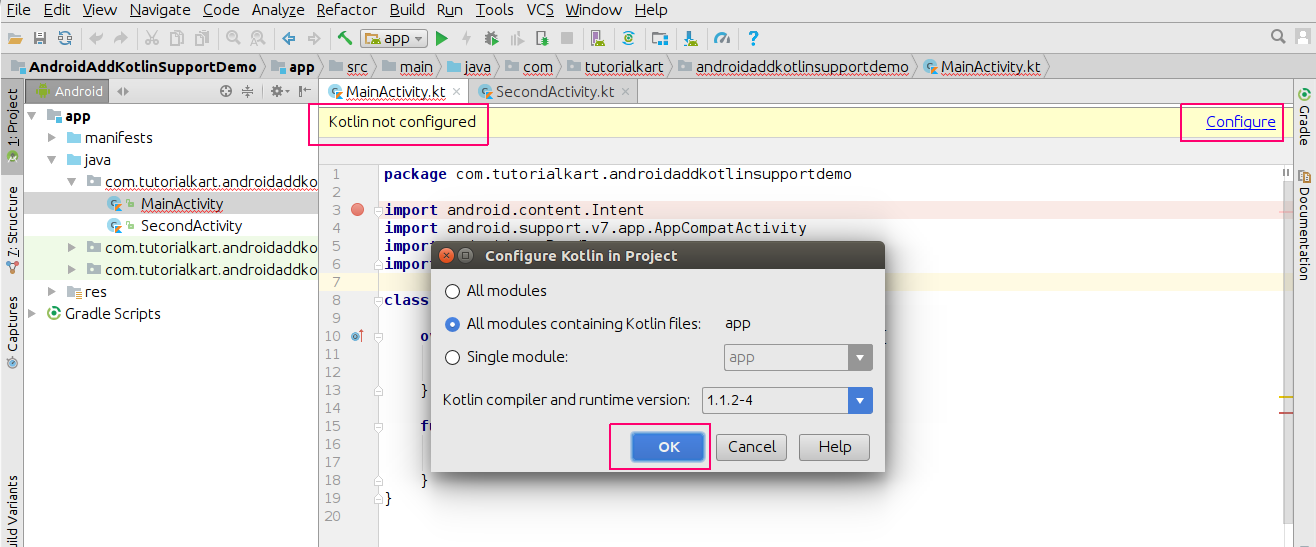
If Gradle Sync is required, proceed with the sync.
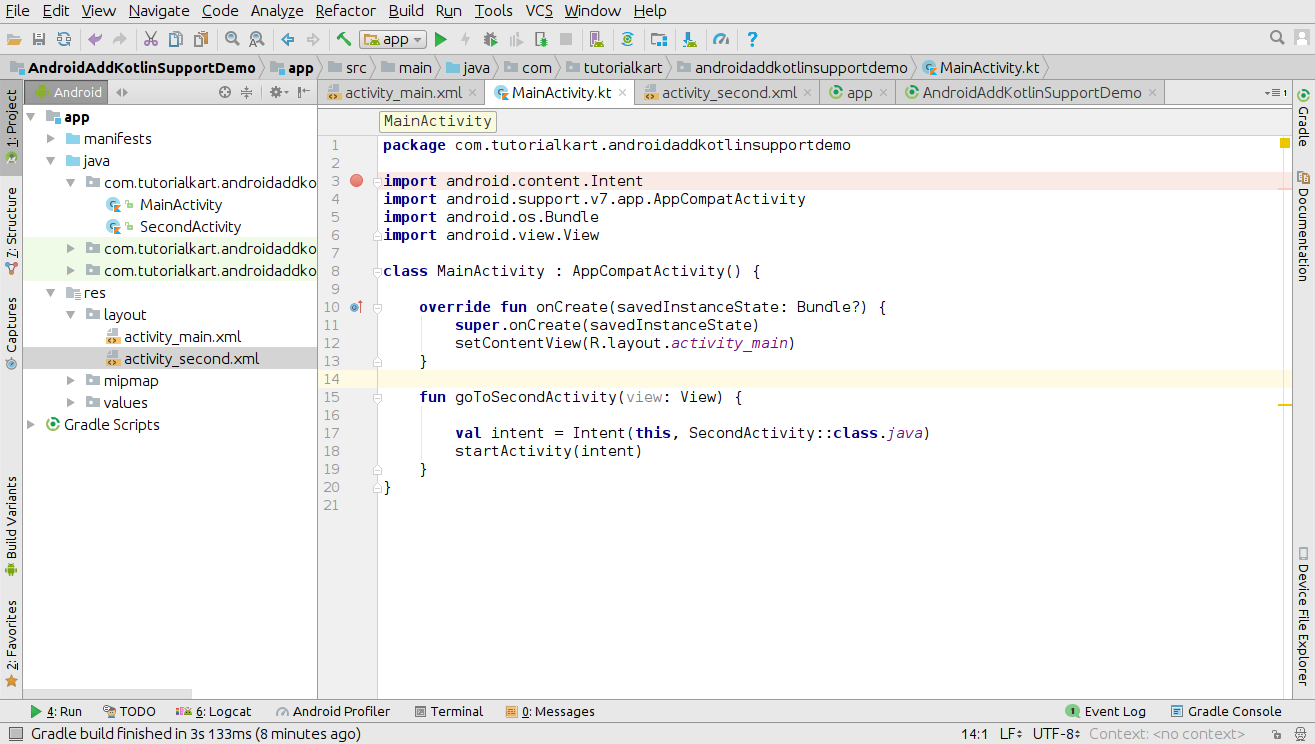
Once the Gradle sync is done, the project should be without any errors as shown below.
Step 4: Run the Kotlin-converted Android application
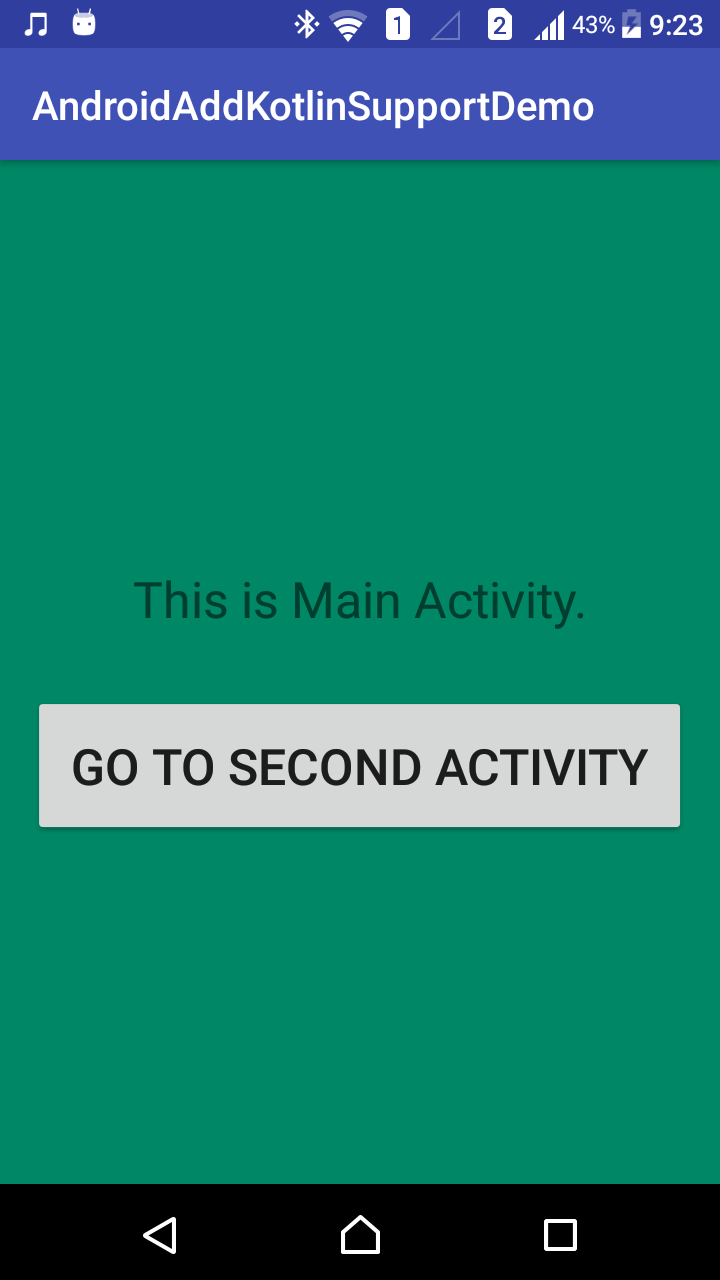
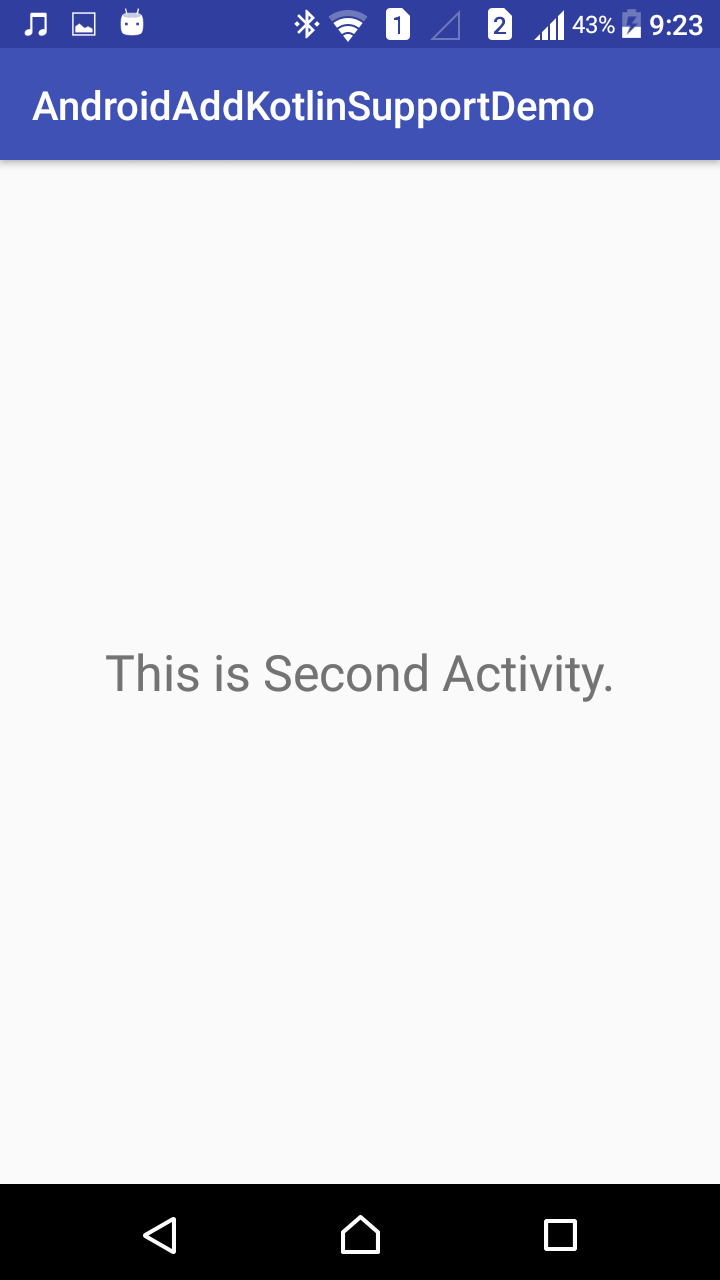
Run the application on an emulator or Android phone. Check the screens, button clicks, activity navigation, permissions, and any app-specific flows that were handled by the converted Java classes.
Review converted Kotlin files before continuing the Android migration
After Android Studio converts Java files to Kotlin files, check the converted code manually. The app may compile, but converted code can still contain Java-like patterns that are not ideal Kotlin or that need small corrections.
| Converted Kotlin area | What to check in the Android project |
|---|---|
| Nullability | Review nullable types marked with ? and confirm whether each value can really be null. |
| Activity and Fragment methods | Confirm lifecycle overrides such as onCreate, onStart, onResume, and click handlers. |
| Imports | Remove unused imports and check that Android framework and AndroidX imports are correct. |
| Static Java members | Review converted companion objects and constants if the Java class used static members. |
| Listeners and callbacks | Check lambda conversions for click listeners, adapters, and asynchronous callbacks. |
| Generated code or annotation processing | Confirm that libraries using annotation processors still work after Kotlin is added to the module. |
Gradual Java to Kotlin migration plan for Android apps
For small sample apps, converting all Java files may be simple. For larger Android applications, a gradual migration is usually easier to maintain because Java and Kotlin can call each other in the same project.
- Start with simple model classes, helper classes, or isolated activities.
- Convert one feature area at a time, not unrelated files from many packages.
- Keep Java files that are risky or heavily connected until their dependencies are clear.
- Use Kotlin style improvements after the file is working, instead of changing logic during the first conversion.
- Run the app and tests after each conversion batch.
- Review Java callers if a converted Kotlin API is still used from Java code.
Common errors after converting Android Java files to Kotlin
- Kotlin is not configured: Configure Kotlin in the module and run Gradle sync.
- Unresolved reference errors: Check imports, package names, generated binding classes, and library configuration.
- NullPointerException after conversion: Review nullable and non-null types in the converted Kotlin code.
- Java code cannot call a converted Kotlin member: Review companion objects, top-level functions, properties, and generated JVM names.
- Build errors with annotation processing: Check whether the project needs Kotlin annotation processing configuration for the libraries in use.
- App behavior changes after conversion: Compare the converted Kotlin logic with the original Java logic and test the affected screens again.
Official Android and Kotlin references for Java to Kotlin conversion
For current Android Studio guidance, refer to the official Android and Kotlin documentation while updating project configuration or reviewing Java-Kotlin interoperability.
- Android Developers: Add Kotlin to an existing app
- Android Developers: Kotlin on Android FAQ
- Android Developers: Kotlin-Java interop guide
- Kotlin documentation: Adding Kotlin to a Java project
QA checklist for this Android Java to Kotlin conversion tutorial
- The Android Studio menu path for converting a Java file to Kotlin is clearly shown.
- The tutorial explains that Java and Kotlin files can coexist in the same Android project.
- The steps include Kotlin configuration and Gradle sync after conversion.
- The tutorial tells readers to review converted Kotlin code instead of assuming it is perfect.
- The Java and Kotlin examples use correct PrismJS language classes.
- The troubleshooting section covers nullability, imports, Java interoperability, and annotation processing.
- The existing screenshots and original TutorialKart links are kept unchanged.
FAQ on converting Java files to Kotlin in Android Studio
How do I convert a Java file to Kotlin in Android Studio?
Open the Java file in Android Studio and choose Code > Convert Java File to Kotlin File. Android Studio creates a Kotlin version of the selected file and changes the file extension to .kt.
Can an Android app contain both Java and Kotlin files?
Yes. Android projects can contain Java and Kotlin files together. This allows you to migrate an existing Android app gradually instead of converting the whole project at once.
Should I convert every Java class in an Android app at the same time?
For small sample projects, converting all files may be manageable. For larger apps, convert files in small batches and test after each batch. This makes errors easier to find and fix.
What should I check after Android Studio converts Java code to Kotlin?
Check nullability, imports, lifecycle methods, callbacks, companion objects, generated code, and Java callers. Also run the app and tests to confirm that the converted Kotlin code behaves like the original Java code.
Does converting Java to Kotlin change the Android app UI automatically?
No. The conversion changes the source code syntax from Java to Kotlin. The app UI should remain the same unless the converted logic changes behavior or a conversion issue causes a build or runtime problem.
Final check after converting Java activities to Kotlin classes
We have learned how to convert Java files of an Android Studio project to Kotlin files and confirmed the working of the old Android application with the new Kotlin files on an Android phone. After conversion, keep reviewing the generated Kotlin code, run the application, and migrate the remaining Java files in controlled steps. In our next tutorial, we shall see the differences between Kotlin and Java.