 TutorialKart.com
Create TextView Programmatically in Kotlin Android
In Android, a TextView can be declared in an XML layout file or created from Kotlin code at runtime. Creating a TextView programmatically is useful when the number of text items is not fixed, when content comes from user input or an API response, or when you want to add a view only after a certain action.
In this tutorial, we will learn how to create a TextView programmatically in Android using Kotlin and add that TextView to a LinearLayout already present in the layout file.
Kotlin Code to Create a TextView Programmatically
A quick snippet of code to create a new TextView programmatically in Kotlin Android
val tv_dynamic = TextView(this)
tv_dynamic.textSize = 20f
tv_dynamic.text = "This is a dynamic TextView generated programmatically in Kotlin"
The TextView(this) call uses the current Activity as the context. After creating the TextView, you can set properties such as text, text size, padding, text color, layout parameters, gravity, and background. The view becomes visible on the screen only after it is added to a parent layout such as LinearLayout, FrameLayout, or ConstraintLayout.
Create, add, and update Android views on the main UI thread. If you receive data on a background thread, switch back to the main thread before adding the new TextView to the layout.
Android Example – Create TextView Programmatically and Add It to LinearLayout
In this example, we shall present you the layout XML file and Activity Kotlin file on how to create a TextView programmatically and add the TextView to a LinearLayout in Kotlin Android.
activity_main.xml: Following is the activity_main.xml containing the TextView with the text “This is a textview generated from xml”.
<?xml version="1.0" encoding="utf-8"?>
<android.support.constraint.ConstraintLayout xmlns:android="http://schemas.android.com/apk/res/android"
    xmlns:app="http://schemas.android.com/apk/res-auto"
    xmlns:tools="http://schemas.android.com/tools"
    android:layout_width="match_parent"
    android:layout_height="match_parent"
    tools:context="com.tutorialkart.myapplication.MainActivity">
    <LinearLayout
        android:id="@+id/ll_main_layout"
        android:layout_width="match_parent"
        android:layout_height="wrap_content"
        android:orientation="vertical">
        <TextView
            android:layout_width="wrap_content"
            android:layout_height="wrap_content"
            android:textSize="20sp"
            android:padding="20sp"
            android:text="This is a textview generated from xml"/>
    </LinearLayout>
</android.support.constraint.ConstraintLayout>MainActivity.kt: Create a new TextView with the text “This is a dynamic TextView generated programmatically in Kotlin” and add it to the LinearLayout. This addition makes the dynamically created TextView to be appended at the end of all child views present in the LinearLayout.
package com.tutorialkart.textviewexample
import android.support.v7.app.AppCompatActivity
import android.os.Bundle
import android.widget.TextView
import kotlinx.android.synthetic.main.activity_main.*
class MainActivity : AppCompatActivity() {
    override fun onCreate(savedInstanceState: Bundle?) {
        super.onCreate(savedInstanceState)
        setContentView(R.layout.activity_main)
        // creating TextView programmatically
        val tv_dynamic = TextView(this)
        tv_dynamic.textSize = 20f
        tv_dynamic.text = "This is a dynamic TextView generated programmatically in Kotlin"

        // add TextView to LinearLayout
        ll_main_layout.addView(tv_dynamic)
    }
}
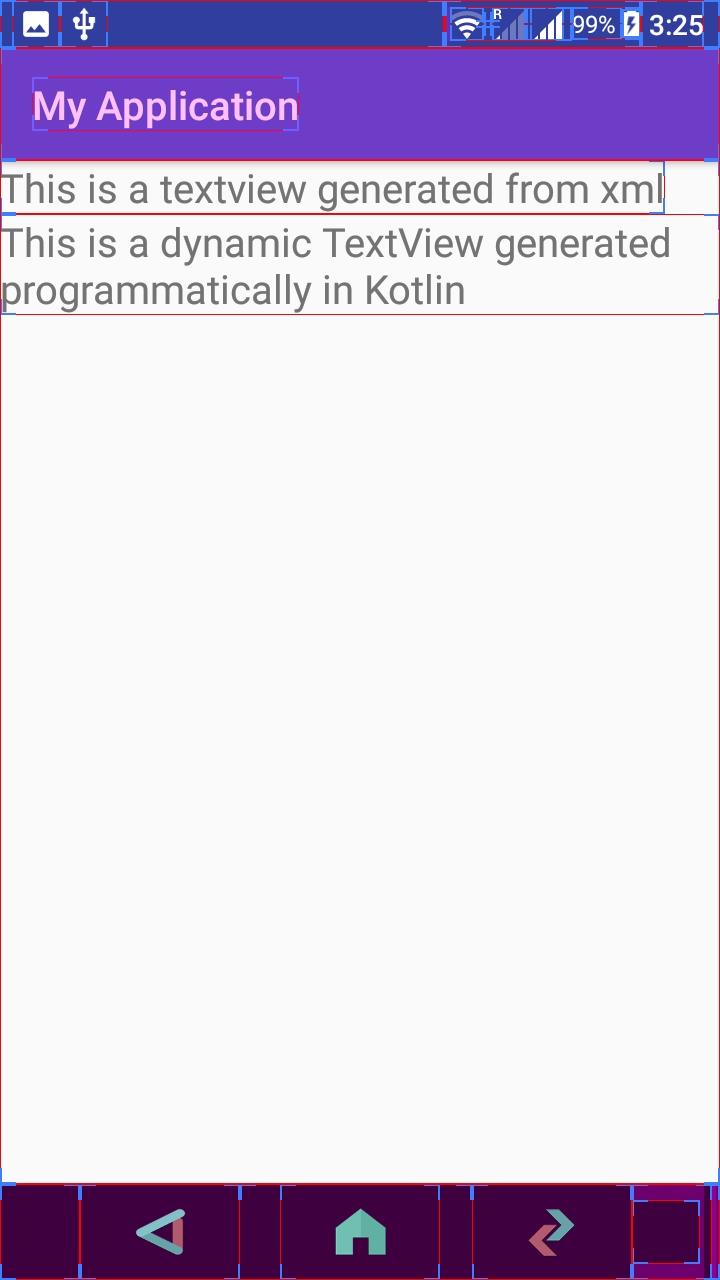
Following is the output with the programmatically created TextView.
Add TextView Below Another TextView in LinearLayout
In a vertical LinearLayout, each new child view is placed below the previous child view. Therefore, when you call ll_main_layout.addView(tv_dynamic), the dynamic TextView is added below the TextView already declared in XML.
If you want to add the new TextView at a specific position, pass the index as the second argument to addView().
// Add TextView at the beginning of the LinearLayout
ll_main_layout.addView(tv_dynamic, 0)

// Add TextView at the end of the LinearLayout
ll_main_layout.addView(tv_dynamic)
Set LayoutParams for a Dynamic TextView in Kotlin
When a TextView is created in XML, width and height are usually written using android:layout_width and android:layout_height. For a programmatically created TextView, set these values using LinearLayout.LayoutParams before adding the view to the parent layout.
val tvDynamic = TextView(this)
tvDynamic.text = "TextView with layout params"
tvDynamic.textSize = 18f

tvDynamic.layoutParams = LinearLayout.LayoutParams(
    LinearLayout.LayoutParams.MATCH_PARENT,
    LinearLayout.LayoutParams.WRAP_CONTENT
)

ll_main_layout.addView(tvDynamic)
Use MATCH_PARENT when the TextView should take the available width of its parent. Use WRAP_CONTENT when the TextView should only take the space required by its content.
Set TextView Padding, Text Color, and Gravity Programmatically
You can style a dynamic TextView from Kotlin in the same way you set its text. The following example sets padding, text color, and gravity before adding the TextView to the LinearLayout.
val tvStyled = TextView(this)
tvStyled.text = "Styled TextView created in Kotlin"
tvStyled.textSize = 18f
tvStyled.setPadding(24, 16, 24, 16)
tvStyled.gravity = Gravity.CENTER
tvStyled.setTextColor(Color.BLACK)

ll_main_layout.addView(tvStyled)
For simple examples, raw pixel values are easy to read. In production code, consider converting dp values to pixels before passing values to setPadding(), because setPadding() expects pixel values.
val paddingInDp = 16
val paddingInPx = (paddingInDp * resources.displayMetrics.density).toInt()
tvStyled.setPadding(paddingInPx, paddingInPx, paddingInPx, paddingInPx)
Create Multiple TextViews Dynamically in Kotlin
If you have a list of values, you can create one TextView for each value and add each TextView to the same LinearLayout. This is useful for small dynamic lists. For large lists, use RecyclerView instead of adding many views manually.
val names = listOf("Apple", "Banana", "Cherry")

for (name in names) {
    val textView = TextView(this)
    textView.text = name
    textView.textSize = 18f
    ll_main_layout.addView(textView)
}
Use findViewById to Access LinearLayout in Kotlin
The example above uses Kotlin synthetic view access. In many current Android projects, you may use View Binding or findViewById instead. The following example shows the same idea using findViewById.
val mainLayout = findViewById<LinearLayout>(R.id.ll_main_layout)

val textView = TextView(this)
textView.text = "TextView added using findViewById"
textView.textSize = 20f

mainLayout.addView(textView)
This approach makes it clear that ll_main_layout is the parent layout into which the new TextView is inserted.
Common Mistakes When Creating TextView Programmatically
- Creating the TextView but not adding it to a parent: A TextView appears on the screen only after it is added using
addView(). - Using the wrong parent LayoutParams: Use
LinearLayout.LayoutParamsfor a TextView added to a LinearLayout. Use the matching parent layout params for other parent layouts. - Updating views from a background thread: Add or update views on the main UI thread.
- Using too many dynamic TextViews for long lists: Use
RecyclerViewwhen the list can grow large. - Confusing sp, dp, and pixels: Text size is usually set in sp, while padding and margins are usually handled in dp and converted to pixels in code.
QA Checklist for Dynamic TextView Tutorial Code
- The layout contains a parent view, such as
LinearLayout, with a valid id. - The TextView is created with an Activity or valid UI context.
- The TextView text, text size, and layout parameters are set before or soon after adding it to the parent.
- The
addView()call is made on the correct parent layout. - The code runs on the main UI thread when adding or updating the TextView.
- For many dynamic text rows,
RecyclerViewhas been considered instead of repeatedly adding TextViews.
FAQs on Creating TextView Programmatically in Kotlin Android
How do I create a TextView programmatically in Kotlin?
Create an instance using TextView(this), set properties such as text and textSize, and then add it to a parent layout using addView().
Why is my dynamic TextView not visible in Android?
The most common reason is that the TextView was created but not added to a visible parent layout. Also check layout width, height, text color, parent visibility, and whether the code runs after setContentView().
How do I add a TextView below another TextView dynamically?
Use a vertical LinearLayout and call addView() on that LinearLayout. The new TextView is appended below the existing child views by default.
Can I set TextView width and height from Kotlin code?
Yes. Assign suitable layout parameters, such as LinearLayout.LayoutParams, to the TextView before adding it to the parent layout.
Should I use dynamic TextViews for a large list of text items?
For a small number of items, dynamic TextViews are fine. For a large or scrollable list, use RecyclerView, because it is designed to handle repeated list rows efficiently.
Create TextView Programmatically in Kotlin Android – Summary
In this Kotlin Android Tutorial, we have learned to create TextView programmatically and add it to layout. The key steps are to create a TextView with a valid context, set the required properties, and add it to a parent layout such as LinearLayout using addView().