 TutorialKart.com
Kotlin Android – Refresh ListView
Android ListView displays data supplied by an adapter as a vertically scrollable list. When the underlying data changes, the visible rows must be updated to reflect the current values.
In this tutorial, we shall learn how to refresh a ListView in a Kotlin Android application. The example changes values in the ListView data source and then calls notifyDataSetChanged() on the attached ArrayAdapter.
To refresh the ListView in Android, call notifyDataSetChanged() method on the Adapter that has been set with the ListView. Also note that the method notifyDataSetChanged() has to be called on UI thread. If by chance, it happens that you should call notifyDataSetChanged() method on non-UI thread, use runOnUiThread() method.
How notifyDataSetChanged Refreshes a ListView
Calling notifyDataSetChanged() tells the adapter’s registered observers that its data has changed. The ListView then requests updated row views from the adapter. The method does not download new data, change the collection, or create a new adapter; those operations remain the application’s responsibility.
- Change the collection or array used by the adapter.
- Call
notifyDataSetChanged()on that same adapter instance. - Make the adapter notification on the main UI thread.
- Let ListView redraw the rows that reflect the changed data.
If the application creates a new collection but the adapter still refers to the old collection, calling notifyDataSetChanged() will not display the new values. Update the adapter’s existing data, use its add(), remove(), or clear() methods, or create and assign a new adapter when the entire data source is replaced.
Example – Refresh Android ListView
In the following example, we have a ListView populated from a String Array. Two buttons : Change and Refresh ListView are provided. On clicking Change button, we are changing the data in the string array. On clicking the Refresh ListView button, we are calling the method notifyDataSetChanged() on the Adapter.
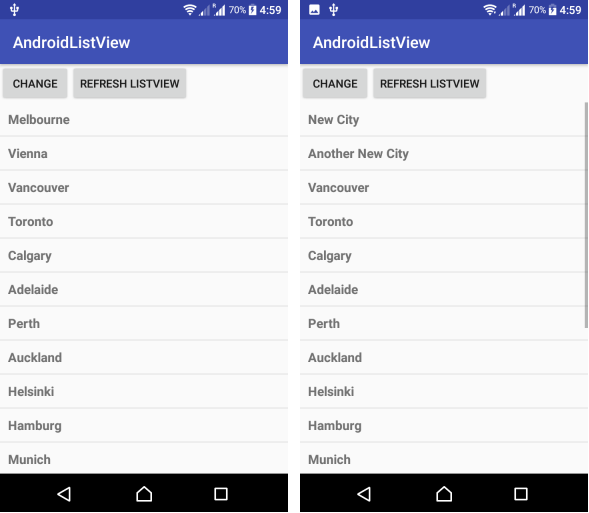
ListView and Refresh Buttons Layout
activity_main.xml
<?xml version="1.0" encoding="utf-8"?>
<LinearLayout xmlns:android="http://schemas.android.com/apk/res/android"
    xmlns:tools="http://schemas.android.com/tools"
    android:orientation="vertical"
    android:layout_width="match_parent"
    android:layout_height="match_parent"
    tools:context="com.tutorialkart.androidlistview.MainActivity">

    <LinearLayout
        android:orientation="horizontal"
        android:layout_width="match_parent"
        android:layout_height="wrap_content">
        <Button
            android:id="@+id/change"
            android:text="Change"
            android:layout_width="wrap_content"
            android:layout_height="wrap_content" />

        <Button
            android:id="@+id/refresh"
            android:text="Refresh ListView"
            android:layout_width="wrap_content"
            android:layout_height="wrap_content" />
    </LinearLayout>

    <ListView
        android:id="@+id/listview_1"
        android:layout_width="match_parent"
        android:layout_height="wrap_content" />

</LinearLayout>
TextView Layout for Each ListView Item
res/layout/listview_item.xml
Each item in the ListView is displayed as following TextView, with the specified width, height, padding, text size and text style.
<?xml version="1.0" encoding="utf-8"?>
<!-- Each List Item is displayed as TextView defined below -->

<TextView xmlns:android="http://schemas.android.com/apk/res/android"
    android:id="@+id/label"
    android:layout_width="fill_parent"
    android:layout_height="fill_parent"
    android:padding="10dip"
    android:textSize="16dip"
    android:textStyle="bold" >
</TextView>
Kotlin Activity for Changing and Refreshing ListView Data
MainActivity.kt
package com.tutorialkart.androidlistview

import android.support.v7.app.AppCompatActivity
import android.os.Bundle
import android.view.View
import android.widget.*
import android.widget.AdapterView.OnItemClickListener

class MainActivity : AppCompatActivity() {

    var array = arrayOf("Melbourne", "Vienna", "Vancouver", "Toronto", "Calgary",
            "Adelaide", "Perth", "Auckland", "Helsinki", "Hamburg", "Munich",
            "New York", "Sydney", "Paris", "Cape Town", "Barcelona", "London", "Bangkok")

    override fun onCreate(savedInstanceState: Bundle?) {
        super.onCreate(savedInstanceState)
        setContentView(R.layout.activity_main)

        val adapter = ArrayAdapter(this,
                R.layout.listview_item, array)

        val listView:ListView = findViewById(R.id.listview_1)
        listView.setAdapter(adapter)

        listView.onItemClickListener = object : OnItemClickListener {

            override fun onItemClick(parent: AdapterView<*>, view: View,
                            position: Int, id: Long) {

                // value of item that is clicked
                val itemValue = listView.getItemAtPosition(position) as String

                // Toast the values
                Toast.makeText(applicationContext,
                        "Position :$position\nItem Value : $itemValue", Toast.LENGTH_LONG)
                        .show()
            }
        }

        val change_btn = findViewById(R.id.change) as Button
        change_btn.setOnClickListener {
            // data in the source array has been changed
            array.set(0,"New City")
            array.set(1,"Another New City")
        }

        val btn_click_me = findViewById(R.id.refresh) as Button
        btn_click_me.setOnClickListener {
            // let the adapter know that data set has been changed
            // adapter will notify respective views and the views shall refresh
            adapter.notifyDataSetChanged()
        }

    }
}
The Change button modifies the first two elements of the array. The ListView may continue to show the previous values until Refresh ListView calls adapter.notifyDataSetChanged(). The click listener then reads values from the refreshed adapter.
The activity above uses the Android Support Library because it was written for an older Android project. Current Android Studio projects use AndroidX. The data-refresh sequence is unchanged: modify the adapter’s data and notify the adapter on the main thread.
Refresh an AndroidX ListView with a MutableList
A mutable list is convenient when items must be added, removed, or replaced while the screen is open. The following current Kotlin example uses AndroidX AppCompatActivity and Android’s built-in single-line row layout.
package com.tutorialkart.androidlistview

import android.os.Bundle
import android.widget.ArrayAdapter
import android.widget.Button
import android.widget.ListView
import androidx.appcompat.app.AppCompatActivity

class MainActivity : AppCompatActivity() {

    private val cities = mutableListOf(
        "Melbourne",
        "Vienna",
        "Vancouver",
        "Toronto"
    )

    override fun onCreate(savedInstanceState: Bundle?) {
        super.onCreate(savedInstanceState)
        setContentView(R.layout.activity_main)

        val listView = findViewById<ListView>(R.id.listview_1)
        val changeButton = findViewById<Button>(R.id.change)
        val refreshButton = findViewById<Button>(R.id.refresh)

        val adapter = ArrayAdapter(
            this,
            android.R.layout.simple_list_item_1,
            cities
        )
        listView.adapter = adapter

        changeButton.setOnClickListener {
            cities[0] = "New City"
            cities[1] = "Another New City"
        }

        refreshButton.setOnClickListener {
            adapter.notifyDataSetChanged()
        }
    }
}
In Kotlin, listView.adapter = adapter is the property-style equivalent of calling listView.setAdapter(adapter). Both assign the adapter to the ListView.
Add and Remove ListView Items with ArrayAdapter
ArrayAdapter provides methods for common data changes. Using these methods keeps the modification associated with the adapter that owns the displayed data.
// Add an item to the end of the ListView data
adapter.add("Sydney")

// Remove an existing item
adapter.remove("Vienna")

// Replace all items
adapter.clear()
adapter.addAll("Perth", "Auckland", "Helsinki")

// Explicitly request a refresh
adapter.notifyDataSetChanged()
ArrayAdapter normally notifies observers automatically after its modification methods when automatic notification is enabled. An explicit notifyDataSetChanged() remains useful after directly changing a collection or when several changes should be followed by one refresh.
Refresh ListView After Loading Data in the Background
Database, file, and network work should not block the main thread. Load or prepare the data in the background, then switch to the main thread before changing the adapter and refreshing the ListView. The existing runOnUiThread() approach can be used from a background callback:
runOnUiThread {
    adapter.clear()
    adapter.addAll(updatedCities)
    adapter.notifyDataSetChanged()
}
For an application using coroutines, perform the blocking operation with an appropriate background dispatcher and expose the resulting data through a lifecycle-aware component such as a ViewModel. Apply the result to the adapter while the activity or fragment is in a valid UI state.
Pull to Refresh a ListView with SwipeRefreshLayout
A refresh button is suitable for demonstrating notifyDataSetChanged(). For a standard pull-to-refresh interaction in a View-based screen, place the ListView inside AndroidX SwipeRefreshLayout. The refresh listener should obtain the latest data, update the adapter, and stop the progress indicator when the operation finishes.
<androidx.swiperefreshlayout.widget.SwipeRefreshLayout
    xmlns:android="http://schemas.android.com/apk/res/android"
    android:id="@+id/swipe_refresh"
    android:layout_width="match_parent"
    android:layout_height="match_parent">

    <ListView
        android:id="@+id/listview_1"
        android:layout_width="match_parent"
        android:layout_height="match_parent" />

</androidx.swiperefreshlayout.widget.SwipeRefreshLayout>
SwipeRefreshLayout should contain the ListView as its single direct child. Configure its listener after creating the adapter:
val swipeRefresh = findViewById<SwipeRefreshLayout>(R.id.swipe_refresh)

swipeRefresh.setOnRefreshListener {
    // Replace this sample change with a repository or ViewModel refresh.
    cities.add("New City ${cities.size + 1}")
    adapter.notifyDataSetChanged()

    // Hide the refresh indicator after the data update finishes.
    swipeRefresh.isRefreshing = false
}
For an asynchronous request, set isRefreshing to false only after success or failure has been handled. The Android swipe-to-refresh documentation explains the View-based refresh pattern and accessibility considerations.
Why an Android ListView Does Not Refresh
- A different collection was changed: the adapter is still reading the original collection supplied to it.
- A different adapter was notified: call
notifyDataSetChanged()on the adapter currently assigned to the ListView. - The notification ran on a background thread: return to the main thread before changing UI-backed adapter data.
- The values did not actually change: verify the collection contents immediately before notifying the adapter.
- The data was replaced without updating the adapter: clear and refill the adapter, or assign a new adapter that uses the replacement collection.
- Swipe refresh keeps spinning: set
SwipeRefreshLayout.isRefreshingtofalseafter the operation completes.
Kotlin Android ListView Refresh FAQs
What does notifyDataSetChanged do in ListView?
It notifies observers that the adapter’s underlying data has changed. ListView then asks the adapter for updated views. It does not fetch or modify the data itself.
Why does notifyDataSetChanged not update my ListView?
The most common cause is modifying a collection other than the one used by the attached adapter. Update that collection directly, use the adapter’s modification methods, or replace the adapter when replacing the complete data source.
Must ListView be refreshed on the main thread?
Yes. The data can be loaded or processed on a background thread, but adapter changes that affect the UI and calls to notifyDataSetChanged() should occur on the main thread.
How do I implement pull to refresh for a ListView?
Place the ListView inside an AndroidX SwipeRefreshLayout, set a refresh listener, update the adapter’s data inside the refresh workflow, and clear the progress indicator when the operation finishes.
Should new Android list screens use ListView or RecyclerView?
ListView remains appropriate for simple or existing View-based screens. RecyclerView provides more control over layouts, item types, and individual updates. Jetpack Compose applications normally use a lazy list such as LazyColumn.
Android ListView Refresh QA Checklist
- Verify that the adapter is assigned to
listview_1before the user can request a refresh. - Confirm that the changed array or collection is the same data source used by the attached adapter.
- Test replacement, addition, and removal of ListView items separately.
- Confirm that adapter updates and
notifyDataSetChanged()run on the main thread. - Check that row clicks return the updated value after a refresh.
- For pull to refresh, test both successful and failed operations and confirm that the progress indicator stops.
- Rotate or recreate the activity and verify that the intended refreshed data is restored from the application’s state or data source.
Kotlin Android ListView Refresh Summary
In this Kotlin Android Tutorial – Refresh ListView, we have learnt to refresh a ListView after changing its source data. Modify the data owned by the attached adapter, perform the UI update on the main thread, and call notifyDataSetChanged() when an explicit refresh is required. A button or SwipeRefreshLayout can be used to let the user request the update.