 TutorialKart.com
Change Snackbar Text, Background, and Action Button Colors in Kotlin
Android’s Material Snackbar provides separate methods for changing its message text, background, and action button colors. In current Material Components projects, use setTextColor(), setBackgroundTint(), and setActionTextColor().
The following Kotlin example applies all three colors before displaying the Snackbar:
val snackbar = Snackbar.make(
    binding.root,
    "Item removed",
    Snackbar.LENGTH_LONG
)

snackbar.setTextColor(Color.WHITE)
snackbar.setBackgroundTint(Color.parseColor("#263238"))
snackbar.setAction("UNDO") {
    // Restore the removed item
}
snackbar.setActionTextColor(Color.parseColor("#80CBC4"))
snackbar.show()
Snackbar Color Methods at a Glance
| Snackbar element | Material Components method |
|---|---|
| Message text | setTextColor(color) |
| Background | setBackgroundTint(color) |
| Action button text | setActionTextColor(color) |
Pass a resolved color integer to these methods. For a hard-coded hexadecimal value, Color.parseColor() is sufficient. For application code that supports themes, define colors in resources and resolve them with ContextCompat.getColor().
Change the Snackbar Background Color
The following original snippet changes the Snackbar view’s background to white:
snack.view.setBackgroundColor(Color.parseColor("#FFFFFF"))For a Snackbar from the current com.google.android.material.snackbar.Snackbar package, prefer setBackgroundTint(). It applies a tint to the Snackbar background drawable without directly replacing the view background.
snack.setBackgroundTint(Color.parseColor("#FFFFFF"))Change the Snackbar Message Text Color
Older Android Design Support Library code locates the internal message TextView and changes its color directly:
val textView = snack.view.findViewById(android.support.design.R.id.snackbar_text) as TextView
textView.setTextColor(Color.parseColor("#4444DD"))
That resource belongs to the retired android.support.design package. With Material Components, call setTextColor() directly:
snack.setTextColor(Color.parseColor("#4444DD"))Change the Snackbar Action Button Color
Call setAction() to add an action, and then use setActionTextColor() to set its text color:
snack.setActionTextColor(Color.parseColor("#BB4444"))The color is visible only when the Snackbar has an action. Choose message, background, and action colors with enough contrast to keep both pieces of text readable.
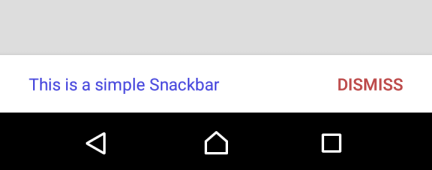
The Snackbar’s appearance after applying the original colors is shown below.
Use Android Color Resources for Snackbar Colors
Color resources keep the Snackbar styling in one place and make light and dark theme variants easier to maintain. Add the colors to res/values/colors.xml:
<resources>
    <color name="snackbar_background">#263238</color>
    <color name="snackbar_message">#FFFFFF</color>
    <color name="snackbar_action">#80CBC4</color>
</resources>
Resolve the resources through the Snackbar’s context:
val snackbar = Snackbar.make(binding.root, "Changes saved", Snackbar.LENGTH_LONG)

snackbar.setBackgroundTint(
    ContextCompat.getColor(snackbar.context, R.color.snackbar_background)
)
snackbar.setTextColor(
    ContextCompat.getColor(snackbar.context, R.color.snackbar_message)
)
snackbar.setAction("DISMISS") {
    snackbar.dismiss()
}
snackbar.setActionTextColor(
    ContextCompat.getColor(snackbar.context, R.color.snackbar_action)
)
snackbar.show()
If the colors need to differ between light and dark themes, define resources with the same names in both res/values/colors.xml and res/values-night/colors.xml.
Complete Legacy Snackbar Color Example
The following original example displays a Snackbar when a button is clicked. It uses the older Android Support Library APIs, changes the background and message colors through the Snackbar view, and changes the action text with setActionTextColor().
Create an Android Application with Kotlin Support and find the code for the activity_main.xml layout file and MainActivity.kt below.
activity_main.xml
<?xml version="1.0" encoding="utf-8"?>
<LinearLayout xmlns:android="http://schemas.android.com/apk/res/android"
    xmlns:tools="http://schemas.android.com/tools"
    android:orientation="vertical"
    android:gravity="center"
    android:background="#DDDDDD"
    android:layout_width="match_parent"
    android:layout_height="match_parent"
    tools:context=".MainActivity">

    <Button
        android:id="@+id/btn"
        android:background="#FFFFFF"
        android:textAllCaps="false"
        android:padding="10sp"
        android:layout_width="wrap_content"
        android:layout_height="wrap_content"
        android:text="Show Snackbar"
         />

</LinearLayout>
MainActivity.kt
package com.tutorialkart.snackbarexample

import android.graphics.Color
import android.support.v7.app.AppCompatActivity
import android.os.Bundle
import android.support.design.widget.Snackbar
import android.view.View
import android.widget.TextView
import kotlinx.android.synthetic.main.activity_main.*

class MainActivity : AppCompatActivity() {

    override fun onCreate(savedInstanceState: Bundle?) {
        super.onCreate(savedInstanceState)
        setContentView(R.layout.activity_main)

        btn.setOnClickListener {
            val snack = Snackbar.make(it,"This is a simple Snackbar",Snackbar.LENGTH_LONG)
            snack.setAction("DISMISS", View.OnClickListener {
                // executed when DISMISS is clicked
                System.out.println("Snackbar Set Action - OnClick.")
            })

            // change action button text color
            snack.setActionTextColor(Color.parseColor("#BB4444"))

            // snackbar background color
            snack.view.setBackgroundColor(Color.parseColor("#FFFFFF"))

            val textView = snack.view.findViewById(android.support.design.R.id.snackbar_text) as TextView
            // change Snackbar text color
            textView.setTextColor(Color.parseColor("#4444DD"))

            snack.show()
        }
    }
}
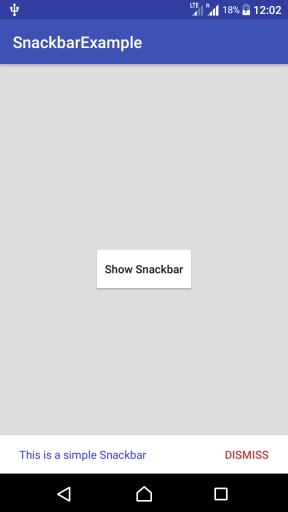
Run the application and click Show Snackbar. The Snackbar appears at the bottom of the screen with the configured message, background, and action button colors.
Snackbar Color Customization QA Checklist
- Confirm that the project imports
com.google.android.material.snackbar.Snackbarwhen using the current methods. - Verify that
setAction()is called before testing the action button color. - Check message and action text contrast against the Snackbar background in both light and dark themes.
- Test the Snackbar on a screen whose view hierarchy supplies a suitable parent, preferably a
CoordinatorLayoutwhen coordinated movement or swipe dismissal is needed. - Keep the message concise and verify that the action remains readable at larger system font sizes.
Snackbar Color Questions
How do I change a Snackbar’s background color in Kotlin?
For a Material Components Snackbar, call snackbar.setBackgroundTint(color) before show(). Resolve the color from a resource with ContextCompat.getColor() when the color belongs to the app theme.
How do I change the Snackbar message text color?
Call snackbar.setTextColor(color). Current Material Components versions provide this method directly, so there is no need to find the internal Snackbar TextView.
Why is the Snackbar action text color not visible?
The action color is displayed only if the Snackbar has an action created with setAction(). Also check that the action color contrasts with the background tint.
Should I use setBackgroundColor() or setBackgroundTint() for a Snackbar?
Use setBackgroundTint() with the current Material Components Snackbar API. Directly calling snackbar.view.setBackgroundColor() is mainly relevant to older implementations or cases that deliberately modify the Snackbar view.
Summary of Kotlin Snackbar Color Changes
Use setTextColor() for the Snackbar message, setBackgroundTint() for its background, and setActionTextColor() for the action. This Kotlin Android Tutorial also retains the original Support Library example for projects that still contain the older API.