 TutorialKart.com
Android ProgressBar in Determinate Mode with Kotlin
Android ProgressBar – Kotlin Example : In this Android Tutorial, we shall learn to indicate the progress of an operation using ProgressBar. We shall use an Example Android Application with dummy operation whose progress has to indicated to user.
A determinate Android ProgressBar is useful when the app can measure how much work is already complete. Common examples include file downloads, uploads, form processing, database migration, or any task where you can calculate progress as a number.
ProgressBar could be used both Determinate and Indeterminate progress of a task.
- Indeterminate ProgressBar is used when you cannot estimate or track the progress of a task. By default ProgressBar is in Indeterminate mode.
- Determinate ProgressBar is used when you can estimate or track the progress of a task. To make ProgressBar determinate, add progress property, android:progress=”0″ , in the layout file for ProgressBar View.
In this tutorial, we shall see an example for Determinate ProgressBar. In our next tutorial, we shall learn Android Indeterminate ProgressBar
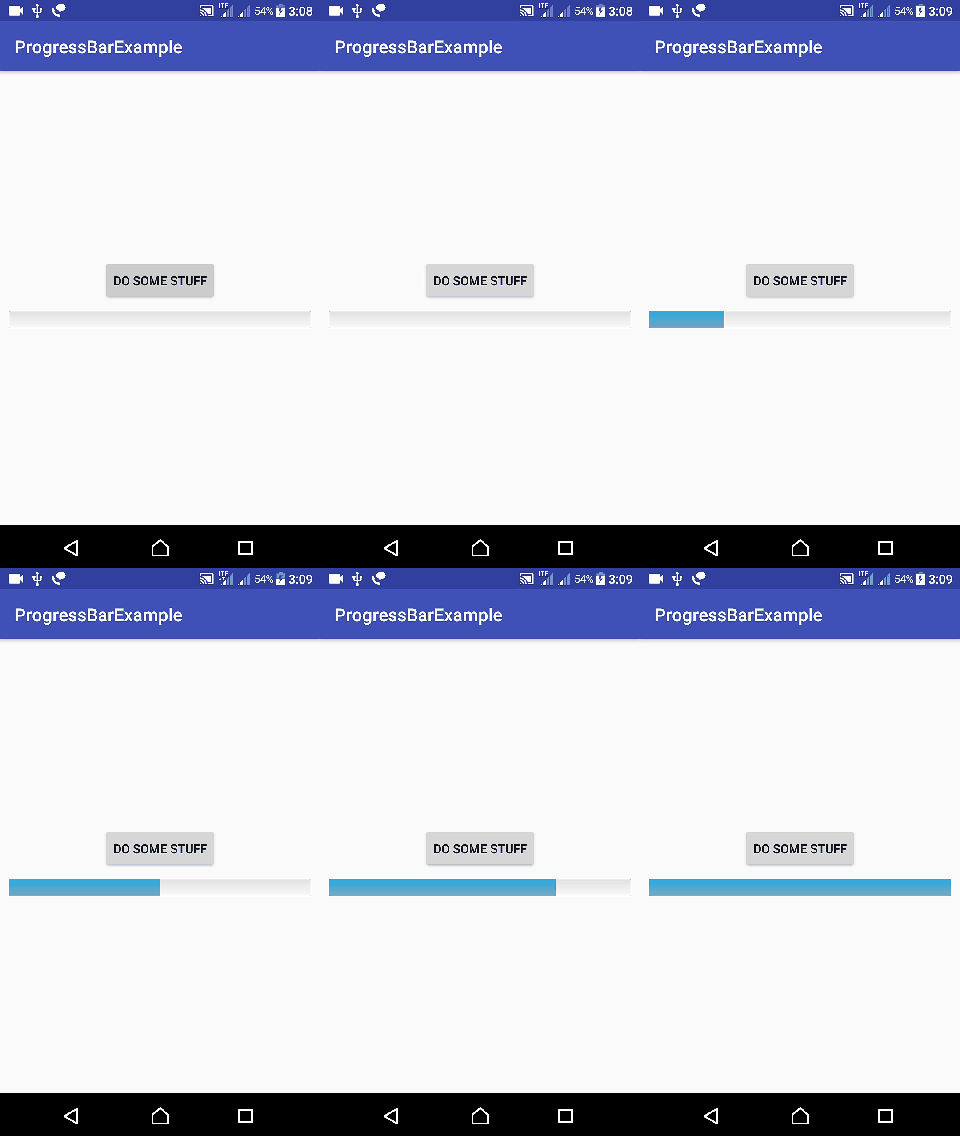
Set ProgressBar Progress Value from Kotlin
Progress of ProgressBar can be set using progress property as shown below :
progressBar.progress = 55The value provided for the property is the percentage. If 55 is assigned to progress, then 55% of the ProgressBar would be marked with progress.
This percentage explanation is correct when the ProgressBar maximum value is 100. ProgressBar actually compares progress with max. If android:max="200" and progressBar.progress = 50, then the visible progress is 25% because 50 is one fourth of 200.
<ProgressBar
    style="@android:style/Widget.ProgressBar.Horizontal"
    android:id="@+id/progressBar1"
    android:layout_width="match_parent"
    android:layout_height="wrap_content"
    android:max="100"
    android:progress="0" />
Android ProgressBar Kotlin Example Project Details
Following are the details of the Android Application we created for this example.
| Application Name | ProgressBarExample |
| Company name | tutorialkart.com |
| Minimum SDK | API 21: Android 5.0 (Lollipop) |
| Activity | Empty Activity |
Create an Android Application with Kotlin Support with above details and keeping rest to default. Replace activity_main.xml and MainActivity.kt with the following content.
activity_main.xml for Horizontal Determinate ProgressBar
The layout contains a button and a horizontal ProgressBar. The horizontal style is important here because the default ProgressBar style is usually used for circular indeterminate loading.
activity_main.xml
<?xml version="1.0" encoding="utf-8"?>
<LinearLayout xmlns:android="http://schemas.android.com/apk/res/android"
    xmlns:tools="http://schemas.android.com/tools"
    android:layout_width="match_parent"
    android:layout_height="match_parent"
    android:orientation="vertical"
    android:gravity="center"
    tools:context="com.tutorialkart.progressbarexample.MainActivity">

    <Button
        android:id="@+id/button1"
        android:layout_width="wrap_content"
        android:layout_height="wrap_content"
        android:layout_marginTop="116dp"
        android:text="Do some stuff" />

    <ProgressBar
        style="@android:style/Widget.ProgressBar.Horizontal"
        android:id="@+id/progressBar1"
        android:layout_width="match_parent"
        android:layout_height="wrap_content"
        android:padding="10dp"
        android:progress="0"/>

</LinearLayout>
MainActivity.kt to Increase ProgressBar Value
When the button is clicked, the sample starts a dummy task and increases the ProgressBar value in steps. The old sample below is retained as originally written for this tutorial.
MainActivity.kt
package com.tutorialkart.progressbarexample

import android.os.Bundle
import android.support.v7.app.AppCompatActivity
import kotlinx.android.synthetic.main.activity_main.*

class MainActivity : AppCompatActivity() {

    private var progressBarStatus = 0
    var dummy:Int = 0

    override fun onCreate(savedInstanceState: Bundle?) {
        super.onCreate(savedInstanceState)
        setContentView(R.layout.activity_main)

        // get the references from layout file
        var btnStartProgress = this.button1
        var progressBar = this.progressBar1

        // when button is clicked, start the task
        btnStartProgress.setOnClickListener { v ->

            // task is run on a thread
            Thread(Runnable {
                // dummy thread mimicking some operation whose progress can be tracked
                while (progressBarStatus < 100) {
                    // performing some dummy operation
                    try {
                        dummy = dummy+25
                        Thread.sleep(1000)
                    } catch (e: InterruptedException) {
                        e.printStackTrace()
                    }
                    // tracking progress
                    progressBarStatus = dummy

                    // Updating the progress bar
                    progressBar.progress = progressBarStatus
                }

            }).start()
        }
    }
}
Modern Kotlin Version Using findViewById and Main Thread Updates
In newer Android projects, avoid Kotlin synthetic view access because it is no longer the recommended approach. You can use View Binding, Data Binding, or simple findViewById(). Also, update view properties such as progressBar.progress on the main thread.
The following Kotlin example uses the same layout IDs as the XML above, but resets the ProgressBar on every button click and prevents multiple dummy tasks from running at the same time.
package com.tutorialkart.progressbarexample

import android.os.Bundle
import android.widget.Button
import android.widget.ProgressBar
import androidx.appcompat.app.AppCompatActivity

class MainActivity : AppCompatActivity() {

    private lateinit var progressBar: ProgressBar
    private lateinit var startButton: Button

    override fun onCreate(savedInstanceState: Bundle?) {
        super.onCreate(savedInstanceState)
        setContentView(R.layout.activity_main)

        startButton = findViewById(R.id.button1)
        progressBar = findViewById(R.id.progressBar1)

        startButton.setOnClickListener {
            startDummyTask()
        }
    }

    private fun startDummyTask() {
        startButton.isEnabled = false
        progressBar.max = 100
        progressBar.progress = 0

        Thread {
            var progress = 0

            while (progress < progressBar.max) {
                Thread.sleep(1000)
                progress += 25

                runOnUiThread {
                    progressBar.progress = progress.coerceAtMost(progressBar.max)

                    if (progressBar.progress == progressBar.max) {
                        startButton.isEnabled = true
                    }
                }
            }
        }.start()
    }
}
Key ProgressBar Properties Used in Determinate Mode
| ProgressBar property | Purpose in determinate progress |
|---|---|
android:progress | Initial progress value in the XML layout. |
android:max | Maximum value used to calculate the filled portion of the bar. If not set, 100 is commonly used. |
progressBar.progress | Kotlin property used to update progress while the task is running. |
progressBar.max | Kotlin property used when the maximum value must be set from code. |
style="@android:style/Widget.ProgressBar.Horizontal" | Makes the ProgressBar appear as a horizontal bar suitable for determinate progress. |
Common Mistakes with Android Determinate ProgressBar in Kotlin
- Using the default circular ProgressBar for a percentage task: use the horizontal ProgressBar style when the user should see measurable progress.
- Updating the ProgressBar from a background thread: calculate work in the background, but update UI properties on the main thread.
- Forgetting to reset progress before starting again: set
progressBar.progress = 0before a new operation starts. - Letting progress go beyond max: clamp the value with
coerceAtMost(progressBar.max)or check the value before assigning it. - Starting multiple tasks from repeated button clicks: disable the button while the current task is running, or cancel the previous task before starting another one.
Android ProgressBar Determinate Mode FAQs
How do I make ProgressBar determinate in Kotlin Android?
Use a horizontal ProgressBar in XML, set an initial android:progress value, and update progressBar.progress from Kotlin as the task advances. For percentage-style progress, keep max as 100.
What is the difference between determinate and indeterminate ProgressBar?
A determinate ProgressBar shows known progress, such as 40 out of 100. An indeterminate ProgressBar only shows that work is happening, without showing how much is complete.
Can I set Android ProgressBar max value other than 100?
Yes. Set android:max in XML or progressBar.max in Kotlin. For example, if max is 1000 and progress is 250, the bar shows 25% completion.
Why is my Android ProgressBar not updating during a background task?
The task may be running on a background thread while the UI update is not being posted to the main thread. Use runOnUiThread, a main-thread handler, or lifecycle-aware coroutine code to update the ProgressBar safely.
Should I use ProgressBar for file download progress in Kotlin?
Yes, when the total file size is known. Calculate progress from bytes downloaded and total bytes, then assign the calculated value to progressBar.progress. If the total size is unknown, use an indeterminate ProgressBar.
Editorial QA Checklist for this Android ProgressBar Kotlin Tutorial
- The tutorial clearly explains determinate ProgressBar as measurable progress, not just a loading spinner.
- The XML example uses
@android:style/Widget.ProgressBar.Horizontalfor horizontal determinate progress. - The Kotlin examples show how
progressandmaxwork together. - The modern Kotlin note warns against synthetic view access and shows a safer main-thread update pattern.
- The FAQ answers cover the most common ProgressBar issues: determinate setup, max value, background updates, and download progress.