 TutorialKart.com
The Gradle warning “Kotlin plugin should be enabled before ‘kotlin-kapt'” appears when the Kotlin annotation-processing plugin is applied before the main Kotlin Android plugin. Gradle must load the Kotlin Android plugin first so that kotlin-kapt can configure annotation processing correctly.
This issue was commonly seen after upgrading older Android Studio and Kotlin projects, but the same underlying cause can still occur in projects that use legacy Gradle plugin declarations or an incorrectly ordered plugins block.
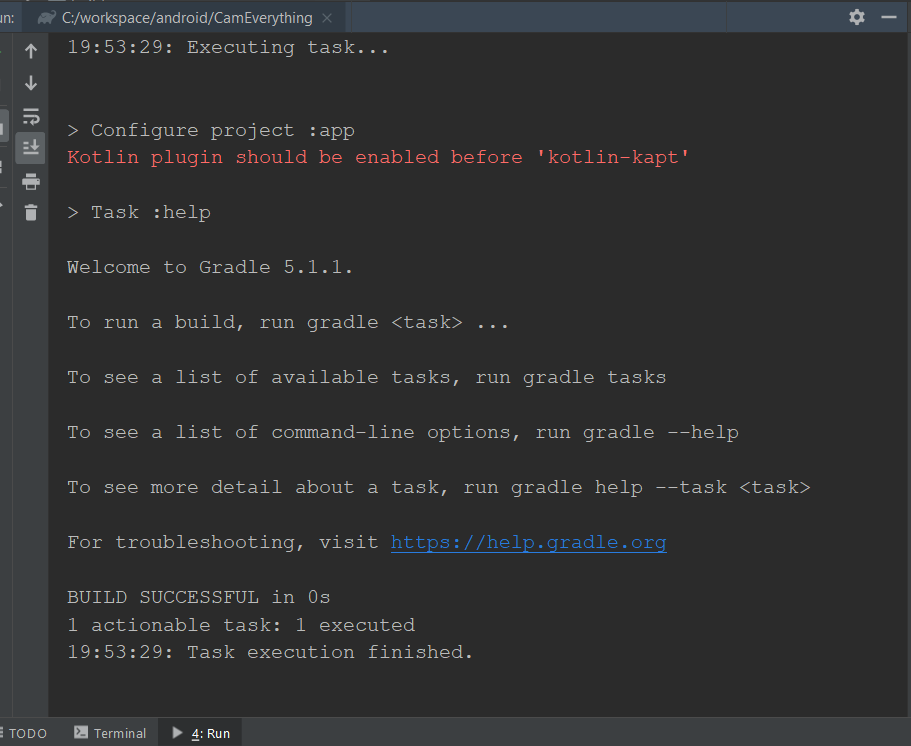
Why the Kotlin Plugin Must Be Enabled Before kotlin-kapt
kotlin-kapt provides Kotlin annotation-processing support for libraries that generate source code during the build. It depends on the Kotlin plugin already being available in the Android module. If KAPT is applied first, Gradle cannot complete its configuration in the expected order and reports the warning.
The correction belongs in the affected module’s Gradle file, which is usually app/build.gradle for Groovy DSL projects or app/build.gradle.kts for Kotlin DSL projects. It normally does not belong in the root project Gradle file.
Fix kotlin-kapt Plugin Order in app/build.gradle
Open the application module’s app/build.gradle file and place the Kotlin Android plugin before the KAPT plugin.
Legacy apply plugin Syntax
In an older project that uses apply plugin, the incorrect order may look like this:
apply plugin: 'com.android.application'
apply plugin: 'kotlin-kapt'
apply plugin: 'kotlin-android'
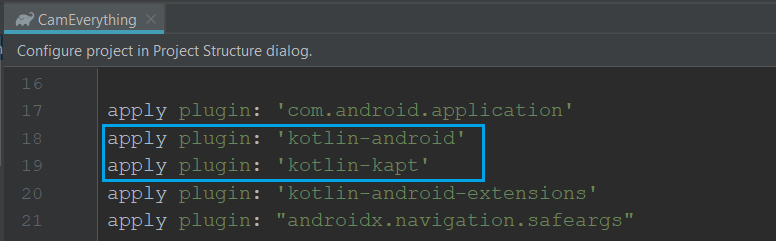
Move kotlin-android above kotlin-kapt:
apply plugin: 'com.android.application'
apply plugin: 'kotlin-android'
apply plugin: 'kotlin-kapt'
The plugin contents of app\build.gradle before solving the issue are shown below.
app\build.gradle
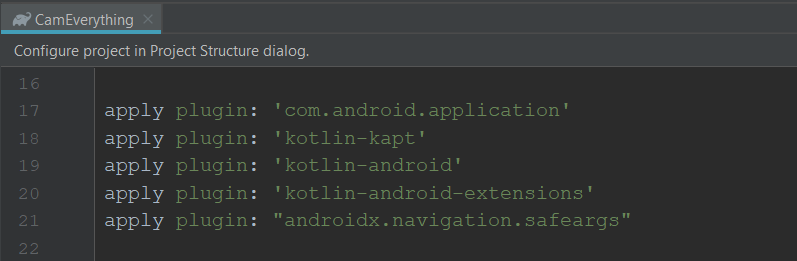
Change the order so that kotlin-android is applied before kotlin-kapt. The plugin name is kotlin-kapt; kotlin-apt is not the correct plugin identifier.
Modern Groovy plugins Block
For a modern Groovy DSL module, declare the Android and Kotlin plugins in this order:
plugins {
    id 'com.android.application'
    id 'org.jetbrains.kotlin.android'
    id 'org.jetbrains.kotlin.kapt'
}
Some older projects use the shorter plugin IDs kotlin-android and kotlin-kapt. Keep the IDs already supported by the project’s Kotlin Gradle plugin version, but preserve the required order.
Kotlin DSL build.gradle.kts Plugin Order
If the Android module uses Kotlin DSL, update app/build.gradle.kts as follows:
plugins {
    id("com.android.application")
    id("org.jetbrains.kotlin.android")
    id("org.jetbrains.kotlin.kapt")
}
Sync and Rebuild After Reordering kotlin-kapt
After saving the module Gradle file, synchronize and rebuild the project so that Gradle reloads the plugins in the corrected order.
- Save
app/build.gradleorapp/build.gradle.kts. - Select Sync Project with Gradle Files in Android Studio.
- Run Build > Clean Project.
- Run Build > Rebuild Project.
- Run the application again and inspect the Build or Run output.
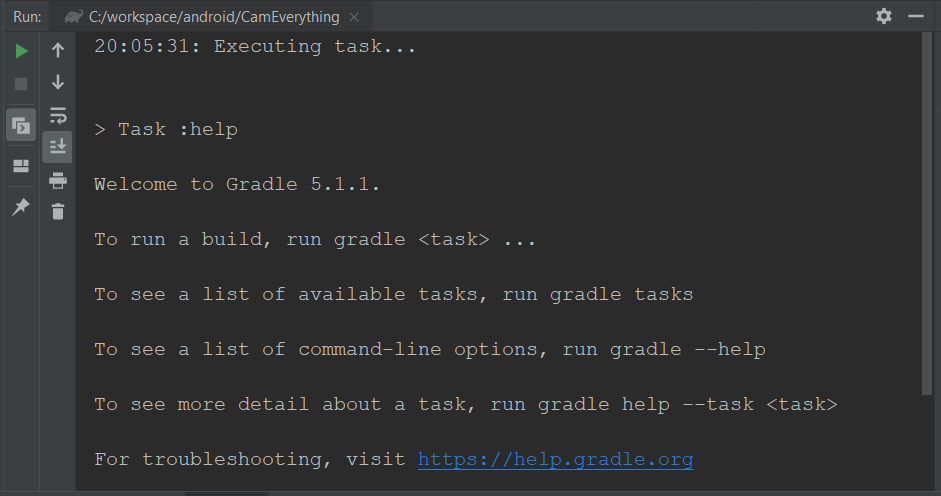
When you run the application after a successful Gradle sync, the warning should no longer appear.
When the kotlin-kapt Warning Still Appears
If reordering the plugins does not remove the warning, check the following project-specific causes.
- Wrong Gradle file: confirm that you edited the module containing the annotation-processing dependency, not only the root project file.
- Duplicate plugin declarations: search the project for additional
kotlin-kapt,org.jetbrains.kotlin.kapt, orapply pluginentries. - Mixed Gradle styles: avoid applying the same plugin once through the
pluginsblock and again throughapply plugin. - Outdated plugin identifiers: verify that the Kotlin Android and KAPT IDs match the Kotlin Gradle plugin configuration used by the project.
- Stale Gradle state: sync the project, stop running builds, and rebuild after correcting the file.
- Multi-module project: inspect every Android or Kotlin module that uses a
kaptdependency.
Check Whether the Project Still Needs KAPT
Keep the KAPT plugin only when at least one dependency is declared with the kapt configuration or when a library explicitly requires KAPT. A typical dependency declaration looks like this:
dependencies {
    kapt 'group:annotation-processor:version'
}
Replace the placeholder coordinates with the annotation processor required by the library. Do not add KAPT merely to suppress an unrelated compilation error.
Some libraries support Kotlin Symbol Processing, commonly called KSP, instead of KAPT. Migration is library-specific: use KSP only when the library’s documentation provides a compatible processor and setup instructions. Changing from KAPT to KSP is not a direct fix for incorrect plugin ordering.
Kotlin Plugin Before kotlin-kapt FAQ
Which plugin must come before kotlin-kapt?
The Kotlin Android plugin must be applied before KAPT. Depending on the project’s Gradle configuration, its ID may be kotlin-android or org.jetbrains.kotlin.android.
Should kotlin-kapt be added to the project-level build.gradle file?
The plugin is normally applied in each module that uses KAPT, such as the app module. Plugin versions may be managed at the root level, but the module must apply the plugin where annotation processing is required.
Is kotlin-apt the same as kotlin-kapt?
No. The relevant Kotlin annotation-processing plugin is kotlin-kapt or org.jetbrains.kotlin.kapt. A reference to kotlin-apt in this context is usually a typo or outdated wording.
Can the kotlin-kapt plugin be removed?
Yes, but only when no dependency or generated-code tool in that module requires the kapt configuration. Remove both the plugin and its KAPT dependency declarations together after confirming that the project builds without them.
kotlin-kapt Fix Editorial QA Checklist
- Verify that the Kotlin Android plugin appears before the KAPT plugin in every affected module.
- Confirm that examples distinguish Groovy DSL, Kotlin DSL, and legacy
apply pluginsyntax. - Check that
kotlin-kaptis not incorrectly written askotlin-apt. - Confirm that no module applies KAPT through both the
pluginsblock andapply plugin. - Test the fix with a Gradle sync, clean build, rebuild, and application run.
- Verify that any recommendation to remove KAPT accounts for all annotation processors used by the module.