 TutorialKart.com
How to Assign Purchase Organization to Company Code in SAP MM
In this SAP MM tutorial, you will learn how to assign purchase organization to company code in SAP step by step using transaction code OX01. This assignment is part of the SAP enterprise structure setup for purchasing.
A purchasing organization can be assigned to a company code when the business wants company-code-specific purchasing. After this assignment, purchasing documents created under that purchasing organization are linked to the assigned company code for relevant procurement and accounting processes.
Before you perform this configuration, the purchase organization and the company code should already be defined in SAP.
- What this SAP MM assignment controls
- Transaction code and IMG path for OX01
- Steps to assign purchase organization to company code
- T024E table and purchasing organization assignment notes
- SAP purchase organization to company code FAQs
What assigning a purchasing organization to a company code means in SAP MM
In SAP MM, the purchasing organization is responsible for procurement activities such as negotiating conditions, creating purchase orders, and managing purchasing-related vendor interactions. The company code represents the legal accounting unit. Assigning a purchasing organization to a company code connects procurement responsibility with the correct accounting entity.
This setup is commonly used when a purchasing organization handles procurement for one company code. If your business uses central purchasing across multiple company codes, the enterprise structure design should be reviewed before making this assignment.
Prerequisites before assigning purchase organization to company code in SAP
- The company code must be created in enterprise structure configuration.
- The purchasing organization must be defined in SAP MM configuration.
- You should know the correct purchasing organization key, such as
TKPO. - You should know the correct company code key, such as
TK01. - You should have authorization to maintain enterprise structure assignment settings in SAP customizing.
If you are working in a practice system, confirm the keys before saving the assignment. In a production project, this configuration is normally finalized from the approved enterprise structure design.
Transaction code OX01 and IMG path to assign purchase organization to company code
The following navigation details are used to assign a purchase organization to a company code in SAP MM.
| SAP R/3 Role Menu | Assign purchase organization to company code |
| Transaction code | OX01 |
| SAP Menu Path | SPRO > IMG > Enterprise Structure > Assignment > Material Management > Assign purchase organization to company code. |
You can either use transaction code OX01 directly, or follow the SAP Reference IMG path through SPRO. The IMG path is useful when you are learning the complete enterprise structure configuration sequence.
Steps to assign purchase organization to company code in SAP MM
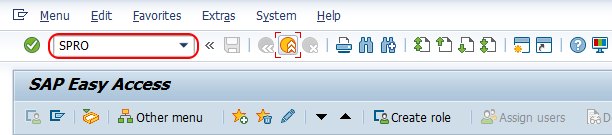
Step 1 : – Execute t-code “SPRO” in command field from SAP easy access screen.
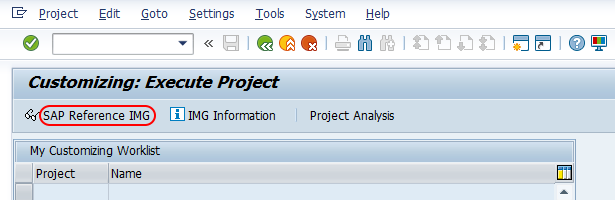
Step 2 : – Choose SAP reference IMG.
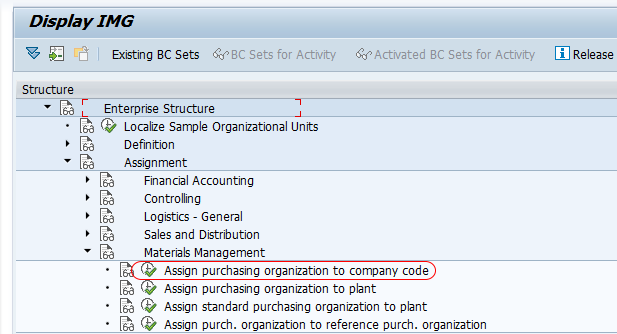
Step 3 : – Follow the navigation enterprise structure – Assignment – Material management and choose img activity Assign purchase organization to company code.
Step 4 : – On change view “Assign Purchasing Organization -> company code” overview screen, choose position button and enter purchase organization key in given field and press enter. So the purchase organization key display on top of the screen and you can assign assign company code to it.
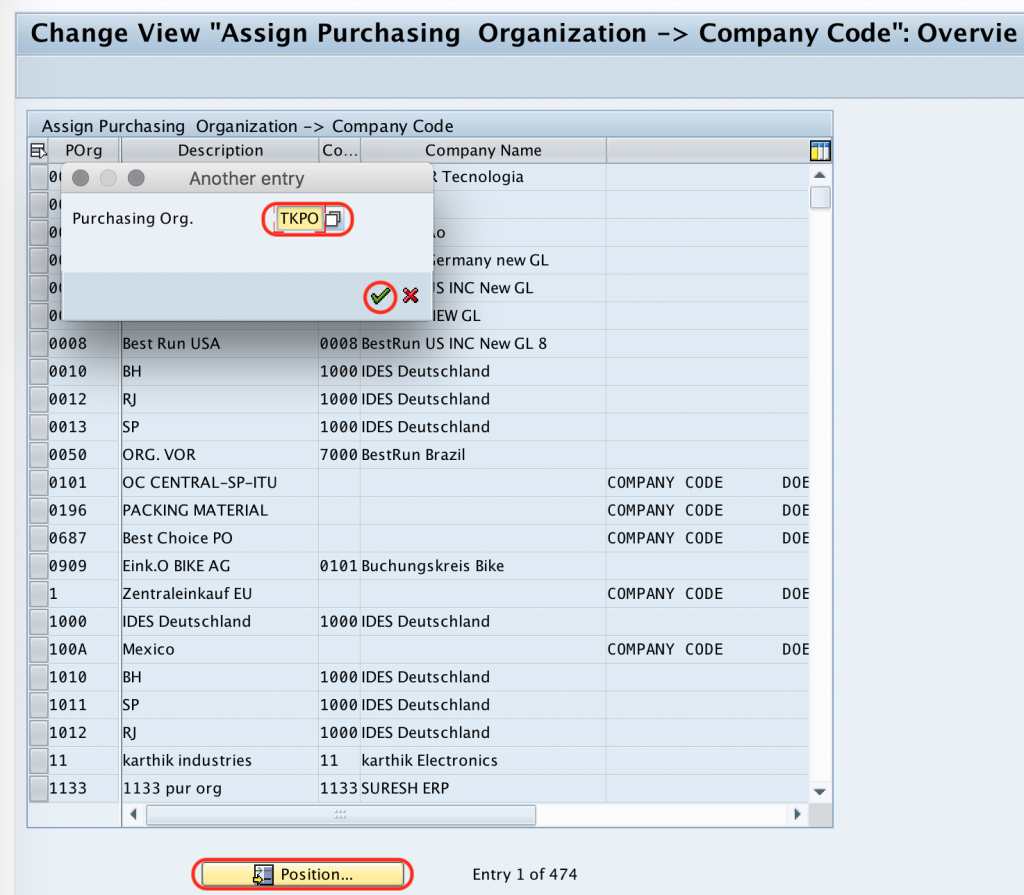
Step 5 : – Now enter the company code “TK01” in the given field for assigning to purchasing organization “TKPO”.

After assigning company code to purchase organization, choose save icon or press ctrl+s to save the configured details.
Successfully we have assigned purchase organization to company code in SAP MM.
Verify the SAP MM purchase organization and company code assignment
After saving the configuration, return to the same IMG activity or execute transaction code OX01 again. Use the Position button, enter the purchasing organization key, and check whether the expected company code appears against it.
You can also verify the setup during purchasing document testing. When a purchase order is created with the assigned purchasing organization, the document should derive and validate the relevant company-code-specific settings according to the enterprise structure design.
T024E table and purchasing organization assignment notes in SAP
In SAP, table T024E is associated with purchasing organization configuration. It stores purchasing organization details and is commonly referred to when checking purchasing organization setup and related assignment information.
| SAP object | Meaning in this configuration |
|---|---|
EKORG | Purchasing organization key |
BUKRS | Company code key where the company-code-specific assignment is maintained |
T024E | Purchasing organization configuration table |
OX01 | Transaction code used to assign purchasing organization to company code |
For normal configuration work, maintain the assignment through the SAP IMG activity instead of directly changing table data. The table reference is useful for display, analysis, and troubleshooting.
Can one purchase organization be assigned to multiple company codes in SAP?
For company-specific purchasing, a purchasing organization is assigned to one company code. This is the setup shown in this tutorial. If a purchasing organization is expected to work for more than one company code, the organization structure should be designed as central purchasing instead of a simple one-to-one company code assignment.
In practice, the correct choice depends on how purchasing responsibilities, plants, company codes, accounting requirements, and reporting responsibilities are organized in the business.
Common mistakes while assigning purchase organization to company code in SAP MM
- Trying to assign a purchasing organization before defining it in SAP MM enterprise structure.
- Using the wrong company code key while maintaining the assignment.
- Confusing company-code-specific purchasing with central purchasing.
- Forgetting to save the entry after entering the company code.
- Testing purchase orders without confirming the related plant, company code, and purchasing organization structure.
Editorial QA checklist for SAP MM purchase organization to company code assignment
- The tutorial clearly states that transaction code
OX01is used for assigning purchase organization to company code. - The IMG path is written as Enterprise Structure > Assignment > Material Management > Assign purchase organization to company code.
- The prerequisites mention both purchasing organization and company code master configuration.
- The article explains when company-code-specific purchasing is used.
- The FAQ covers the common questions about multiple company codes, table
T024E, and verification.
SAP purchase organization to company code FAQs
How do I assign purchasing organization to company code in SAP?
Use transaction code OX01, or go to SPRO > SAP Reference IMG > Enterprise Structure > Assignment > Material Management > Assign purchase organization to company code. Enter the company code against the purchasing organization and save the configuration.
Can one purchasing organization be assigned to multiple company codes in SAP?
In company-code-specific purchasing, one purchasing organization is assigned to one company code. If the business needs one purchasing organization to serve multiple company codes, the enterprise structure should be reviewed for central purchasing design.
What is T024E in SAP MM?
T024E is the SAP table related to purchasing organization configuration. It is commonly used to check purchasing organization data and related assignment information such as the purchasing organization key and company code assignment.
What is the transaction code to assign purchase organization to company code?
The transaction code is OX01. You can also reach the same configuration through the SAP Reference IMG path under Enterprise Structure assignment for Materials Management.
What should I check if the purchasing organization assignment is not visible?
Check whether the purchasing organization is already defined, whether you are using the correct purchasing organization key, and whether the assignment was saved. Also confirm that you are checking the correct client and customizing environment.
Conclusion
In this SAP MM configuration tutorial, we have assigned a purchase organization to a company code using transaction code OX01. This assignment is required when the purchasing organization is used for company-code-specific purchasing. After saving the entry, verify the assignment in the same IMG activity and continue with the remaining enterprise structure assignments such as plant and purchasing organization relationships as required by your SAP MM setup.