 TutorialKart.com
In this SAP MM tutorial, you will learn how to assign plant to company code in SAP step by step using transaction code OX18. This assignment connects the logistics plant with the legal accounting unit, so it should be completed after the company code and plant are already defined in Enterprise Structure.
Assign plant to company code in SAP: purpose of OX18 configuration
The link between plant and company code in SAP is established through the assignment of plant to company code. A plant can only belong to one company code, while one company code can have one or more plants assigned to it. This relationship is important because procurement, inventory, valuation, and logistics postings must ultimately be connected to the correct company code for accounting.
For example, if company code TK01 represents a legal entity and plant TKBL represents a manufacturing or storage location, the plant must be assigned to TK01 before it can be used consistently in materials management and related logistics processes.
Prerequisites before assigning plant TKBL to company code TK01
Before you maintain this assignment, make sure the required enterprise structure objects already exist in the system.
- The company code must be defined.
- The plant must be defined.
- You should have authorization for SAP Customizing through transaction SPRO or direct transaction OX18.
- A customizing request should be available when the system prompts you to save the assignment.
OX18 transaction code and IMG menu path for plant company code assignment
| Transaction code | OX18 |
| SAP Menu Path | SPRO > IMG > Enterprise Structure > Assignment > Logistics – General > Assign plant – company code. |
| Configuration object | Assignment of plant to company code |
| Example used in this tutorial | Company code TK01 and plant TKBL |
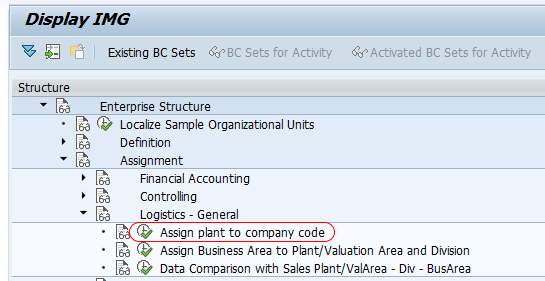
Step-by-step configuration to assign plant to company code in SAP MM
Step 1 : – Execute t-code “OX18” in command field from SAP easy access screen.
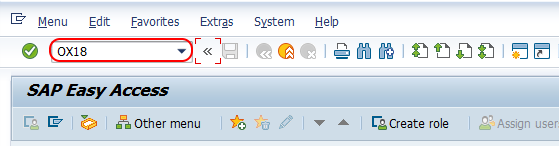
You can also reach the same configuration activity from the SAP IMG path shown above. Using the direct transaction code is faster when you already know the configuration activity.
Step 2 : – On change view “Assignment plant – company code” overview screen, choose new entries button for assignment of company code to plant in SAP.
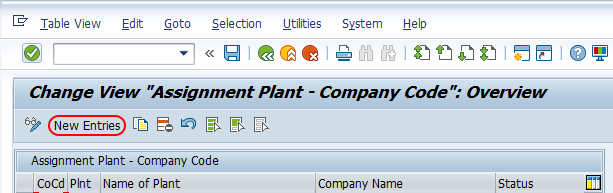
If the plant is already listed with a company code, do not create a duplicate entry. Review the existing assignment first, because a plant is expected to be assigned to only one company code.
Step 3 : – On new entries overview added entries screen, update the following details.
- CoCd : – Update the company code “TK01”.
- Plnt : – Update the plant key “TKBL” for assigning to company code.
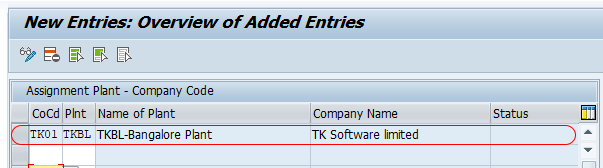
After maintaining all the required details, choose save icon and save the configured assignment details in SAP. Now you are prompted for customizing request number, choose request and save the configured data.
Successfully we have assigned plant to company code in SAP MM.
How to verify company code assigned to a plant in SAP
After saving the configuration, it is good practice to verify the assignment before continuing with dependent configuration. You can verify it in the same OX18 screen by checking whether the plant appears against the correct company code.
| Verification method | What to check |
|---|---|
| Transaction OX18 | Confirm that plant TKBL is listed with company code TK01. |
| IMG activity | Open Assign plant – company code and review the saved entry. |
| Table-level check | In systems where table display is available, check plant master and assignment-related Customizing data with the relevant SAP table display tools used in your project. |
If you are checking table data, use your project’s standard table display authorization and validation method. In many SAP projects, functional consultants verify the assignment from the Customizing screen itself because it clearly shows the plant and company code relationship.
Can one plant be assigned to multiple company codes in SAP?
No. In standard enterprise structure design, a plant is assigned to one company code only. However, a company code can have several plants. This means the relationship is generally one company code to many plants, not one plant to many company codes.
This rule helps keep logistics and accounting data consistent. If the same physical location is used by different legal entities, the design normally needs to be reviewed carefully with SAP FI, MM, SD, and logistics teams before configuration is finalized.
Common mistakes in SAP plant to company code assignment
- Creating the assignment before defining the plant: The plant key must exist before it can be assigned to a company code.
- Selecting the wrong company code: Always confirm the legal entity before saving the plant assignment.
- Ignoring existing entries: If the plant is already assigned, review the existing configuration instead of adding another entry.
- Saving without a proper transport request: In development systems, the configuration should be saved under the correct customizing request so it can move through the landscape.
- Not coordinating with FI settings: The plant assignment can affect valuation and accounting-related configuration, so confirm the design with the relevant SAP functional teams.
Plant to company code assignment example in SAP MM
In this tutorial, the company code TK01 is assigned to plant TKBL. Once saved, the plant becomes part of the enterprise structure under that company code. The assignment can then be used by downstream configuration and business processes such as purchasing, inventory management, and goods movement postings.
| Field | Example value | Meaning |
|---|---|---|
| CoCd | TK01 | Company code to which the plant belongs |
| Plnt | TKBL | Plant being assigned to the company code |
Editorial QA checklist for SAP OX18 plant assignment tutorial
- Confirm that the tutorial clearly states the transaction code OX18 and the full IMG menu path.
- Check that the plant and company code example values are consistent throughout the article.
- Verify that the tutorial explains the rule: one plant belongs to one company code, while one company code can have multiple plants.
- Ensure the save step mentions the customizing request prompt.
- Review that the verification section explains how to check the saved plant to company code assignment.
FAQs on assigning plant to company code in SAP
How do I assign a plant to a company code in SAP?
Use transaction code OX18 or follow the IMG path SPRO > IMG > Enterprise Structure > Assignment > Logistics – General > Assign plant – company code. Then enter the company code and plant, save the entry, and assign it to a customizing request when prompted.
Can a plant be assigned to more than one company code in SAP?
No. A plant can be assigned to only one company code. A company code, however, can have several plants assigned to it.
How can I find the company code assigned to a plant in SAP?
You can open transaction OX18 and check the plant entry in the assignment overview. The screen shows the company code linked to the selected plant.
What should be configured first, plant or company code?
The company code and plant should both be defined before maintaining the assignment. In practice, the company code is usually created in FI enterprise structure configuration, and the plant is created in logistics enterprise structure configuration.
Why is plant to company code assignment required in SAP MM?
The assignment connects logistics operations at plant level with the correct legal accounting entity. This helps SAP determine the company code context for materials management and related postings.