 TutorialKart.com
How to define document types for RFQ in SAP MM
In SAP MM, an RFQ document type is a two-character key used to control how a Request for Quotation is created, numbered, and processed. RFQ stands for Request for Quotation. It is used in purchasing when an organization asks vendors to submit price, delivery, and commercial details before a supplier is selected.
In this activity, you define document types for RFQ/Quotation so that different RFQ processes can be handled separately. For example, a company may use one RFQ document type for domestic vendors and another RFQ document type for import procurement, project procurement, or special bidding requirements.
Note : – The definition of document type for RFQ is similar to configuration of document types for purchase requisition. However, RFQ document type settings must be checked from the RFQ/Quotation configuration area because the allowed item categories, number ranges, and purchase requisition links are maintained for the RFQ process.
What RFQ document type controls in SAP MM
Document type controls the following functions:
- Item number range interval for RFQ line items
- Allowed item categories for the RFQ document type
- Link between purchase requisition document type and RFQ document type
- Field selection key used during RFQ creation and change
- Internal and external number range intervals for RFQ documents
The document type does not simply give a name to the RFQ. It affects how users enter RFQ items, which item categories are permitted, how RFQ numbers are assigned, and how purchase requisitions can be converted into RFQs.
Navigation path to define RFQ document types in SAP
You can define document types for RFQ by the following navigation method.
| Transaction Code | SPRO |
| SAP IMG Path | IMG > Material Management > Purchasing > RFQ/ Quotation > Define document types |
In SAP S/4HANA projects, the same customizing concept is still relevant, although users may create and manage RFQs through Fiori apps or role-based menus. The exact screen labels can vary by SAP release, client configuration, and authorization.
Configuration steps to define document types for RFQ/Quotation
Perform the following configuration steps to define document types for RFQ in SAP MM.
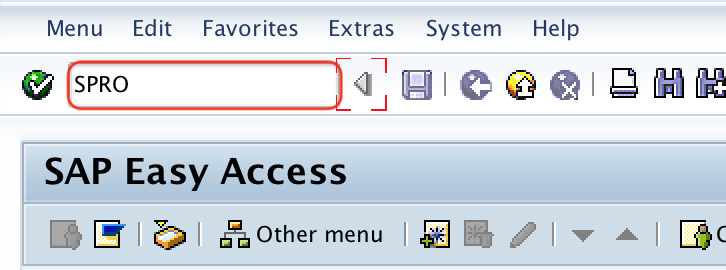
Step 1 :– Execute T-code “SPRO” in command field from SAP easy access screen.
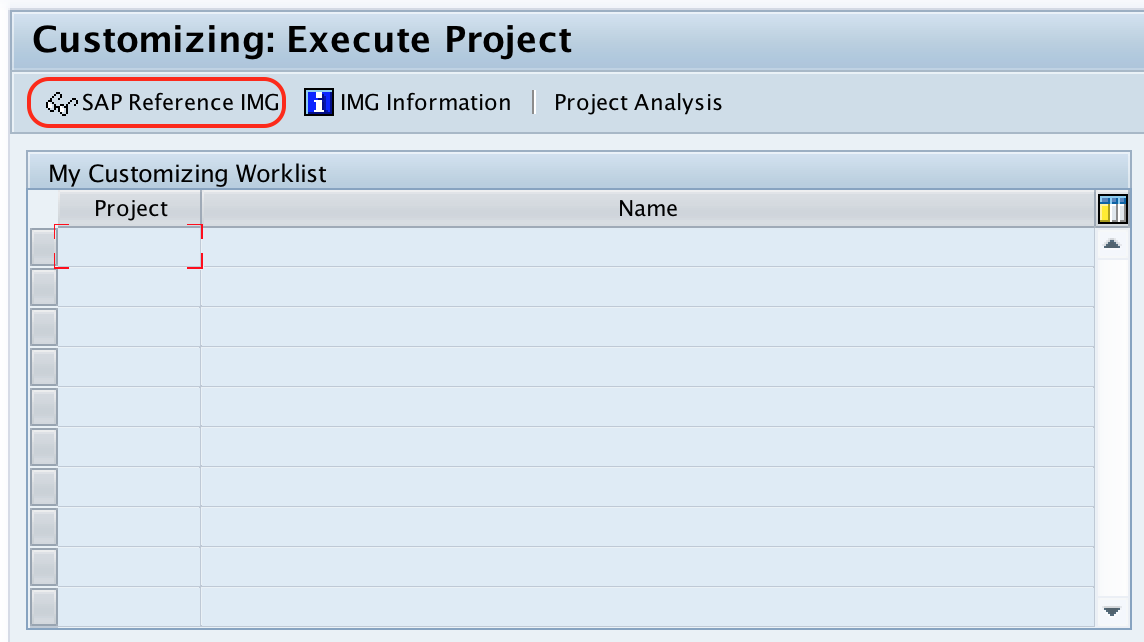
Step 2 : – Choose SAP Reference IMG” from customizing execute project screen.
Step 3 : – From display Img screen, follow the navigation path Material Management – Purchasing – RFQ/ Quotation and choose IMG activity “Define document types”
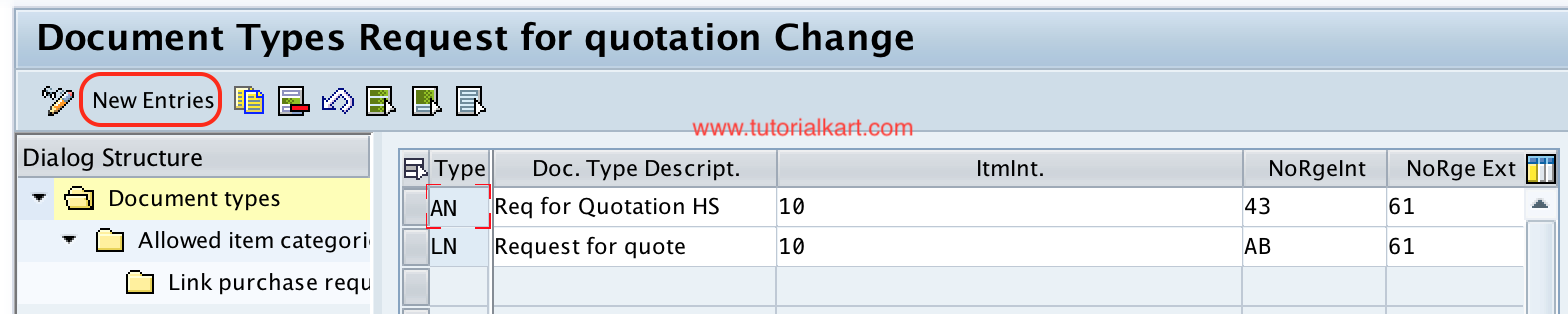
Step 4 : – On document type request for quotation change, you can choose copy as function or new entries function for creation new document types for RFQ. Click on new button.
In most implementation projects, it is safer to copy an existing standard RFQ document type and change only the required fields. This reduces the chance of missing dependent settings such as item category assignment or field selection.
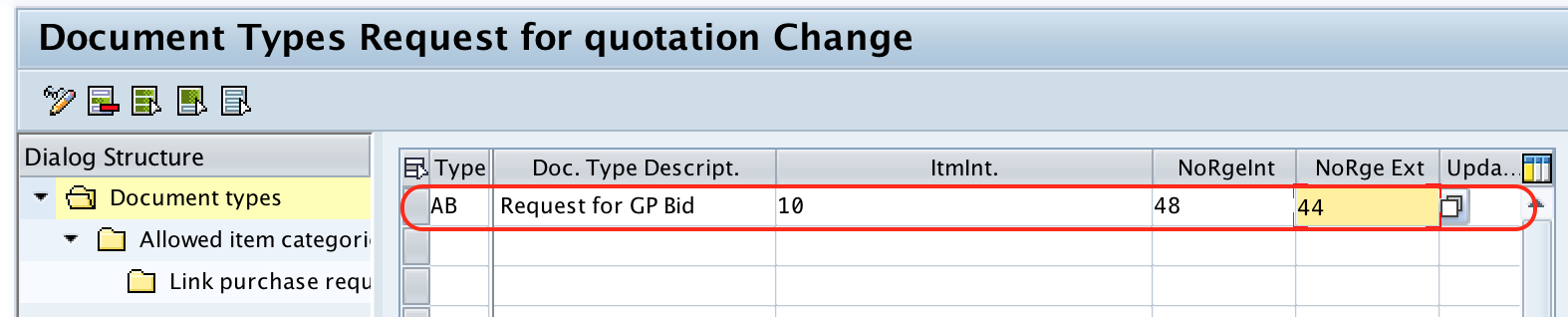
Step 6 : – On new entries of document type screen, update the following details.
- Type : – Update the two digits key that defines as document types for RFQ
- Doc. Type Description: – Update the descriptive text of RFQ document type.
- Itmlnt: – Update the item interval for RFQ, if the item interval is 10 then the RFQ line item starts with 10, 20, 30… and so on.
- NoRgeInt : – Assign the internal number range interval for RFQ document type.
- NoRge Ext : – Assign the external number range interval for RFQ document type.
- Field Selection : – Update the field selection key for the new document type from the list (Press function key F4 for list).
Important fields in SAP RFQ document type configuration
| Field | Meaning in RFQ document type | Configuration note |
|---|---|---|
| Type | Two-character RFQ document type key | Use a meaningful key only if the project naming convention allows it. |
| Description | Text displayed for the RFQ document type | Keep the description clear for buyers and support users. |
| Item Interval | Controls item number sequence | Common interval is 10, so items appear as 10, 20, 30. |
| Internal Number Range | System-assigned RFQ number range | Use this when SAP should generate RFQ numbers automatically. |
| External Number Range | User-entered RFQ number range | Use only when the business process requires external RFQ numbers. |
| Field Selection | Controls required, optional, display, and hidden fields | Check this carefully because it affects RFQ entry screens. |
Before assigning number ranges, confirm that the number range intervals are already created and do not overlap with intervals used by other purchasing document types. Also confirm whether the business wants internal numbering, external numbering, or both.
Allowed item categories for RFQ document type in SAP MM
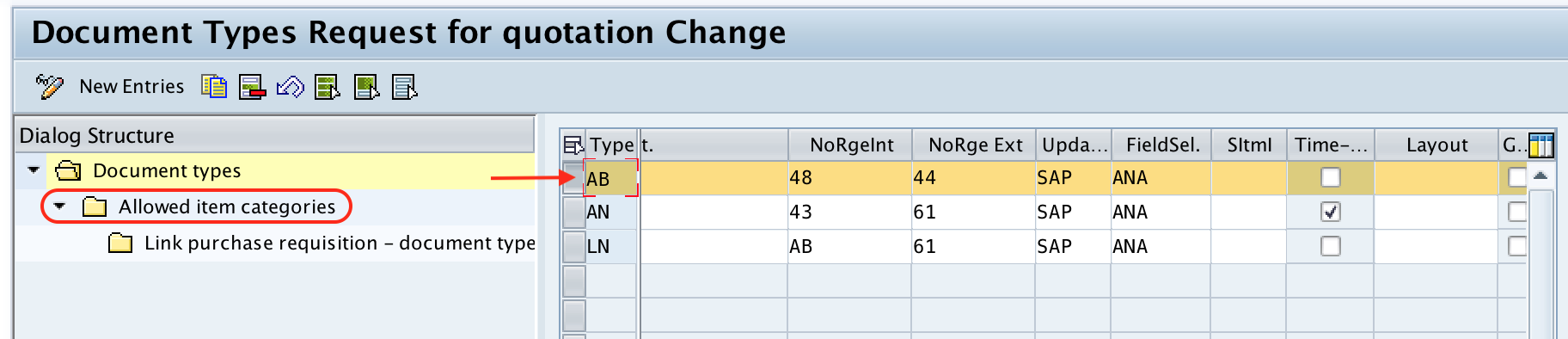
Step 7 : – Choose the document type AB and double click on allowed item categories.
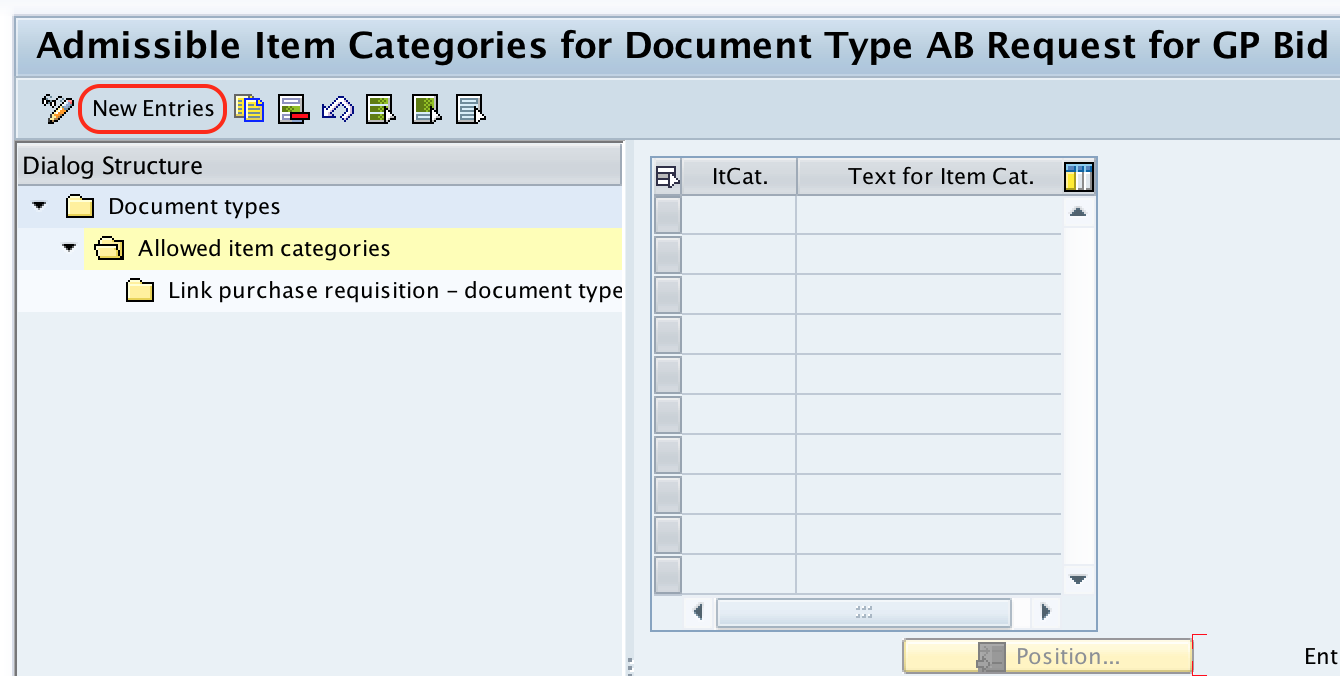
Step 8 : – On Admissible item categories for document type AB request for GP Bid screen, choose new entries button to define new item categories.
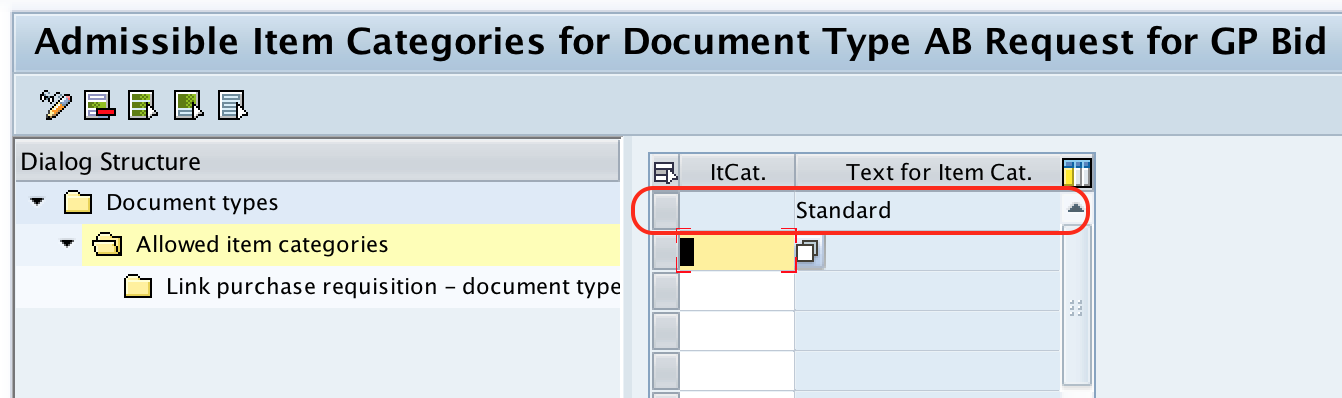
Step 9 : – On new entries item categories screen, choose item category from the list as per requirements and press enter.
Allowed item categories decide which types of RFQ items can be created under this RFQ document type. For example, the business may allow standard items for normal material procurement, but may restrict other item categories unless they are required for the purchasing process.
Link purchase requisition document type to RFQ document type
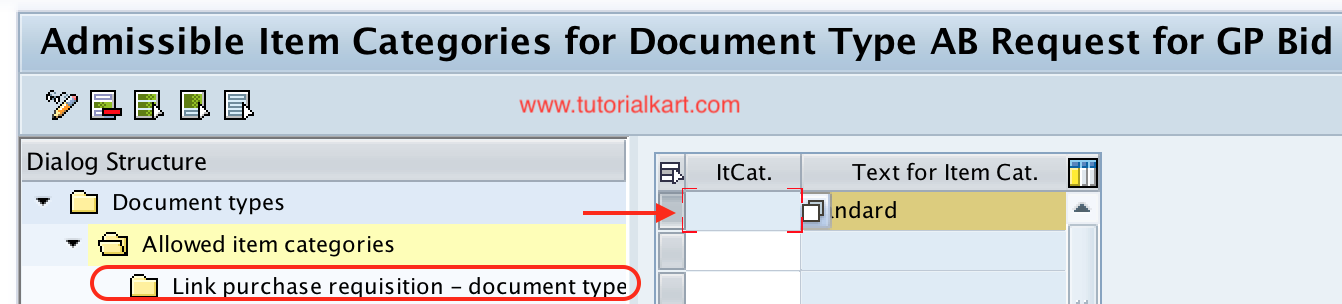
Step 10 : – Now choose the standard item category and double click on “link purchase requisition – document type”
Step 11 : – On change view “link purchase requisition – document type” overview screen, choose new entries button.
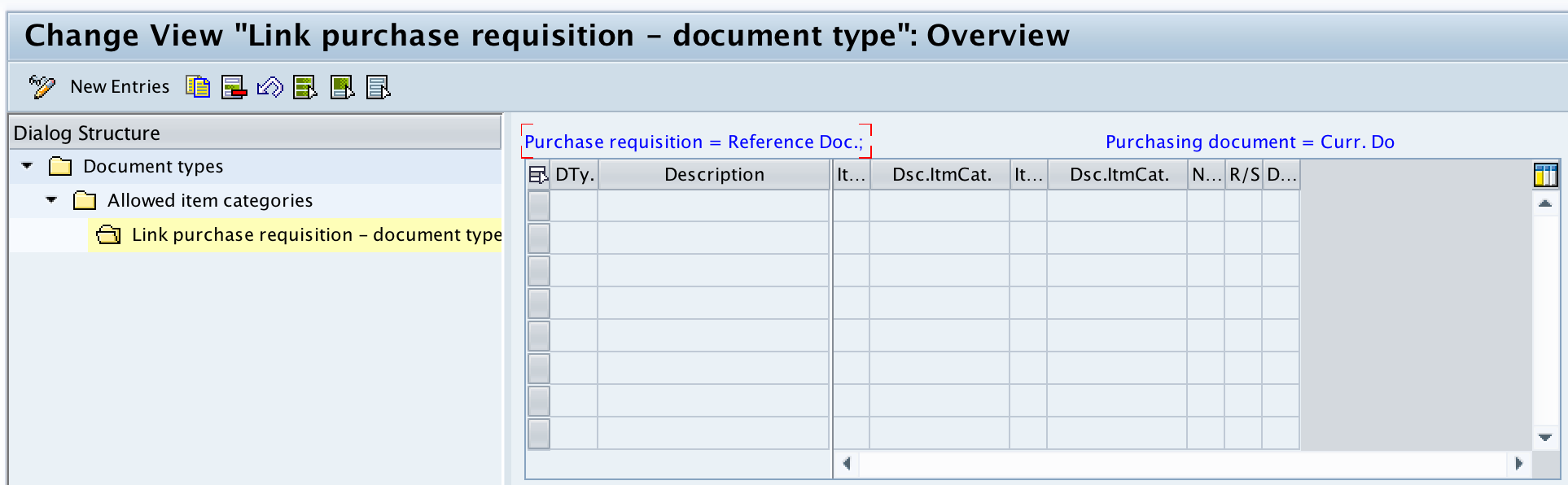
Step 12 : – On new entries screen, maintain the required purchasing document type and save the configured details.

This linking setting is important when RFQs are created with reference to purchase requisitions. It helps the system determine which RFQ document type is valid for the selected purchase requisition document type and item category.
Saving RFQ document type configuration in SAP MM
After maintaining all the required details for RFQ document type, choose save icon and save configured details.
The SAP system may ask for a customizing transport request. Assign the configuration to the correct request so that the RFQ document type settings can be moved from development to quality and production clients according to the project transport process.
Successfully we have defined document types for RFQ in SAP MM.
Testing the RFQ document type after configuration
After saving the RFQ document type, test the configuration before releasing it to business users. A simple test should confirm that the document type appears during RFQ creation, the RFQ number is generated correctly, and the allowed item categories are working as expected.
- Create a test RFQ using the new RFQ document type.
- Check whether internal or external numbering works according to the assigned number range.
- Add RFQ line items and verify the item number interval.
- Try only the item categories that should be allowed for this document type.
- Create an RFQ with reference to a purchase requisition and confirm the PR document type link.
- Check required and optional fields based on the assigned field selection key.
Common issues in RFQ document type configuration
- RFQ document type not available: Check whether the document type was saved in the correct client and whether user authorization allows the transaction or app.
- Number range error: Verify that the internal or external number range interval exists and is assigned to the RFQ document type.
- Item category not accepted: Confirm that the item category is maintained under allowed item categories for the selected RFQ document type.
- RFQ cannot be created from purchase requisition: Check the link between purchase requisition document type, RFQ document type, and item category.
- Field appears as mandatory unexpectedly: Review the field selection key assigned to the document type.
Best practices for SAP MM RFQ document type setup
- Copy an existing RFQ document type when the new process is similar to the standard process.
- Use clear descriptions so buyers can select the correct RFQ document type during transaction processing.
- Keep number range intervals separate for different RFQ processes when reporting or audit tracking requires it.
- Allow only the item categories that are needed for the business process.
- Review field selection with the purchasing team before making fields mandatory.
- Test purchase requisition to RFQ conversion if RFQs are commonly created from PRs.
Official SAP references for RFQ and purchasing document types
For project work, compare this configuration with official SAP guidance such as SAP Learning on creating document types in purchasing, SAP Learning on customizing document types in purchasing, and SAP Help for RFQ and quotation processing. Use the documentation that matches your SAP ERP or SAP S/4HANA release.
Editorial QA checklist for SAP MM RFQ document type tutorial
- Confirm that the IMG path is written as Material Management > Purchasing > RFQ/Quotation > Define document types.
- Check that the tutorial explains the RFQ document type fields: type, description, item interval, number range, and field selection.
- Verify that the allowed item categories section is included because it affects RFQ line item creation.
- Confirm that the purchase requisition document type link is explained for RFQs created with reference to PRs.
- Ensure the testing notes cover number range, item interval, item category, and field selection behavior.
FAQs on SAP MM RFQ document type configuration
What is the RFQ document type in SAP MM?
An RFQ document type in SAP MM is a two-character key that controls how a Request for Quotation is processed. It controls settings such as number ranges, item number interval, allowed item categories, field selection, and links with purchase requisition document types.
Which transaction code is used to define document types for RFQ?
The configuration is accessed through transaction code SPRO. The IMG path is Material Management > Purchasing > RFQ/Quotation > Define document types.
Why are allowed item categories maintained for an RFQ document type?
Allowed item categories determine which types of items can be entered in an RFQ. If an item category is not assigned to the RFQ document type, the system may not allow users to create RFQ items with that category.
Why is number range assignment important for RFQ document types?
Number range assignment decides how RFQ numbers are generated. Internal number ranges allow the SAP system to generate RFQ numbers automatically, while external number ranges allow users to enter a number within the permitted interval.
Why link purchase requisition document type with RFQ document type?
The link is required when RFQs are created with reference to purchase requisitions. It helps the system identify the valid RFQ document type for the purchase requisition document type and item category used in the procurement process.