 TutorialKart.com
How to Create Stock Categories in Tally ERP 9
A stock category in Tally ERP 9 provides an additional way to classify stock items. Stock groups usually organize items by their main inventory hierarchy, while stock categories can group similar items across different stock groups for comparison and reporting.
You can create stock categories in Tally by using either of these methods:
Enable Maintain Stock Categories in Tally ERP 9
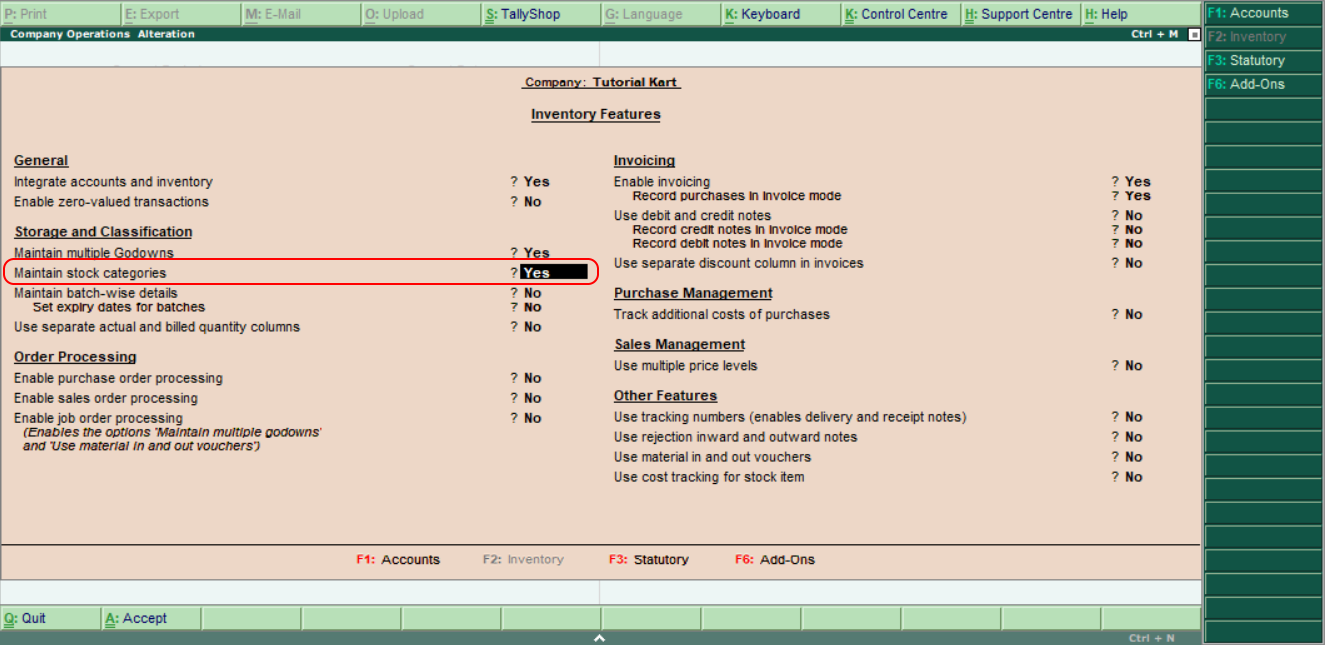
Before creating a stock category, enable the stock category feature. From the Gateway of Tally, follow this path:
Gateway of Tally > F11: Features > Inventory Features
Set Maintain Stock Categories to Yes, and accept the Inventory Features screen. The Stock Categories option will then become available under Inventory Info.
Create a Single Stock Category in Tally ERP 9
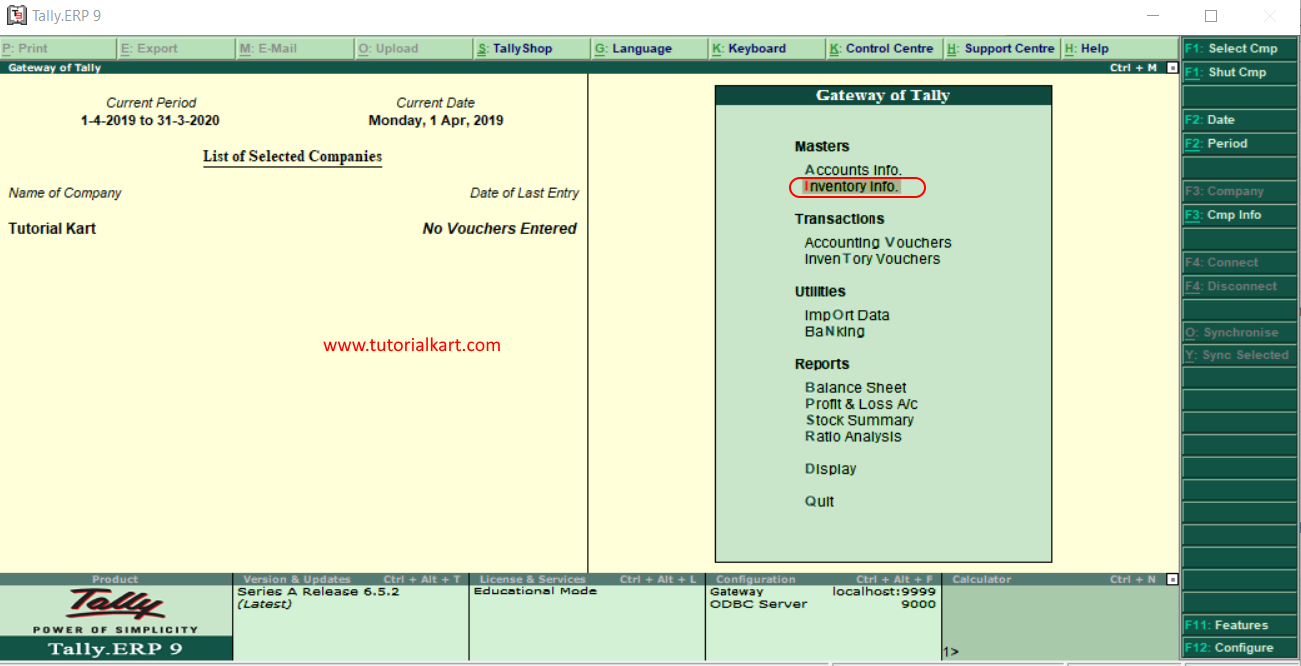
Step 1: Open Inventory Info from Gateway of Tally
From the Gateway of Tally screen, select Inventory Info.
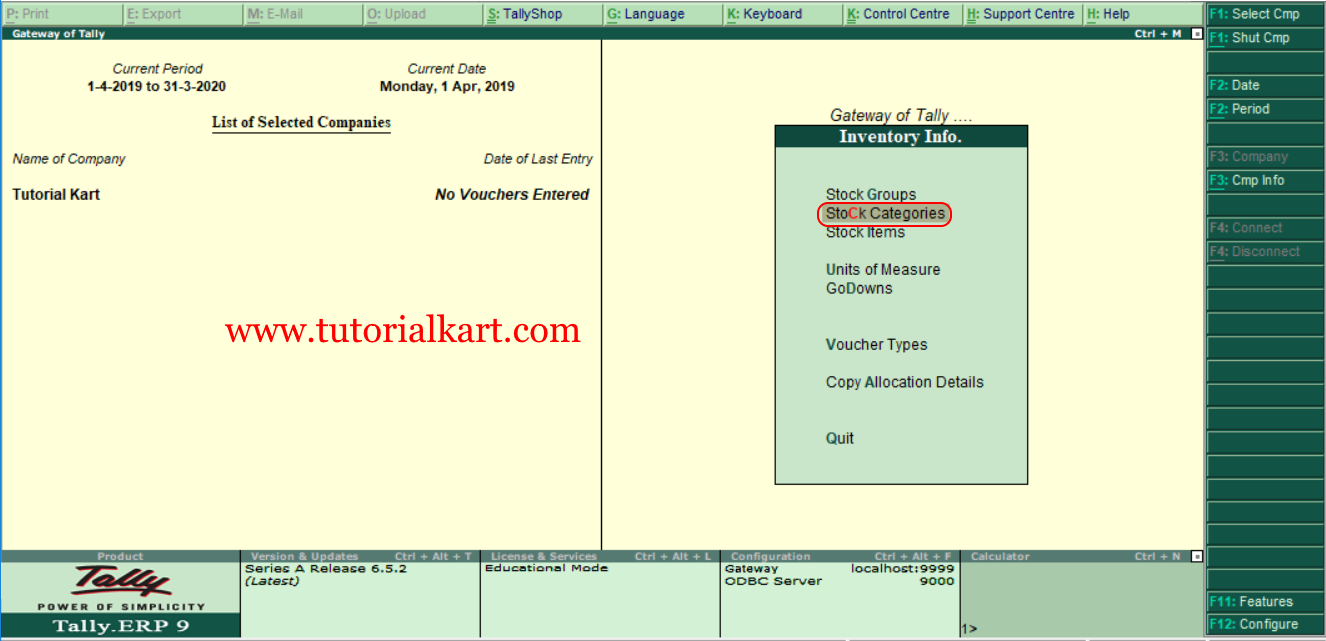
Step 2: Select Stock Categories
Under Inventory Info, choose Stock Categories. If this option is not displayed, return to F11: Features and confirm that Maintain Stock Categories is set to Yes.
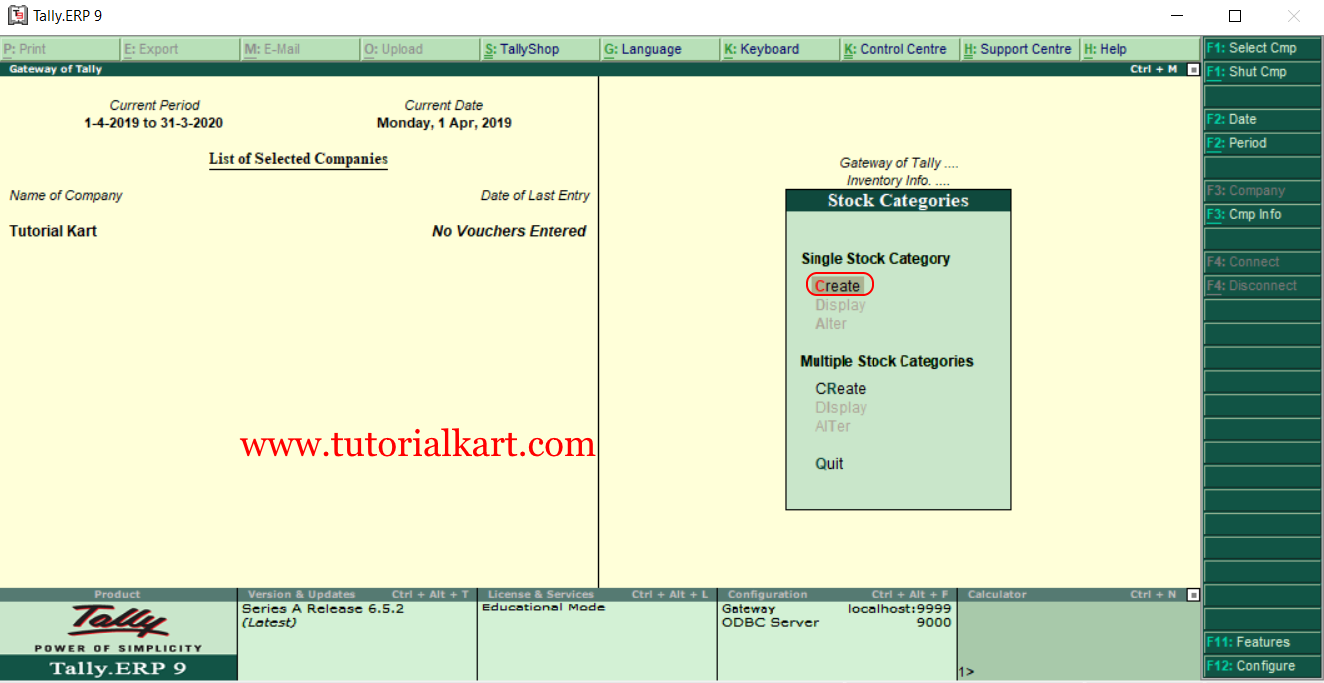
Step 3: Choose Create under Single Stock Category
Under the Single Stock Category section, select Create.
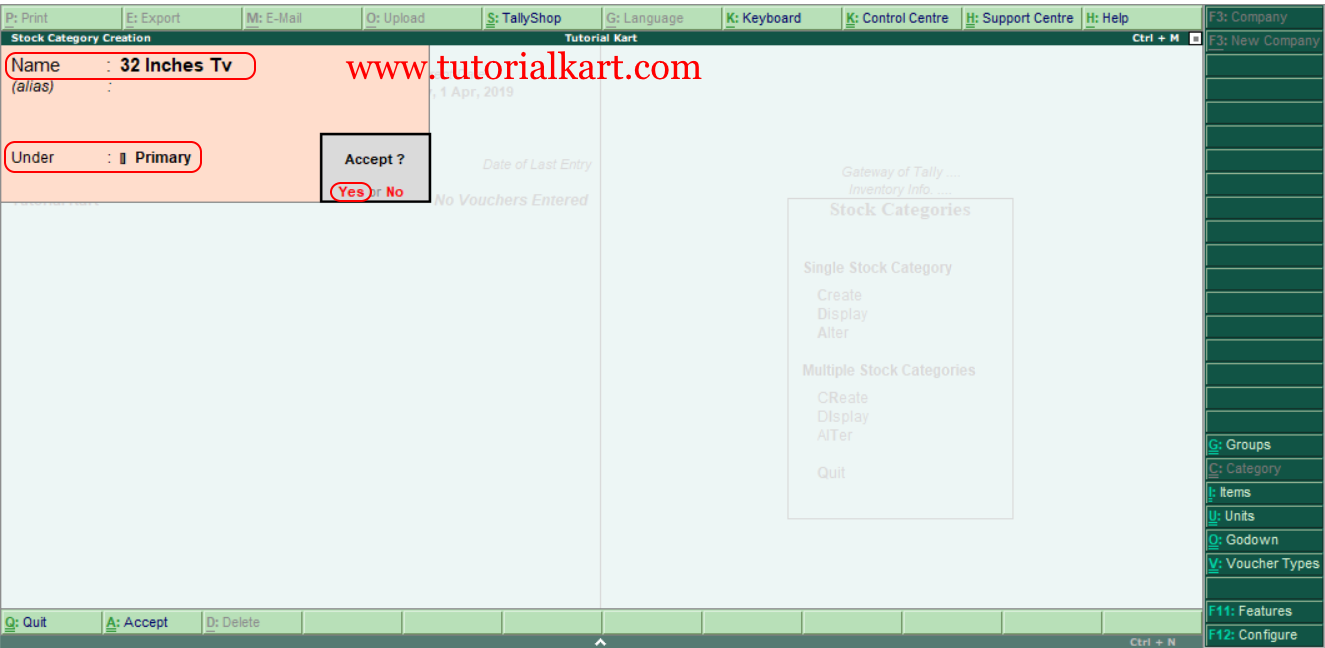
Step 4: Enter the Stock Category Name and Parent Category
In the Stock Category Creation screen, enter the required details:
- Name: Enter a clear name for the stock category. In this example, the category name is 32 Inches TV.
- Under: Select the parent category. Choose Primary when the new category does not belong under another existing stock category.
Press Enter to move through the fields, and choose Yes when Tally asks you to accept the category details. You can also press Ctrl+A to accept the screen.
Create Multiple Stock Categories in Tally ERP 9
Use multiple stock category creation when you need to enter several categories from one screen. This reduces repeated navigation and is useful when the categories share the same parent category.
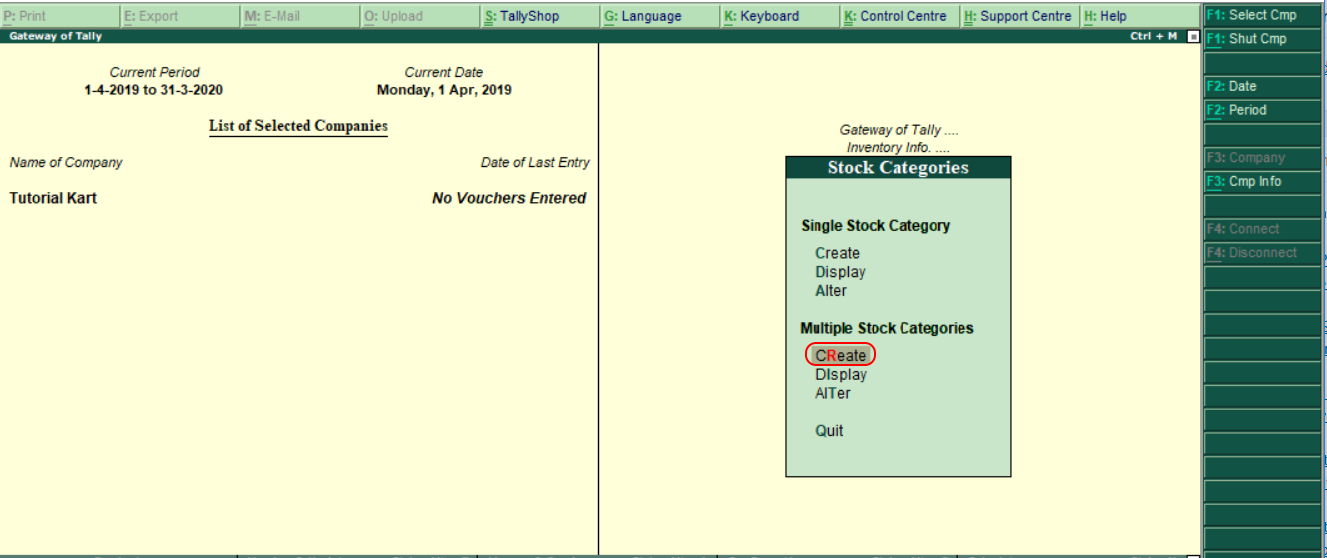
Step 1: Choose Create under Multiple Stock Categories
Open Gateway of Tally > Inventory Info. > Stock Categories, and select Create under Multiple Stock Categories.
Step 2: Select All Items or a Specific Parent Category
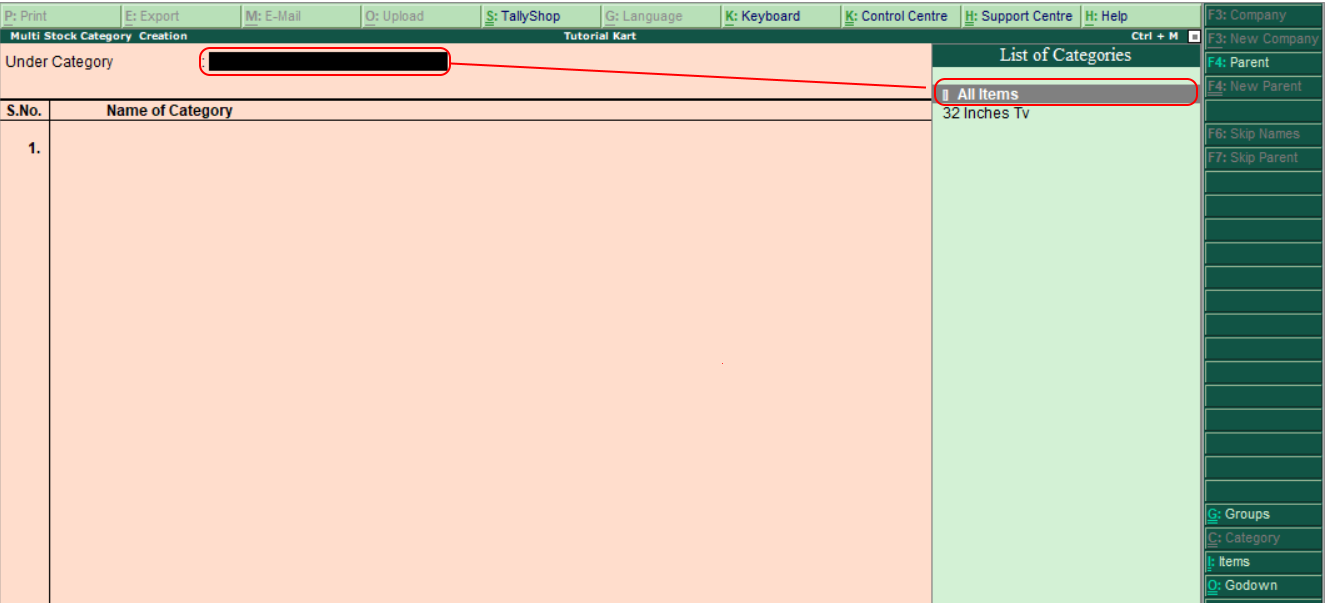
In the Multi Stock Category Creation screen, select All Items when you want to enter categories and choose the parent category separately for each row. This allows the Under field to be maintained for every category.
If all new categories belong under one existing category, select that category instead of All Items so the same parent can be applied to the entries.
Step 3: Enter Each Stock Category and Its Parent
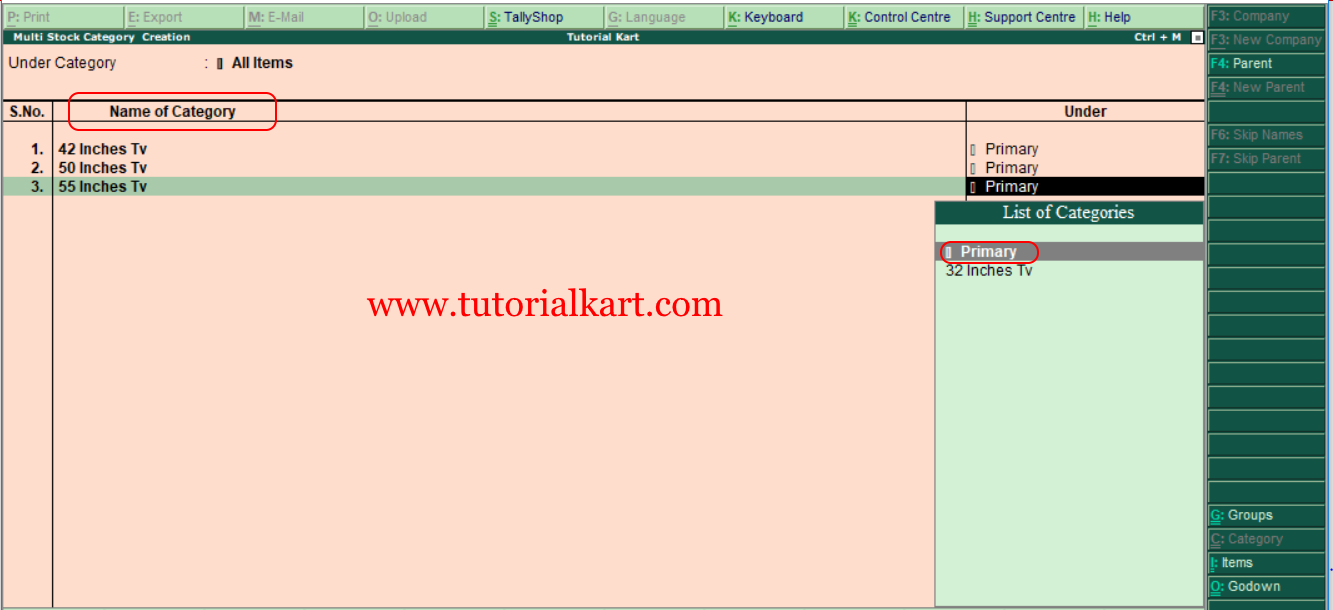
Enter each stock category name on a separate row. In the Under column, select Primary for a top-level stock category or choose an existing stock category when you want to create a subcategory.
Use distinct and descriptive category names. For example, screen-size categories such as 24 Inches TV, 32 Inches TV and 43 Inches TV can be used to compare similarly sized televisions even when the stock items belong to different brand-based stock groups.
Step 4: Accept the Multi Stock Category Creation Screen
Review all category names and parent assignments. After maintaining the required details, choose A: Accept or press Ctrl+A to save the stock categories in Tally ERP 9.
Stock Group and Stock Category Difference in Tally
Stock groups and stock categories both classify inventory, but they serve different purposes.
| Inventory master | Purpose | Example |
|---|---|---|
| Stock Group | Defines the main hierarchical classification of stock items. | Television > Sony TV |
| Stock Category | Provides a parallel classification for comparing similar items across stock groups. | 32 Inches TV |
For example, televisions may be organized into Sony TV and Samsung TV stock groups while the same items are assigned to a 32 Inches TV stock category. This allows inventory to be viewed by brand through stock groups and by screen size through stock categories.
Assigning a Stock Category to a Stock Item
Creating a stock category does not automatically assign stock items to it. Open the relevant stock item master and select the required category in the Category field. The Maintain Stock Categories feature must remain enabled for this field to be available.
Stock Category Creation Checks in Tally ERP 9
- Confirm that Maintain Stock Categories is enabled in Inventory Features.
- Use category names that describe the common attribute being compared, such as size, grade, model type or material.
- Check whether the category should be under Primary or an existing parent category.
- Avoid creating duplicate categories with slightly different spellings.
- After creating the category, assign the relevant stock items to it.
- Review every row before accepting a multiple stock category entry screen.
Common Stock Category Problems in Tally ERP 9
Stock Categories option is not displayed
Open F11: Features, choose Inventory Features and set Maintain Stock Categories to Yes. Accept the screen and return to Inventory Info.
The required parent category is missing
Create the parent stock category first. Then reopen the single or multiple stock category creation screen and select it in the Under field.
A created category does not appear against a stock item
Verify that Maintain Stock Categories is enabled and that the stock category was accepted successfully. Reopen the stock item alteration screen and select the required value in the Category field.
Stock Categories in Tally ERP 9: Frequently Asked Questions
Why are stock categories used in Tally?
Stock categories provide a parallel classification that helps compare similar stock items across different stock groups. They can classify items by attributes such as size, grade, type or specification.
Can one stock item belong to both a stock group and a stock category?
Yes. A stock item belongs to a stock group as its main classification and can also be assigned to a stock category for an additional comparison-based classification.
What does Primary mean while creating a stock category?
Primary means that the category is created at the top level and is not placed under another stock category.
Can several stock categories be created together?
Yes. Select Create under Multiple Stock Categories and enter each category on a separate row. Review the Under value for each entry before accepting the screen.