 TutorialKart.com
Payroll Configuration in Tally.ERP 9
Payroll Configuration in Tally.ERP 9 controls which employee-related fields and details are available while creating or maintaining payroll masters. In this Tally payroll tutorial, you will learn how to open the Payroll Configurations screen and set its available options.
This screen is mainly used to configure the information that Tally displays for employees, such as statutory details, passport and visa information, contact details, employee notes, and resigned or retired employee records.
Before Opening Payroll Configuration in Tally
Make sure payroll is enabled for the company before attempting to create employees, pay heads, salary details, or payroll vouchers. The Payroll Configurations screen discussed below customizes employee-related fields; it does not by itself create the complete payroll structure.
Path to Payroll Configurations in Tally.ERP 9
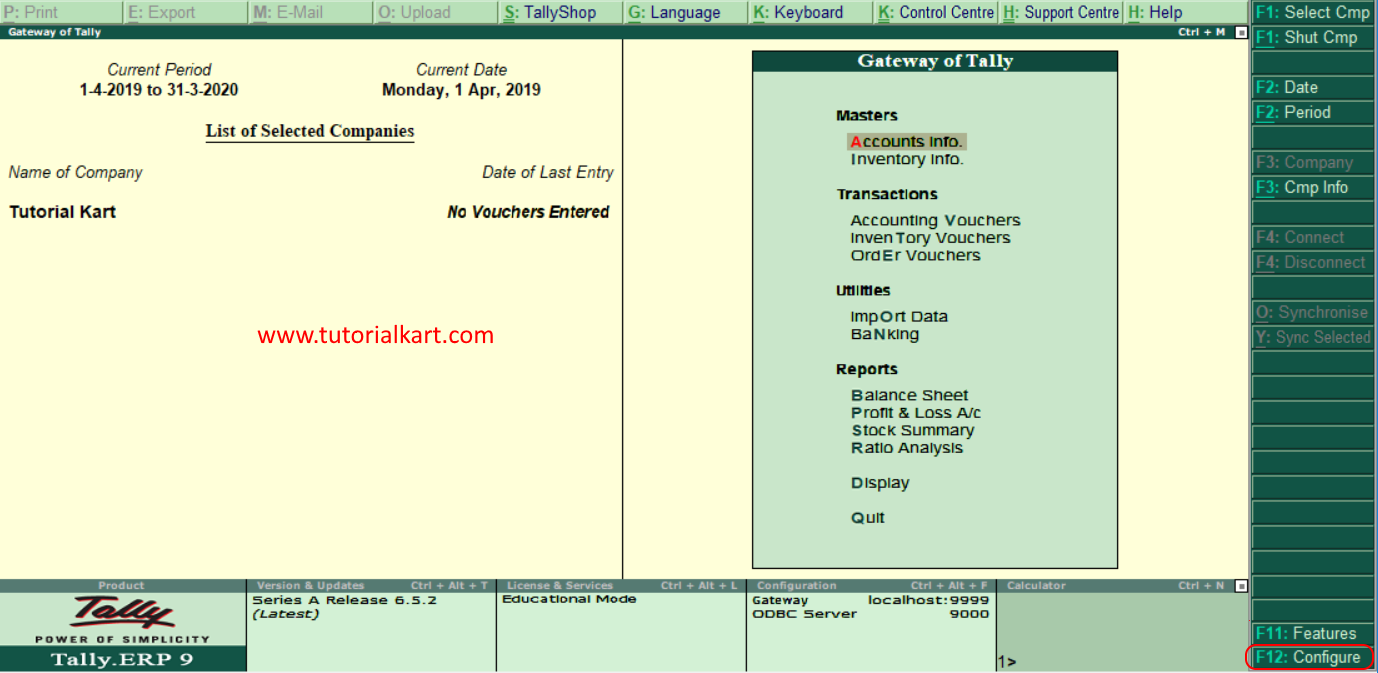
Path: Gateway of Tally > F12: Configure > Payroll Configurations.
Steps to Configure Payroll Details in Tally
Step 1: From the Gateway of Tally screen, choose the F12: Configure option. You can also press the F12 function key.
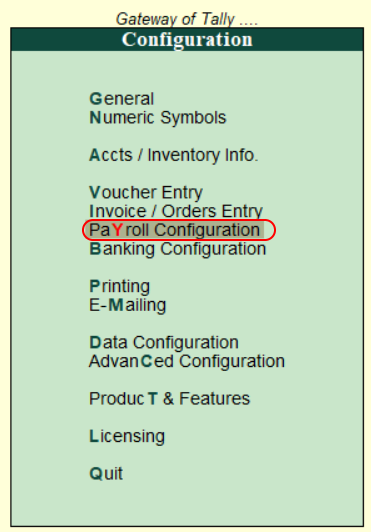
Step 2: In the Configuration menu, select Payroll Configurations.
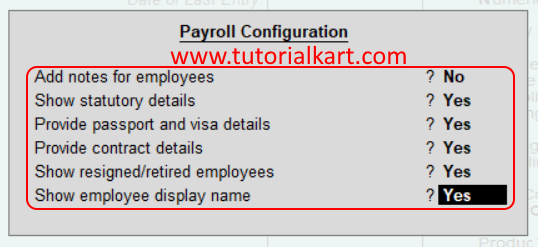
Step 3: In the Payroll Configuration screen, set each option to Yes or No according to the employee information your organization needs to maintain.
Employee Notes and Statutory Details Settings
- Add notes for employees: Select Yes when you need an additional notes field in employee records. This can be used for relevant internal remarks.
- Show statutory details: Select Yes to make statutory fields available in the employee master, including applicable PF, ESI, and related identification details.
Passport, Visa, and Employee Contact Settings
- Provide passport and visa details: Select Yes when passport and visa information must be maintained for employees.
- Show contact details: Select Yes to display fields for employee contact information.
Resigned Employees and Display Name Settings
- Show resigned/retired employees: Select Yes when resigned or retired employees must remain visible for payroll reporting, historical reference, or final settlement-related work.
- Show employee display name: Select Yes to use or display an employee name separately from the main employee master name, where supported by the payroll configuration.
Step 4: After setting the required options, accept the screen to save the payroll configuration. In Tally.ERP 9, you can normally accept a screen by pressing Ctrl+A.
Choosing the Correct Payroll Configuration Options
Enable only the fields that are useful for your payroll process. For example, organizations that do not maintain employee passport information can leave that option set to No. Keeping unnecessary fields disabled makes employee masters easier to complete and review.
Statutory fields should be enabled only when the organization needs to maintain the corresponding payroll information. The availability of a field does not automatically calculate deductions or complete statutory compliance. Pay heads, employee salary details, attendance or production types, payroll vouchers, and statutory settings must still be configured separately where applicable.
What to Configure After Payroll Configuration
After saving the display and employee-detail preferences, continue with the payroll masters required by the company. A typical setup may include the following:
- Create employee categories and employee groups, if required.
- Create individual employee masters.
- Create earnings, deductions, employer contributions, and other pay heads.
- Define salary details for each employee or employee group.
- Create attendance or production types when payroll depends on attendance, overtime, leave, or units produced.
- Record attendance and payroll vouchers for the relevant payroll period.
- Review payroll reports before finalizing salary payments.
Payroll Configuration Options Not Appearing in Tally
If the Payroll Configurations option is not visible, verify that you are working in the correct company and that payroll has been enabled in the company features. Menu names and available fields may also vary depending on the installed Tally release, enabled statutory features, company country settings, and user permissions.
If a required employee field is still missing, reopen the Payroll Configurations screen, enable the relevant option, accept the changes, and then open the employee master again.
Payroll Configuration in Tally: Editorial QA Checklist
- Confirm that payroll is enabled for the selected company.
- Verify that the Payroll Configurations screen opens through Gateway of Tally > F12: Configure.
- Enable statutory details only when the related employee information is maintained.
- Check whether passport, visa, contact, and employee notes fields appear in the employee master after enabling them.
- Confirm that the configuration screen is accepted and saved before leaving it.
- Review resigned or retired employee visibility according to payroll reporting requirements.
Frequently Asked Questions About Payroll Configuration in Tally
What is Payroll Configuration in Tally.ERP 9?
Payroll Configuration is an F12 configuration screen used to control which employee-related details are available or displayed in payroll masters, including notes, statutory details, contact information, passport and visa data, and resigned or retired employees.
Does Payroll Configuration create employee salaries automatically?
No. Payroll Configuration controls selected employee fields and display preferences. Employee masters, pay heads, salary details, attendance data, and payroll vouchers must be created separately.
Why is Payroll Configurations not visible in Tally?
The option may be unavailable when payroll is not enabled for the company, when the user lacks the required permissions, or when the installed Tally release uses a different menu arrangement.
Can payroll configuration settings be changed later?
Yes. You can return to the Payroll Configurations screen and change the available options when the organization’s employee-record requirements change.
The Payroll Configuration settings are now saved in Tally.ERP 9. You can proceed to create or update employee masters and complete the remaining payroll setup.