 TutorialKart.com
F12 Configuration in Tally.ERP 9 provides application-level and screen-specific settings for controlling data entry, master creation, invoices, banking, printing, e-mail, data locations, and other operations. The options displayed depend on the screen from which you open F12: Configure, so the configuration available on a voucher screen can differ from the configuration opened at the Gateway of Tally.
Some F12 settings apply across companies stored in the configured Tally data environment, while others affect only a particular task or screen. The exact option names can also vary with the Tally.ERP 9 release, enabled features, license, and statutory configuration.
How to Open F12 Configuration in Tally.ERP 9
From the Gateway of Tally, press the F12 function key or click F12: Configure. On keyboards that assign another action to the function keys, you may need to press Fn+F12.
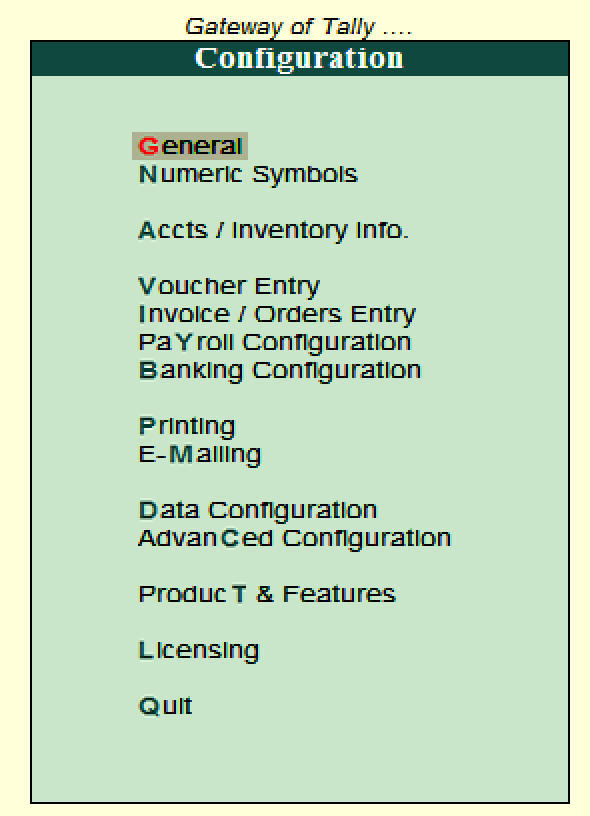
To change settings for a particular activity, first open the relevant master, voucher, invoice, report, or printing screen and then press F12. Move to the required option, select Yes or No where applicable, and accept the screen with Ctrl+A. Review the result in the relevant transaction or report before continuing with regular data entry.
F11 Features and F12 Configuration in Tally.ERP 9
F11 and F12 serve different purposes. F11: Features is primarily used to enable business capabilities for a company, such as accounting, inventory, taxation, payroll, or other supported features. F12: Configure changes how enabled functions, screens, reports, and data-entry forms behave or appear.
| Function | Primary purpose | Typical use |
|---|---|---|
| F11: Features | Enable or disable company-level capabilities | Turn on inventory, payroll, taxation, or invoicing features supported by the installed release |
| F12: Configure | Control application and screen behavior | Adjust voucher entry, number formats, printing, banking, data paths, or display options |
Configuration Categories Available from the Gateway of Tally
The main configuration screen can contain settings for the following areas. Availability depends on the installed Tally.ERP 9 release and the features currently enabled.
- General
- Numeric Symbols
- Accts/Inventory Info
- Voucher Entry
- Invoices/Orders Entry
- Payroll Configuration
- Banking Configuration
- Printing
- Data Configuration
- Advanced Configuration
- Product and Features
- Licensing
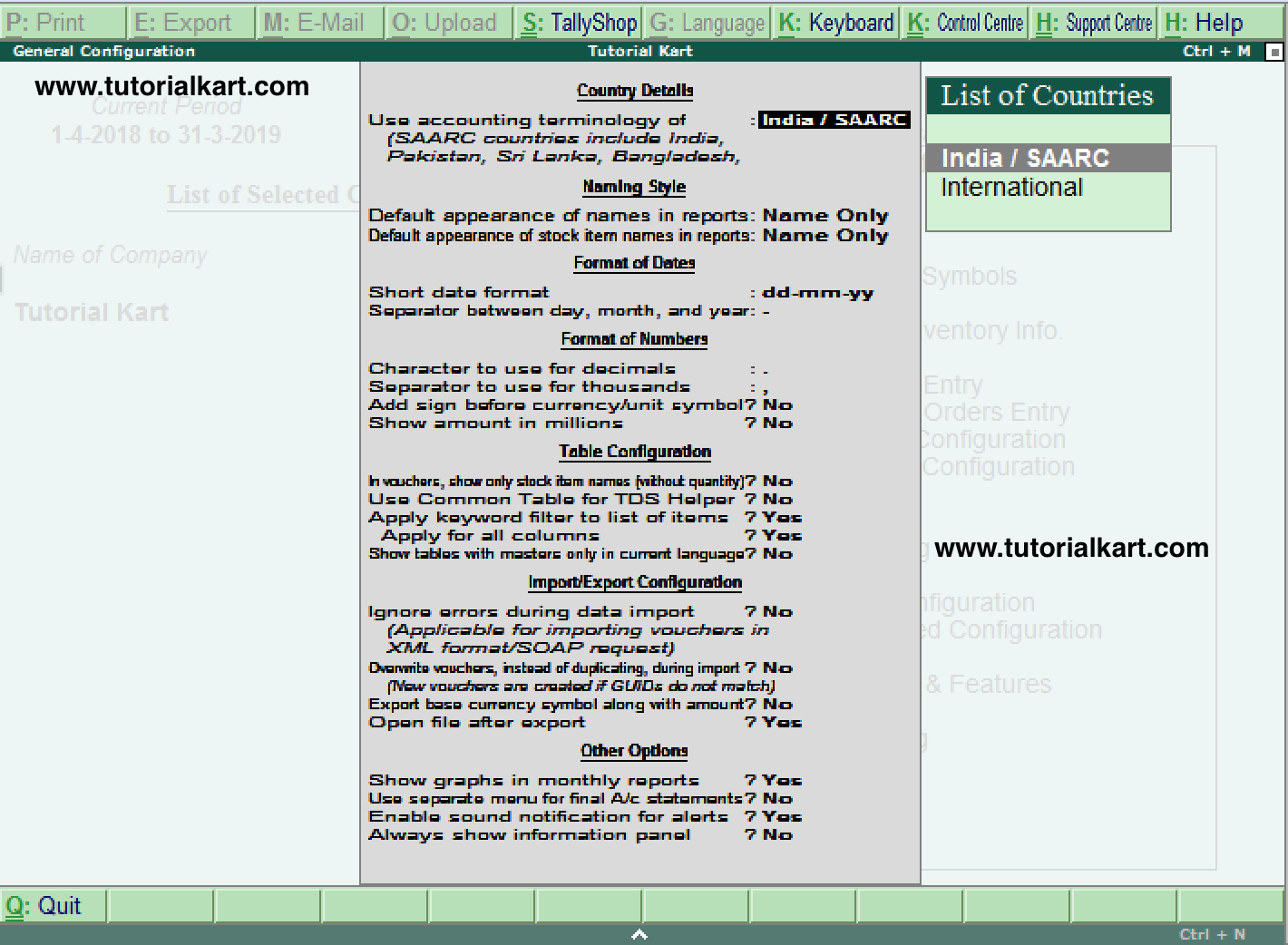
General Configuration for Dates, Numbers, Tables, and Data Exchange
The General configuration controls common display and data-handling preferences. Depending on the release, it can include the country setting, name style, date format, number format, table behavior, import and export preferences, and other application-wide options.
Numeric Symbols for Positive, Negative, Debit, and Credit Amounts
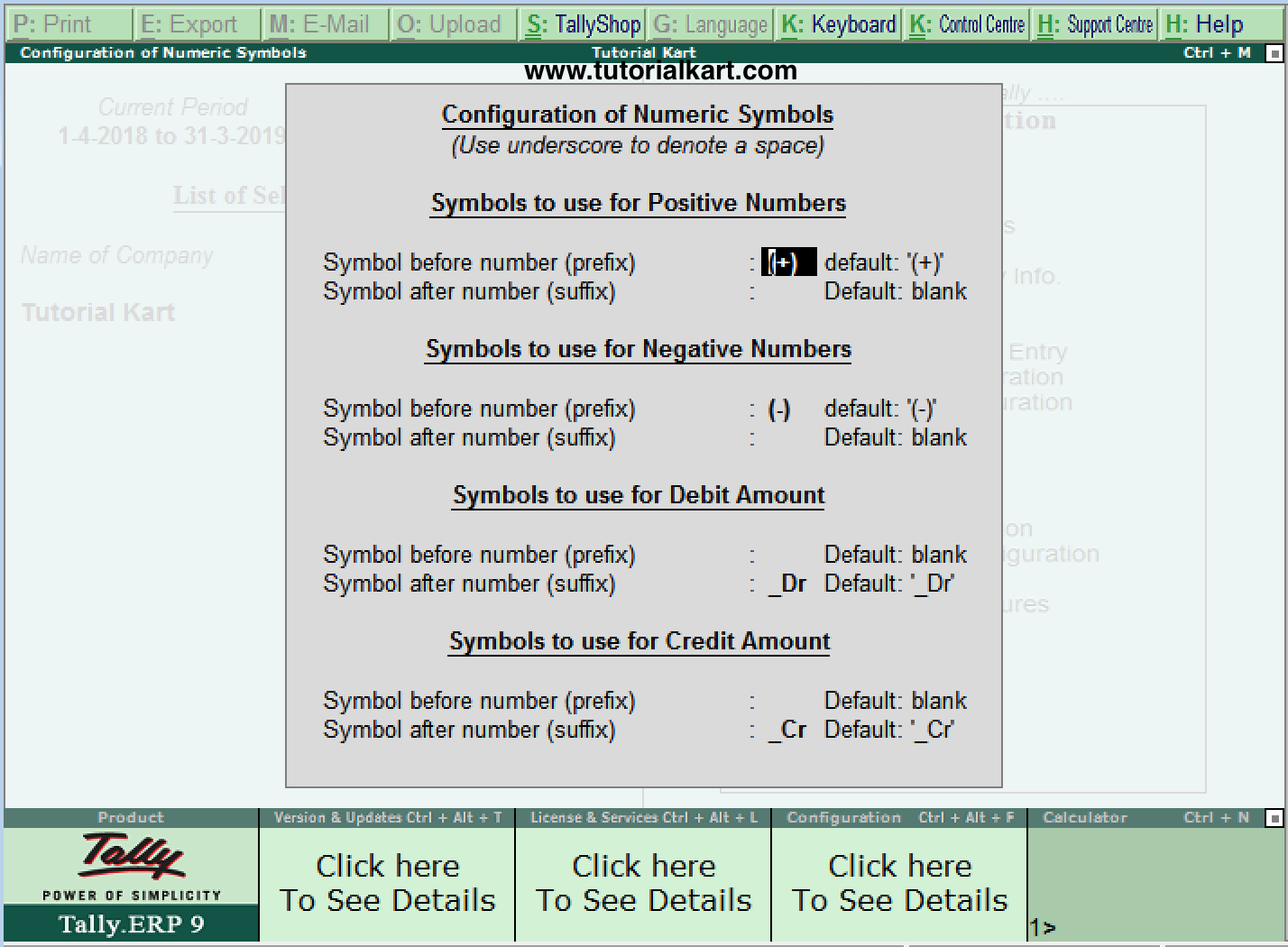
Numeric Symbols determines how different types of values are represented on screens and reports. These settings can define:
- The symbol used for positive numbers
- The symbol used for negative numbers
- The symbol used for debit amounts
- The symbol used for credit amounts
Choose symbols that remain unambiguous in reports and printed documents. After changing them, check a report containing positive, negative, debit, and credit values.
Accounts and Inventory Information Configuration
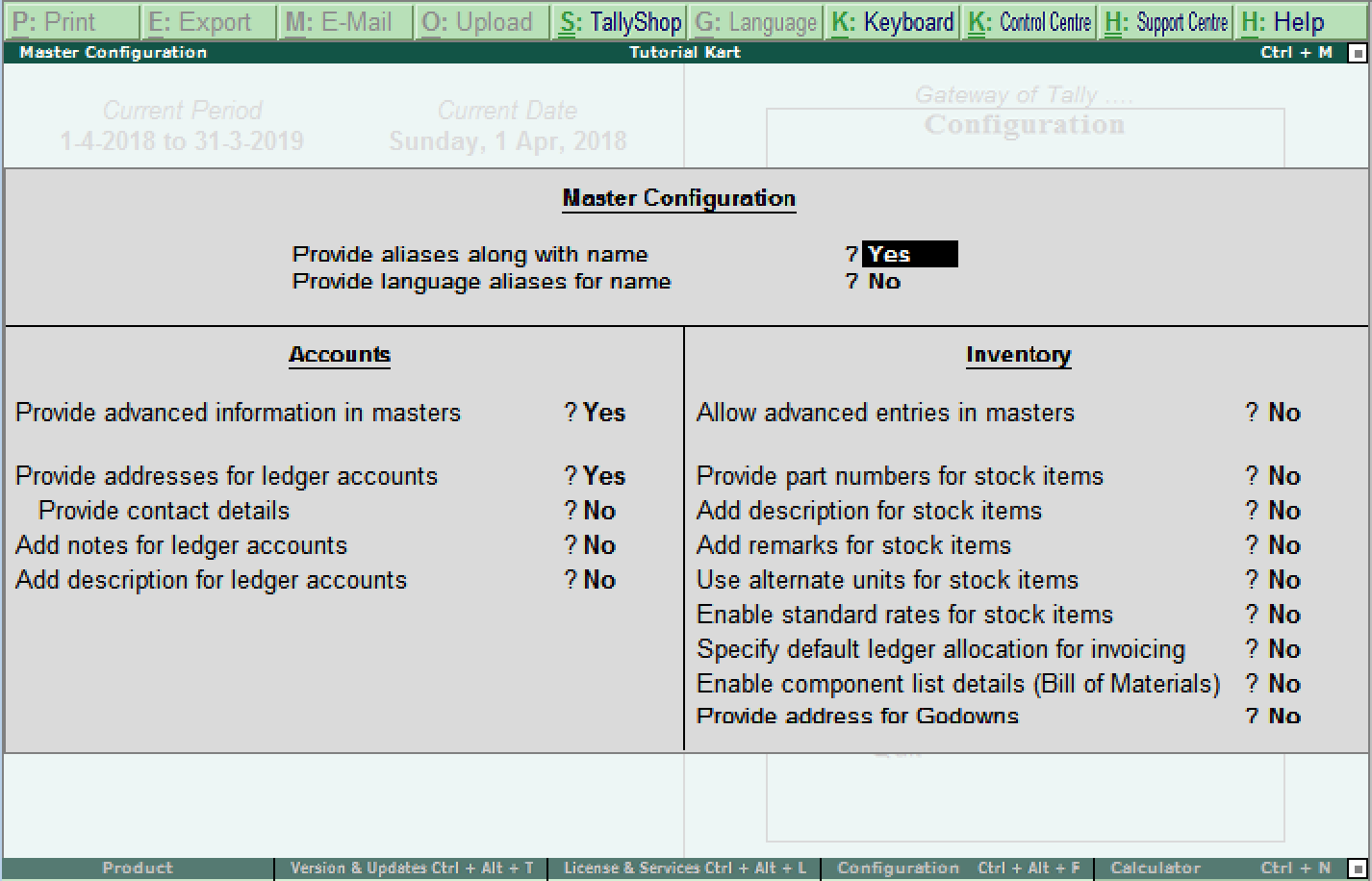
Accts/Inventory Info contains configuration options used while viewing or maintaining accounting and inventory information. The settings are grouped around:
- Master data
- Accounts
- Inventory
Use this section to control the information presented while working with ledgers, groups, stock items, units, and other enabled masters. Options that depend on an F11 feature may not appear until that feature is enabled.
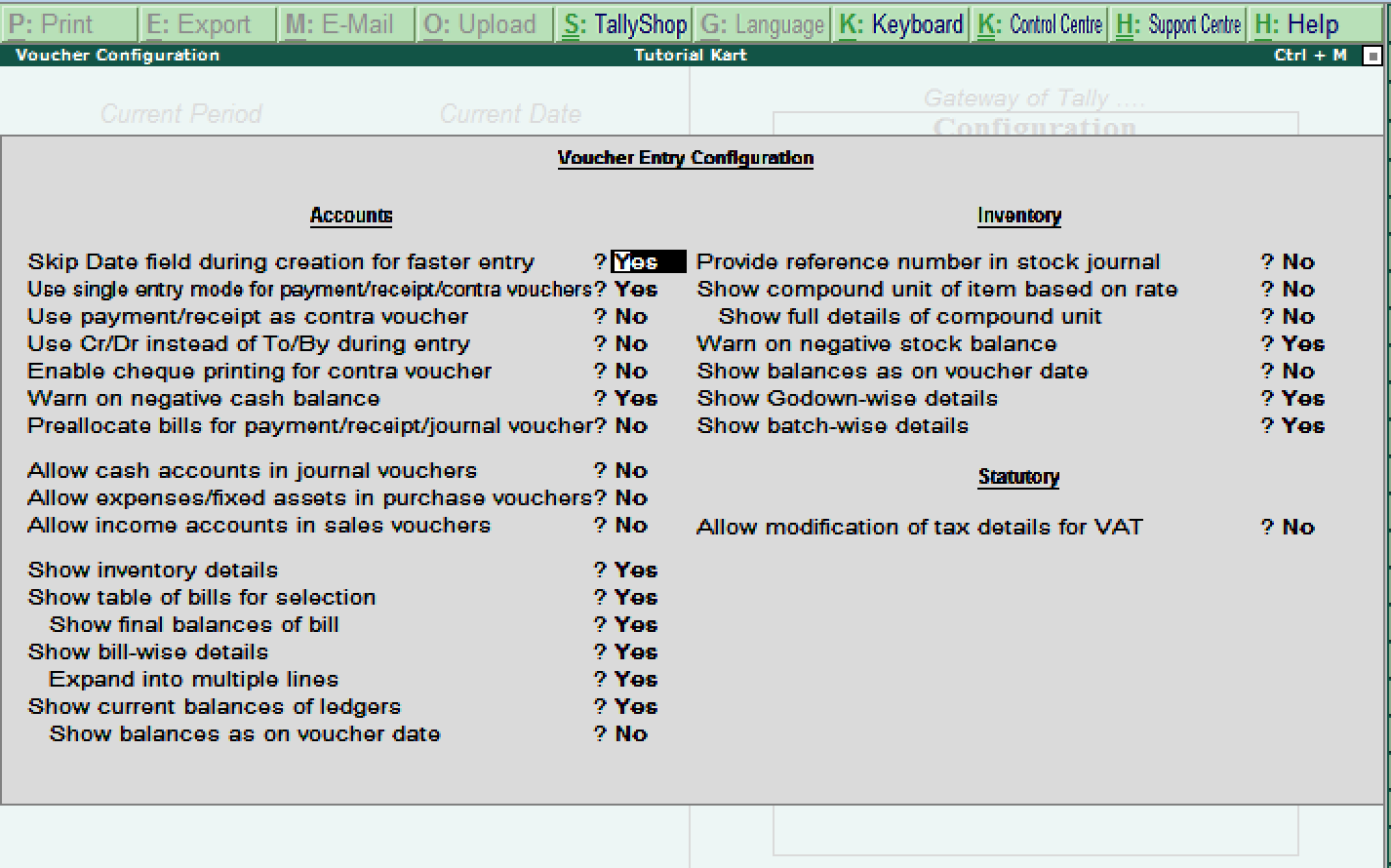
Voucher Entry Configuration for Accounting and Inventory Transactions
Voucher Entry configuration changes the fields, prompts, and behavior available while recording transactions. Its options can cover:
- Accounts
- Inventory
- Statutory information
Open F12 from the required voucher type when you need settings specific to that entry screen. Test the change with a sample transaction before applying it to routine entries, especially when the setting affects calculations or statutory details.
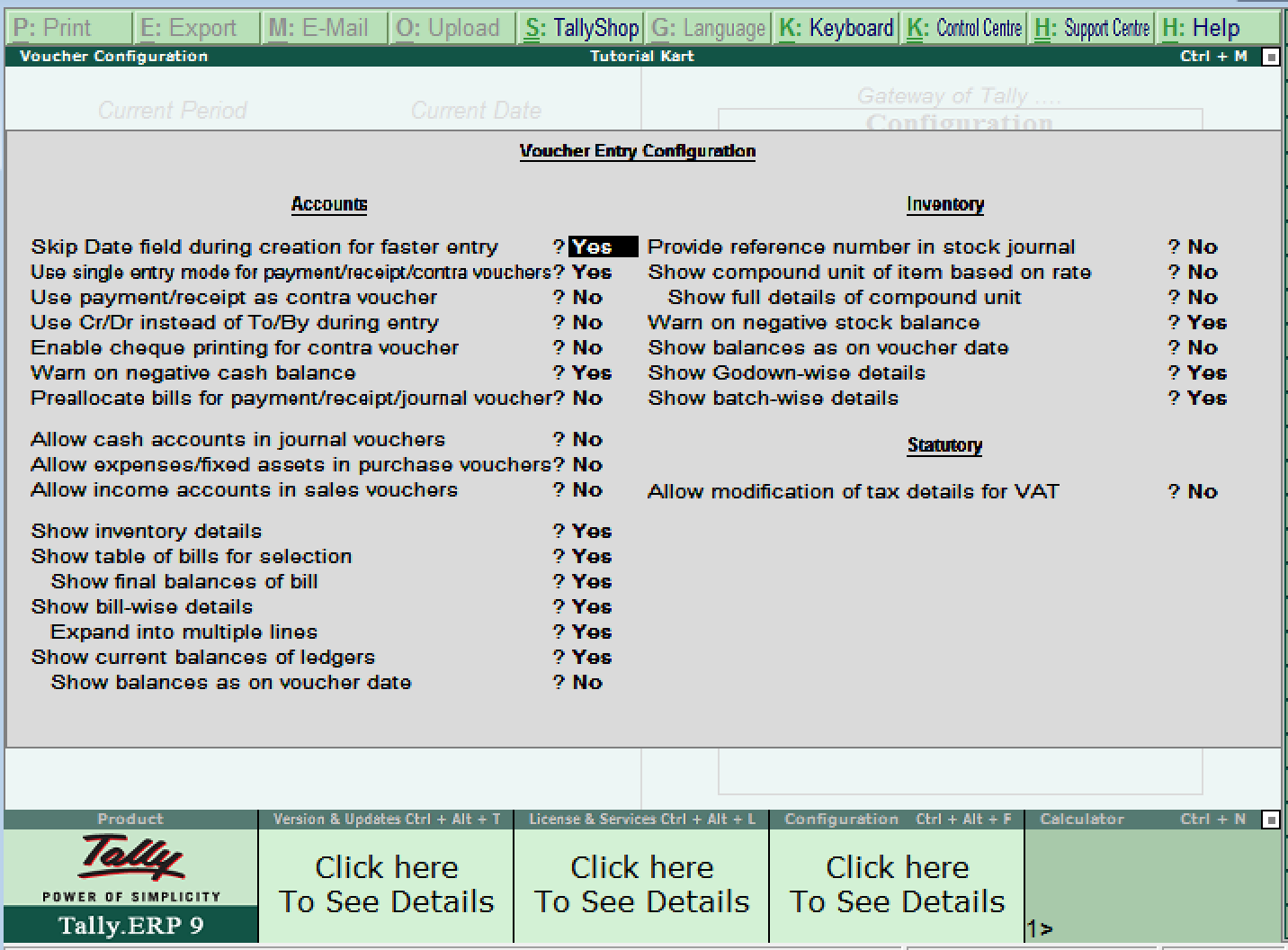
Invoice and Order Entry Configuration
Invoice/Order Entry configuration controls the information and entry behavior used for supported sales, purchase, order, and invoice screens. Its settings can relate to:
- Accounts
- Inventory
- Statutory information
The options visible here depend on whether the corresponding invoicing, order-processing, inventory, and statutory features have been enabled for the company.
Payroll Configuration for Employee Information
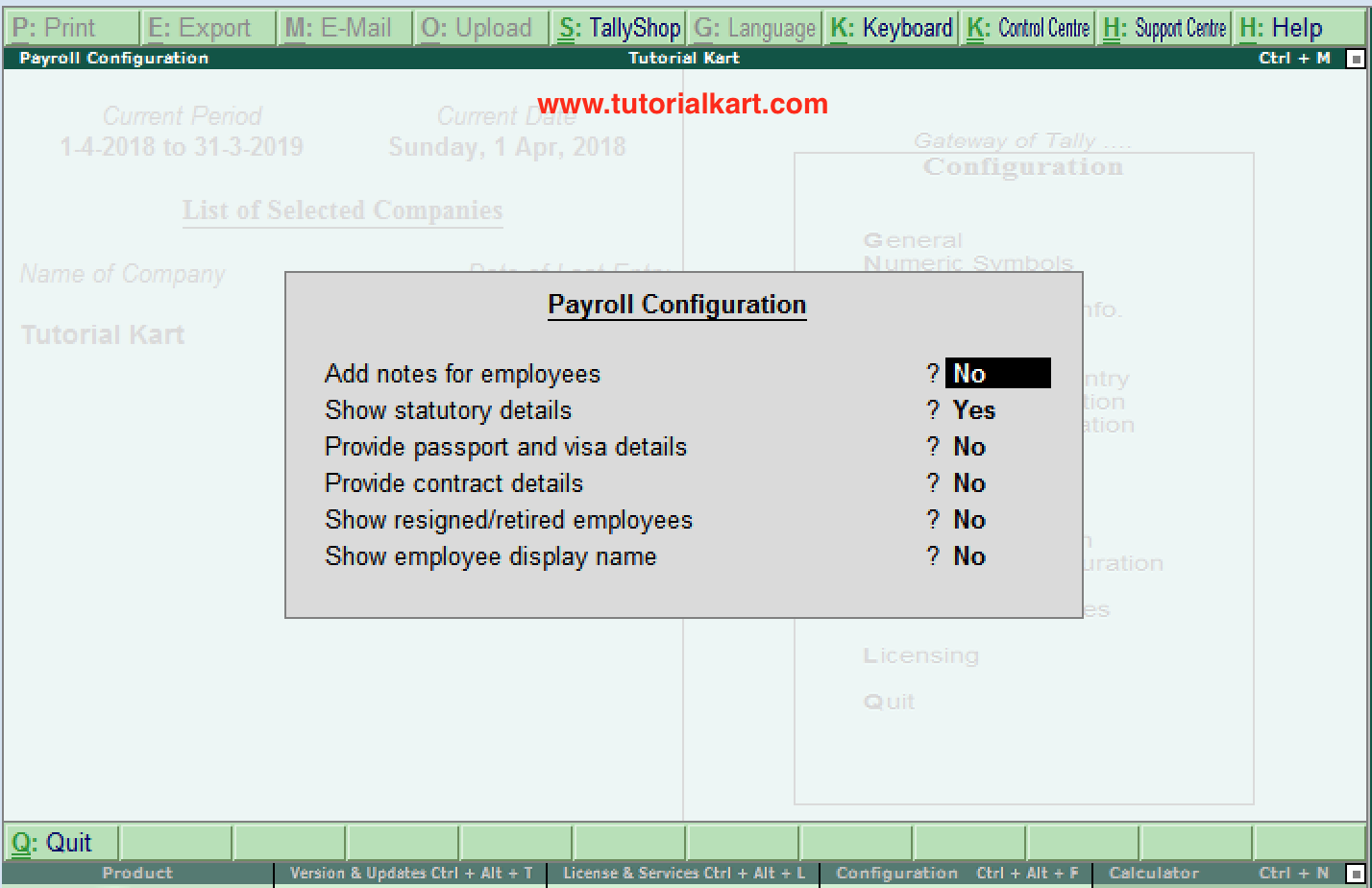
Payroll Configuration controls the employee information displayed or accepted in payroll masters. Available settings can include:
- Add notes for employees
- Show statutory details
- Provide passport and visa details
- Provide contract details
- Show resigned or retired employees
- Show employee display names
These options are relevant when payroll is enabled for the company. Restrict access to sensitive employee and statutory information according to the organization’s data-access policy.
Banking Configuration for Reconciliation and Bank Files
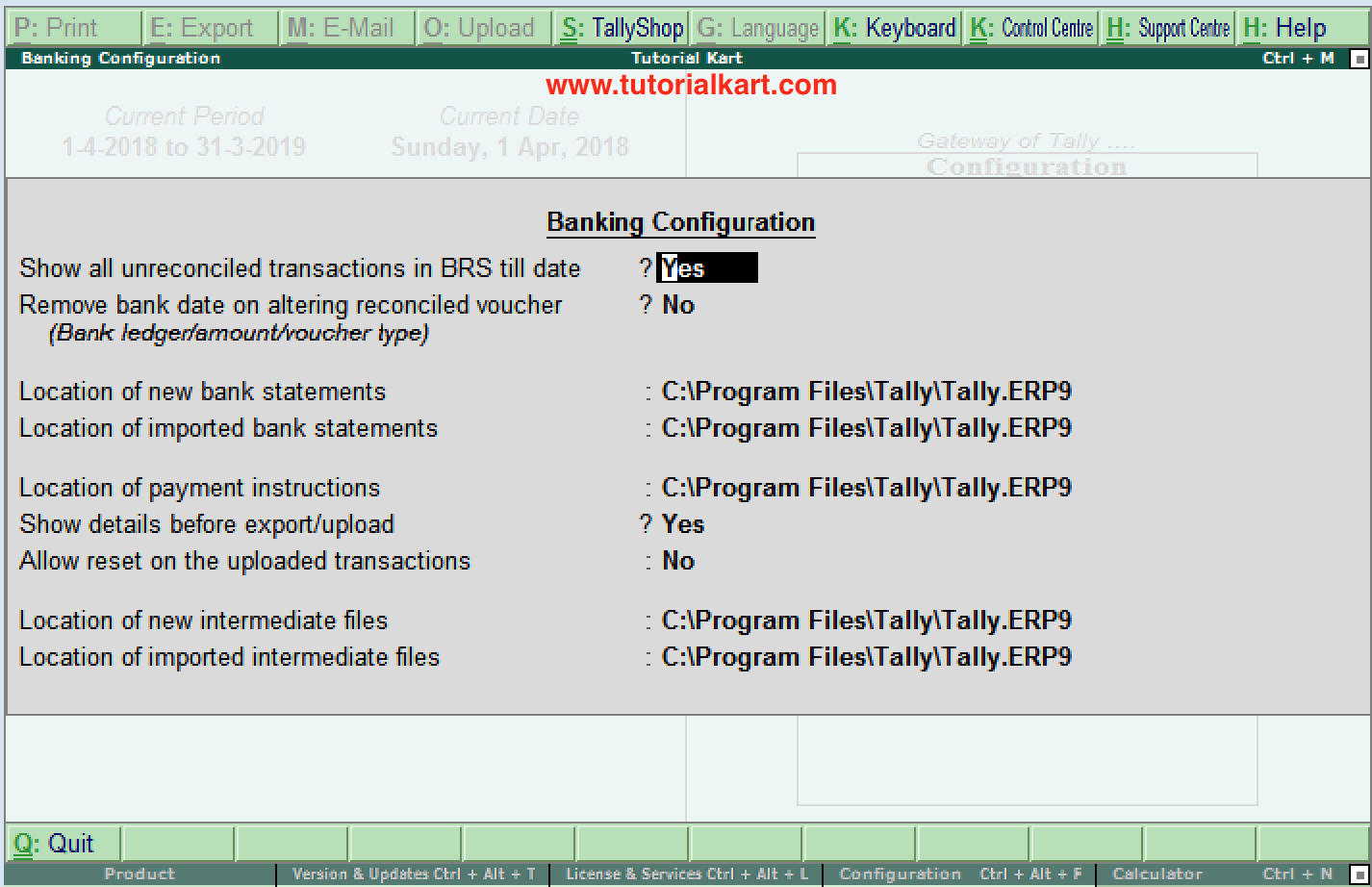
Banking Configuration contains preferences used for bank reconciliation, imported statements, payment instructions, uploads, and intermediate files. Depending on the supported banking functions, the options can include:
- Show reconciled transactions in the Bank Reconciliation Statement up to a selected date
- Remove the bank date when altering a reconciled voucher
- Specify the location of new bank statements
- Specify the location of imported bank statements
- Specify the location of payment instructions
- Show transaction details before export or upload
- Allow uploaded transactions to be reset
- Specify the location of new intermediate files
- Specify the location of imported intermediate files
Confirm that configured folders exist and that the user running Tally has the required access. Review reconciliation and upload settings carefully because changing them can affect established banking workflows.
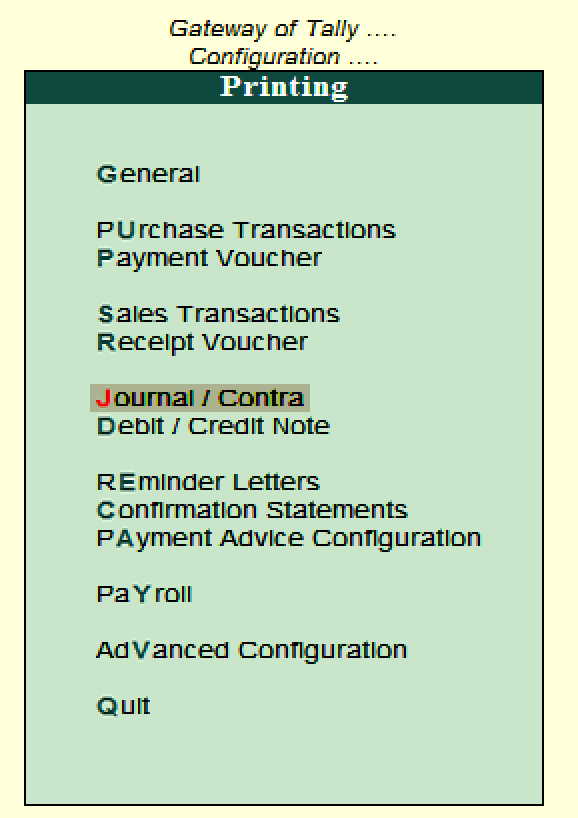
Printing Configuration for Vouchers, Invoices, and Statements
Printing configuration controls the layout and details included when supported vouchers, invoices, and reports are printed. The available groups can cover:
- Purchase transactions
- Payment vouchers
- Sales transactions
- Receipt vouchers
- Journal and contra vouchers
- Debit and credit notes
- Reminder letters
- Confirmation statements
- Payment advice
- Payroll documents
- Advanced printing options
Configure printing from the document or report that you intend to print when screen-specific options are required. Use print preview or a test print to verify the company details, party details, amounts, tax information, page size, and number of copies.
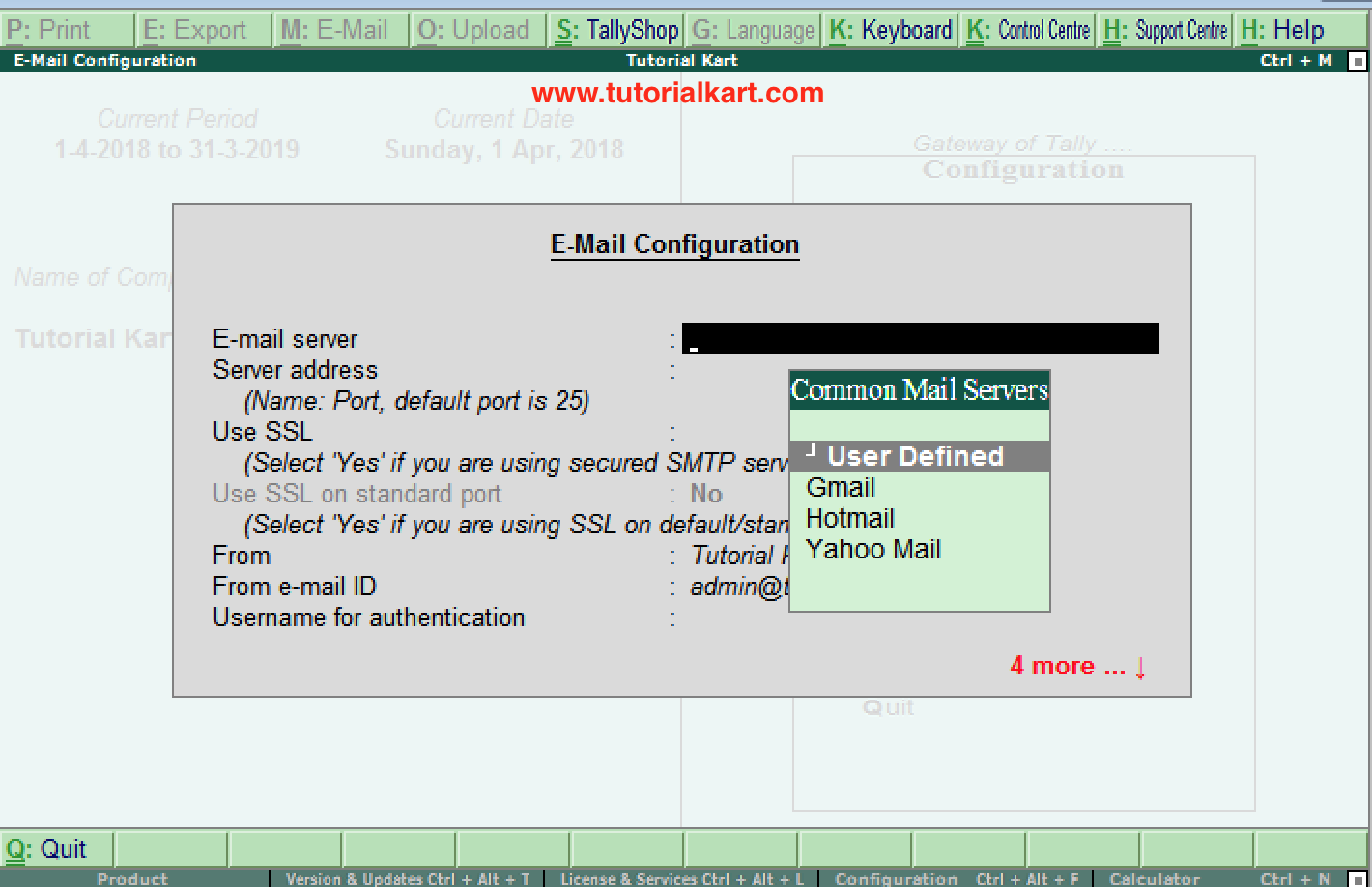
E-mail Configuration for Sending Tally Documents
E-mail Configuration is used to define the supported e-mail server and sender settings required to send reports or documents from Tally. Enter only the parameters supplied by the organization’s e-mail administrator or service provider, and protect account credentials from unauthorized access.
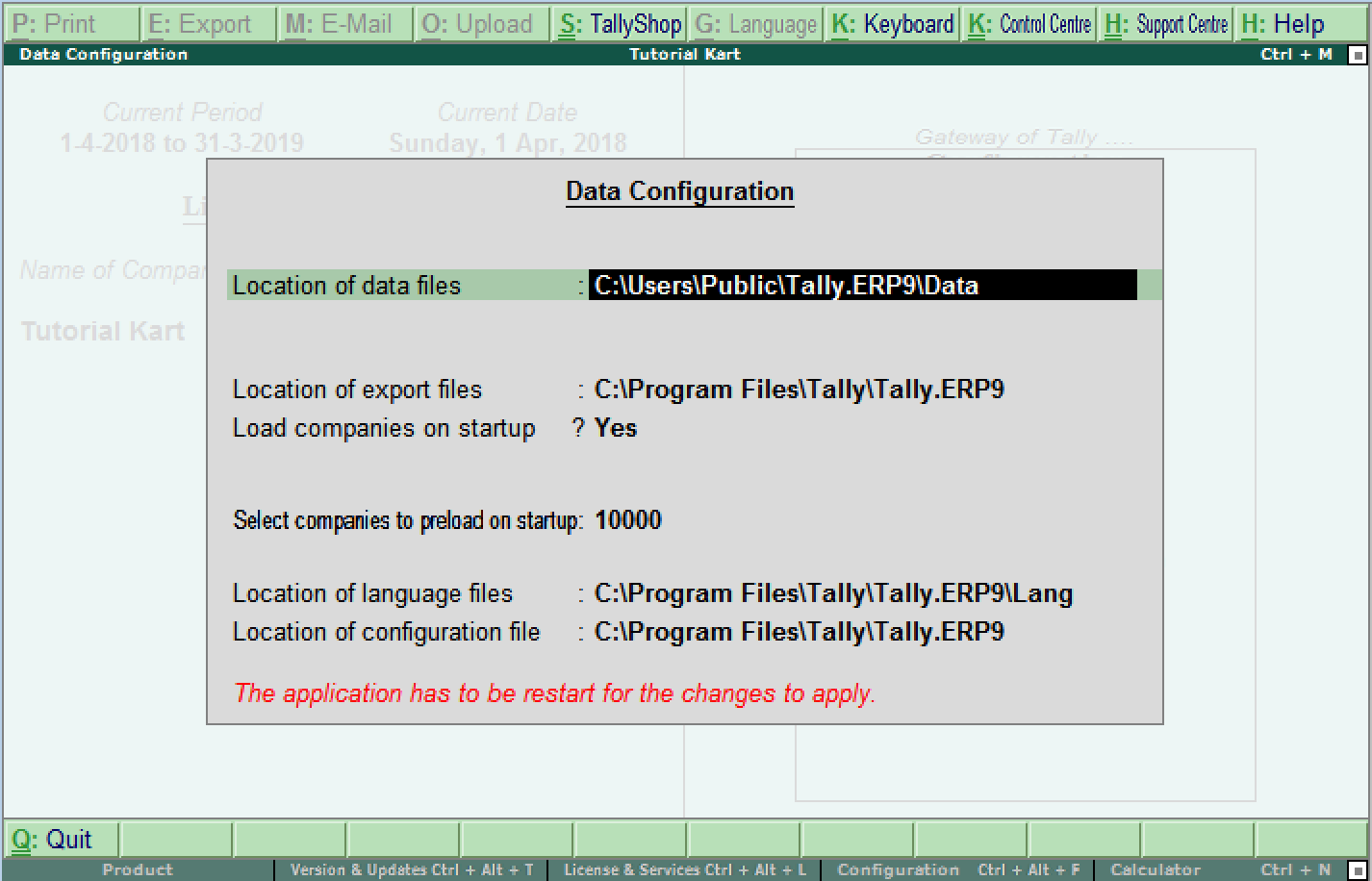
Data Configuration for Company, Export, Language, and Configuration Files
Data Configuration defines where Tally reads or stores supported application files. Its options can include:
- Location of company data files
- Location of export files
- Whether companies are loaded at startup
- Companies to preload at startup
- Location of the language file
- Location of the configuration file
Before changing the company data location, take a verified backup and record the existing path. Ensure that the destination is correct, accessible, and protected by suitable file permissions. A wrong or unavailable path can make existing company data appear missing even though the files still exist elsewhere.
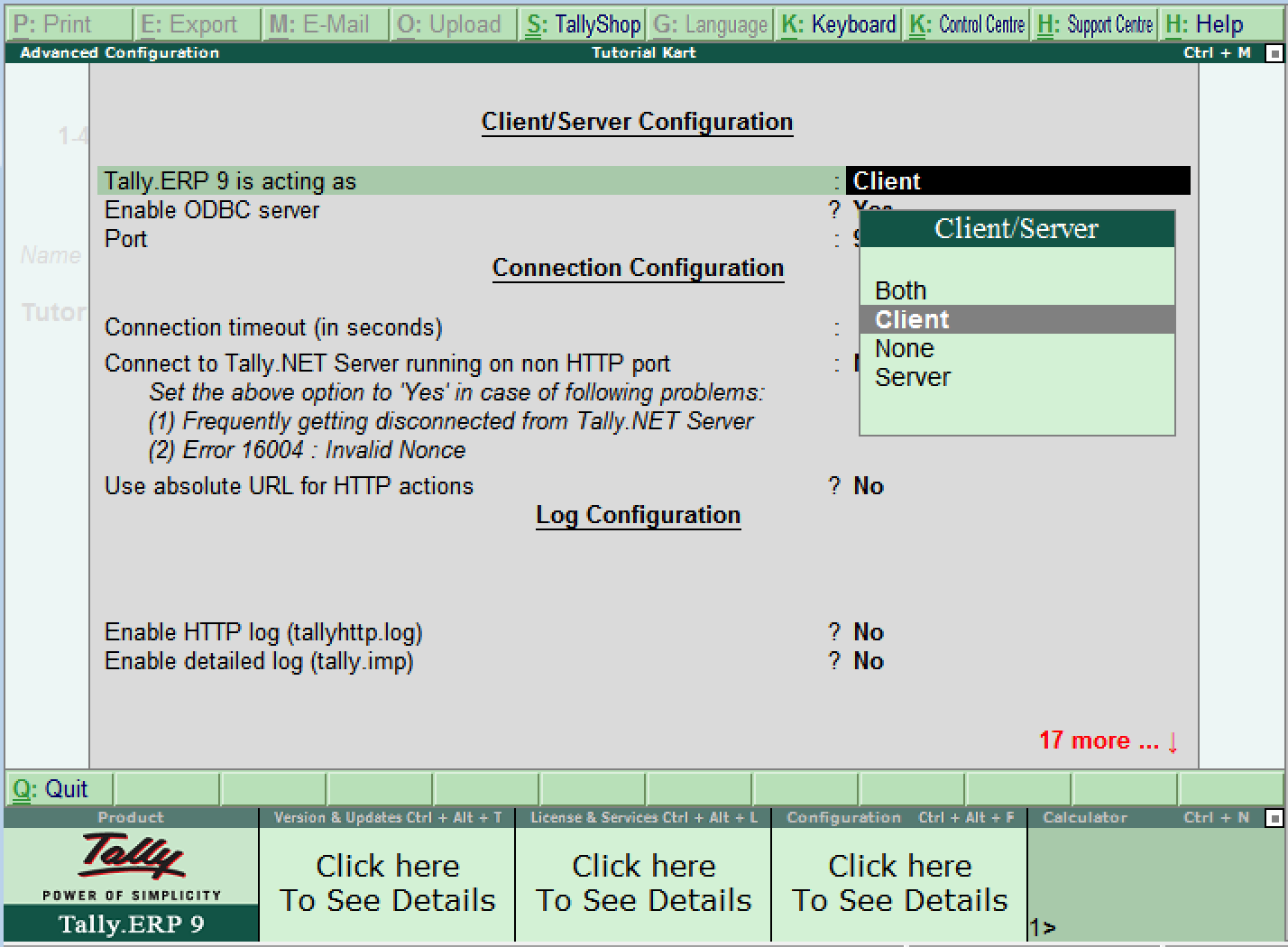
Advanced Configuration for Connectivity, Ports, Logs, and Proxies
Advanced Configuration contains technical settings for client/server operation, connectivity, services, logs, and proxies. Depending on the installed components and release, it can include:
- The role in which Tally.ERP 9 is operating
- ODBC server enablement
- Port number
- Connection configuration
- Log configuration
- Tally.Server 9 configuration
- Tally.NET server proxy configuration
- Gateway proxy configuration
Change ports, server roles, or proxy details only after confirming the required network values. Coordinate shared-installation changes with the system administrator because incorrect connectivity settings can prevent clients or integrations from reaching the service.
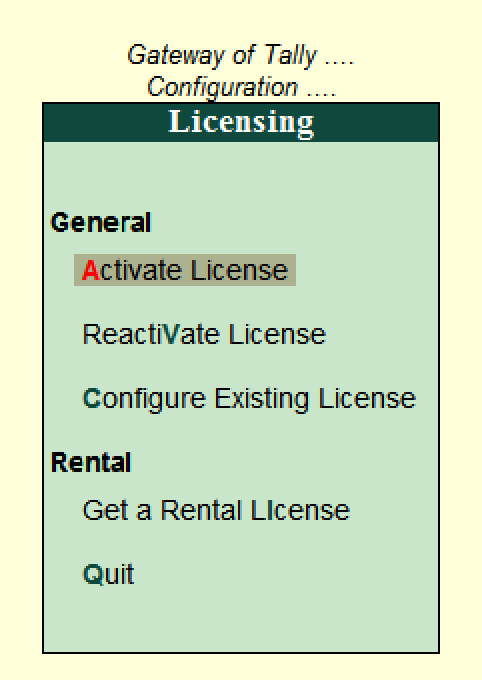
Licensing Configuration in Tally.ERP 9
Licensing Configuration provides the supported actions for managing a Tally license. The screen can offer options to:
- Activate a license
- Reactivate a license
- Configure an existing license
- Obtain a rental license where supported
Licensing actions can require valid account details, license information, and network connectivity. Use credentials authorized for the organization’s Tally account.
Example of Changing an F12 Voucher Setting
Suppose a field required during voucher entry is not visible. Use the following process rather than changing unrelated settings from the Gateway of Tally:
- Open the company and go to the required voucher-entry screen.
- Press F12: Configure from that voucher screen.
- Locate the option associated with the required field or behavior.
- Set the option to Yes or the appropriate available value.
- Press Ctrl+A to accept the configuration.
- Return to the voucher and confirm that the expected field or behavior is now available.
If the option is absent, check whether the related company feature must first be enabled through F11. The precise wording of the setting may differ between releases.
Applying and Troubleshooting F12 Configuration Changes
- Accept the configuration screen: Use Ctrl+A so that the selected values are applied.
- Open F12 from the correct screen: Voucher, invoice, report, and printing screens can provide different configuration choices.
- Check F11 dependencies: An F12 option may remain unavailable until its related company feature is enabled.
- Verify the active company: Confirm that you are testing the setting in the intended company and screen.
- Review permissions: User-security settings can restrict access to configuration or administrative functions.
- Restart only when needed: Many screen settings take effect immediately after acceptance. Restart Tally.ERP 9 when a changed technical, path, connectivity, or release-specific setting does not take effect during the current session.
F12 Configuration Safety Checklist for Tally.ERP 9
- Record the existing value before changing data paths, ports, proxies, banking folders, or e-mail settings.
- Take and verify a company-data backup before changing the configured data location.
- Confirm whether the setting is application-level, company-related, or specific to the current screen.
- Test voucher, invoice, statutory, and printing changes with a sample transaction or preview.
- Verify that folders used for data, bank files, exports, and configuration files exist and have appropriate permissions.
- Check that numeric symbols remain clear in ledgers, reports, and printed documents.
- Have an authorized administrator review connectivity, licensing, e-mail, and server-related changes.
FAQs About F12 Configuration in Tally.ERP 9
What is F12 Configuration in Tally.ERP 9?
F12 Configuration is the collection of settings used to control the behavior and presentation of Tally.ERP 9 screens and operations. It covers areas such as masters, vouchers, invoices, banking, printing, data locations, and connectivity. The available settings vary according to the screen, release, and enabled features.
How do I open F12 Configuration from the Gateway of Tally?
Open the Gateway of Tally and press F12, or click F12: Configure. If the keyboard uses function keys for hardware controls, press Fn+F12. To obtain configuration choices for a particular voucher or report, open that screen before pressing F12.
What is the difference between F11 and F12 in Tally.ERP 9?
F11 enables or disables supported company features, whereas F12 configures how enabled functions and individual screens work. For example, a capability may first need to be enabled through F11 before its related fields and display choices become available through F12.
Why does the F12 Configuration screen show different options?
F12 is context-sensitive. Opening it from the Gateway of Tally, a voucher, an invoice, a report, or a print screen can display settings relevant to that activity. The installed release, active company features, license, statutory setup, and user permissions can also affect which options appear.
Do all F12 changes require Tally.ERP 9 to be restarted?
No. Many display and entry settings apply after the configuration screen is accepted. A restart may be required for certain technical, connectivity, data-path, or release-specific settings. If a change is not visible, first confirm that it was accepted and that it was made from the correct screen.