 TutorialKart.com
Stock Items in Tally ERP 9
In Tally, a stock item is an inventory item that a business purchases, manufactures, stores or sells. Each stock item master records details such as the item name, stock group, category, unit of measure, opening quantity, rate and opening value.
For example, a television dealer may create separate stock items for Sony 32 Inch TV, LG 32 Inch TV and MI 42 Inch TV. Creating separate masters allows Tally ERP 9 to track the quantity and value of each product independently.
Single and multiple stock item creation methods in Tally ERP 9
Stock items in Tally ERP 9 can be created using either of the following methods:
- Single stock item creation: Use this method when creating one item and entering its complete inventory details.
- Multiple stock item creation: Use this method when several items must be entered together in a table.
Sample stock item details for an electronics inventory
The following table shows sample stock items, opening quantities, rates and amounts that can be used while practising stock item creation.
| Groups | Name of Items | Unit | Opening Qty | Rate | Amount |
| Music System | Sony Blue Ray Player | Nos | 10 | 25,000 | 250,000 |
| Philips DVD player | Nos | 5 | 15,000 | 75,000 | |
| Sony 5.1 Music System | Nos | 2 | 20,000 | 40,000 | |
| Television | Sony 32 Inch Tv | Nos | 3 | 25,000 | 75,000 |
| LG 32 Inch Tv | Nos | 4 | 20,000 | 80,000 | |
| MI 32 Inch Tv | Nos | 2 | 15000 | 30,000 | |
| MI 42 Inch TV | Nos | 2 | 20000 | 40,000 |
How to create a single stock item in Tally ERP 9
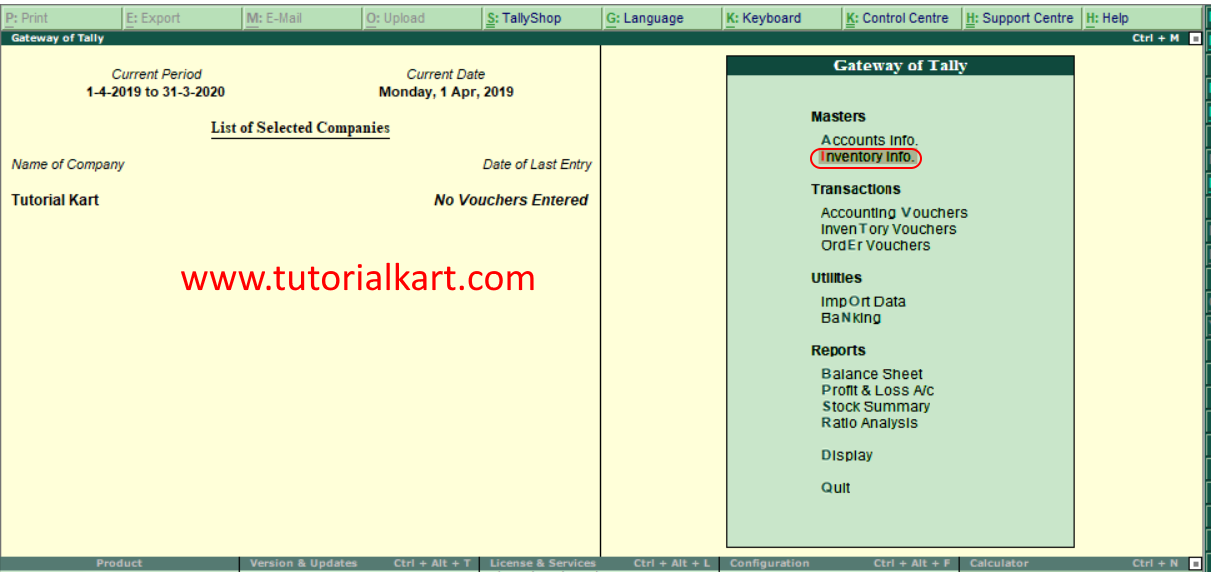
Menu path: Gateway of Tally.ERP 9 > Inventory Info > Stock Items > Single Stock Item > Create
Step 1: From the Gateway of Tally screen, select Inventory Info.
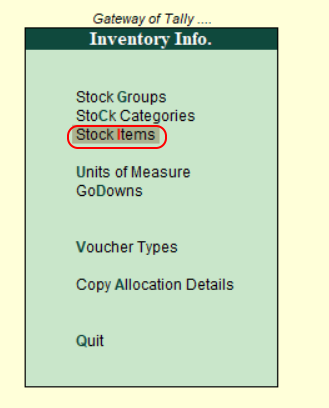
Step 2: Select Stock Items from the Inventory Info. menu.
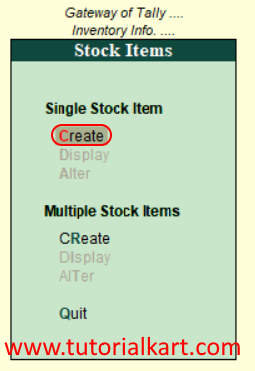
Step 3: Under Single Stock Item, choose Create.
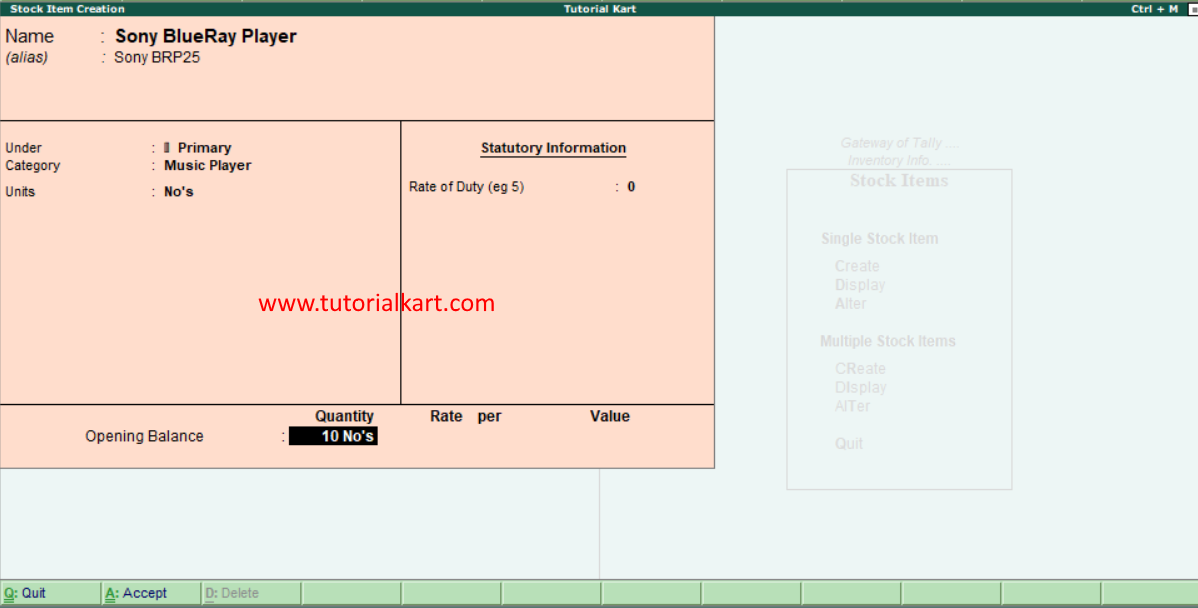
Step 4: In the Stock Item Creation screen, enter the master details for the item.
- Name: Enter a clear and unique name for the stock item, such as Sony 32 Inch TV.
- Alias: Enter an optional short name, product code, model number or alternate name used to identify the item.
- Under: Select the stock group under which the item must be classified. If no specific group is required, the item may be placed under Primary.
- Category: Select the appropriate stock category when categories are enabled and used by the company.
- Units: Select the unit of measure used to record the item’s quantity, such as Nos, Pcs, Kg or Ltr.
- Opening Balance: Enter the quantity and value of stock available on the company’s books at the beginning of the accounting period.
Entering opening quantity, rate and godown details
When an opening quantity is entered, Tally may display an additional allocation screen. Complete the relevant inventory details as follows:
- Godown: Choose the appropriate Godown or location in which the opening stock is stored.
- Quantity: Enter the quantity available in that godown.
- Rate: Enter the opening rate per unit of the stock item.
- Per: Confirm the unit against which the rate applies.
- Amount: Tally calculates the amount from the entered quantity and rate. Review the calculated value before accepting the entry.
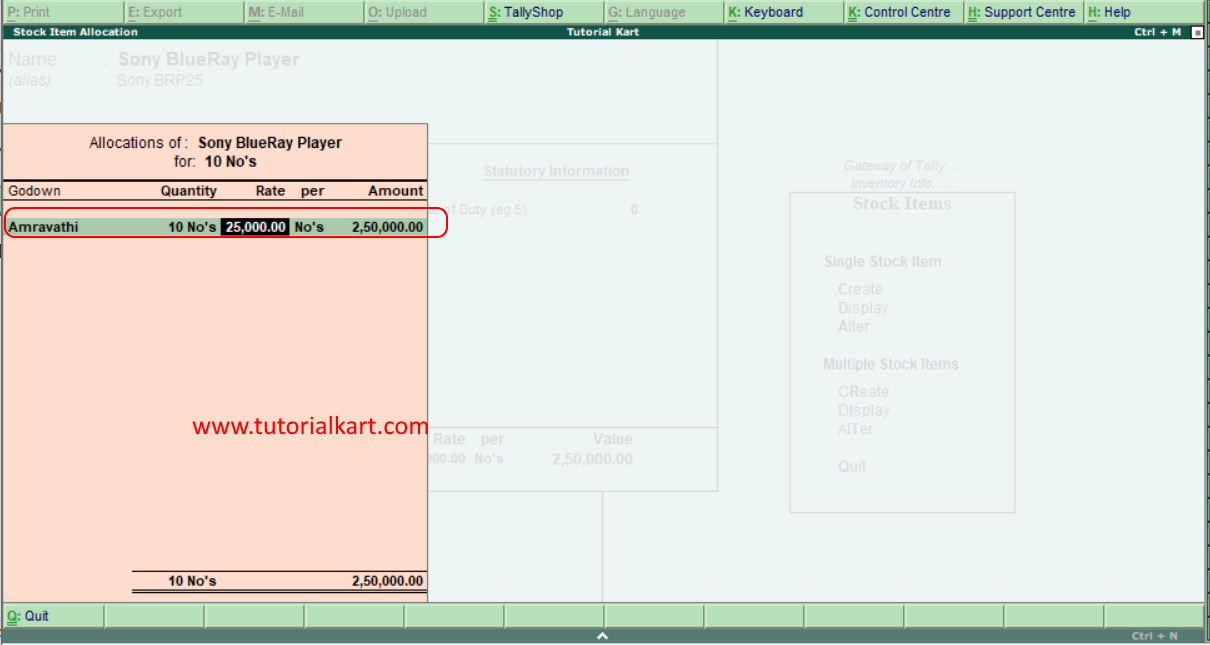
Step 5: After entering the required details, press Enter to move through the remaining fields. Choose Yes on the acceptance prompt, or press Ctrl+A, to save the stock item in Tally ERP 9.
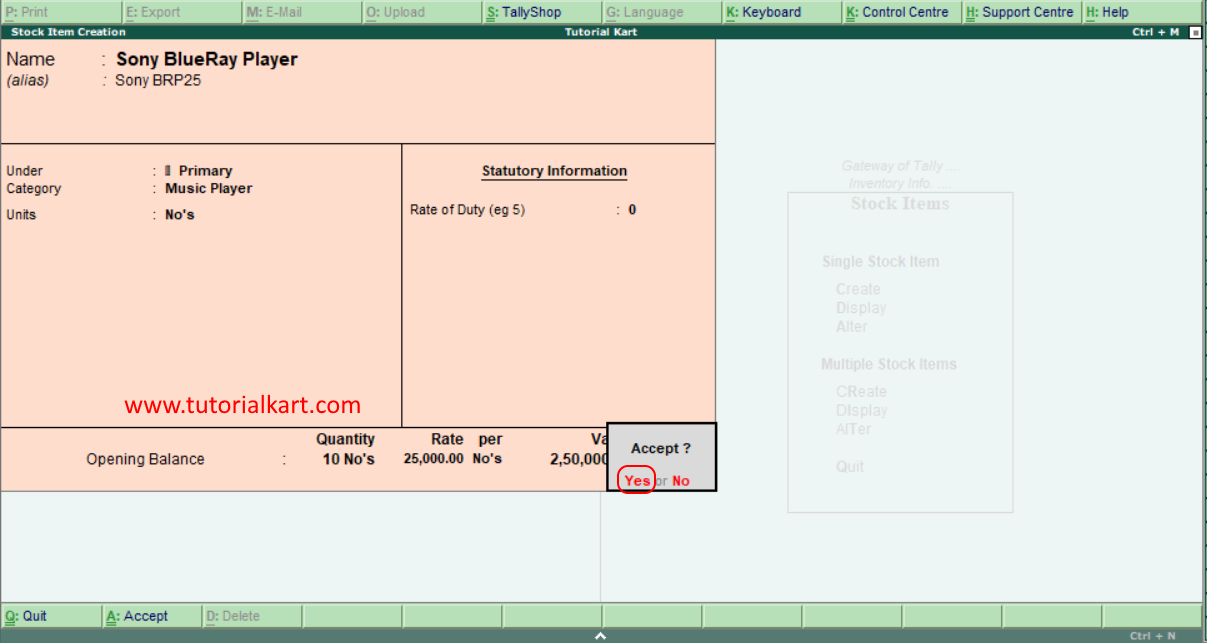
How to create multiple stock items in Tally ERP 9
Menu path: Gateway of Tally.ERP 9 > Inventory Info > Stock Items > Multiple Stock Items > Create
The multiple stock item screen is useful when several product masters must be created together. It presents the item fields in a table so that each product can be entered on a separate row.
Step 1: Under Multiple Stock Items, select Create.
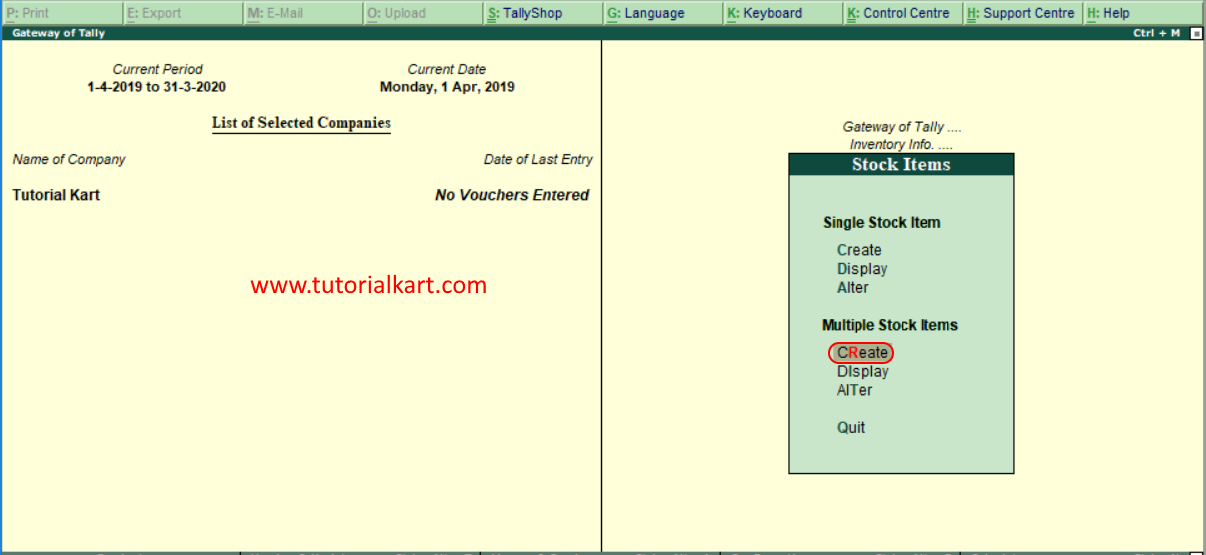
Step 2: In the Multi Stock Item Creation screen, select the group under which the items must be created.
- Under Group: Select a particular stock group when all new items belong to that group. Select All Items when the products belong to different stock groups.
- Name of Item: Enter a unique name for each item.
- Stock Group: Assign each item to the correct group when All Items is selected.
- Stock Category: Select the relevant category if stock categories are enabled.
- Units: Choose the unit used to measure each stock item.
- Opening Quantity and Rate: Enter these values only when opening inventory must be recorded.
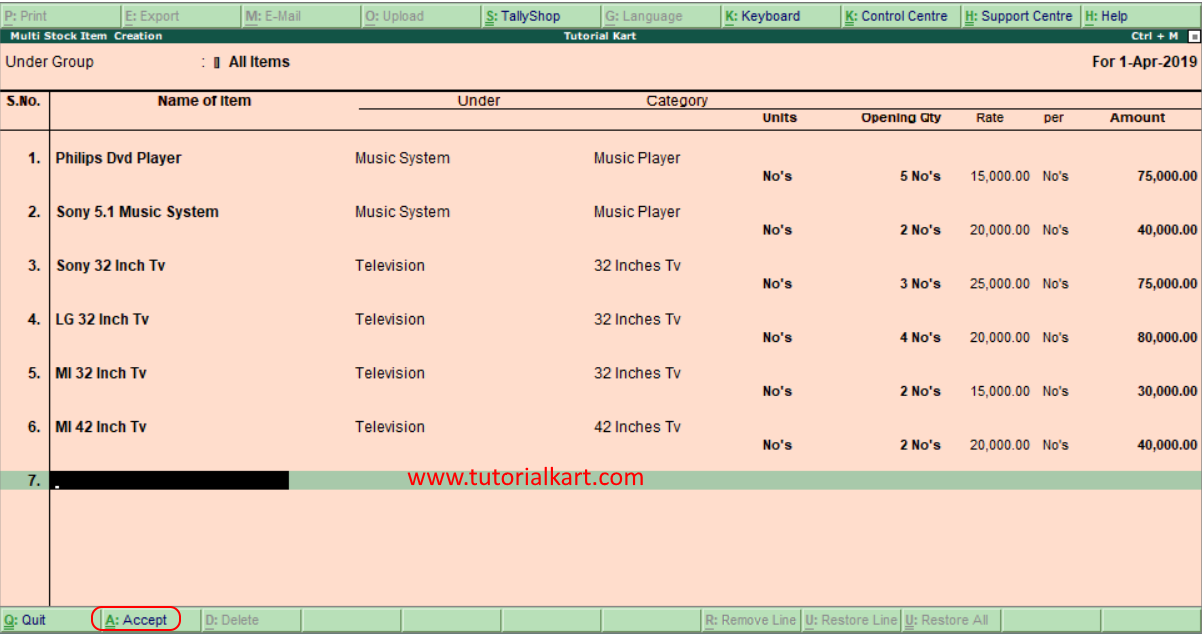
Step 3: Review each row and choose A: Accept, or press Ctrl+A, to save all the entered stock items.
Stock group, stock category and stock item differences
These inventory masters serve different purposes in Tally ERP 9:
- Stock item: The individual product whose quantity and value are tracked, such as Sony 32 Inch TV.
- Stock group: A hierarchical classification used to place similar items together, such as Television or Music System.
- Stock category: A parallel classification used to compare items with a common characteristic even when they belong to different stock groups.
- Unit of measure: The measurement used for the quantity of the item, such as Nos, Pcs or Kg.
- Godown: The physical or logical location where the stock is stored.
Choosing between single and multiple stock item creation
- Use single creation when the item needs detailed configuration or when only one product is being added.
- Use multiple creation when many items share similar fields and must be entered quickly.
- Use All Items in the multiple creation screen when the products belong to different stock groups.
- Create the required stock groups, categories, units and godowns before entering a large set of stock items.
Common mistakes while creating stock items in Tally ERP 9
- Creating duplicate item names: Check existing stock masters before adding another item with a similar name or alias.
- Selecting the wrong stock group: An incorrect group affects inventory classification and group-wise reports.
- Using an unsuitable unit: Confirm whether the item is counted in Nos, Pcs, Kg, Ltr or another unit before saving it.
- Entering an incorrect opening date value: Opening balances should represent stock held at the beginning of the books, not purchases made later through vouchers.
- Entering an inconsistent opening rate: Verify the quantity, rate and calculated amount before accepting the master.
- Choosing the wrong godown: Allocate the opening stock to the location where the goods are actually stored.
Frequently asked questions about stock items in Tally ERP 9
What is a stock item in Tally ERP 9?
A stock item is an individual inventory product whose quantity, rate and value are tracked in Tally. Examples include a particular television model, spare part or packaged product.
Can a stock item be created without an opening balance?
Yes. Leave the opening balance blank when no quantity is held at the beginning of the books. Stock can later be introduced through the appropriate purchase, manufacturing or inventory voucher.
Can the same stock item be stored in more than one godown?
Yes. When godowns are enabled, the quantity of one stock item can be allocated across multiple locations. The total stock is the combined quantity held in those godowns.
Why does a unit not appear while creating a stock item?
The required unit may not have been created or saved in the company. Create the unit through Inventory Info. > Units of Measure, and then return to the stock item master.
Can a stock item’s unit be changed after transactions are recorded?
Changing a unit after vouchers have been recorded can affect how quantities are interpreted. Review existing transactions and reports before altering the unit of an active stock item.
Editorial QA checklist for Tally stock item creation
- Confirm that the single creation path ends with Stock Items > Single Stock Item > Create.
- Confirm that the multiple creation path ends with Stock Items > Multiple Stock Items > Create.
- Verify that every example item is assigned to the intended stock group and unit.
- Check that opening amount calculations match the entered opening quantity and rate.
- Confirm that opening stock is allocated to the correct godown when location tracking is enabled.
- Ensure that stock categories are described as optional and used only when enabled for the company.