 TutorialKart.com
How to Activate GST in Tally.ERP 9
To record GST transactions in Tally, you must first enable the Goods and Services Tax features for the company. After GST is activated in Tally.ERP 9, you can configure GST details for ledgers, stock items, sales invoices, purchase invoices and other taxable transactions.
Before starting, keep the company’s GST registration type, GSTIN or UIN, registration date and filing periodicity available. The information entered in this screen affects GST calculations and the details printed on invoices.
Open the Statutory and Taxation Features in Tally.ERP 9
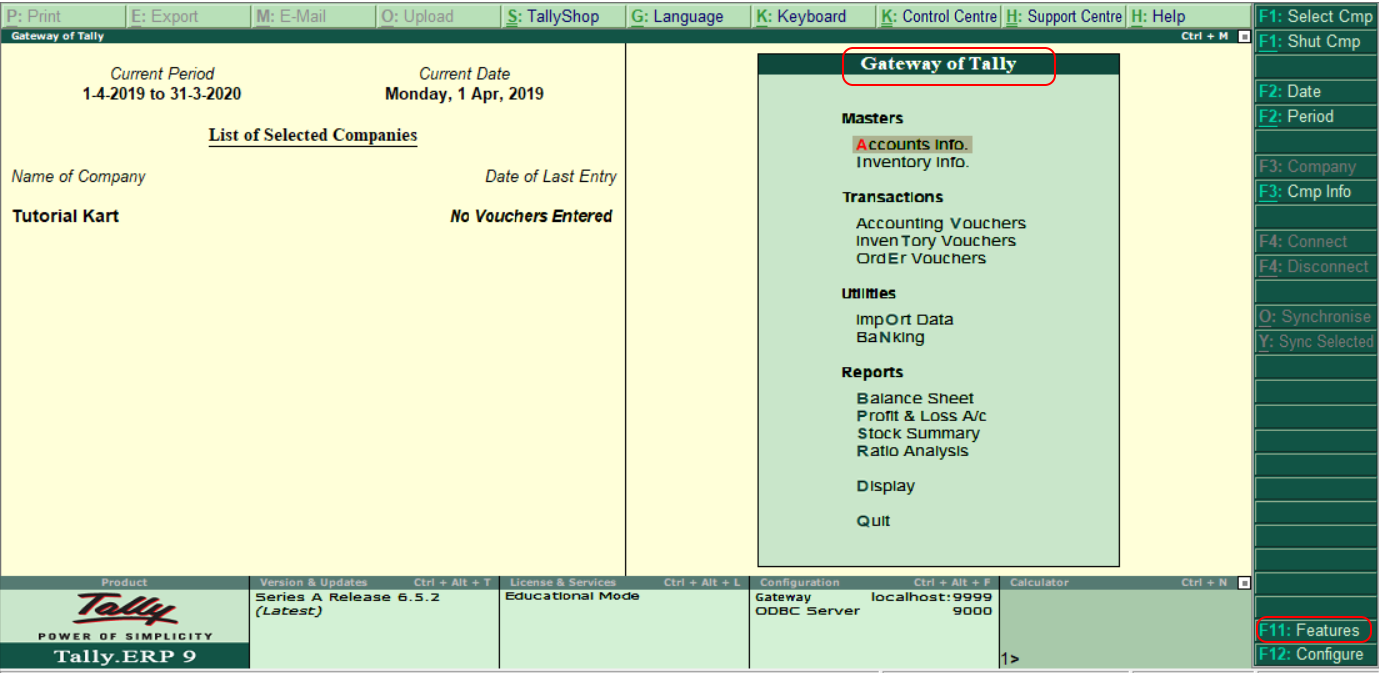
Step 1: From the Gateway of Tally, select F11: Features or press the F11 function key.
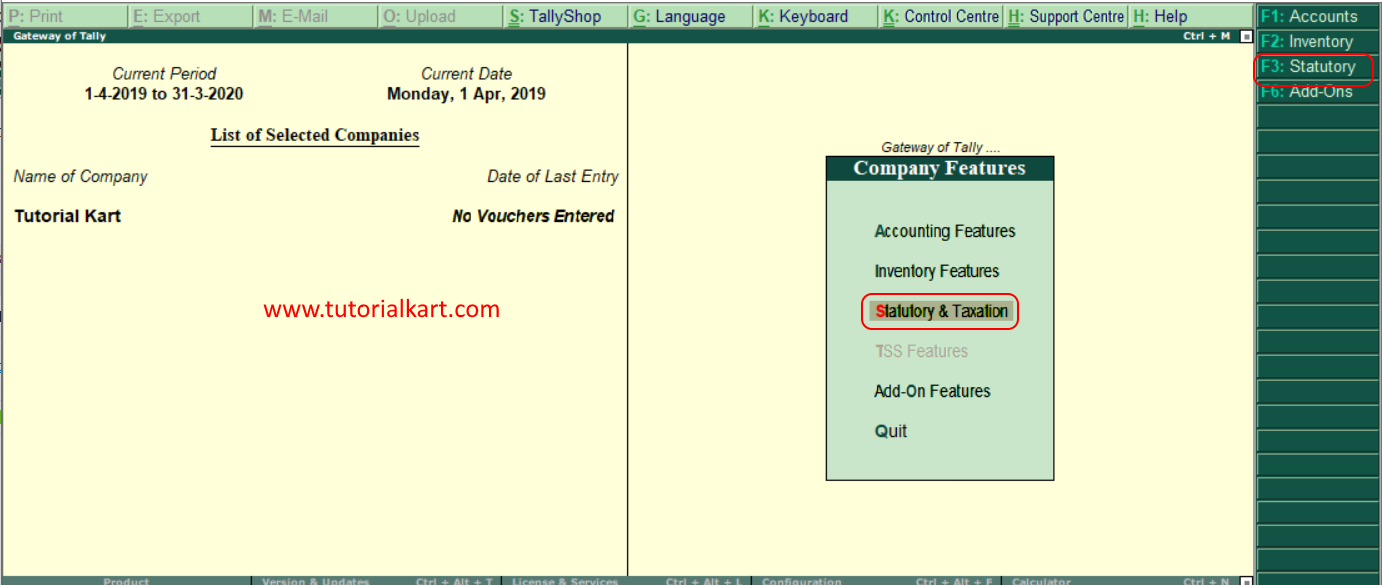
Step 2: Under Company Features, select Statutory & Taxation. You can also press F3 from the Company Features screen.
Enable GST and Open the GST Details Screen
Step 3: In the Company Operations Alteration screen, set the following options:
- Enable Goods and Services Tax (GST): Yes
- Set/alter GST details: Yes
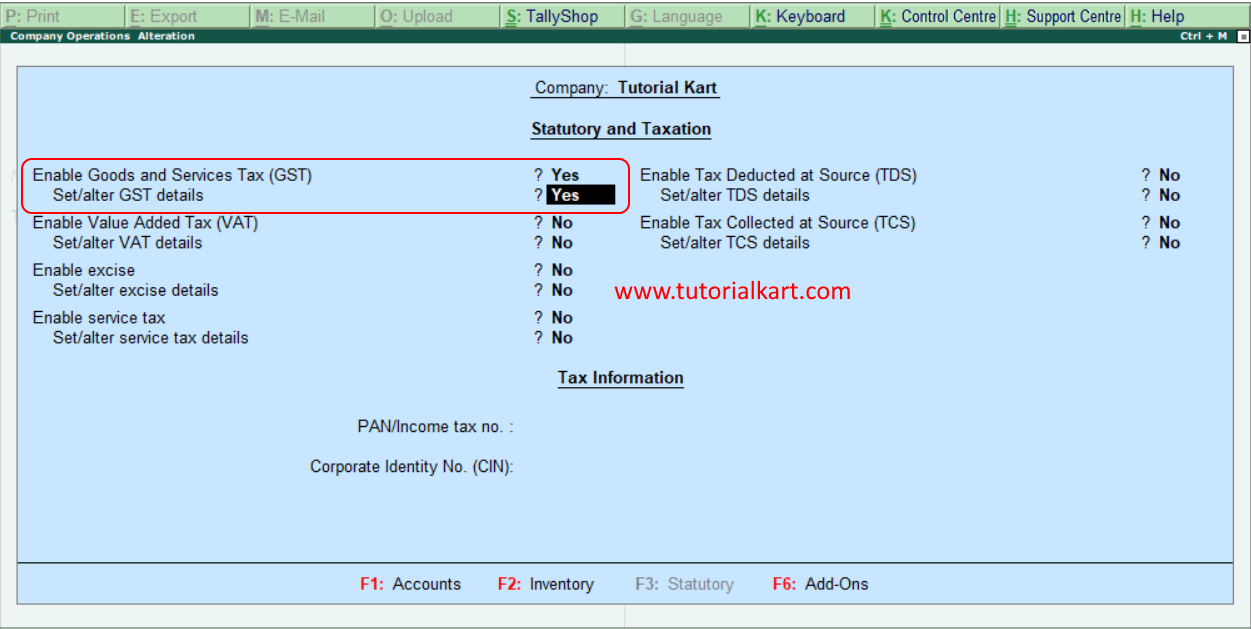
When Set/alter GST details is set to Yes, Tally.ERP 9 opens the GST Details screen for the selected company.
Enter the Company GST Registration Details
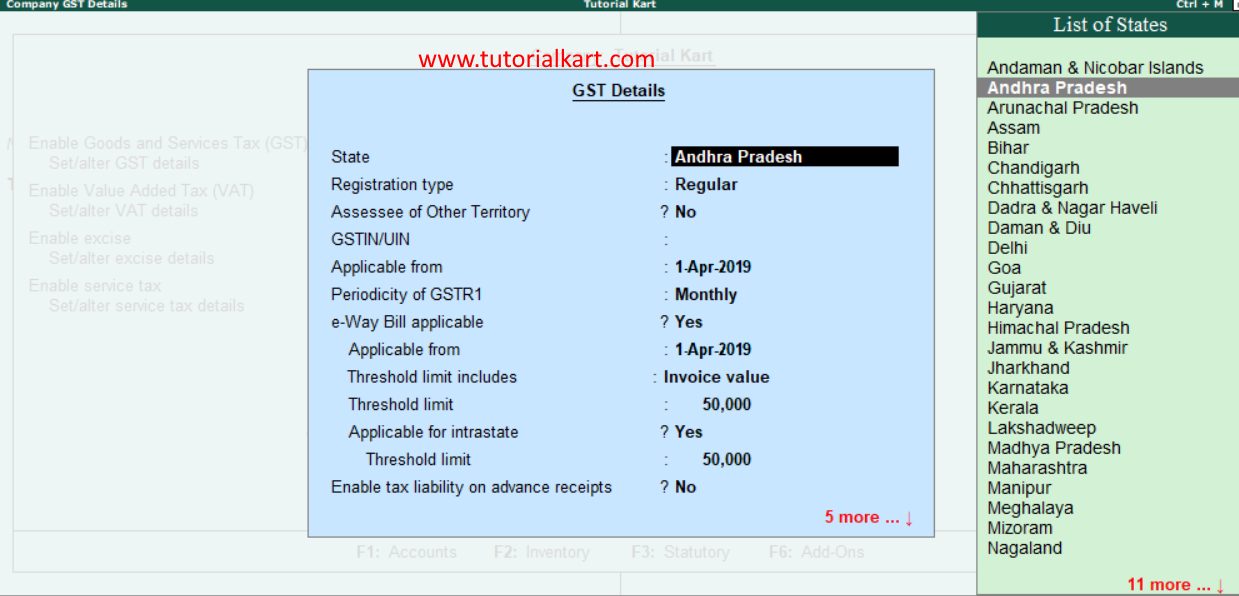
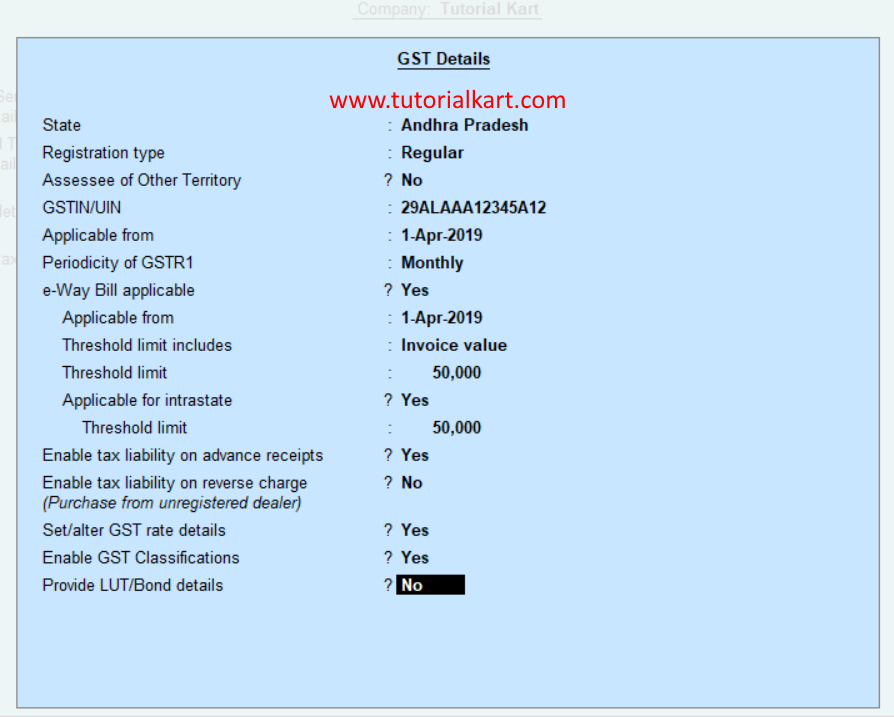
Step 4: Complete the GST Details screen using the company’s registration information. Review every field before saving because these settings are used while creating GST transactions and invoices.
- State: Tally normally displays the state entered in the company master. Confirm that it matches the state associated with the GST registration.
- Registration Type: Select the applicable registration type, such as Regular or Composition.
- GSTIN/UIN: Enter the company’s valid GSTIN or UIN. This number can appear on GST invoices and reports.
- Applicable from: Enter the date from which GST applies to the company’s transactions in Tally.
- Periodicity of GST: Select the applicable filing periodicity available for the company, such as monthly or quarterly.
- e-Way Bill Applicable: Set this option to Yes when e-Way Bill configuration is required for the company.
- Applicable from: Enter the date from which the e-Way Bill settings apply.
- Threshold limit includes: Select the value basis used for checking the threshold, such as invoice value or the applicable goods value.
- Threshold limit: Enter the applicable threshold amount.
- Applicable for intrastate: Select Yes when the relevant intrastate rule applies.
- Intrastate threshold limit: Enter the applicable intrastate threshold amount.
- Enable tax liability on advance receipts: Set this to Yes only when tax liability must be calculated on applicable advance receipts.
- Set/alter GST rate details: Select Yes when GST rates need to be defined at the company level. Item- or ledger-level configuration may be used where more specific rates are required.
- Enable GST classifications: Select Yes when the company uses GST classifications to group and apply tax details.
Save the GST Configuration in Tally.ERP 9
Step 5: After entering the required GST details, accept the screen to save the configuration. You can press Ctrl+A to accept a screen in Tally.ERP 9, or use the on-screen accept option.
Activating GST at the company level does not automatically complete the tax setup for every transaction. You should also check the GST configuration of sales and purchase ledgers, tax ledgers, parties, stock groups and stock items used by the company.
GST Setup Checks Before Recording Transactions
- Confirm that the company state and GST registration state are correct.
- Verify the GSTIN or UIN for typing errors before printing invoices.
- Check whether the registration type is Regular or Composition.
- Use the correct GST applicability date for the company’s books.
- Configure party ledgers with the correct registration type, GSTIN and state.
- Assign the correct HSN or SAC and GST rate details to applicable goods or services.
- Create and use the appropriate CGST, SGST, UTGST or IGST tax ledgers for the transaction type.
- Test the setup with a sample voucher and verify the tax calculation before entering regular transactions.
Why GST May Not Calculate After It Is Enabled
If GST is enabled but no tax is calculated in a voucher, review the ledger and item masters used in that transaction. Common causes include a missing GST rate, an incorrect tax ledger, an invalid applicability date, incomplete party registration details or a mismatch between the company state and the party state.
For interstate transactions, verify that the party’s state differs from the company state and that the correct IGST ledger is used. For intrastate transactions, check the CGST and SGST or UTGST ledgers, as applicable.
Frequently Asked Questions About GST Activation in Tally.ERP 9
Where is the GST option available in Tally.ERP 9?
From the Gateway of Tally, press F11, open Statutory & Taxation, and set Enable Goods and Services Tax (GST) to Yes.
Can GST be enabled without entering a GSTIN?
The GST feature can be opened and configured, but the GSTIN or UIN should be entered when the company has a valid registration number. The registration type and other company details must also match the actual registration.
Why is GST not appearing on a Tally invoice?
Check that GST is enabled, the party and item or ledger masters contain the required GST details, the correct tax ledgers are selected, and the voucher date falls on or after the GST applicability date.
Can GST details be changed after activation?
Yes. Return to F11: Features, open Statutory & Taxation, and use Set/alter GST details to review or update the configuration. Changes should reflect the company’s valid registration records and applicable dates.