 TutorialKart.com
Create Employee Groups in Tally.ERP 9
Employee groups in Tally help organize employees who share a department, function, location, grade, or payroll structure. For example, employees may be grouped under Sales, Accounts, Administration, Production, or a regional office.
In this tutorial, you will learn how to create a single employee group and how to create multiple employee groups from one screen in Tally.ERP 9. You will also learn how employee categories and parent groups affect the group structure.
Requirements before creating an employee group in Tally
Before creating employee groups, open the required company and confirm that payroll features are enabled. If your organization uses employee categories, create the required categories before assigning them to groups.
- Open the company in which payroll records are maintained.
- Enable payroll-related features for the company.
- Decide whether the group will be created under Primary or under another employee group.
- Create the required employee category before selecting it in the group creation screen.
- Use clear group names that match the organization’s payroll structure.
Path to create a single employee group in Tally
Path: Gateway of Tally > Payroll Info > Employee Groups > Single Group > Create.
The single-group method is suitable when you need to create one employee group and review each field individually.
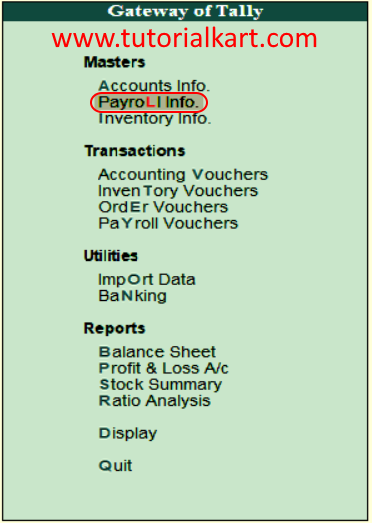
Step 1: Open Payroll Info from Gateway of Tally
From the Gateway of Tally screen, select Payroll Info.
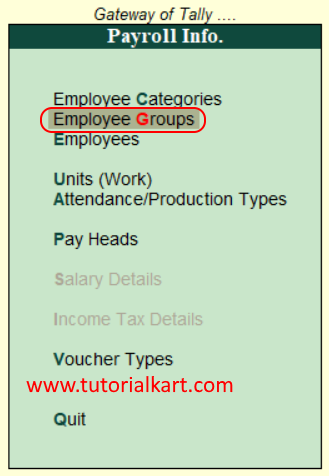
Step 2: Select Employee Groups in Payroll Info
Under Payroll Info, select the Employee Groups option.
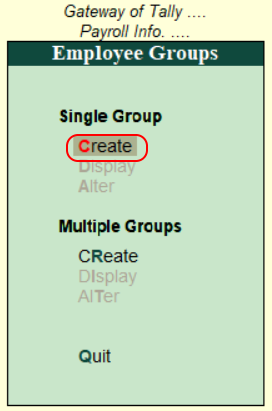
Step 3: Choose Create under Single Group
On the Employee Groups screen, select Create under the Single Group section.
Step 4: Enter the employee group details
In the Employee Group Creation screen, complete the fields required for the new group.
- Category: Select the applicable employee category from the list.
- Name: Enter a clear name for the employee group, such as Sales, Accounts, Production, or Head Office Staff.
- Under: Select Primary when the group should exist at the top level. Select an existing employee group when creating a subgroup.
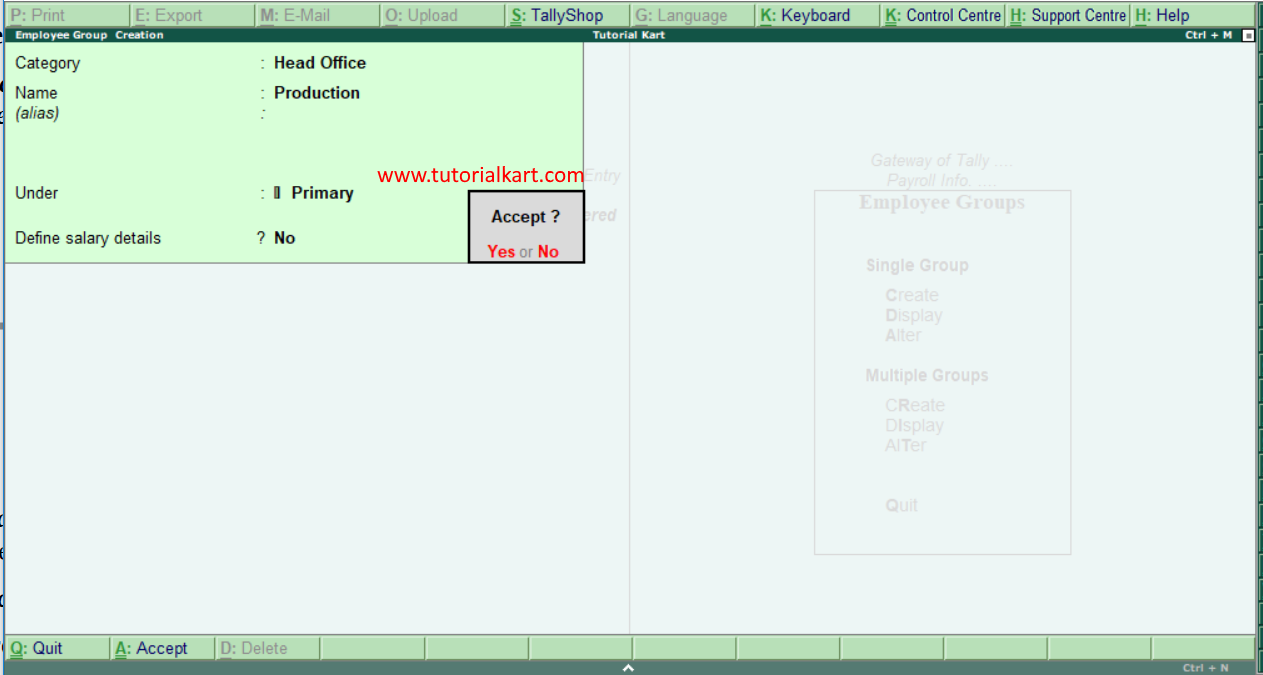
Step 5: Save the employee group in Tally
After entering the required details, press Enter through the remaining fields and choose Yes when Tally asks you to accept the screen. The employee group is then saved in the selected company.
How the Under field structures employee groups in Tally
The Under field determines the position of an employee group in the hierarchy. Choose the parent group according to how payroll reports and employee records should be organized.
- Primary: Creates a top-level employee group.
- Existing employee group: Creates the new group as a subgroup of the selected parent.
For example, a company may create Sales under Primary and then create Domestic Sales and Export Sales under Sales. Plan the hierarchy before entering many employee records because a consistent structure makes payroll reports easier to review.
How to create multiple employee groups in Tally
The multiple-group creation screen is useful when several employee groups must be entered together. It reduces repeated navigation between the Employee Groups menu and the creation screen.
Path: Gateway of Tally > Payroll Info > Employee Groups > Multiple Groups > Create.
Step 1: Open Create under Multiple Groups
On the Employee Groups screen, select Create under the Multiple Groups section.
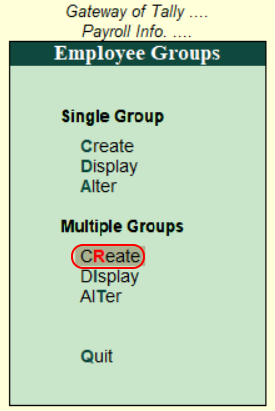
Step 2: Select the parent group for multiple entries
In the Multi Employee Group Creation screen, choose the appropriate value in the Under Employee Group field.
- Select a specific parent group when all new groups must be created under the same employee group.
- Select All Items when the rows need different employee categories or different parent groups.
- Enter the employee category, employee group name, and parent group for each row as applicable.
- Avoid entering duplicate group names within the same payroll structure.
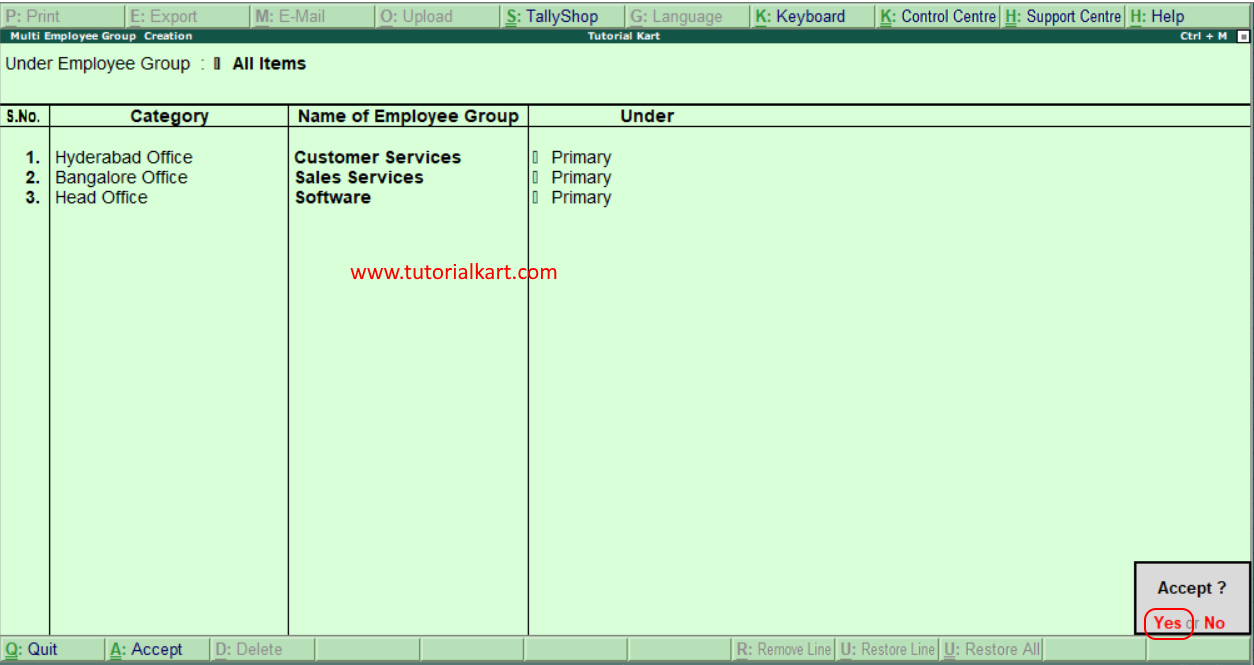
Step 3: Accept the multiple employee group entries
After entering all employee groups, press Enter through the remaining fields and choose Yes to accept and save the details in Tally.
Single group and multiple group creation in Tally compared
| Employee group method | Use it when | Entry approach |
|---|---|---|
| Single Group | One group must be created or its hierarchy needs careful review | Complete one Employee Group Creation screen |
| Multiple Groups | Several groups must be entered together | Enter multiple group names in a tabular screen |
Examples of employee group structures in Tally
The correct structure depends on how the organization manages payroll and reporting. Common arrangements include:
- Department-based groups: Sales, Accounts, Human Resources, Administration, and Production.
- Location-based groups: Head Office, Bengaluru Branch, Delhi Branch, and Warehouse.
- Grade-based groups: Management, Supervisors, Skilled Staff, and Support Staff.
- Nested groups: Sales under Primary, followed by Domestic Sales and Export Sales under Sales.
Choose one consistent basis for the main hierarchy. Mixing departments, locations, and grades at the same level without a clear plan can make employee classification difficult to understand.
How to alter or display employee groups in Tally
After creating employee groups, return to the Employee Groups menu to review or modify them. Use the single-group options when you need to select and inspect one group. Use the multiple-group options when several group records need to be reviewed in a list.
- Alter: Open an existing employee group and change its name, category, or parent group where appropriate.
- Display: View the employee group details without intentionally changing the record.
- Multiple Alter: Review or update several employee groups from one screen when that option is available.
Review the effect on employee assignments and payroll reports before changing the parent of an employee group that is already in use.
Employee group creation issues in Tally
Payroll Info is not visible in Gateway of Tally
Check whether payroll features are enabled for the open company. The payroll menus may not appear when payroll has not been activated in the company configuration.
The required employee category is missing
Create the employee category first, then return to the Employee Group Creation screen and select it from the list. Also confirm that the intended company is currently open.
The employee group appears under the wrong parent
Open the employee group in alteration mode and review the Under field. Select Primary for a top-level group or select the correct existing employee group for a subgroup.
An employee cannot be organized under the intended group
Check the employee’s category and the category assigned to the employee group. Review the payroll structure to confirm that the employee and group have been created under the intended classification.
Employee group questions in Tally
What is an employee group in Tally?
An employee group is a payroll classification used to organize employees with a common department, role, location, grade, or reporting requirement. Employees can then be assigned to the relevant group.
What is the difference between an employee category and an employee group?
An employee category provides a broad payroll classification, while an employee group organizes employees within the selected structure. The exact arrangement depends on how the company has designed its payroll records.
Can an employee group be created under another employee group?
Yes. Select an existing group in the Under field to create a subgroup. Select Primary when the new group should be at the highest level.
When should Multiple Groups be used in Tally?
Use Multiple Groups when several employee groups need to be created together. Use Single Group when entering one group or when each field needs to be checked carefully.
Employee group setup checklist for Tally
- Confirm that payroll features are enabled in the correct company.
- Verify that the required employee categories already exist.
- Use a clear and consistent naming convention for employee groups.
- Select Primary or the correct parent group in the Under field.
- Check category assignments before saving multiple groups.
- Avoid duplicate or overlapping group names.
- Review the saved hierarchy before assigning employees to the groups.
Summary of creating employee groups in Tally
To create an employee group in Tally.ERP 9, open Payroll Info, select Employee Groups, and choose either Single Group or Multiple Groups. Enter the employee category, group name, and parent group, then accept the screen to save the record. A planned hierarchy and consistent group names make employee assignment and payroll reporting easier to manage.