 TutorialKart.com
This tutorial explains how to alter, delete, and shut a company in Tally ERP 9. Altering updates the company details, shutting closes the company without removing its data, and deleting permanently removes the selected company data from its current location.
The screenshots and primary shortcuts below apply to Tally ERP 9. TallyPrime presents the same company-management actions through the Company menu, although the menu names and screen layout differ.
Difference Between Altering, Shutting, and Deleting a Tally Company
| Company action | Effect on company data | Typical use |
|---|---|---|
| Alter | Updates the selected company’s configuration or contact details | Correct an address, phone number, financial year, or other company information |
| Shut | Closes the company but retains its data | Stop working in one company or remove it from the list of currently loaded companies |
| Delete | Removes the selected company data from the active data location | Remove a test, duplicate, or no-longer-required company after creating a verified backup |
How to Alter Company Details in Tally ERP 9
After creation of company in tally, you can alter its saved information when business or contact details change. Review accounting-period and security-related fields carefully before saving because these settings can affect how the company is accessed and used.
Step 1: Open the Company Alteration Menu in Tally ERP 9
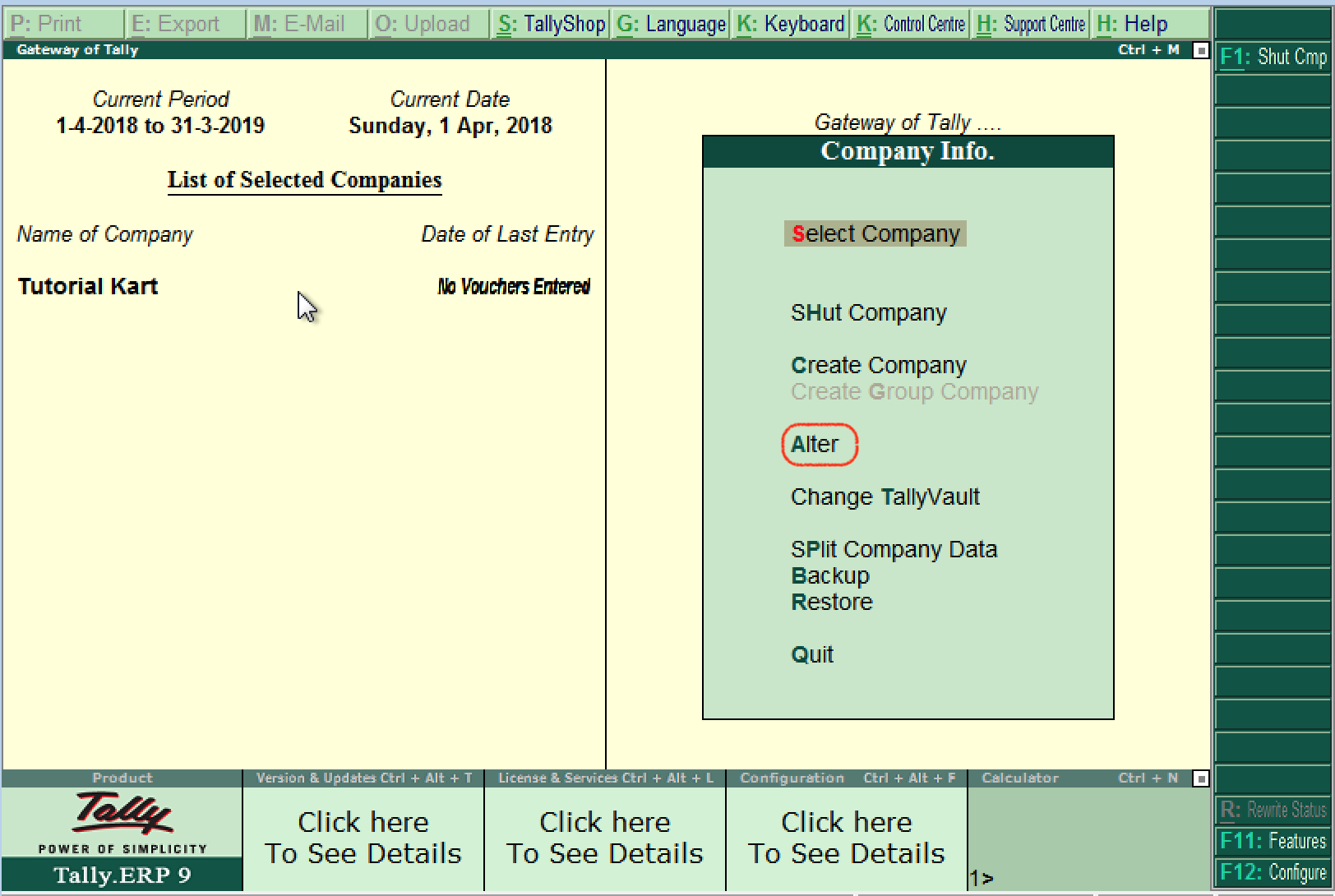
From the Gateway of Tally, press Alt+F3 to open Company Info, and then select Alter.
Step 2: Select the Company to Alter
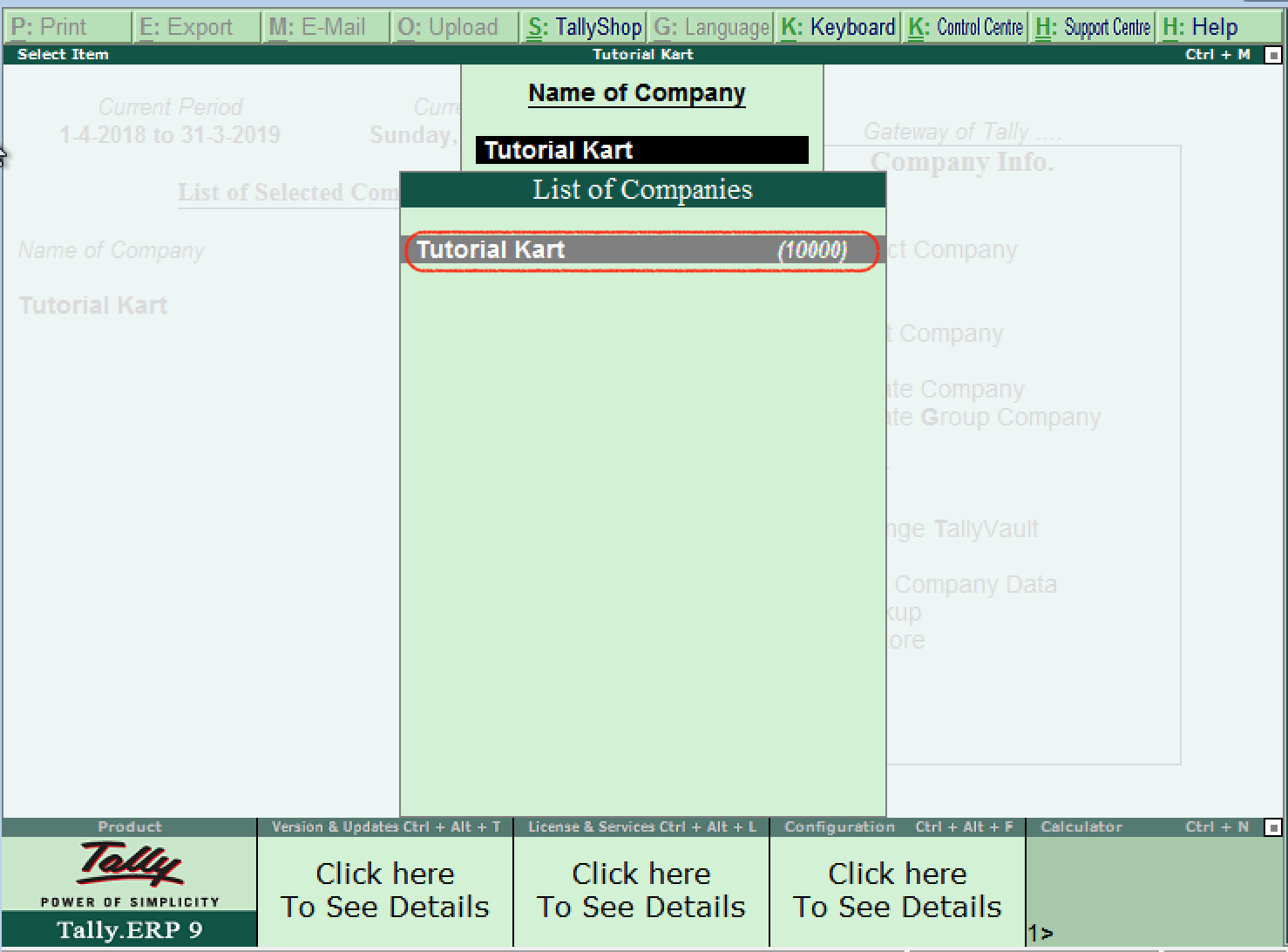
Under List of Companies, choose the required company. In this example, the company name is Tutorial Kart. Select the company carefully when the data directory contains multiple businesses. slot spaceman
Step 3: Modify and Save the Tally Company Information
On the Company Alteration screen, move to the required field and enter the revised information. You can update details such as the mailing name, address, statutory information, contact number, or email address when the corresponding fields are available.
Press Ctrl+A to accept and save the changes. In the following example, a phone number has been added to the company’s contact details.
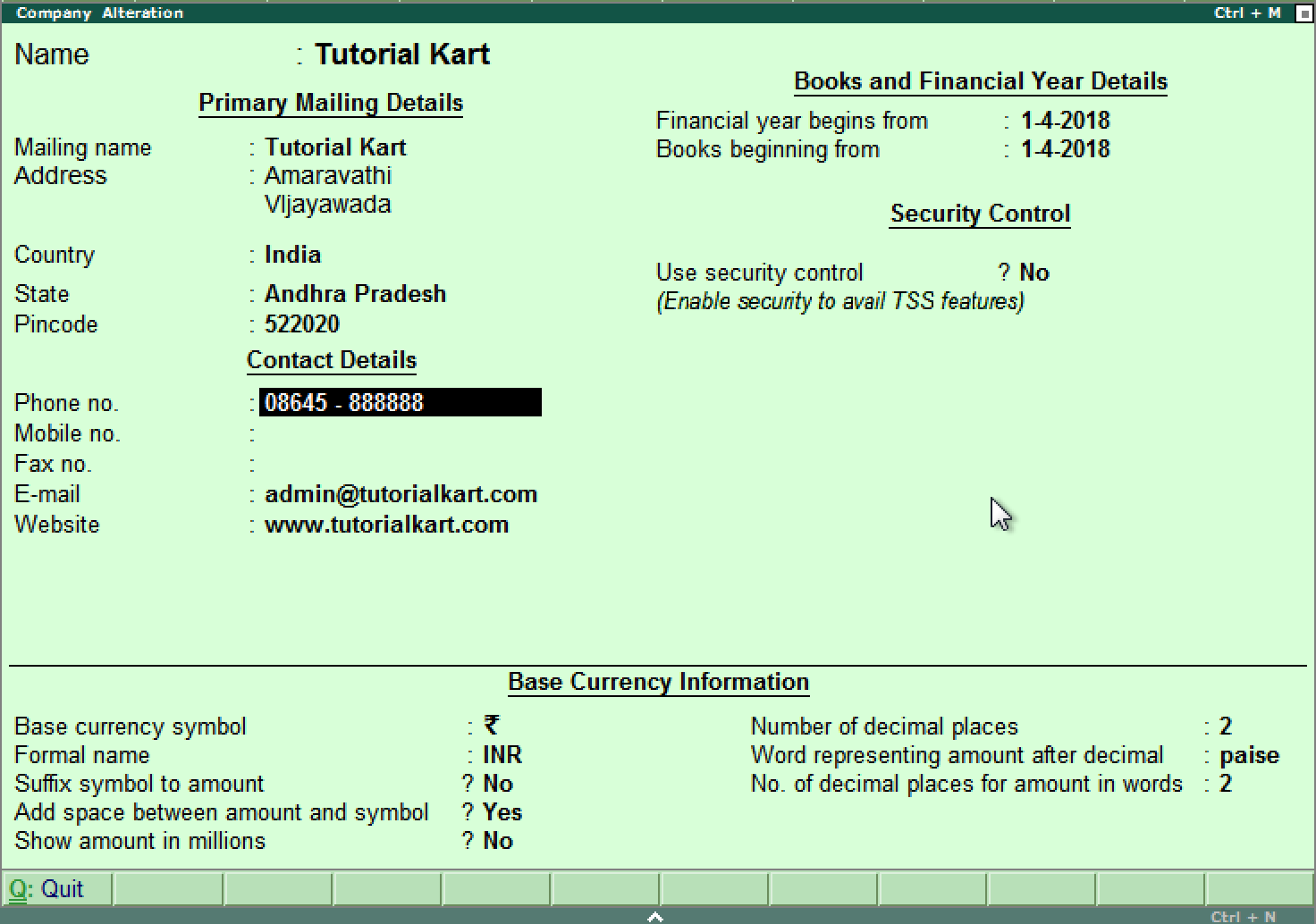
Open the alteration screen again if you need to verify that the revised details were saved. If Tally displays a validation message, correct the indicated field before accepting the screen.
How to Delete a Company in Tally ERP 9 Safely
Deleting a company is different from shutting it. Deletion removes the selected company data from the current Tally data location. You should therefore create a backup and confirm that it can be accessed before deleting a company containing required accounts or statutory records.
Important: Check the company name, company number, data path, and backup location before confirming deletion. Do not use Delete merely to close a company temporarily.
Step 1: Back Up the Tally Company Data
Create a backup on a different drive or approved storage location. Note the backup path and retain it according to your organisation’s record-retention requirements. A deleted company can be recovered only when a usable backup or another valid copy of its data is available.
Step 2: Open the Company in Alteration Mode
Use the following Tally ERP 9 path:
- Open Gateway of Tally.
- Press Alt+F3 to display Company Info.
- Select Alter.
- Choose the company that you intend to delete.
The Delete command becomes available after the company is opened in alteration mode. slot garansi kekalahan 100 modal kembali
Step 3: Delete and Confirm the Selected Tally Company
After opening the correct company on the Company Alteration screen, press Alt+D. Tally displays a confirmation prompt. Recheck the company name and select Yes only when you are certain that the correct company has been selected and its backup is available.
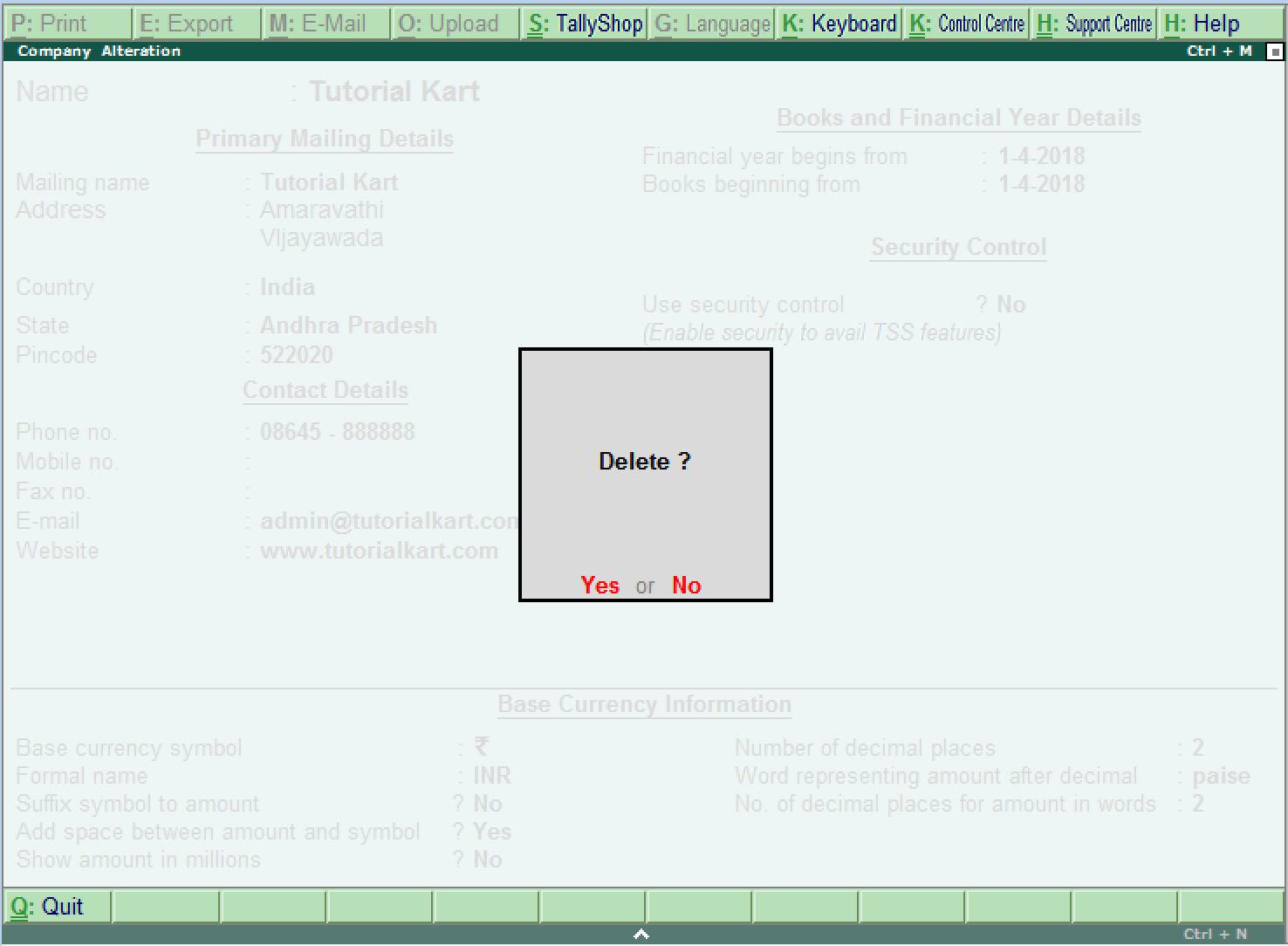
If the Delete command is unavailable, confirm that you opened the company through Company Info > Alter. User permissions or company security settings may also prevent an unauthorised user from deleting data.
How to Shut a Company in Tally ERP 9 Without Deleting Data
Shutting a company closes it in the current Tally session. It does not delete the company directory, vouchers, ledgers, or reports. Use this option when you have finished working in a company but want to retain all its data.
From the Gateway of Tally, press Alt+F1 to open the Shut Company list. Select the company that you want to close. This is particularly useful when more than one company is loaded. If you are leaving Tally completely, use the Quit option and confirm when prompted.
You can load the company again later by using the Select Company option and choosing it from the relevant Tally data location.
Alter, Delete, and Shut Company Options in TallyPrime
In TallyPrime, company operations are available from the Company menu. Press Alt+K to open that menu, and then choose the required action, such as Alter or Shut Company. To delete a company, open it through the Alter option, verify its identity, and use Alt+D when the delete action is available.
The exact prompts can vary by TallyPrime release and user permissions. Follow the labels displayed in your installed version and make a verified backup before deleting company data.
Recovering a Deleted Tally Company from Backup
Tally does not provide a general undo command for a confirmed company deletion. If a backup exists, use Tally’s Restore function to copy the backed-up company into a valid destination data folder. Select the correct backup source, destination path, and company before starting the restore.
- Locate the backup created before deletion.
- Open the Restore option in the Company menu or Company Info screen available in your Tally version.
- Specify the backup source and the destination data path.
- Select the required company and complete the restoration.
- Open the restored company and verify its vouchers, ledgers, reporting period, and recent transactions.
A restore cannot recover transactions entered after the backup was created. If no backup or other valid copy exists, avoid creating new data in the affected storage location and seek qualified data-recovery assistance.
Tally Company Alteration and Deletion QA Checklist
- Confirm that the selected company name and company number match the intended business.
- Verify the active Tally data path, especially when multiple data folders are configured.
- Create a backup before deleting or making significant company-level changes.
- Store the backup separately from the active Tally data directory.
- After alteration, reopen the company screen and verify the updated fields.
- After restoration, compare recent vouchers and key reports with the expected accounting records.
- Use Shut Company, not Delete, when the requirement is only to close the company temporarily.
FAQs About Altering, Deleting, and Shutting a Tally Company
Does shutting a company delete its data in Tally?
No. Shutting closes the company in the current session but leaves its company data intact. The company can be selected and opened again later.
Can a deleted company be recovered in Tally?
A deleted company can normally be restored when a usable backup or another valid copy of its data is available. The restored records will reflect the data contained in that backup.
Why is the Delete option not visible in Tally ERP 9?
The company must first be selected through Gateway of Tally > Alt+F3 > Alter. The Delete command may also be unavailable when the current user lacks the required permissions.
What is the shortcut to delete a company in Tally ERP 9?
Open the company in alteration mode and press Alt+D. Confirm the deletion only after checking the company identity and verifying its backup.
Can the company name and address be changed in Tally?
Yes. Open the company through the Alter option, update the applicable fields, and press Ctrl+A to save. Review statutory and accounting settings carefully before changing them.