 TutorialKart.com
What Are Inventory Features in Tally.ERP 9?
Inventory Features in Tally.ERP 9 are company-level settings that control stock recording, storage locations, batch tracking, order processing, inventory invoicing and related reports. They determine which inventory functions are available for the company currently open in Tally.
Use these settings to match Tally with the company’s actual stock workflow. For example, a business can enable multiple godowns when it stores goods at different locations, batch-wise details when items must be traced by batch, or sales order processing when dispatches are recorded against customer orders.
Inventory Feature Sections Available Under F2: Inventory
The Inventory Features screen in Tally.ERP 9 groups its settings into the following functional areas:
- General inventory settings
- Storage and classification
- Order processing
- Inventory invoicing
- Purchase management
- Sales management
- Other inventory features
The exact options displayed can vary by Tally.ERP 9 release and by features already enabled for the company. Some dependent settings appear only after their parent option is set to Yes.
How to Open F2: Inventory Features in Tally.ERP 9
Follow these steps to open the Inventory Features screen:
- Open the company whose inventory configuration you want to change.
- Go to Gateway of Tally.
- Press F11, or select F11: Features from the button bar.
- Select F2: Inventory Features.
The navigation path is:
Gateway of Tally > F11: Features > F2: Inventory Features
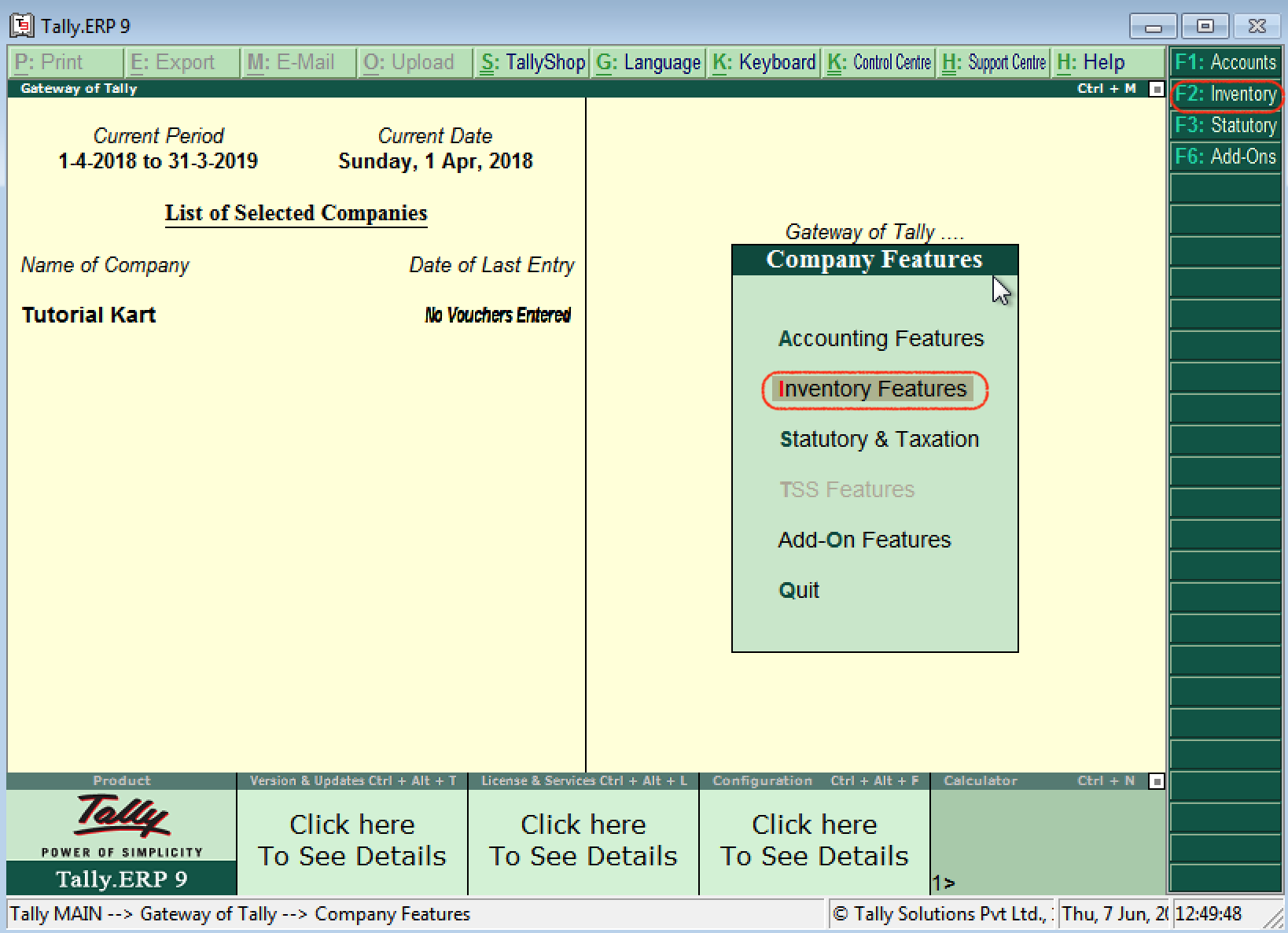
The meaning of the F2 key depends on the current screen. At Gateway of Tally, F2 normally opens the date option. Inside the F11 Company Features screen, F2 opens Inventory Features.
How to Enable Inventory Features for a Tally Company
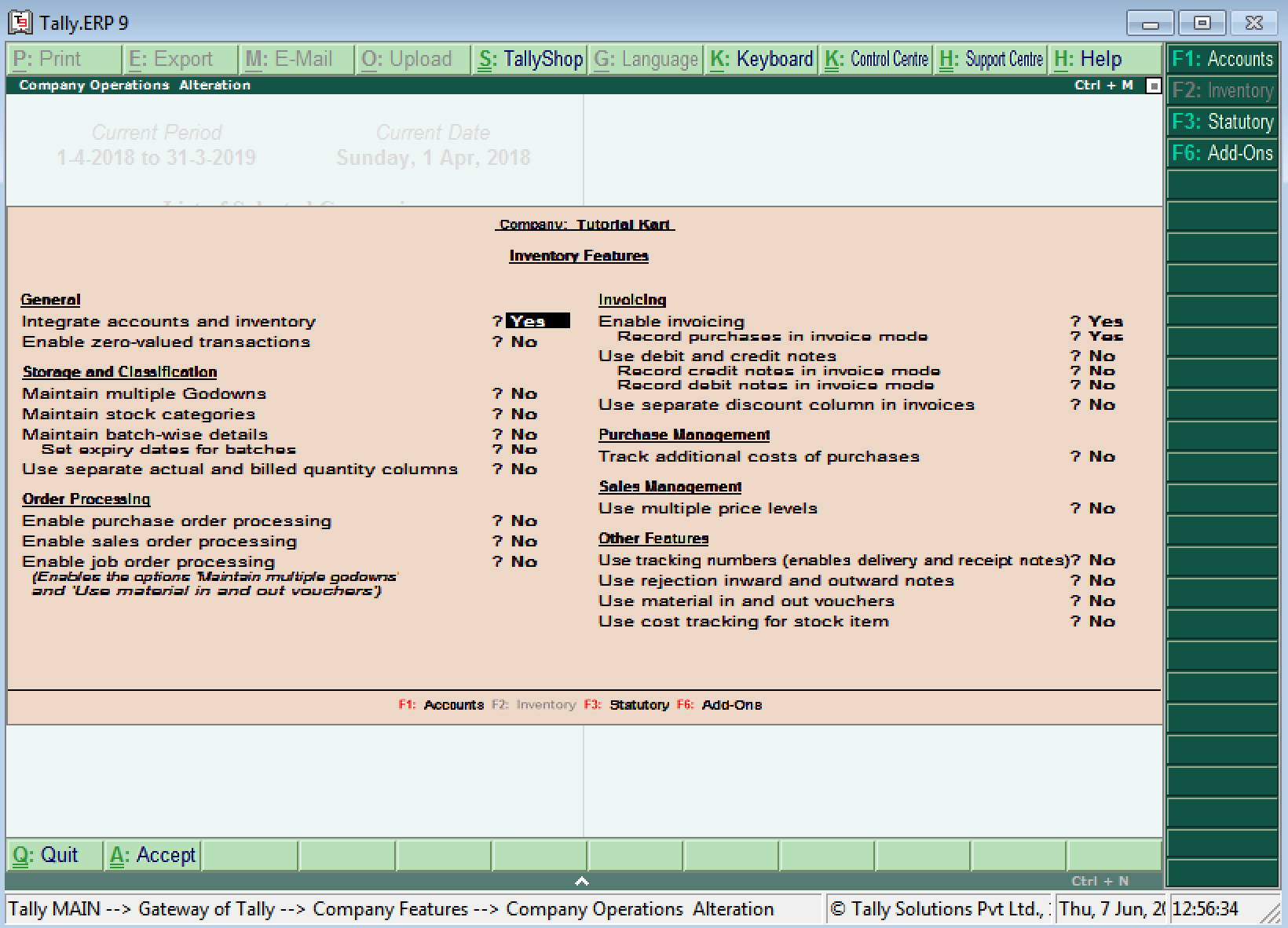
Open F2: Inventory Features and set each required option to Yes. Leave an option set to No when the company does not use that process. Enabling every available feature can add unnecessary fields and voucher steps, so the settings should reflect the actual inventory workflow.
If the Inventory Features option is unavailable, verify that the company is configured to maintain inventory. In F11 Accounting Features, Maintain accounts only should be set to No when stock items and inventory vouchers are required.
General Inventory and Accounts Integration Settings
- Integrate accounts and inventory: Set this option to Yes when stock values maintained through inventory records should affect the financial accounts. Tally then derives closing stock from the inventory records. Set it to No when the financial books and inventory values must be maintained separately.
- Enable zero-valued transactions: Allows applicable inventory transactions to be recorded without a monetary value. Use this only when the company has a valid operational reason to record quantity movement at zero value.
Accounts integration is different from merely maintaining stock quantities. A company can maintain inventory while choosing not to integrate its stock values with the financial accounts.
Storage, Godown, Category and Batch-Wise Inventory Features
The Storage and Classification section controls how stock is organised and traced.
- Maintain multiple godowns: Enable this option when stock must be tracked separately across warehouses, shops, branches, racks or other storage locations. A godown master must then be created for each required location.
- Maintain stock categories: Enables stock categories as a parallel classification for stock items. Stock groups provide the main hierarchy, while categories can group comparable items across that hierarchy.
- Maintain batch-wise details: Enables batch or lot tracking for applicable stock items. This is useful when the business needs to identify receipts, issues and balances by batch.
- Set expiry dates for batches: Allows expiry information to be recorded for batches. This dependent option is relevant only when batch-wise details are enabled.
- Use separate actual and billed quantity columns: Allows the physical quantity and invoiced quantity to differ in supported transactions, such as cases involving free quantities or quantity-based commercial arrangements.
Enabling a company-level storage feature does not configure every stock item automatically. Batch tracking, units and other item-specific settings must also be defined in the relevant stock item masters.
Purchase Order, Sales Order and Job Order Processing
Order-processing features allow orders to be recorded before the corresponding receipt, delivery or invoice. They also support reports for pending order quantities.
- Enable purchase order processing: Enables Purchase Order vouchers for recording orders placed with suppliers. Later purchase or receipt transactions can be linked to the relevant order.
- Enable sales order processing: Enables Sales Order vouchers for recording customer orders. Delivery notes and sales invoices can then be recorded against those orders.
- Enable job order processing: Enables job-work order functions for businesses that send or receive materials for processing, subject to the related job-work configuration.
Order vouchers record commitments; they do not by themselves update physical stock in the same way as a receipt or delivery voucher. Use order references consistently so pending-order reports remain accurate.
Inventory Invoicing, Debit Notes and Credit Notes
The Invoicing section controls the invoice-style entry modes used for sales, purchases and adjustments.
- Enable invoicing: Enables invoice mode for sales transactions and allows stock items, quantities, rates and values to be entered through the invoice screen.
- Record purchases in invoice mode: Enables invoice-style entry for purchase vouchers.
- Use debit and credit notes: Enables Debit Note and Credit Note voucher types.
- Record credit notes in invoice mode: Allows supported sales returns and related adjustments to be entered with inventory details in invoice format.
- Record debit notes in invoice mode: Allows supported purchase returns and related adjustments to be entered in invoice format.
- Use separate discount column in invoices: Adds a discount field at the item level so discounts can be recorded separately instead of being included manually in the rate.
Invoice fields can also depend on the selected voucher type, F12 configuration, stock item settings and statutory features. Test the resulting invoice screen before regular transaction entry begins.
Additional Purchase Costs in Inventory Valuation
- Track additional costs of purchases: Allows applicable costs incurred in bringing goods into inventory to be allocated to purchased stock. Depending on the transaction, these costs can include charges associated with acquiring or receiving the goods.
Allocation should follow the company’s accounting policy. Confirm the effect on stock valuation and financial ledgers before using additional cost allocations in regular purchase transactions.
Multiple Price Levels for Inventory Sales
- Use multiple price levels: Enables different price levels for stock items, such as separate rates for retail, wholesale or selected customer groups. Price lists must be configured after this feature is enabled.
A price level supplies a predefined rate during invoice entry. Users should still verify the applicable quantity, date, unit and price-level configuration before accepting the invoice.
Delivery Notes, Receipt Notes, Rejections and Material Movement
- Use tracking numbers: Enables tracking references used to link delivery notes or receipt notes with the corresponding invoices. This supports situations where physical movement and invoicing occur at different times.
- Use rejection inward and rejection outward notes: Enables vouchers for goods returned by customers or returned to suppliers before the final accounting adjustment is completed.
- Use material in and material out vouchers: Supports the movement of materials received from or sent to another party in applicable job-work processes.
- Use cost tracking for stock items: Enables supported cost-tracking functions for following costs associated with stock items or transactions.
Tracking numbers should be selected carefully when an invoice is recorded. An incorrect or missing reference can leave delivery or receipt transactions shown as pending.
Inventory Features and Inventory Info in Tally
Inventory Features and Inventory Info perform different tasks. F2: Inventory Features enables company-level functions. Inventory Info is used to create, alter and display inventory masters after the relevant functions are available.
Inventory Info can include masters such as stock groups, stock categories, stock items, units of measure and godowns. The options shown depend on the company configuration. For example, stock categories become available after Maintain stock categories is enabled.
How to Save F2 Inventory Features in Tally.ERP 9
After enabling or disabling the required features, press Ctrl+A to accept and save the configuration. You can also press Enter through the remaining fields and confirm the screen.
After saving, create or update the required masters and test the configuration with a sample transaction. For example, enabling multiple godowns must be followed by creating the necessary godown masters and selecting them during stock transactions.
Tally Inventory Features Configuration Checklist
- Confirm that the correct company is open before changing F11 Inventory Features.
- Verify that Maintain accounts only is set to No when inventory records are required.
- Decide whether inventory values should be integrated with the financial accounts.
- Enable multiple godowns only when location-wise stock balances will be maintained consistently.
- Confirm which stock items require batch tracking and whether expiry dates are needed.
- Enable purchase and sales order processing only when orders will be linked to later receipts, deliveries or invoices.
- Check invoice mode, discount-column and debit or credit note requirements against the company’s voucher process.
- Review the valuation effect before allocating additional purchase costs to stock.
- Create and verify price lists after enabling multiple price levels.
- Test tracking numbers with a delivery or receipt note and its corresponding invoice.
- Save the F2 screen with Ctrl+A and verify the affected masters, vouchers and inventory reports.
Frequently Asked Questions About Inventory Features in Tally
How do I enable inventory features in Tally.ERP 9?
Open the required company, go to Gateway of Tally > F11: Features > F2: Inventory Features, set the required options to Yes, and press Ctrl+A to save them.
What is the use of F2 in Tally Inventory Features?
Within the F11 Company Features screen, F2 opens Inventory Features. It is used to enable functions such as multiple godowns, batch details, purchase orders, sales orders, invoicing and tracking numbers. On other Tally screens, F2 can perform a different action, such as changing the working date.
Why is Inventory Info not showing in Tally.ERP 9?
Check whether the company is configured to maintain inventory. In F11 Accounting Features, Maintain accounts only should be set to No. Individual Inventory Info options may also remain hidden until their related features, such as stock categories or multiple godowns, are enabled.
What is the difference between stock groups and stock categories?
Stock groups form the primary hierarchy used to organise stock items. Stock categories provide an additional, parallel classification that can compare similar items belonging to different stock groups.
Can inventory features be changed after stock vouchers are entered?
Many inventory features can be changed later, but the change may affect voucher entry, stock valuation, outstanding order reports and existing inventory records. Back up the company data and review the effect on existing masters and vouchers before changing a major inventory setting.