 TutorialKart.com
How to Create Godowns or Stock Locations in Tally
A godown in Tally represents a physical or logical location where inventory is stored. You can create separate godowns for warehouses, branches, shops, storage rooms, racks, or any other location for which stock must be tracked independently.
After godowns are configured, Tally can maintain location-wise stock quantities and display inventory reports for each storage location. This is useful when the same stock item is available at more than one warehouse or branch.
Single and Multiple Godown Creation Methods
You can create godowns or locations in Tally by using either of the following methods:
- Create one godown through the Single Godown screen
- Create several godowns through the Multiple Godowns screen
Use the single-creation method when you need to enter one location with complete attention to its details. Use the multiple-creation method when several locations must be added together.
Enable Multiple Godowns in Tally Inventory Features
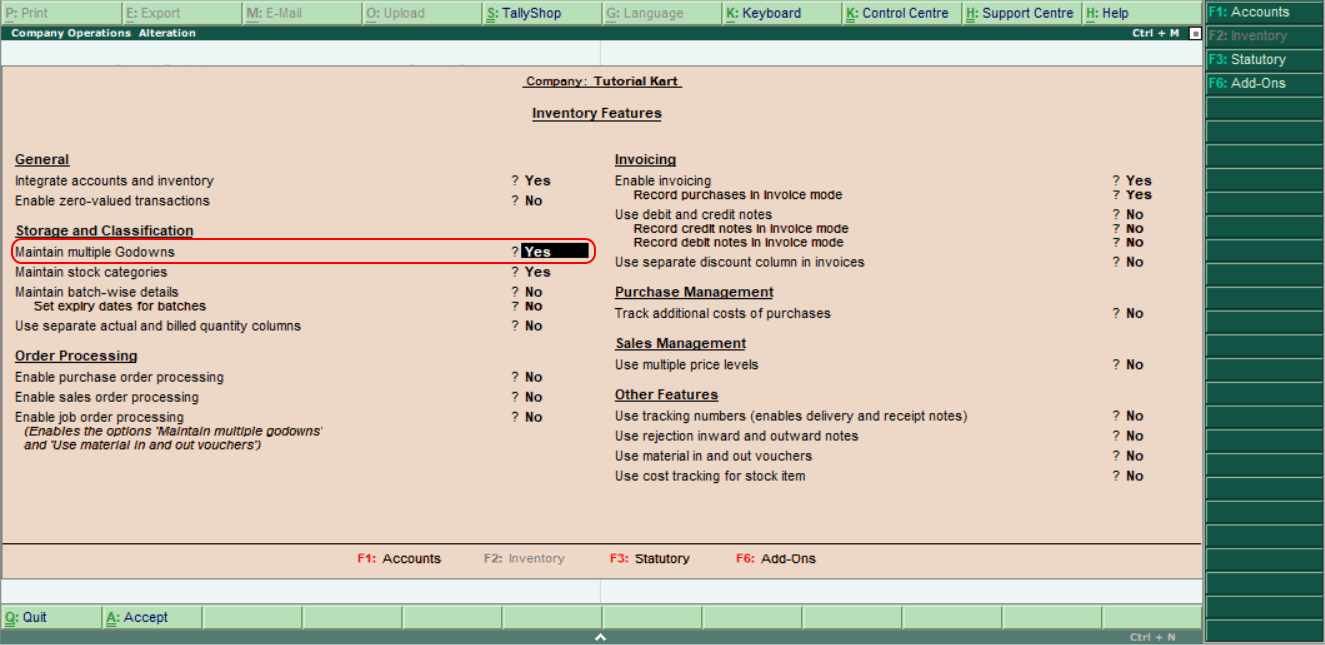
Before creating and using multiple godowns, set Maintain multiple Godowns to Yes in the inventory features. Follow this menu path:
Gateway of Tally > F11: Features > Inventory Features
Locate the option for maintaining multiple godowns, change it to Yes, and accept the configuration. If this option is disabled, the Godowns menu or location-wise allocation fields may not be available during inventory entry.
How to Create a Single Godown in Tally
Follow these steps when you want to create one warehouse or stock location.
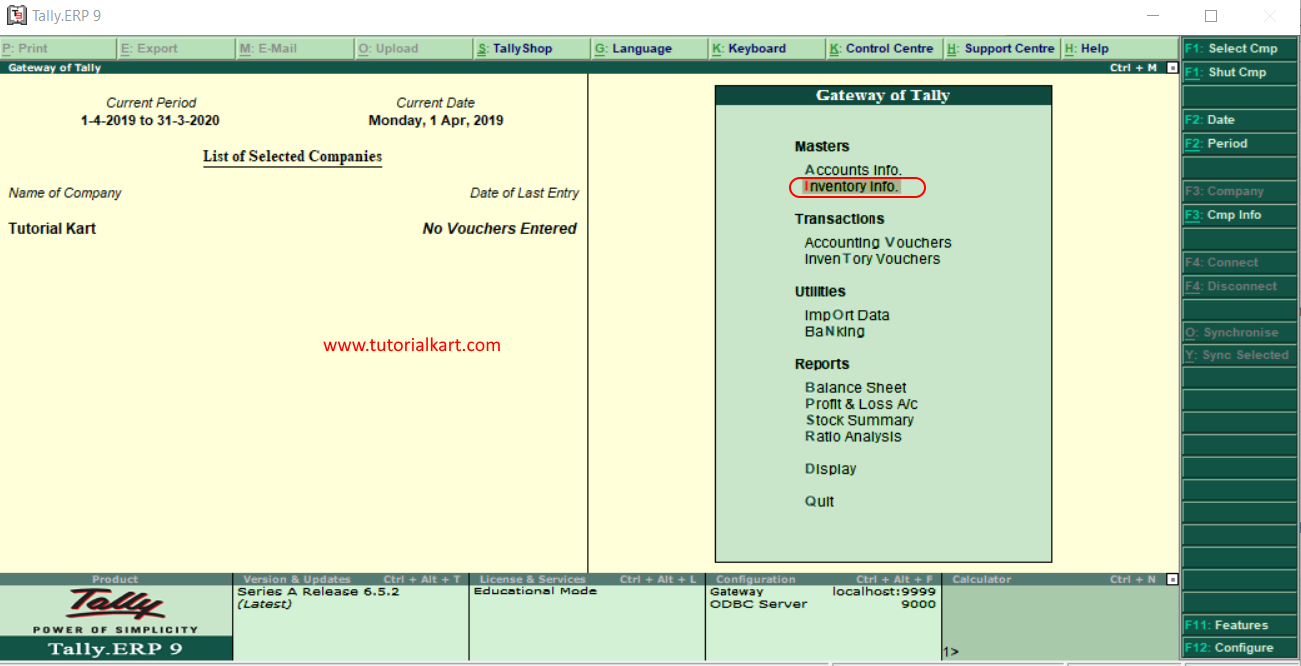
Step 1: From the Gateway of Tally, select Inventory Info. under the Masters section.
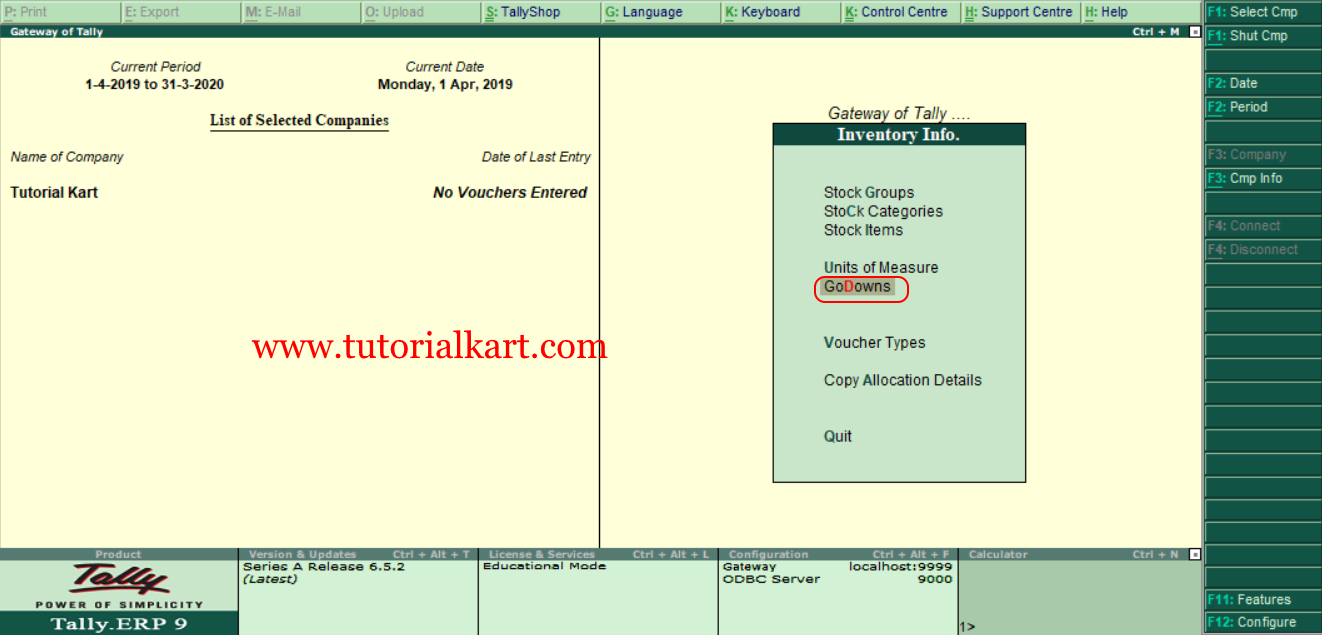
Step 2: In the Inventory Info. menu, select Godowns. This menu is used to create, display, or alter the locations maintained by the company.
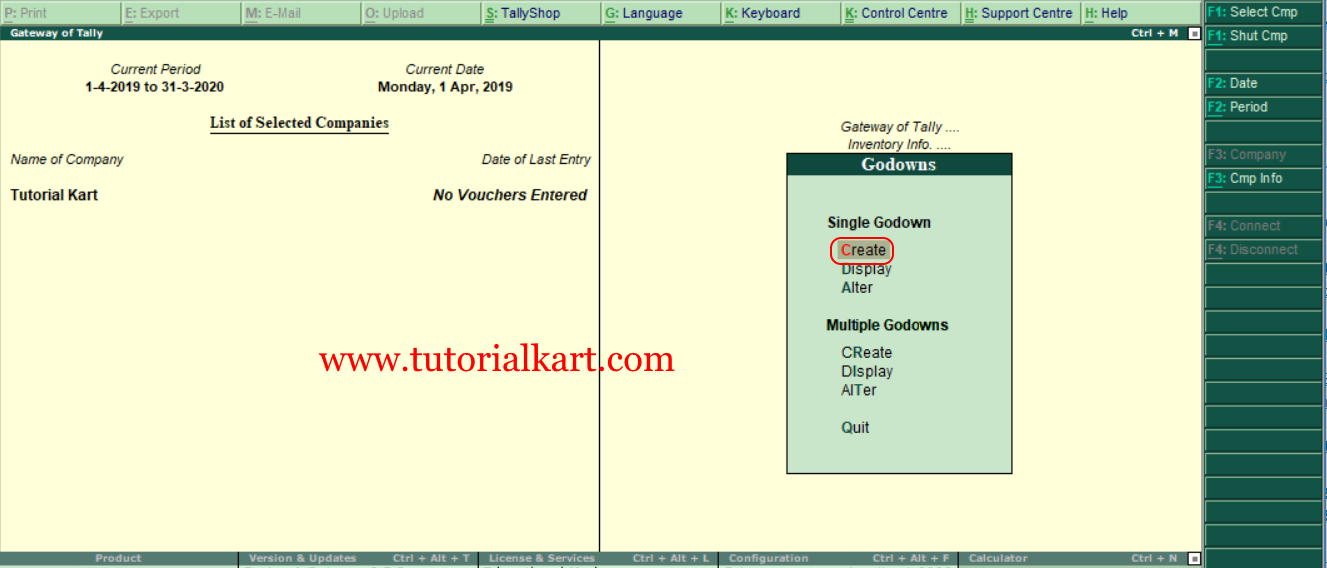
Step 3: Under Single Godown, select Create.
Step 4: Complete the fields on the Godown Creation screen.
- Name: Enter a clear name for the godown. A warehouse, branch, city, floor, or storage-area name can be used. For example, enter Amravathi, Main Warehouse, or Branch Store.
- Under: Select the parent godown under which this location should be grouped. Choose Primary when the godown is a top-level location.
- Accept: After entering the details, press Enter through the remaining fields and select Yes, or press the applicable acceptance shortcut, to save the godown.
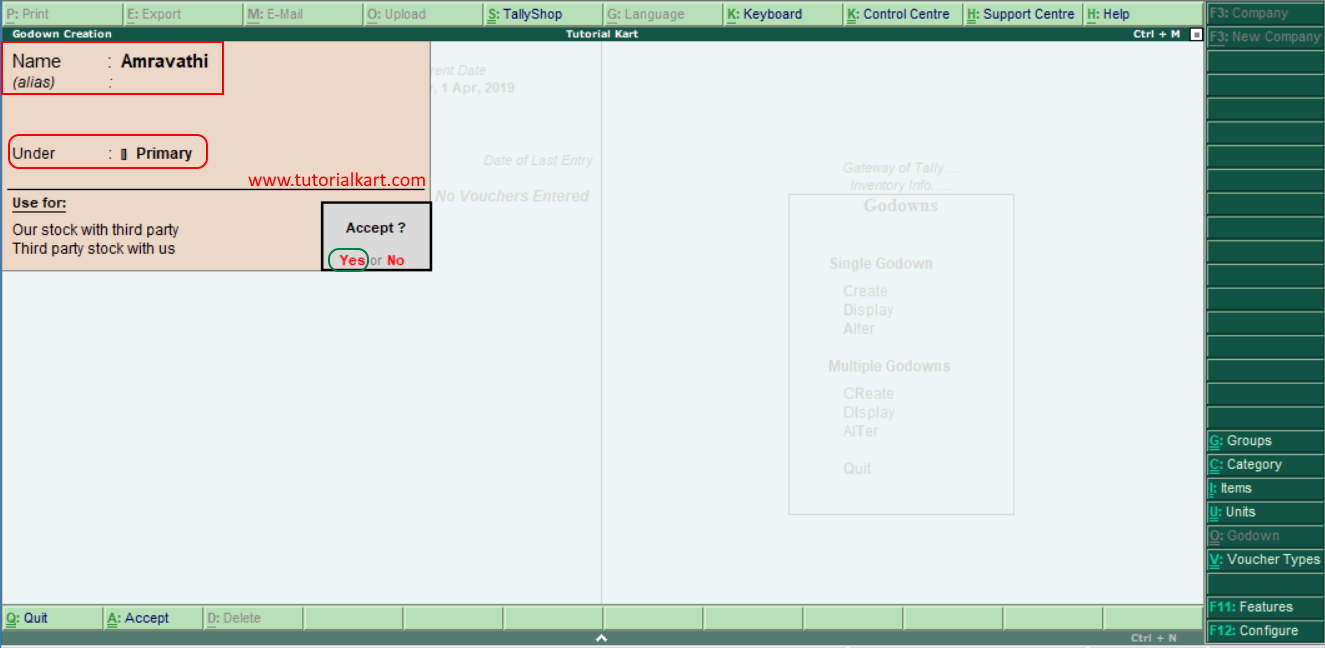
In this example, a new godown named Amravathi is created under Primary. It is therefore treated as an independent top-level stock location.
How the Under Field Creates a Godown Hierarchy
The Under field determines the position of a godown in the location hierarchy. Select Primary for a main warehouse or independent branch. Select an existing godown when creating a subdivision within that location.
For example, Main Warehouse can be created under Primary, while Rack A and Rack B can be created under Main Warehouse. This structure helps organise stock reports by both the main location and its internal storage sections.
How to Create Multiple Godowns in Tally
The multiple-creation screen lets you enter several godown names in one table. It is suitable when a company is setting up a number of warehouses, branches, rooms, or racks at the same time.
Step 1: Follow the menu path Gateway of Tally > Inventory Info. > Godowns, and then select Create under Multiple Godowns.
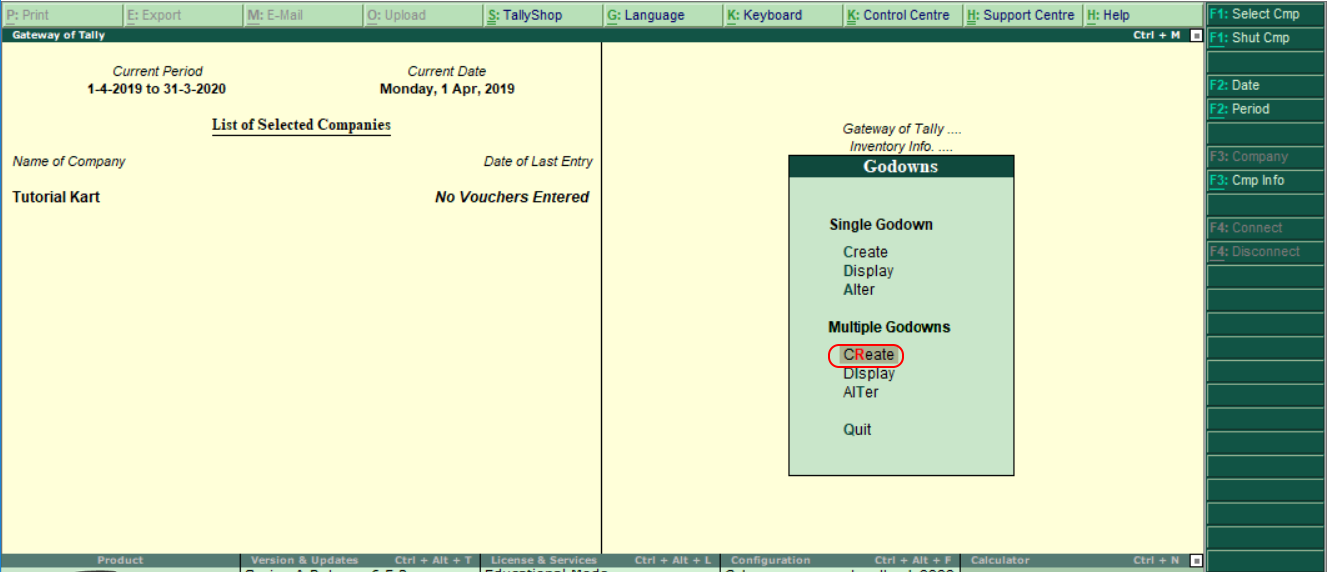
Step 2: On the Multi Godown Creation screen, enter the details for each location.
- Name: Enter the name of each godown or stock location on a separate row.
- Under: Select Primary for independent locations, or select an existing parent godown when creating sublocations.
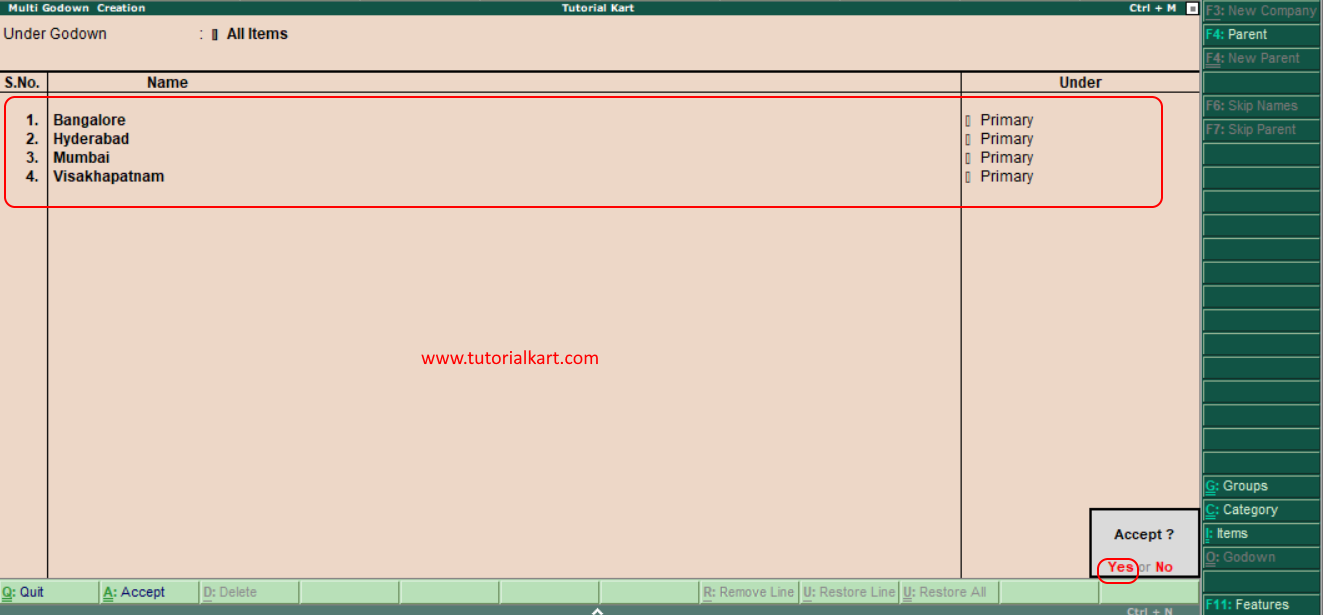
Step 3: Review the names and parent locations. After all godowns have been entered, accept the screen by selecting Yes.
Assign Stock Items to the Correct Godown
Creating a godown does not automatically move stock into it. The appropriate location must be selected when recording opening balances or inventory vouchers that require godown allocation.
When entering a purchase, stock journal, delivery, receipt, or another inventory transaction, verify that the quantity is allocated to the intended godown. Incorrect allocation can cause one location to show excess stock while another location shows a shortage.
Check Godown-Wise Stock After Creation
After creating the locations and recording inventory transactions, open the relevant stock summary or godown report and review the location-wise quantities. Confirm that:
- Every required warehouse or branch appears in the list.
- Each godown is placed under the correct parent location.
- Stock quantities appear against the intended godown.
- The total quantity across all godowns matches the overall quantity of the stock item.
Common Godown Setup Errors in Tally
- Godowns option is unavailable: Check whether Maintain multiple Godowns is enabled in Inventory Features.
- Wrong parent selected: Alter the godown and correct the Under field so that reports follow the intended hierarchy.
- Duplicate location names: Use distinct and descriptive names such as Hyderabad Warehouse and Vijayawada Warehouse.
- Stock appears in the wrong location: Review the opening balance or inventory voucher and correct its godown allocation.
- Primary used for every subdivision: Place racks, rooms, or sections under their actual warehouse when a hierarchical report is required.
Godown Creation in Tally: Frequently Asked Questions
What is a godown in Tally?
A godown is a stock location used to maintain and report inventory separately. It can represent a warehouse, branch, shop, room, rack, or another storage area.
Why is the Godowns option not visible in Tally?
The feature may not be enabled. Open the inventory features and set Maintain multiple Godowns to Yes, then accept the settings.
What should be selected in the Under field?
Select Primary for an independent or top-level godown. Select an existing godown when the new location is a subdivision of that parent location.
Can several godowns be created at the same time?
Yes. Select Create under Multiple Godowns and enter each location on a separate row before accepting the screen.
Does creating a godown automatically allocate stock to it?
No. Stock must be allocated to the correct godown while entering opening balances or recording the relevant inventory transactions.
Editorial QA Checklist for This Tally Godown Procedure
- Confirm that the multiple-godown feature is enabled before following the creation steps.
- Verify that the menu labels shown in the screenshots match the Tally interface covered by the tutorial.
- Check that every example godown has a clear and consistent parent location.
- Confirm that the tutorial distinguishes godown creation from stock allocation.
- Verify location-wise quantities in a stock report after entering a test inventory transaction.