 TutorialKart.com
What Is a Stock Group in Tally ERP 9?
A stock group in Tally ERP 9 is an inventory master used to classify stock items that share common characteristics. Items may be grouped by product type, brand, model range, department, material or another reporting requirement.
Stock groups work in a way similar to accounting groups. Instead of organizing ledgers, they organize inventory items. A well-planned stock-group structure makes it easier to create stock summaries, review quantities and values, and compare sales or closing stock for related products.
Why Stock Groups Are Used in Tally
- To place similar stock items under a common inventory heading.
- To review inventory reports product-wise or brand-wise.
- To maintain a clear hierarchy for a large number of stock items.
- To compare sales, purchases, closing quantity and closing value for related items.
- To apply common inventory settings at the group level where applicable.
A stock group should normally represent a meaningful reporting level. For example, Computers can be a primary stock group, while Lenovo, Dell and HP can be subgroups beneath it.
Stock Group Hierarchy Example for Computers
Assume that Tutorial Kart sells laptops, desktop computers and music systems. The computer inventory can be organized by product family and brand.
Group A: Computers
| Brand subgroup | Example stock item |
|---|---|
| A1 – Lenovo | A1a – Lenovo 13-inch Laptop |
| A1 – Lenovo | A1b – Lenovo 16-inch PC |
| A2 – Dell | A2a – Dell 13-inch Laptop |
| A2 – Dell | A2b – Dell 16-inch PC |
| A3 – HP | A3a – HP 13-inch Laptop |
| A3 – HP | A3b – HP 16-inch PC |
In this structure, Computers is the main stock group. Lenovo, Dell and HP can be created as subgroups, and the individual laptop or PC models can be created as stock items under the appropriate brand.
Stock Group Hierarchy Example for Music Systems
| Brand subgroup | Example stock item |
|---|---|
| Group B – Music System | |
| B1 – Sony | B1a – Blu-ray Player |
| B1 – Sony | B1b – DVD Player |
In this example, the music products are grouped under Music System. Sony can be maintained as a subgroup, while Blu-ray Player and DVD Player are maintained as individual stock items in tally.
Stock Group, Stock Category and Stock Item Differences
| Inventory master | Purpose | Example |
|---|---|---|
| Stock Group | Creates the main hierarchical classification of inventory. | Computers > Dell |
| Stock Category | Provides a parallel classification across different stock groups when category maintenance is enabled. | 13-inch Laptops |
| Stock Item | Represents the actual product whose quantity, rate and value are recorded. | Dell 13-inch Laptop |
A stock item normally belongs to a stock group. A stock category is optional and is useful when the same items must also be compared through a second, independent classification. For example, laptops from several brand groups may all belong to the category 13-inch Laptops.
How to Open Stock Groups in Tally ERP 9
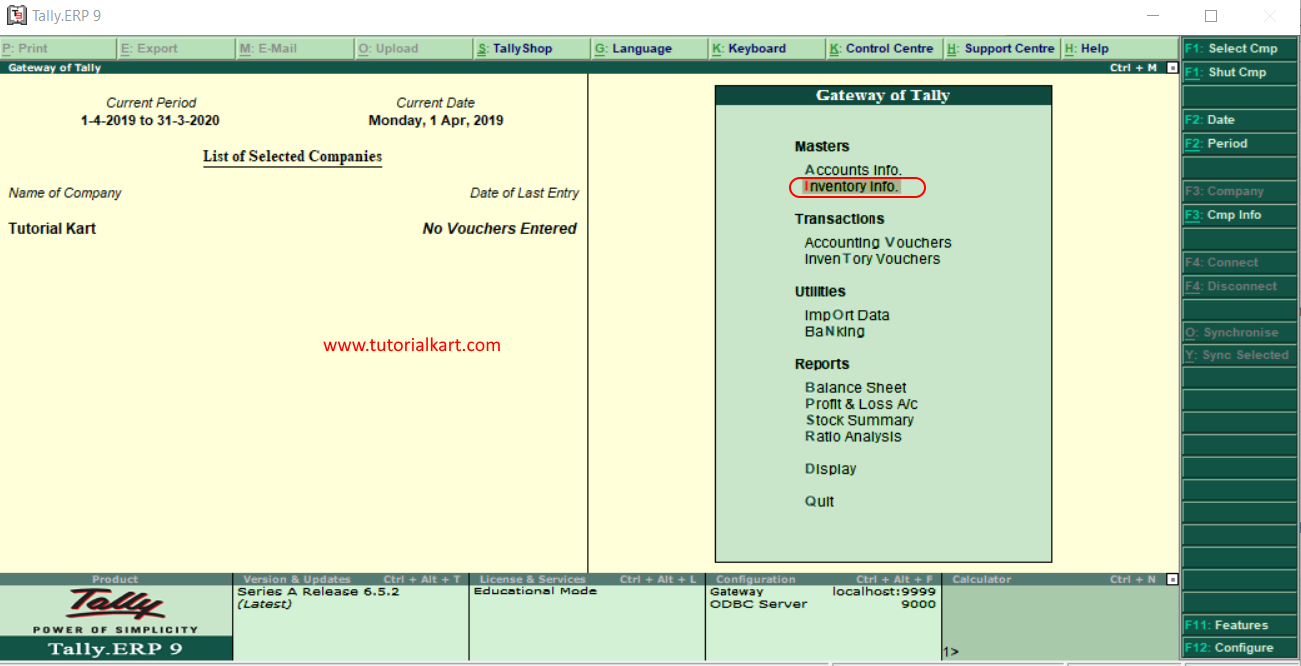
Step 1: Open Gateway of Tally > Inventory Info.
After opening Tally ERP 9 and selecting the required company, go to the Gateway of Tally. Under the Masters section, choose Inventory Info.
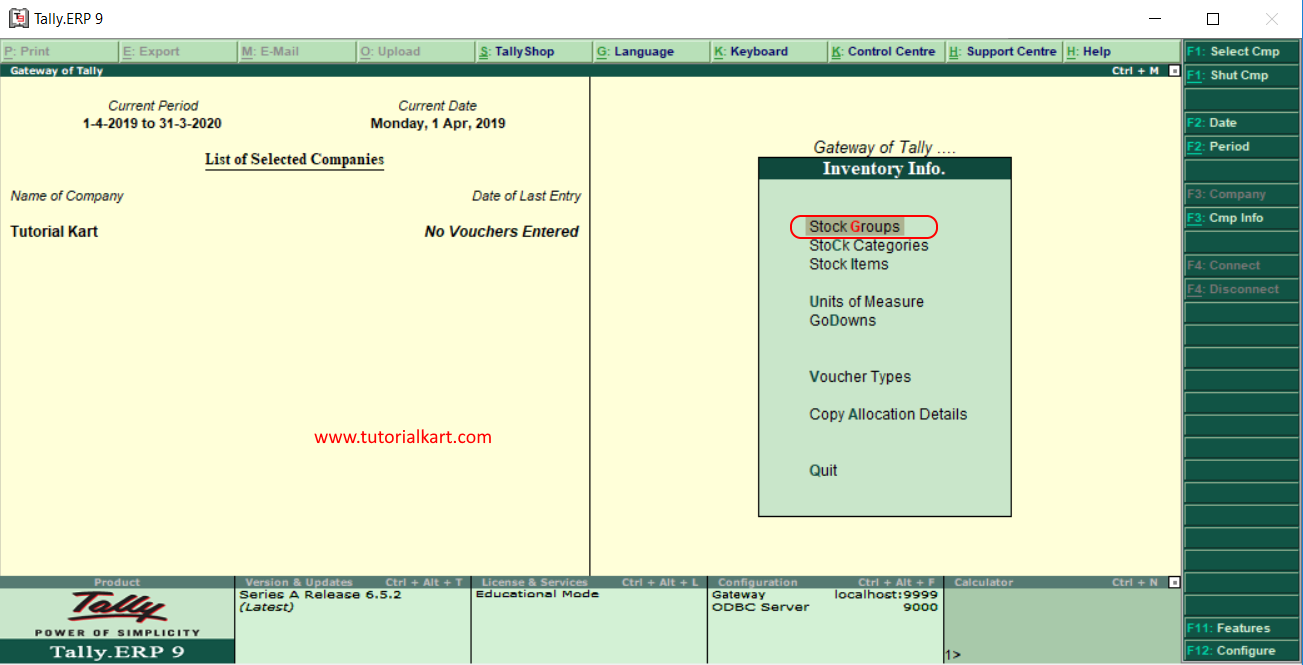
Step 2: Select Stock Groups from Inventory Information.
The Inventory Information screen displays the inventory masters available for maintaining stock-related data.
- Stock Groups
- Stock Categories
- Stock Items
- Units of Measure
- Godowns
- Voucher Types
- Copy Allocation Details
Select Stock Groups to create, display or alter a stock-group master.
Step 3: Choose the required Stock Group option.
The Stock Groups menu provides two methods for maintaining stock groups:
Use the single-stock-group option when creating or modifying one group in detail. Use the multiple-stock-groups option when several groups must be entered quickly in a list.
Single and Multiple Stock Group Options in Tally
| Option | When to use it |
|---|---|
| Create under Single Stock Group | Create one group and configure its details. |
| Display under Single Stock Group | View an existing group without editing it. |
| Alter under Single Stock Group | Modify the name, parent group or other settings of an existing group. |
| Create under Multiple Stock Groups | Create several groups in one screen. |
| Display under Multiple Stock Groups | View groups together in a list. |
| Alter under Multiple Stock Groups | Edit several existing groups from one screen. |
How to Plan Stock Groups Before Creating Items
Plan the group hierarchy before entering a large inventory list. Start with the reports the business needs, and then create only the levels that support those reports.
- Create broad product groups such as Computers, Accessories and Music Systems.
- Add subgroups only when separate brand-wise or product-wise reporting is required.
- Create each product as a stock item under its most relevant subgroup.
- Use consistent group names and avoid alternate spellings for the same brand.
- Avoid creating a separate stock group for every individual model when a stock item is sufficient.
For example, creating Dell as a group and Dell 13-inch Laptop as a stock item is usually clearer than creating a separate group for every laptop model.
How Stock Groups Improve Inventory Reports
Transactions are recorded against stock items, but Tally can summarize those item values through their parent stock groups. This allows a business to review information such as:
- Total quantity and value of stock under Computers.
- Sales or purchases for a particular brand subgroup.
- Closing stock for a product family at the end of a period.
- Movement of individual items within a selected group.
- Comparison between related inventory groups.
For accurate reports, each stock item must be assigned to the correct parent group. A poorly planned hierarchy can combine unrelated products or split similar products across several reports.
Common Stock Group Setup Mistakes in Tally ERP 9
- Using a stock group as a stock item: A group is a classification, while an item is the actual product used in inventory vouchers.
- Creating too many hierarchy levels: Extra levels make navigation and reporting harder without adding useful detail.
- Mixing brands and product types at the same level: Decide whether each level represents a product family, brand or another consistent attribute.
- Assigning items to the wrong parent: This causes incorrect group-wise totals in inventory reports.
- Creating duplicate groups: Variations such as “HP,” “H.P.” and “Hewlett Packard” can fragment the same brand’s figures.
Stock Groups in Tally ERP 9: Frequently Asked Questions
What is the difference between a stock group and a stock item?
A stock group classifies related inventory, while a stock item represents the actual product whose quantity and value are recorded. For example, Dell can be a stock group and Dell 13-inch Laptop can be a stock item.
Can a stock group be created under another stock group?
Yes. A subgroup can be created under a parent stock group to form a hierarchy. For example, Lenovo can be created under Computers.
When should multiple stock groups be used?
Use the multiple-stock-groups option when several groups must be created or altered quickly. Use the single-stock-group option when one group requires detailed configuration.
Do stock groups affect inventory reports?
Yes. Tally summarizes stock-item transactions according to the assigned group hierarchy. Incorrect grouping can therefore affect product-wise and brand-wise report totals.
Is a stock category the same as a stock group?
No. A stock group provides the main hierarchical classification. A stock category provides an optional parallel classification for comparing items across different groups.
Stock Group Setup Review Checklist
- Confirm that each group name describes a product family, brand or another consistent classification.
- Check that every subgroup is placed under the correct parent stock group.
- Verify that actual products are created as stock items rather than groups.
- Review group-wise stock summaries to confirm that quantities and values appear under the expected headings.
- Check for duplicate groups caused by spelling, spacing or abbreviation differences.