 TutorialKart.com
Statutory & Taxation company features in Tally.ERP 9 control the tax registrations, calculation rules, statutory details, and reports used by a company. The options displayed are country-specific and depend on the country selected during company creation in Tally.ERP 9.
For an Indian company, this screen can include Goods and Services Tax (GST), Tax Deducted at Source (TDS), Tax Collected at Source (TCS), and legacy tax features such as VAT, Service Tax, and Excise. Enable only the features that apply to the company’s registrations and transactions.
Statutory and taxation features available in Tally.ERP 9
- Goods and Services Tax (GST): Records GST registration details and enables GST-related transactions and reports.
- Tax Deducted at Source (TDS): Supports deduction of tax from eligible payments.
- Tax Collected at Source (TCS): Supports collection of tax on applicable sales or receipts.
- Value Added Tax (VAT): A legacy indirect-tax option retained for companies and records that require VAT-era data.
- Service Tax: A legacy feature used for transactions from the period before GST replaced Service Tax in India.
- Excise: Supports applicable excise configurations and historical excise records.
The exact fields may differ according to the Tally.ERP 9 release, company country, enabled features, and statutory configuration. Do not activate a tax merely because it appears on the screen.
How to open F3 Statutory & Taxation in Tally.ERP 9
Open the required company and use the following path:
Gateway of Tally –> F11: Features –> F3: Statutory & Taxation
F11 opens the company features screens. F3 selects the Statutory & Taxation screen, where tax features can be enabled and their registration details can be entered or altered.
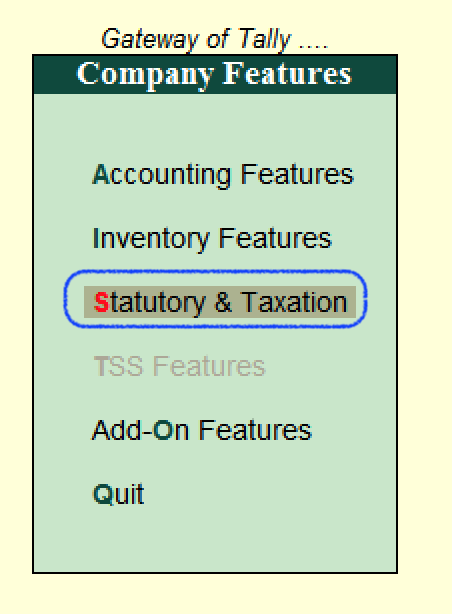
Configure GST, TDS, TCS, and legacy taxes in F3 Statutory
In the Company Operations Alteration screen, set each option according to the company’s actual statutory requirements.
- Enable Goods and Services Tax (GST): Select Yes when the company maintains GST transactions in Tally.
- Set/alter GST details: Select Yes to enter or revise information such as the state, registration type, GSTIN/UIN, and applicable registration date. The fields shown depend on the installed release.
- Enable Value Added Tax (VAT): For normal current-period Indian GST accounting, this is generally set to No. Enable it only when maintaining applicable VAT or historical VAT records.
- Set/alter VAT details: Open this screen only when VAT configuration is required.
- Enable Excise: Select Yes only if excise configuration applies to the company or its historical records.
- Set/alter excise details: Use this option to enter or revise the applicable excise registration information.
- Enable Service Tax: This is a legacy option for applicable pre-GST service-tax records.
- Set/alter service tax details: Use it only when the company needs to maintain or alter Service Tax information.
- Enable Tax Deducted at Source (TDS): Select Yes when the company must deduct TDS on applicable payments.
- Set/alter TDS details: Enter the company’s relevant TDS registration and deduction details.
- Enable Tax Collected at Source (TCS): Select Yes when the company must collect TCS on applicable transactions.
- Set/alter TCS details: Enter the relevant collection and registration information.
Enter PAN and Corporate Identity Number in Tally.ERP 9
The Tax Information section stores identifiers used in company and statutory records:
- PAN/Income Tax No.: Enter the company’s Permanent Account Number exactly as issued.
- Corporate Identity No.: Enter the Corporate Identity Number (CIN) when it applies to the company.
Verify these identifiers before saving. An incorrect PAN, CIN, GSTIN, or registration date can flow into vouchers, invoices, and statutory reports.
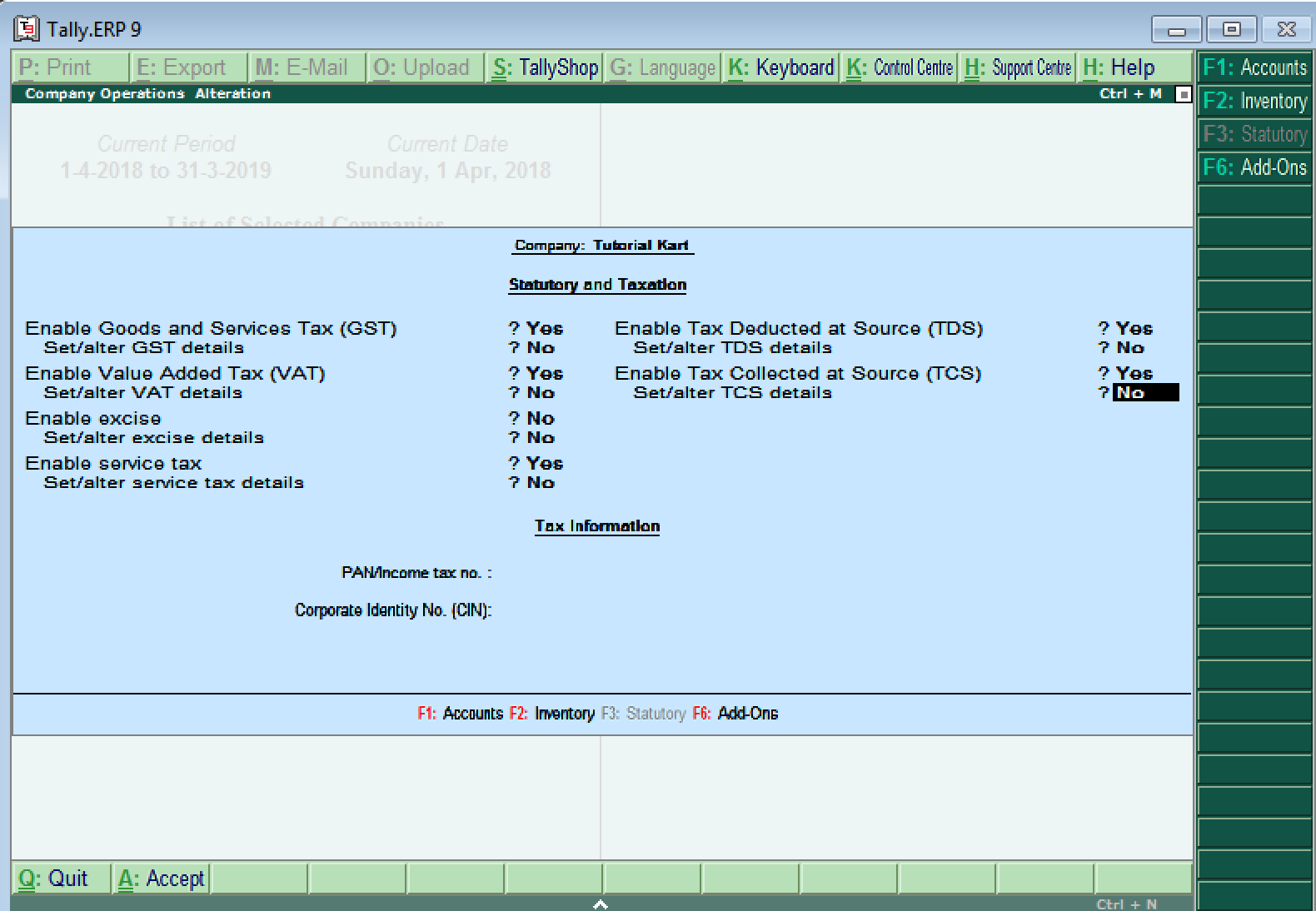
Save and verify the F3 Statutory configuration
After entering the required details, press Ctrl+A or choose A: Accept to save the company features. Reopen the F3 Statutory & Taxation screen and confirm that the selected options and registration details were retained.
Next, check a relevant ledger, voucher, invoice, or statutory report. Enabling a company feature makes the related configuration available, but tax calculation also depends on correct ledger, stock item, party, nature-of-transaction, and voucher settings.
Checks before using statutory features in transactions
- Confirm that the company country and state are correct.
- Match PAN, GSTIN, TAN, CIN, and other identifiers with the official registration records applicable to the business.
- Enable GST, TDS, TCS, VAT, Excise, or Service Tax only when the feature applies to the accounting period and company.
- Check the effective or registration dates before recording transactions.
- Review ledger and stock-item tax settings after changing company-level features.
- Create a backup before altering statutory settings in a company that already contains vouchers.
F3 Statutory & Taxation questions
What is the use of F11 in Tally.ERP 9?
F11 opens company-level features in Tally.ERP 9. From this area, users can configure accounting, inventory, and statutory functions. F3 within the F11 features screen opens Statutory & Taxation settings.
Which statutory features are available in Tally.ERP 9?
For an Indian company, the available features can include GST, TDS, TCS, VAT, Excise, and Service Tax. Availability varies with the Tally release, country configuration, and enabled company features.
Should VAT and Service Tax be enabled when GST is active?
Not for ordinary current-period Indian GST transactions. VAT and Service Tax are generally relevant only to applicable legacy or historical records. The correct configuration depends on the transaction period and the company’s statutory obligations.
Why is GST not calculating after it is enabled in F3 Statutory?
Company-level GST activation is only one part of the setup. Check the GST registration details, party and sales or purchase ledgers, stock-item tax classification, place of supply, voucher type, and transaction date.
Are TallyPrime statutory details the same as Tally.ERP 9?
The purpose is similar, but the navigation, labels, and available fields can differ. This tutorial describes the F11 and F3 workflow in Tally.ERP 9; users working in TallyPrime should follow the statutory configuration screens provided in their installed release.