 TutorialKart.com
In this SAP tutorial, you will learn how to assign item categories in SAP SD using transaction code VOV4. This configuration is also called item category determination because the SAP system uses the assignment rules to propose the correct item category when a material is entered in a sales document.
Assign Item Categories in SAP SD Using VOV4
After configuration of item categories in SAP, you assign item categories to sales document processing rules. During sales document processing, the SAP systems automatically determines the item category based on the combination maintained in VOV4.
For example, a standard order item, a free-of-charge item, a text item, and a sub-item in a bill of material may need different item categories. The assignment controls which item category is proposed by default and which item categories can be selected manually when the business process allows it.
What VOV4 Item Category Assignment Controls in SAP SD
VOV4 does not define the controls inside an item category. Those controls are maintained in item category configuration, such as billing relevance, pricing relevance, schedule line relevance, delivery relevance, and completion rules. VOV4 is the determination step that tells SAP which item category should be proposed for a particular sales document item.
The assignment mainly connects the sales document type, item category group, item usage, and higher-level item category with a default item category. You can also maintain manual item categories that users may choose in the sales order when a valid alternative is required.
Item Category Determination Fields Used in VOV4
| Field in VOV4 | Meaning in item category determination |
|---|---|
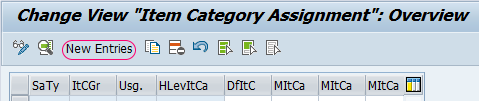
| SaTy | Sales document type, such as standard order, quotation, or return order. |
| ItCGr | Item category group from the material master, which groups materials for sales item processing. |
| Usg. | Item usage, used for special cases such as text items, free goods, or other process-specific usage. |
| HLevItCa | Higher-level item category, used when the item is a sub-item under another item. |
| DfltC | Default item category proposed by SAP during sales document entry. |
| MItCa | Manual item category that can be selected instead of the default item category when allowed. |
Purpose of Assigning Item Categories to Sales Document Processing
In this step, you assign item category rules for sales document processing. The link between item categories and sales documents is established through the assignment combination maintained in VOV4.
This configuration helps SAP SD choose the correct item behavior automatically. Without the correct assignment, the system may not propose the expected item category when you enter a material in a sales order, quotation, return, or other sales document.
Navigation Path for Assign Item Categories in SAP
| SAP R/3 Role | Assign Item Categories |
| Transaction Code | VOV4 |
| SAP IMG Path | SPRO > SAP Reference IMG > Sales and Distribution > Sales > Sales Documents > Sales Documents Item > Assign Item Categories. |
You can also reach this configuration through the SAP Customizing Implementation Guide. The transaction code VOV4 is the direct and faster option when you already know that you need to maintain item category assignment.
Prerequisites Before Maintaining VOV4 Item Category Assignment
Before assigning item categories in VOV4, check that the related master data and configuration are already available. Missing prerequisite configuration is a common reason why item category determination does not work as expected.
- The required sales document type is configured.
- The required item category is defined in SAP SD.
- The material master has the correct item category group for the relevant sales area.
- The required item usage is known if the process uses usage-based determination.
- The higher-level item category is known if the item is a sub-item, such as a component item.
- You have authorization to change SAP SD customizing settings.
Configuration Steps to Assign Item Categories in SAP SD
Step 1 : – Enter Tcode VOV4 in the SAP command field and enter.

Step 2 : – On change view item category assignment overview screen, click on new entries button and assign the item category with the combination of SaTy (sales document types), itCGr (item category group), Usg. (usage) and HLevItCa (higher level item category).
Step 3 : – On new entries item category assignment screen, update the required details like sales document type and item category for assignment of item category to a sales document type.
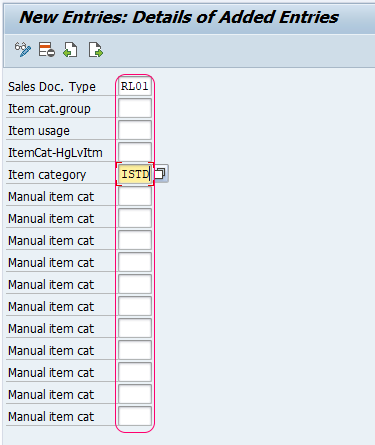
After updating all the required details, click on save button and save the configured assignment item category details.
While assigning the item category, whatever the item category is assigned as manual item category, you can replace with default item category in the sales documents.
Example Logic for SAP SD Item Category Determination
The exact values depend on your SAP system and business process, but the determination logic follows the same idea. SAP reads the sales document type, the material item category group, the usage, and the higher-level item category, then proposes the matching default item category.
| Sales document type | Item category group | Usage | Higher-level item category | Default item category |
|---|---|---|---|---|
| OR | NORM | Blank | Blank | TAN |
| OR | NORM | Blank | TAN | Standard sub-item category based on configuration |
| Sales document type used for returns | NORM | Blank | Blank | Returns item category based on configuration |
| Sales document type used for quotation | NORM | Blank | Blank | Quotation item category based on configuration |
Use the examples as a way to understand the field relationship. Do not copy item category values into a production system unless they match your organization’s configured sales document types, item categories, and material master settings.
Difference Between Item Category Group and General Item Category Group
In SAP SD, the item category group is used in item category determination for sales document processing. It is maintained in the material master for the relevant sales area and is one of the main inputs used by VOV4.
The general item category group is a broader material grouping used outside the sales-area-specific determination context. When troubleshooting VOV4, focus on the item category group that is relevant for the sales organization and distribution channel used in the sales document.
How to Check Item Category Determination After VOV4 Configuration
After saving the VOV4 entry, create or change a sales document using the same sales document type and material. Enter the material and check the item category proposed at item level. If the expected item category is not determined, verify the material item category group, the sales document type, the usage, and the higher-level item category.
- Check whether the material has the expected item category group in the sales view.
- Confirm that the sales document type in the order matches the SaTy field in VOV4.
- Check whether usage is blank or populated for the business process.
- For sub-items, verify the higher-level item category.
- Confirm that the default item category is already defined and active in item category configuration.
- Save the customizing request and test the scenario again in a suitable test client.
Common Errors in SAP VOV4 Item Category Assignment
Most VOV4 issues occur because one of the determination fields does not match the actual sales document scenario. The sales order may look correct, but SAP determines the item category only when all maintained keys match the transaction context.
| Issue | Likely cause | What to check |
|---|---|---|
| Expected item category is not proposed | Item category group is different in the material master | Check the material sales view for the correct sales area. |
| Manual item category cannot be selected | Manual item category is not maintained or not valid | Check the manual item category field in VOV4. |
| Sub-item gets the wrong item category | Higher-level item category is missing or incorrect | Maintain the correct HLevItCa combination. |
| Different result in another sales area | Material master sales data differs by sales organization or distribution channel | Check the item category group for the exact sales area. |
| Customizing cannot be saved | Authorization, transport, or client setting issue | Check user authorization and customizing client settings. |
Official SAP References for Item Category Configuration
For deeper study, refer to SAP documentation and learning content on item category configuration and assignment. SAP S/4HANA systems may use different menu labels or Fiori-based navigation, but the determination concept remains based on assigning item categories to valid document and material combinations.
- SAP Learning: Assigning an Item Category
- SAP Learning: Configuring an Item Category
- SAP Help Portal reference for item category assignment
FAQs on Assigning Item Categories in SAP SD
What is the Tcode for item category assignment in SAP SD?
The transaction code for item category assignment in SAP SD is VOV4. It is used to maintain the item category determination rules for sales document items.
What is VOV7 Tcode in SAP SD?
VOV7 is used to define and configure item categories in SAP SD. VOV4 is used after that to assign those item categories for determination in sales documents.
How do you create an item category before assigning it in VOV4?
You first define the item category in item category configuration, commonly using VOV7. After the item category exists, you can assign it in VOV4 based on sales document type, item category group, usage, and higher-level item category.
Why is the item category group important in VOV4?
The item category group from the material master is one of the main keys used by SAP to determine the sales document item category. If the material has a different item category group than expected, VOV4 may propose a different item category or no valid item category.
Can a user manually change the item category in a sales order?
Yes, but only when a valid manual item category is maintained in the item category assignment and the process allows the change. The manual item category must be compatible with the configured determination rule.
Editorial QA Checklist for SAP SD Item Category Assignment Tutorial
- Confirm that VOV4 is described as item category assignment or item category determination, not item category definition.
- Check that VOV7 is mentioned only for defining item categories, while VOV4 is used for assignment.
- Verify that SaTy, ItCGr, usage, and higher-level item category are explained in relation to item category determination.
- Ensure that examples are clearly presented as configuration-dependent and not universal production values.
- Confirm that troubleshooting points include material master item category group and higher-level item category checks.