 TutorialKart.com
In this SAP tutorials, you will learn how to create division in SAP step by step. In our previous training we have learned how to define distribution channels in SAP SD.
A division in SAP is used to group products, product lines, or services for sales and distribution processing. When you define division in SAP, you create a two-character organizational key that can later be assigned with a sales organization and distribution channel to form a sales area.
What is Division in SAP SD?
The range of materials for which the company is carrying out the sales are divided in to different divisions. A division is a product line of the company where the materials are produced or goods and services are provided.
For example, an organization may use separate divisions for products, IT services, software, and accessories. This helps SAP SD keep sales reporting, master data, pricing, and sales-area assignments organized by line of business.
Division SAP Implementation Process
The following sample divisions are used in this tutorial. You can use different keys and descriptions according to your SAP project naming standards.
| Division | Name |
| 1D | Products Division |
| 2D | IT Services |
| 3D | Software |
| 4D | Accessories |
Transaction Code and IMG Path to Define Division in SAP
You can configure divisions in SAP by using one of the navigation method.
- Transaction code: – OVXB
- Menu Path: – SPRO -> SAP IMG -> Enterprise Structure –> Definition –> Logistics -General -> Define copy, delete, check division.
In SAP customizing, a division key is limited to two characters. The key can be numeric, alphabetic, or alphanumeric depending on your project design. Once the division is used in master data and transactions, avoid changing its business meaning because it can affect reporting and sales-area interpretation.
Steps to Create Division in SAP Using OVXB
Step 1) Enter T-code “OVXB” in the SAP command field as shown below and press enter to continue.

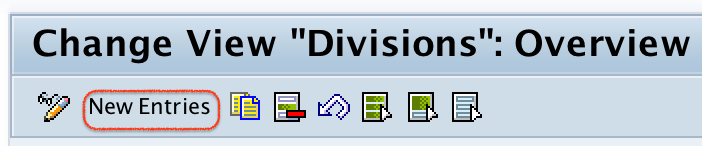
Step 2) On change view divisions overview screen, click on new entries button to new divisions as per the organizational requirements.
Step 3) On new entries division overview screen, update the following details.
- Division: – Enter the key that identifies the division in SAP. You are allowed to update only two digits alphanumeric key.
- Name: – Update the descriptive text of division.
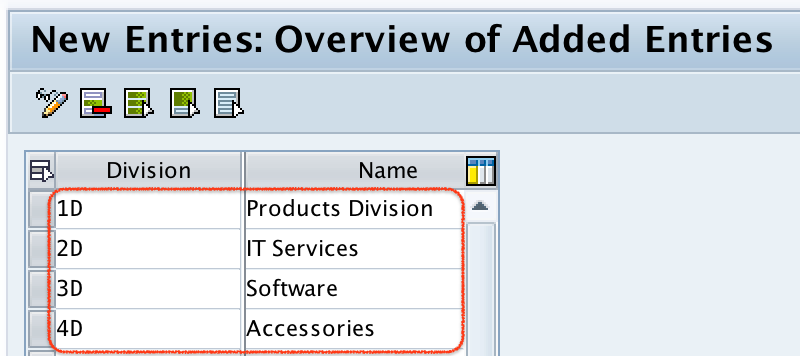
Step 4) After maintaining the divisions as per the requirements, click on save button and choose your customizing request and save the configured data.

Successfully we have defined division in SAP systems.
What to Check After Defining Division in SAP SD
Creating the division is only the definition step. For SAP SD processing, the division normally has to be used along with other enterprise structure settings. After saving the division, check the following points before using it in sales transactions.
- Confirm that the division key and description are correct in the division overview screen.
- Assign the required division with the relevant sales organization and distribution channel to create the sales area.
- Check whether common divisions are required for master data maintenance in your project.
- Use the correct division in customer master, material master, and sales-area related configuration where applicable.
- Transport the customizing request to the next SAP client only after review and approval.
SAP Division Table and Field Reference
In many SAP SD checks, consultants refer to the division key by its technical field name. The commonly used field for division is SPART. Division customizing entries are generally stored in table TSPA, while language-dependent descriptions are commonly maintained in text table TSPAT.
| SAP SD item | Common reference | Purpose |
| Division field | SPART | Stores the division key in related SAP SD records |
| Division customizing table | TSPA | Stores defined division keys |
| Division text table | TSPAT | Stores division descriptions by language |
| Transaction code | OVXB | Used to define, copy, delete, and check divisions |
Common Division Setup Mistakes in SAP SD
While defining divisions in SAP, most issues come from inconsistent enterprise structure design rather than from the OVXB screen itself. Review these mistakes before saving or transporting the configuration.
- Using unclear division keys: A key such as 01 or 02 may be acceptable, but the description should clearly identify the product line or service line.
- Creating too many divisions: Avoid creating separate divisions for every small product group if the business does not need separate sales-area processing or reporting.
- Skipping sales-area assignment: A division must be combined with sales organization and distribution channel before it can be used as part of a sales area.
- Changing meaning after use: Do not reuse an old division key for a different business purpose after it has been used in master data or documents.
- Not checking common division requirements: In some SAP SD projects, common divisions reduce repeated master data maintenance. Check this requirement with the solution design before finalizing the setup.
FAQ on Defining Division in SAP
What is the Tcode for division in SAP SD?
The Tcode to define division in SAP SD is OVXB. You can also access the same configuration through SPRO under Enterprise Structure definition for Logistics-General.
What defines a division in SAP?
A division in SAP defines a product line, service line, or material grouping used in sales and distribution. It is part of the sales area when combined with sales organization and distribution channel.
What is the table for division in SAP?
The commonly used customizing table for division in SAP is TSPA. Division descriptions are commonly stored in TSPAT, and the technical field name for division is SPART.
How is division assigned in SAP SD?
After defining a division, it is assigned with a sales organization and distribution channel to form a sales area. This assignment allows the division to be used in SAP SD master data and sales transactions.
Can a division key be more than two characters in SAP?
No. In standard SAP configuration, the division key is a two-character key. Choose the key carefully because it is used across SD configuration, master data, and reporting.
Editorial QA Checklist for SAP Division Configuration Tutorial
- Confirm that the tutorial explains both the business meaning of division and the SAP SD configuration step.
- Check that the transaction code OVXB and the SPRO IMG path are shown correctly.
- Verify that the division key length is described as two characters.
- Ensure that the tutorial explains the next step of assigning division with sales organization and distribution channel.
- Review the FAQ answers for SAP-specific terms such as SPART, TSPA, sales area, and common division.