 TutorialKart.com
Change the Font Size of a Flutter Text Widget
Set the fontSize property of a TextStyle object and pass that object to the Flutter Text widget’s style property.
The fontSize value is specified in logical pixels. Flutter scales logical pixels according to the device’s pixel density, so the same value provides a consistent visual size across supported screens.
A quick code snippet is shown below.
Text(
	'Hello World!',
	style: TextStyle(fontSize: 25),
),
In this snippet, the text is rendered with a font size of 25. Replace 25 with the required value to make the text smaller or larger.
Flutter TextStyle fontSize Syntax
The following syntax shows where fontSize is assigned when creating a TextStyle.
Text(
  'Text to display',
  style: TextStyle(
    fontSize: fontSizeValue,
  ),
)
The value can be an integer such as 20 or a decimal such as 20.5. Dart accepts either because the fontSize property uses a nullable double value.
Example: Set the Flutter Text Font Size to 25
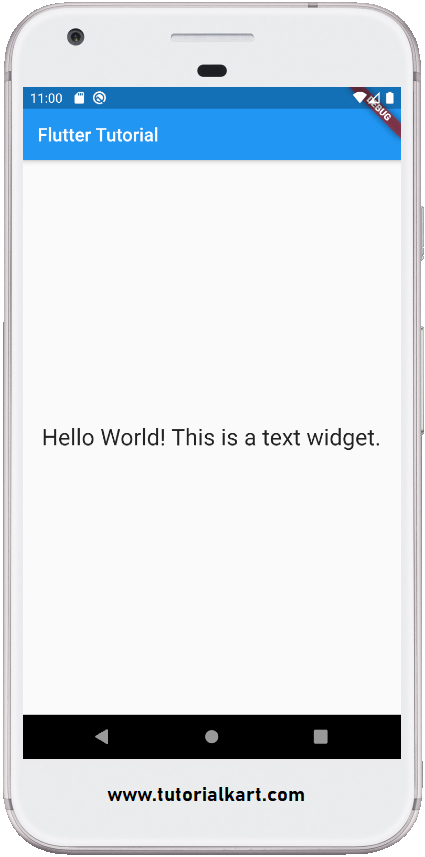
The following application displays a Text widget at the center of the screen and sets its font size to 25.
lib\main.dart
import 'package:flutter/material.dart';

void main() => runApp(MyApp());

class MyApp extends StatelessWidget {
  @override
  Widget build(BuildContext context) {
    return MaterialApp(
      title: 'Flutter Tutorial',
      home: Scaffold(
        appBar: AppBar(
          title: Text('Flutter Tutorial'),
        ),
        body: Center(
          child: Text(
              'Hello World! This is a text widget.',
              style: TextStyle(fontSize: 25),
          ),
        ),
      ),
    );
  }
}
The Center widget controls the position of the text. The font size is controlled only by TextStyle(fontSize: 25).
Screenshot
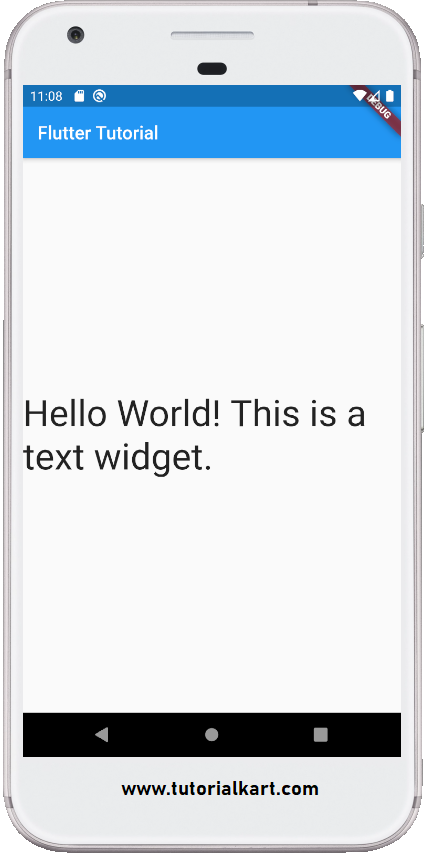
Change the value from 25 to 40 and use hot reload or restart the application. The text is rendered at the larger size shown in the following screenshot.
Change Font Size with a Variable
A variable is useful when the font size is reused or selected at runtime. Pass the variable directly to TextStyle.fontSize.
const double messageFontSize = 28;

const Text(
  'Hello World!',
  style: TextStyle(
    fontSize: messageFontSize,
  ),
)
Use const when both the value and the widget configuration are known at compile time. This allows Flutter to reuse the immutable widget configuration.
Combine fontSize with Other TextStyle Properties
The same TextStyle can control the font size, weight, color, letter spacing, and other text properties.
const Text(
  'Account settings',
  style: TextStyle(
    fontSize: 24,
    fontWeight: FontWeight.w600,
    color: Colors.black87,
    letterSpacing: 0.4,
  ),
)
Keeping related typography settings in one TextStyle makes the widget easier to read and maintain.
Use Theme Text Styles for Consistent Font Sizes
For an application with several screens, prefer theme-based typography instead of repeating numeric font sizes throughout the widget tree. You can use an existing Material text style and modify only the properties needed by the widget.
Text(
  'Profile',
  style: Theme.of(context).textTheme.headlineSmall?.copyWith(
    fontSize: 28,
  ),
)
The null-aware operator ?. is used because a text style obtained from the theme can be nullable. Using copyWith() preserves the other properties supplied by the active application theme.
Fit Large Flutter Text Inside Limited Space
A large font may overflow when its parent provides limited width. Depending on the design, allow the text to wrap, limit its lines, or scale it down with FittedBox.
const SizedBox(
  width: 180,
  child: FittedBox(
    fit: BoxFit.scaleDown,
    child: Text(
      'Large heading',
      style: TextStyle(fontSize: 48),
    ),
  ),
)
BoxFit.scaleDown keeps the requested size when it fits and reduces the rendered text only when necessary. For paragraphs, normal wrapping is usually more readable than scaling the entire line.
Flutter Text Font Size Notes
fontSizechanges the glyph size but does not set the widget’s width or height.- A very large value can cause overflow when the available space is constrained.
- The effective text size can also be influenced by the user’s system text-scaling preference.
- Use shared theme styles when the same typography is required in multiple widgets.
- Use
Text.richorRichTextwhen different parts of one text line need different font sizes.
Frequently Asked Questions About Flutter fontSize
How do I increase the font size of a Text widget in Flutter?
Assign a larger number to TextStyle.fontSize and pass that style to the Text widget. For example, use TextStyle(fontSize: 32) instead of TextStyle(fontSize: 20).
Can Flutter fontSize use a decimal value?
Yes. The property accepts a double, so values such as 16.5 and 22.75 are valid.
Why does large Flutter text overflow?
Overflow occurs when the rendered text requires more space than its parent allows. Provide more width, allow wrapping, limit the number of lines, use an ellipsis, or place suitable short text inside a FittedBox.
How do I set different font sizes in the same Text widget?
Use Text.rich with multiple TextSpan children. Each span can have its own TextStyle and fontSize.
Flutter Text Font Size Summary
To change the font size of a Flutter Text widget, create a TextStyle with the required fontSize and assign it to the widget’s style property. For consistent typography across an application, define or reuse styles through the Flutter theme. Continue with the other examples in this Flutter Tutorial.