 TutorialKart.com
Creating a Salesforce Sandbox means making a separate test environment from your production org. A sandbox lets administrators, developers, testers, and trainers work on configuration, automation, code, integrations, and sample data without changing live production records. In Salesforce, a sandbox can be created, refreshed, activated after refresh, and deleted when it is no longer needed.
Before you create Salesforce Sandbox environments, confirm the sandbox type, available sandbox license, required data, template requirement, and user permissions. Salesforce copies production metadata to the sandbox, and depending on the sandbox type, it may also copy selected production data or all production data.
How to create Salesforce Sandbox from Setup
Salesforce users should first understand the different Salesforce Sandboxes types in SFDC. A Developer or Developer Pro sandbox is generally used for development work, a Partial Copy sandbox is used when selected production data is needed, and a Full sandbox is used when testing requires a production-like copy.
In Salesforce.com, a sandbox template is required for a Partial Copy Sandbox and can be used with a Full Sandbox when you want to control which object data is copied. For background, see Salesforce Sandbox and this guide to create new Salesforce Sandbox. In the current Salesforce Setup experience, enter Sandboxes in the Quick Find box, then open Sandboxes. In older Salesforce navigation, the path may appear as Setup | Deploy | Sandboxes.
You also need the correct permission. To create, refresh, activate, or delete Developer and Developer Pro sandboxes, the user needs sandbox management permission for development sandboxes. To manage all sandbox types, the user needs the broader sandbox management permission. If the New Sandbox button is not available, check the user permission, Salesforce edition, and available sandbox licenses.
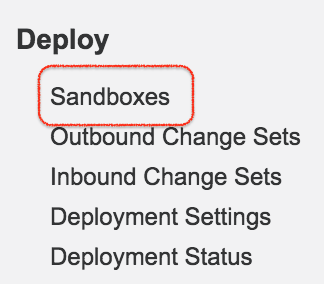
- Click on Sandboxes. The Sandboxes page shows existing sandboxes, available actions, status, refresh information, and sandbox templates.
- Click New Sandbox to start creating a new Salesforce Sandbox. In this tutorial, the example uses a Partial Copy Salesforce Sandbox.
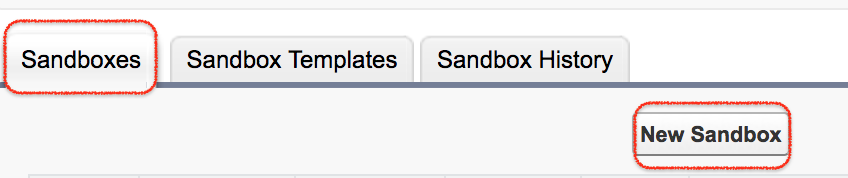
- Clicking on the New Sandbox button allows you to create a new Salesforce Sandbox.
- The Sandbox Templates tab is used with Partial Copy and Full sandboxes to control which object data is copied from production.
- The Sandbox History tab allows you to see sandbox creation and refresh history, including who requested the action and when it was requested.
- The Refresh link is used to replace an existing sandbox with a newer copy. During a refresh, the existing sandbox can remain available until the refreshed copy is activated.
Salesforce Sandbox name, description, and type selection
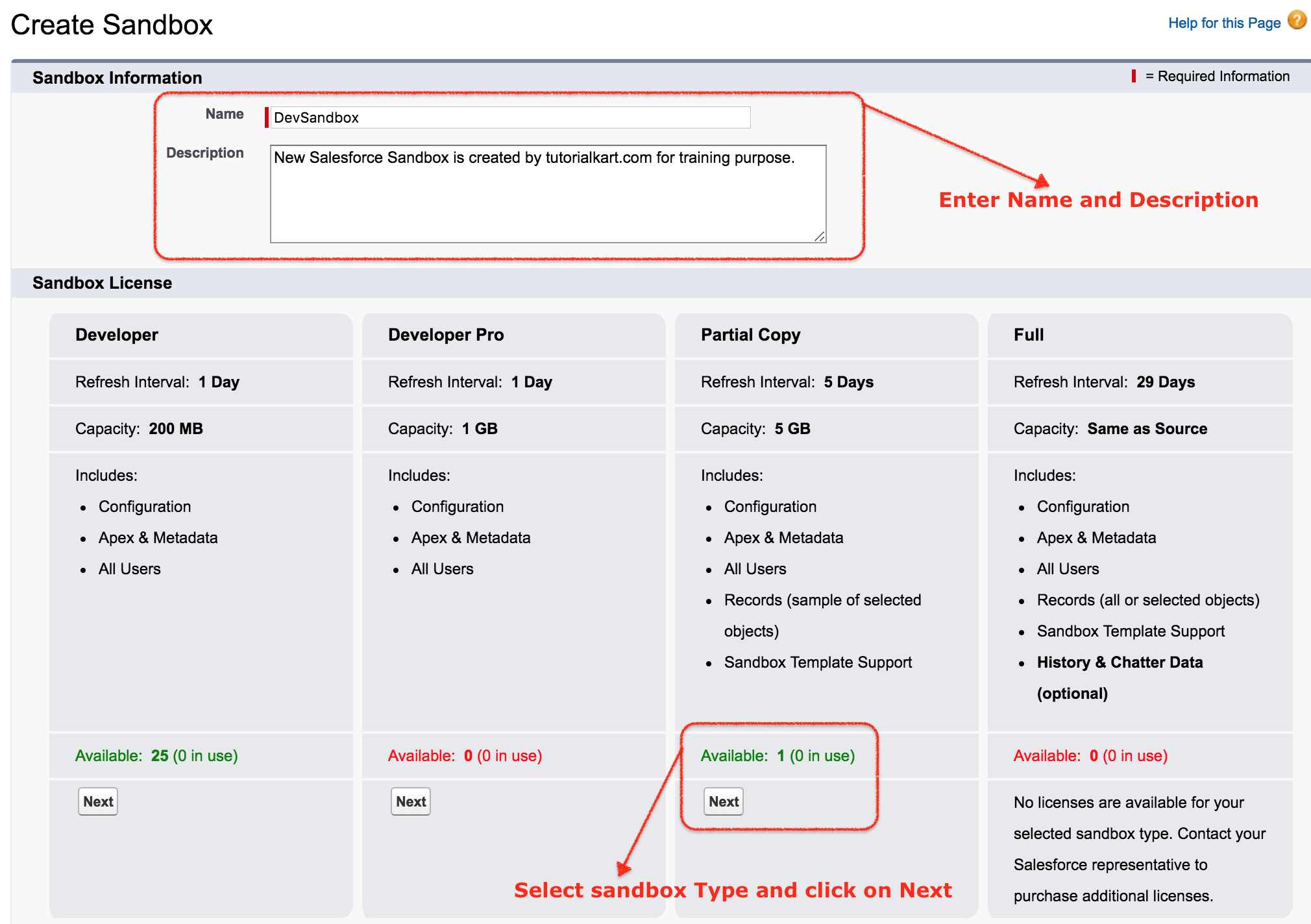
- Enter a sandbox name. Salesforce sandbox names are short identifiers, so use a clear name such as dev, qa, uat, or partialqa.
- Enter a useful description that explains the purpose of the sandbox, owner team, or release use case.
- Select the type of sandbox that you want to create. In this example, Partial Copy is selected.
- Click Next to continue to template selection when the selected sandbox type requires or supports a template.
| Sandbox type selected while creating | What Salesforce copies | When to choose it |
|---|---|---|
| Developer Sandbox | Production metadata only | Configuration, Apex, Flow, Lightning page, validation rule, and small isolated tests. |
| Developer Pro Sandbox | Production metadata only, with more storage than Developer | Development work that needs more test records or files. |
| Partial Copy Sandbox | Production metadata and selected sample production data | QA, UAT, training, and integration testing with representative data. |
| Full Sandbox | Production metadata and production data, unless a template limits the copy | Final release validation, production-like regression testing, migration rehearsal, and performance testing. |
Selecting Salesforce Sandbox Template for Partial Copy Sandbox
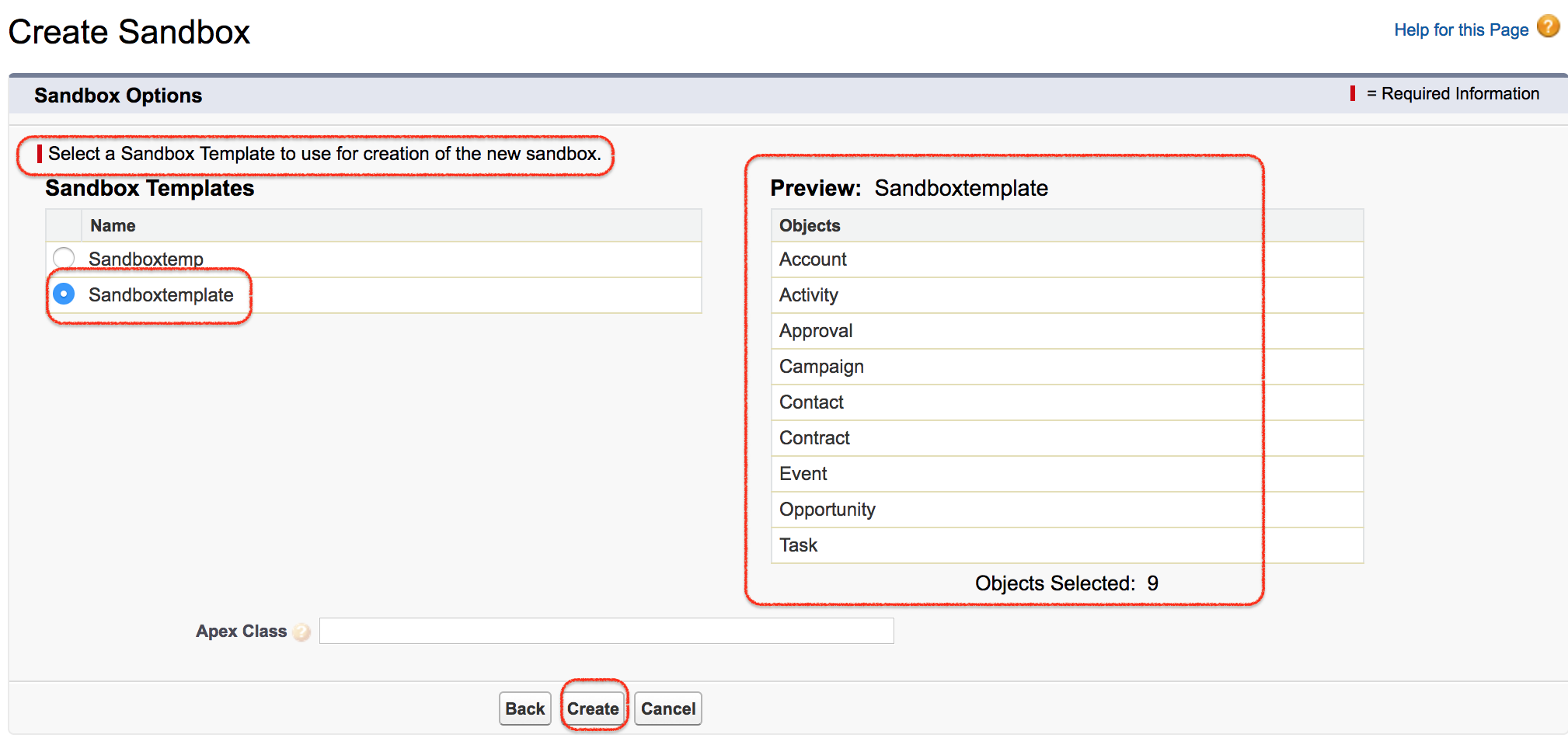
Salesforce Sandbox template allows user to pick specific objects and data to Full Sandbox or partial copy sandbox to control the size and content of each Salesforce sandbox. For a Partial Copy Sandbox, select a template that includes the objects and related records needed for testing. If the template misses parent or child objects required by automation, reports, validation rules, or integrations, the sandbox data may not support the test case properly.
- Select the template from the list and click Create.
- Include key parent objects such as Accounts before selecting child objects such as Contacts, Opportunities, Cases, or custom detail records.
- Keep the template focused on the data needed for testing instead of copying unnecessary objects.
Now the process of creating Partial Copy Sandbox will take several minutes to several days depending upon the sandbox type, data volume, file volume, org size, and current Salesforce copy queue. Full sandboxes normally take longer than Developer sandboxes because more data is copied.
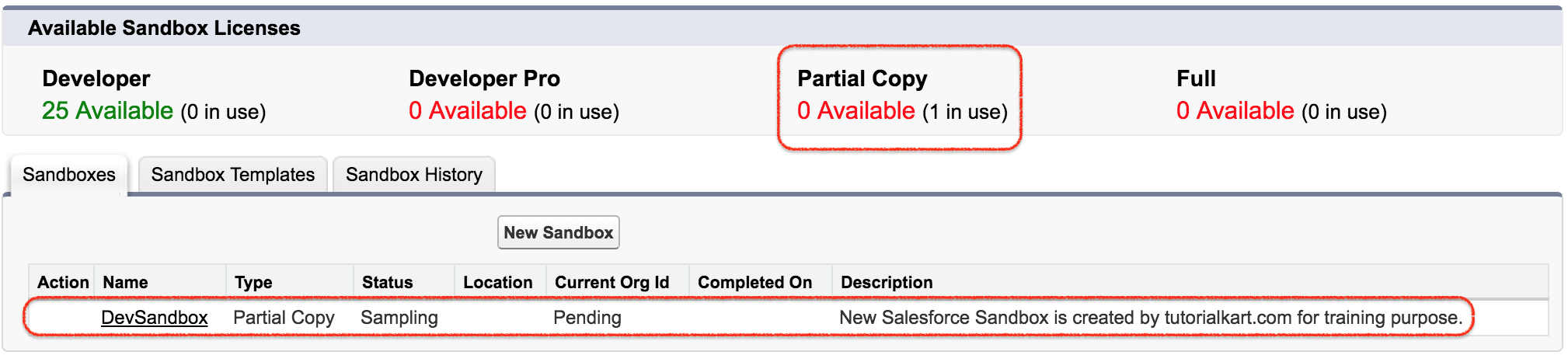
As shown above, we have successfully created Salesforce Sandbox called DevSandbox. After creation, the sandbox appears on the Sandboxes page with its status. You can monitor the copy progress from Setup by opening Sandboxes and selecting the sandbox record.
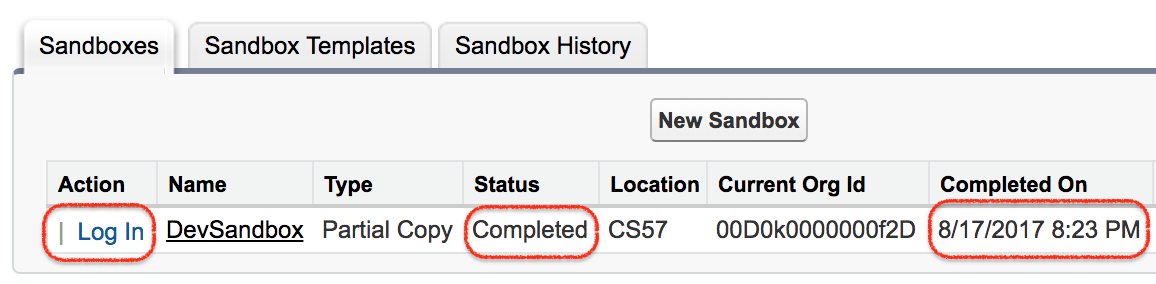
Configuration checks after creating Salesforce Sandbox
A newly created sandbox is separate from production, but it may still contain settings copied from production. Review the sandbox before users begin testing. This is especially important for integrations, emails, scheduled jobs, connected apps, and automation that can call external systems.
- Confirm that email deliverability settings are appropriate for a test environment.
- Disable or redirect outbound integrations, webhooks, middleware connections, and external endpoints that should not call production systems.
- Review Named Credentials, Remote Site Settings, connected apps, authentication providers, and API users.
- Update scheduled jobs, batch jobs, flows, approval processes, and automation that should not run immediately in the sandbox.
- Create or load test data if you created a Developer or Developer Pro sandbox.
- Restrict access to sensitive copied data and use data masking or reduced data where needed.
How to access Salesforce Sandbox after creation
After the sandbox is ready, users can log in with their sandbox username. A sandbox username is usually the production username followed by a period and the sandbox name. For example, if the production username is admin@example.com and the sandbox name is dev, the sandbox username is commonly admin@example.com.dev. The password is usually copied from production at the time the sandbox is created or refreshed, unless your org uses SSO or another authentication setup.
In our upcoming Salesforce tutorial, we will learn about how to login Salesforce Sandbox and how to enter username and password to access Salesforce Sandbox.
Creating Salesforce Sandbox with Salesforce CLI for development teams
Administrators usually create sandboxes from Setup. Development teams can also create certain Salesforce sandbox environments by using Salesforce CLI and a sandbox definition file. A sandbox definition file acts as a blueprint for the sandbox name, license type, description, and optional settings. This approach is useful when teams want repeatable sandbox creation as part of a development workflow. For the official command format, refer to the Salesforce Developer documentation for sandbox definition files.
How long Salesforce Sandbox creation can take
Salesforce Sandbox creation time is not fixed. A small Developer sandbox may be ready quickly, while a Partial Copy or Full sandbox can take much longer because Salesforce must copy more data and files. Queue time, org size, object relationships, file storage, and sandbox type all affect how long the copy takes. Salesforce Customer Support generally cannot speed up sandbox copy processing, so plan large sandbox refreshes before important testing windows.
Editorial QA checklist for how to create Salesforce Sandbox
- Check that the tutorial starts from the current Setup path: Setup, Quick Find, Sandboxes.
- Confirm that the article mentions required sandbox permissions and available sandbox licenses before creation.
- Verify that Partial Copy sandbox creation includes the need for a sandbox template.
- Confirm that Full sandbox template usage is described as available for controlling copied data, not always required.
- Check that sandbox creation time is described as variable and dependent on sandbox type, data volume, file volume, and queue time.
- Confirm that post-creation checks include email deliverability, integrations, scheduled jobs, automation, and sensitive data access.
- Verify that the login explanation mentions the usual sandbox username format with the sandbox name appended to the production username.
FAQs on how to create Salesforce Sandbox
Does Salesforce have a sandbox for testing changes?
Yes. Salesforce provides sandbox environments so teams can develop, configure, test, train, and validate changes away from the production org. The available sandbox types depend on Salesforce edition and purchased sandbox licenses.
Are Salesforce sandboxes free?
Some Salesforce editions include certain sandbox licenses, and additional sandbox capacity may be available as a paid add-on. The exact availability and cost depend on the edition, contract, and sandbox type, so check your Salesforce org and Salesforce account terms.
How long does it take to create a sandbox in Salesforce?
Sandbox creation can take from several minutes to several days. Developer sandboxes are usually smaller, while Partial Copy and Full sandboxes can take longer because they copy more data and files.
Do I need a sandbox template to create a Salesforce Sandbox?
A sandbox template is required for a Partial Copy Sandbox because it controls which object data is copied. A template can also be used with a Full Sandbox when you want to limit the copied object data.
What should I check after creating a Salesforce Sandbox?
After creating a Salesforce Sandbox, check email settings, integrations, scheduled jobs, automation, user access, test data, and sensitive data exposure. This prevents test activity from affecting production users or external systems.
Summary: To create Salesforce Sandbox, go to Setup, open Sandboxes, click New Sandbox, enter the sandbox name and description, choose the sandbox type, select a template when required, and create the sandbox. After creation, monitor the status and review configuration settings before users begin development, testing, or training.