 TutorialKart.com
Salesforce Record Type | Salesforce Help & Training
In this Salesforce admin training tutorial, you will learn what a Salesforce record type is, when to use record types, how to create a record type on the Account object, how to assign profiles, and how to control picklist values for each record type.
Salesforce record type allows an administrator to show different page layouts, business processes, and picklist values to users based on their record type access and user’s profile. Record types are useful when one object is used by more than one team or process, but each team needs a different set of fields, picklist choices, or page layout experience.
The significance of Salesforce record type can be understood only when we have different business process defined in an organization. In this Salesforce tutorial we are going to create Record type for standard object Accounts. In accounts there are three type. They are
- Broker Account :- The acquisition team handles broker account.
- Tenant Accounts :- The Leasing team handles tenant accounts.
- Law Firm Accounts :- Legal team handles this law firm account.
What Salesforce Record Types Control on an Object
A Salesforce record type does not create a separate object. It creates a variation of the same object for a different process or team. For example, Broker Account, Tenant Account, and Law Firm Account can all be Account records, but each record type can have its own page layout assignment and its own allowed picklist values.
| Record type setting | What it controls | Example in this Account tutorial |
|---|---|---|
| Page layout assignment | Which fields and sections a user sees on the record page | Broker layout, Leasing layout, and Legal layout |
| Picklist values | Which values are available for selected picklist fields | Broker record type can show only broker-related Account Type values |
| Business process | Process path for supported objects such as Leads, Opportunities, Cases, and Solutions | Not required for the Account example in this tutorial |
| Profile or permission assignment | Which users can select or use the record type | Acquisition profile can access the Broker Account record type |
Record type access is different from record visibility. Assigning a record type to a profile or permission set controls which record types the user can use. It does not replace object permissions, field-level security, role hierarchy, sharing rules, or manual sharing.
When to Use Salesforce Record Types Instead of Only Page Layouts
Use Salesforce record types when the same object needs different picklist choices, different layouts, or different process behavior. If the requirement is only to hide or show a few fields, a page layout, dynamic form, or field-level security may be enough. If the same object needs separate values and separate user choices at record creation, record types are usually the correct configuration.
- Use a record type when different teams create different types of Account records.
- Use a record type when the same picklist field must show different values for different users or processes.
- Use a record type when a supported object requires a different business process, such as a different Sales Process for Opportunities.
- Avoid creating record types only for reporting labels if a normal picklist field can meet the requirement.
Setup Path to Check Record Types in Salesforce
To check record types login to Salesforce.com and navigate to Object Manager | Object | Record Types. In Lightning Experience, open Setup, select Object Manager, choose the object such as Account, and then open Record Types.
As there are no record types in Standard and Custom object we are going to create new Salesforce record type in Account object. Check below how to create new salesforce record type.
Implementation Plan for Account Record Types in Salesforce
Before creating record types, plan the page layouts, profile access, and picklist values. This prevents duplicate record types and avoids missing picklist values after users start creating records.
- Create respective page layouts.
- Assign appropriate fields to the page layouts.
- Create the record type.
- Assign to profiles.
- Add corresponding values to picklist.
Creating Profiles and Page Layouts for Account Record Types
In this example, three teams use the Account object. Each team needs a different layout and a different set of Account Type picklist values. So we first prepare the required profiles and layouts before creating the record types.
- In this Salesforce tutorial we have to create three profiles.
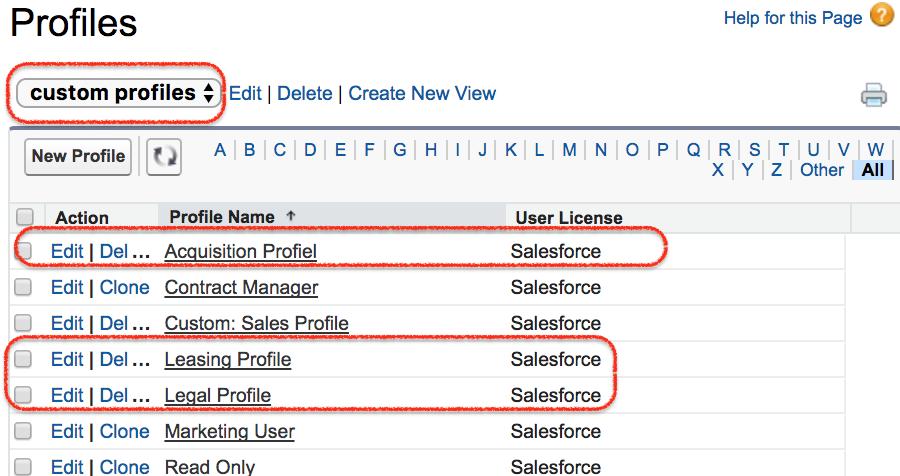
- As shown above we have created three new profiles in Salesforce and assign field to their respective profile layout in Salesforce.
Learn how to create profiles in Salesforce.
Creating Account Page Layouts for Broker, Tenant, and Law Firm Record Types
As already we learned about creating page layouts in salesforce. Create three page layouts in Standard object Account.
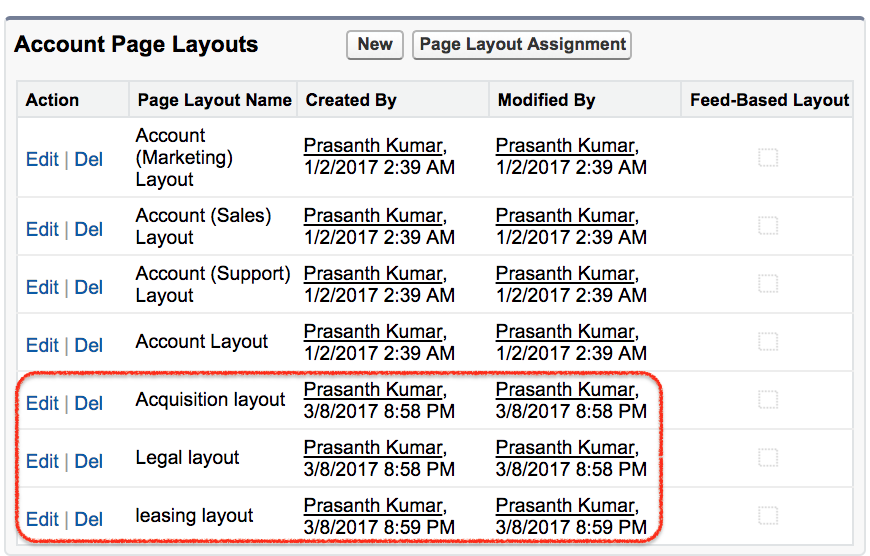
Learn how to create page layout in salesforce.
Assigning Fields to Salesforce Record Type Page Layouts
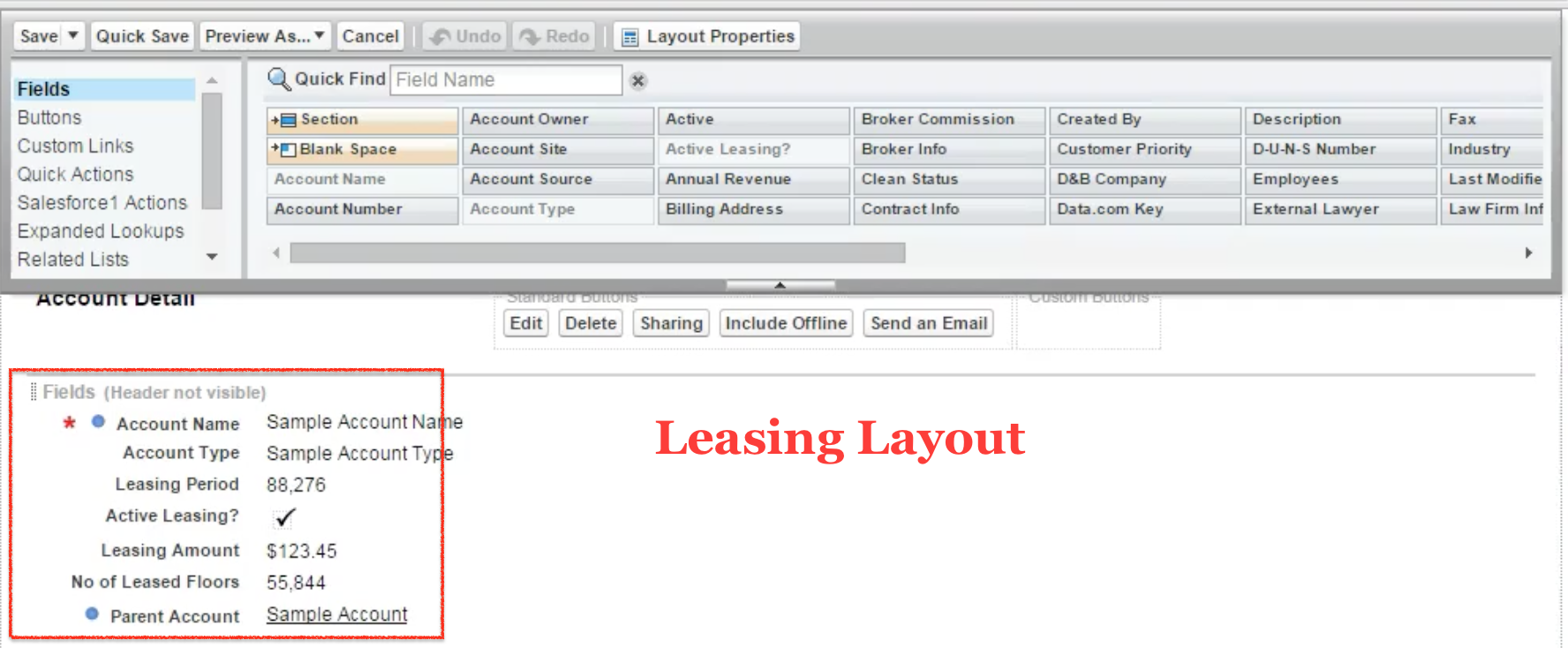
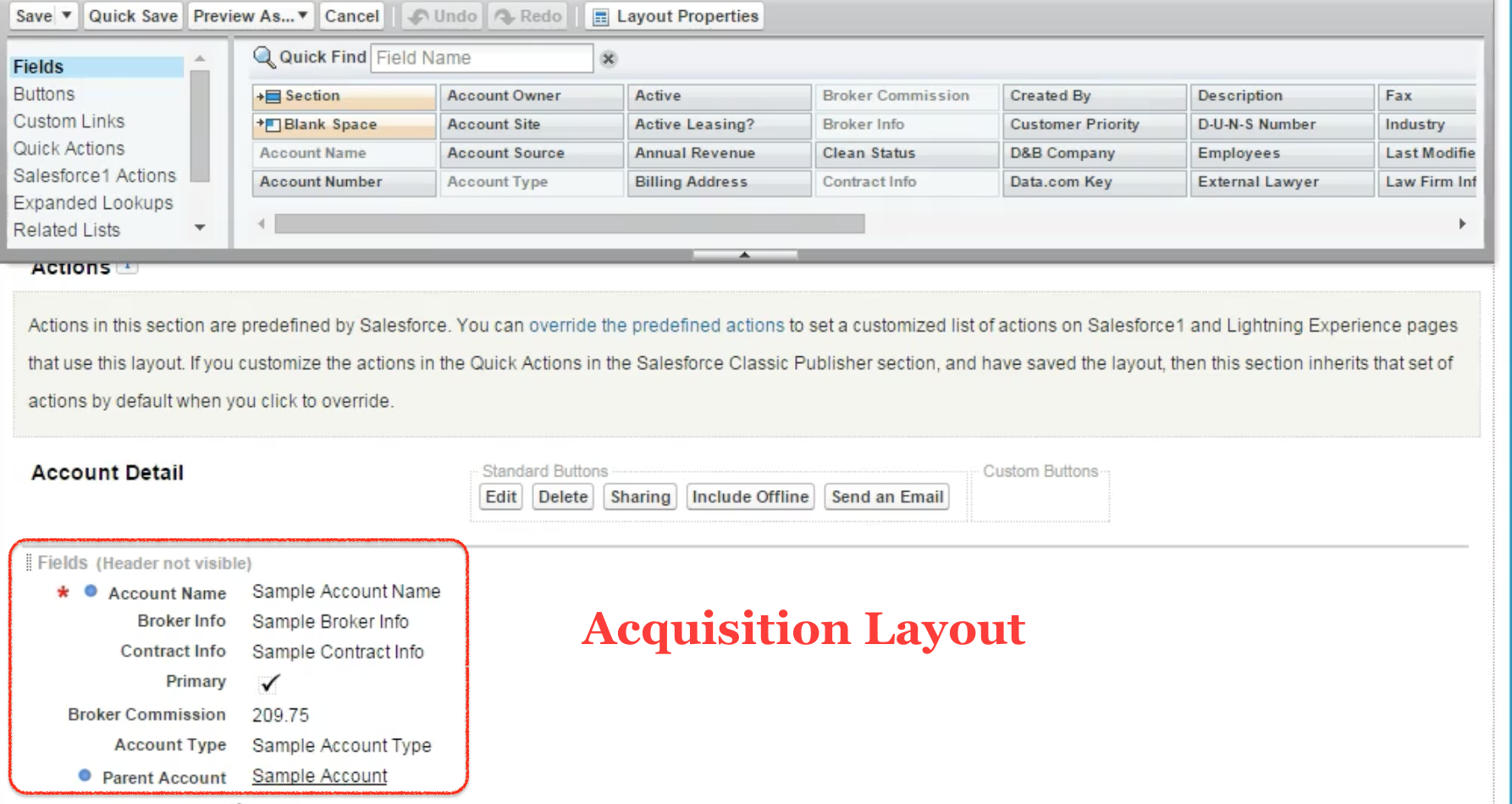
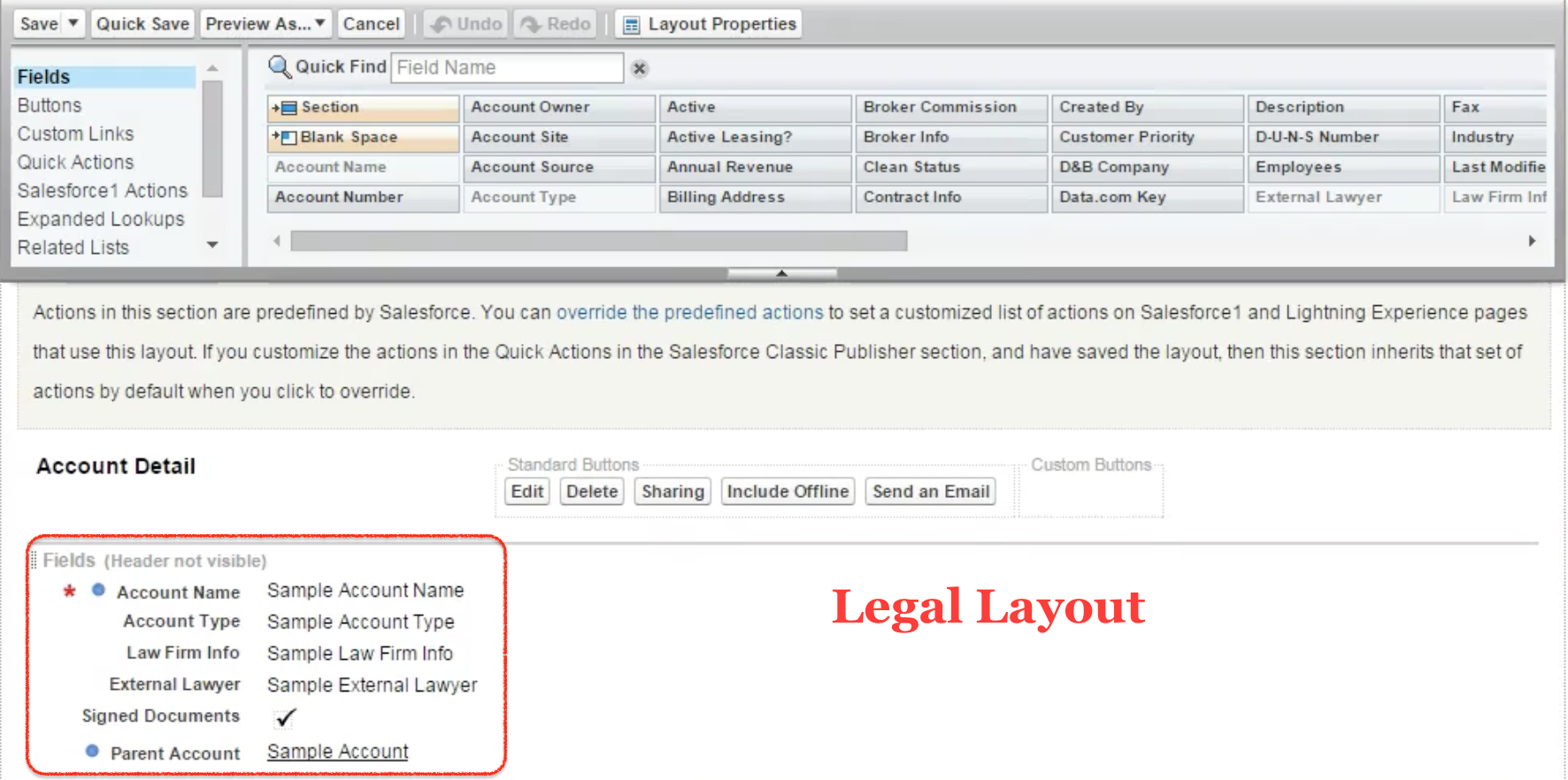
After creating the page layouts, add the fields that are relevant to each team. Keep common Account fields on all layouts and place team-specific fields only where they are needed. This makes the Account page easier to use and reduces incorrect data entry.
Assigning fields to leasing account layout
Assigning fields to acquisition account layout
Assigning fields to legal account layout
How to Create Salesforce Record Type on the Account Object
To create Salesforce record type go to Account Object | Record type | New.
- Click on record on new record type.
- Enter record label, record type name.
- Select an existing record type such as Master when Salesforce asks which record type should be used as the starting point.
- Enter a short description so administrators know why the record type exists.
- Click on active to make it active.
- Select the profile to which this record type is to be visible.
Here we creating record type for acquisition team so we are enabled for only acquisition profile only.
- Click on Next button.
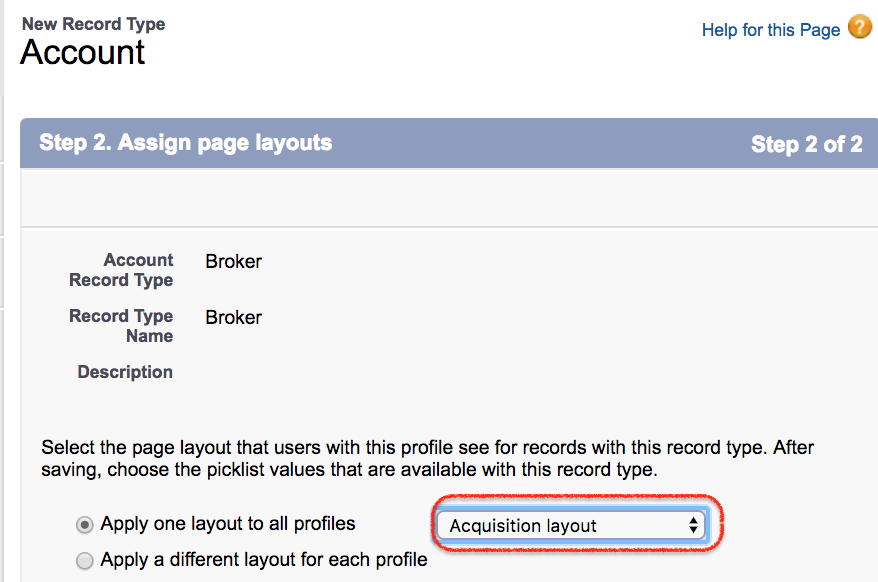
- Select the page layout as shown above.
- Click on Save button.
Successfully we have create Salesforce record type and we have to edit picklist values for account Type.
Editing Picklist Values for a Salesforce Account Record Type
Record types are often used to restrict picklist values. For example, a Broker Account should not show values that are only meant for Tenant Accounts or Law Firm Accounts. Before editing values for a record type, make sure the complete list of possible picklist values exists at the field level.
- Go to Account type and click on Edit button.
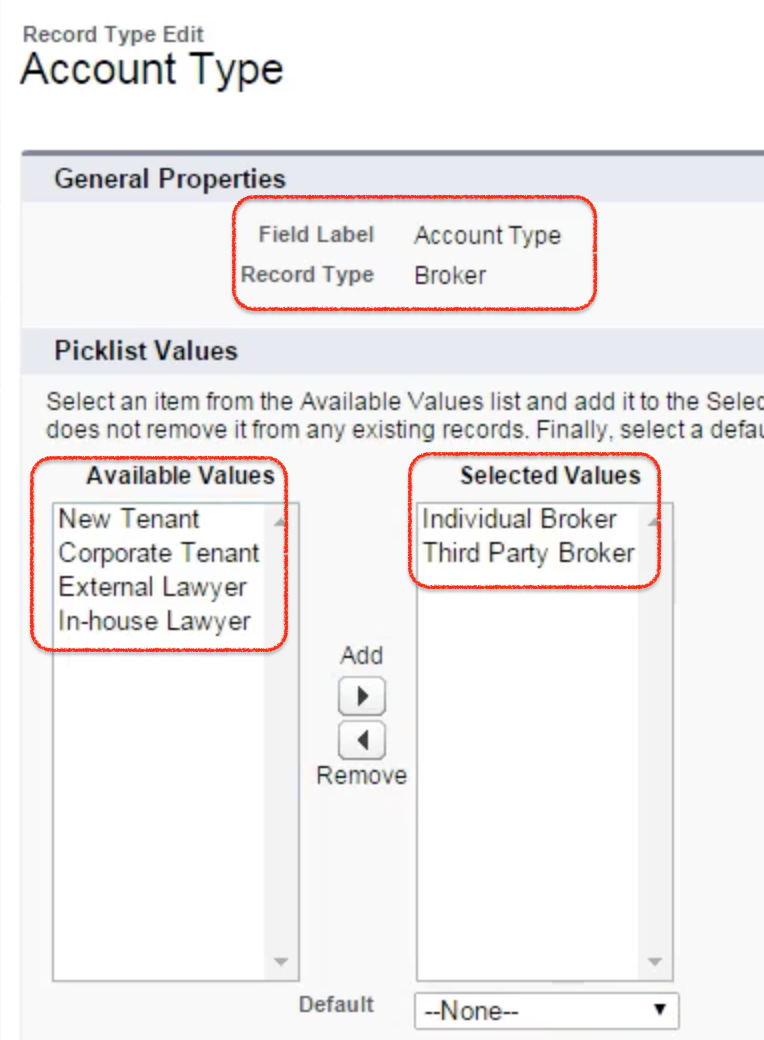
Only Individual Broker and third Party Broker are only applicable for Broker. So we have selected those two picklist values for Broker record type.
- Click on Save button.
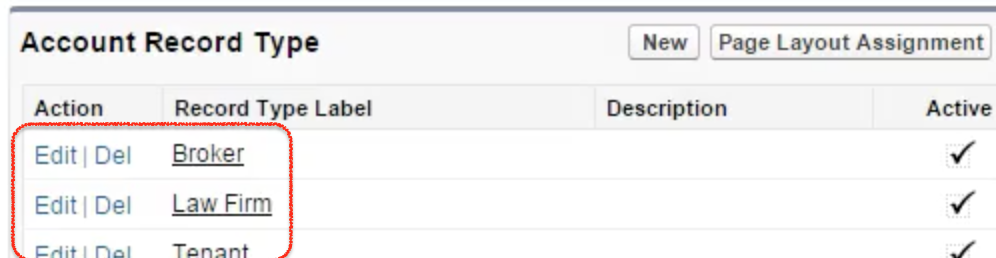
Successfully we have created all the three account record types in salesforce.
Testing the Salesforce Record Type Selection for a New Account
- To check Record types in Salesforce create new account.
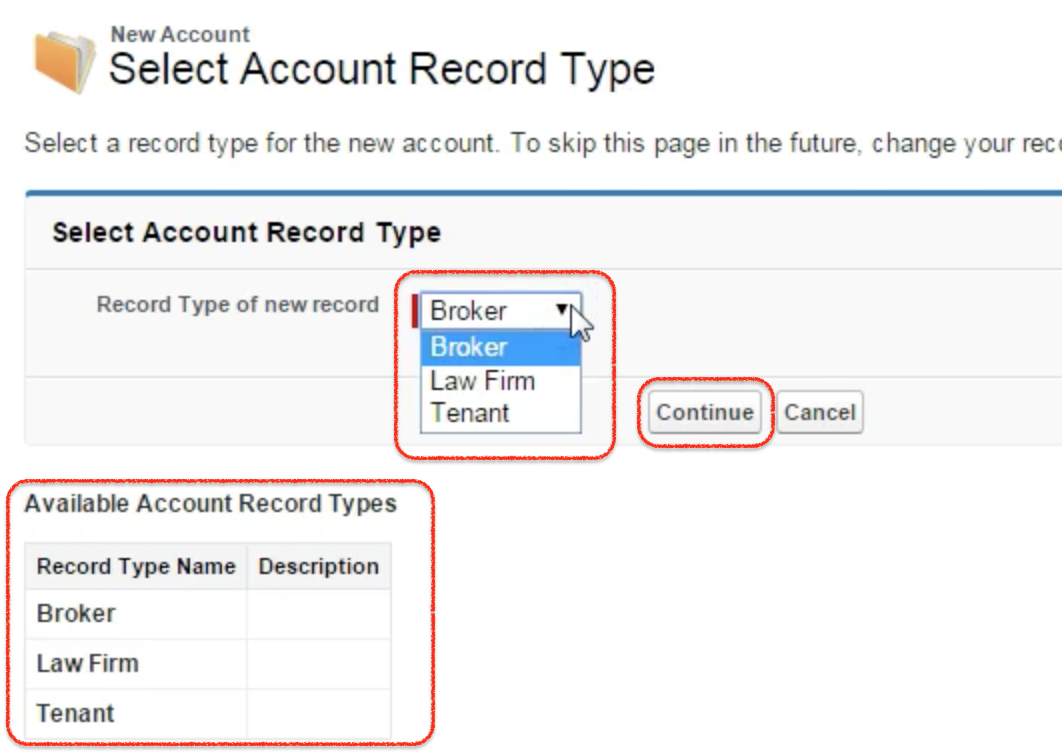
previously when creating an account we don’t see any record types in Salesforce. Now we have to select Salesforce record type to create new account.
If a user has access to only one active record type for the object, Salesforce may not show a record type selection screen. If a user has access to multiple record types, the user can choose the correct record type while creating the record, and the default record type is preselected according to the user settings.
Salesforce Record Type Access and Page Layout Assignment Checks
After creating the Account record types, verify both access and layout behavior. A user may have access to the record type but still see a different layout if the page layout assignment is not mapped correctly for the profile and record type combination.
| Check | Why it matters | Where to verify |
|---|---|---|
| Record type is active | Inactive record types are not available for normal record creation | Object Manager | Account | Record Types |
| Profile has record type access | User must be assigned the record type to create or select it | Profile record type settings or permission set record type access |
| Default record type is correct | Default controls the first selected value when users create records | Profile or user record type settings |
| Page layout assignment is correct | Each team should see the correct layout for that record type | Object Manager | Account | Page Layout Assignment |
| Picklist values are restricted correctly | Users should see only values that apply to the record type | Record Type | Picklists Available for Editing |
Common Salesforce Record Type Mistakes to Avoid
- Creating too many record types when one picklist field or one page layout can satisfy the requirement.
- Forgetting to assign the record type to the required profile or permission set.
- Adding a new picklist value at the field level but not enabling it for the required record type.
- Changing record type settings without checking automation, validation rules, flows, reports, and integrations that refer to RecordTypeId or DeveloperName.
- Assuming record type access controls record visibility. Object permissions and sharing settings still control what records a user can view or edit.
QA Checklist for Salesforce Record Type Configuration
- Broker Account, Tenant Account, and Law Firm Account record types are active on the Account object.
- Each record type has a clear label, API name, and description that matches its business purpose.
- Each profile can access only the record types needed by that team.
- Page layout assignments are checked for every profile and Account record type combination.
- Account Type picklist values are restricted correctly for Broker, Tenant, and Law Firm records.
- Test users can create records and see the expected record type selection screen or default record type behavior.
- Reports, list views, flows, validation rules, and integrations are reviewed if existing Account records are moved to a new record type.
Official Salesforce Record Type References
For additional Salesforce guidance, refer to the official Salesforce Help page on creating record types, Salesforce Help considerations for creating and updating record types, and the Trailhead project on how to create record types.
Salesforce Record Type FAQs for Admins
What is a Salesforce record type used for?
A Salesforce record type is used to provide different page layouts, picklist values, and business processes for different users or teams on the same object. For example, the Account object can have Broker, Tenant, and Law Firm record types.
Do Salesforce record types control record visibility?
No. Record type assignment controls which record types a user can use or select. Record visibility is controlled by object permissions, field-level security, org-wide defaults, role hierarchy, sharing rules, teams, and manual sharing.
Why does the record type selection screen not appear when creating a record?
The record type selection screen may not appear if the user has access to only one active record type for that object, or if Salesforce can use the user’s default record type without asking for a selection.
Can different Salesforce record types have different picklist values?
Yes. A common use of record types is to restrict picklist values. In this tutorial, the Broker record type can be configured to show only broker-related Account Type values.
Should every Salesforce object have multiple record types?
No. Create record types only when the object needs different layouts, picklist values, or supported business processes. Too many record types can make administration, reporting, automation, and user training harder.
Final Check After Creating Salesforce Record Types
In this Salesforce tutorial we have created Account record types successfully and verified how record type selection works while creating a new Account. In our upcoming Salesforce admin Training tutorial we are going to learn about Data management in Salesforce.