 TutorialKart.com
How to Create New User in Salesforce
In this Salesforce admin Tutorial we are going to learn about how to Create New user in Salesforce, how to add multiple users in Salesforce, and what user account settings must be checked before saving a new user record.
A Salesforce user account is required for every person who logs in to the org. While creating a user, the administrator must select the correct username, email address, user license, profile, role, locale, time zone, and notification option. These settings control login access, available features, object permissions, record access, and the first-time password setup email.
Creating new user in Salesforce
Salesforce administrator can perform many user management functions like creating and managing users in salesforce, assigning user licenses, changing passwords, granting permissions to access certain data in salesforce.
Who is a User in Salesforce?
User is a person who have credentials to log in to Salesforce and use the application. By default every user in salesforce will have a user account. The User account identifies the user and the settings determines it’s features.
- Every user account in salesforce will have username.
- Email address.
- Every user account must have a licence. User licenses depends upon the Salesforce license we use.
- Profile and Role.
Depending upon the number of user, the organization must purchase that number of licenses and assign to every user. A user license decides the broad Salesforce features available to the user. A profile decides the user permissions, app access, object permissions, field permissions, login hours, and other security controls. A role is used mainly for record visibility through the role hierarchy.
Required details before adding a new Salesforce user
Before you create a new user in Salesforce, keep the following details ready. This avoids selecting an incorrect license or profile during user creation.
| Salesforce user field | What to enter | Why it matters |
| First Name and Last Name | User’s personal name details. | Displayed on records, reports, approvals, Chatter posts, and user lists. |
| Valid email address of the user. | Used for verification, password setup, notifications, and email communication. | |
| Username | Unique username in email address format. | Used for login. It must be unique across Salesforce, not only within one org. |
| Alias | Short name generated from the user’s name or entered manually. | Displayed in some lists and audit fields where a short identifier is needed. |
| Nickname | Public nickname for communities or collaboration features. | Helps identify the user in user-facing collaboration areas. |
| User License | License such as Salesforce, Platform, or a product-specific license. | Controls the feature set available for the user. |
| Profile | Profile matching the user’s job function. | Controls permissions, tabs, apps, object access, and field access. |
| Role | Role in the role hierarchy, if used. | Controls record visibility and reporting hierarchy. |
| Time Zone, Locale, and Language | User’s local working preferences. | Affects date, time, number, currency, and language display. |
How to create new user in Salesforce?
To create new user or multiple users login to Salesforce.com and navigate to Setup | Administer | Manage Users | Users.
In Salesforce Lightning Experience, you can also open Setup, enter Users in the Quick Find box, and select Users. This opens the users list page where you can create a single user or add multiple users.
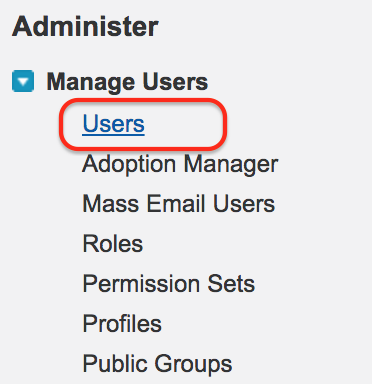
Click on Users button as shown above.

- Click on New User or Add multiple users.
- We can add upto 10 user at a time in salesforce.
Use New User when you are creating one user and need to check every field carefully. Use Add Multiple Users when you are onboarding several users who have similar settings such as the same license, profile, and role pattern.
Enter Salesforce new user details and security settings
Now a new page will be opened where we have to enter all details.
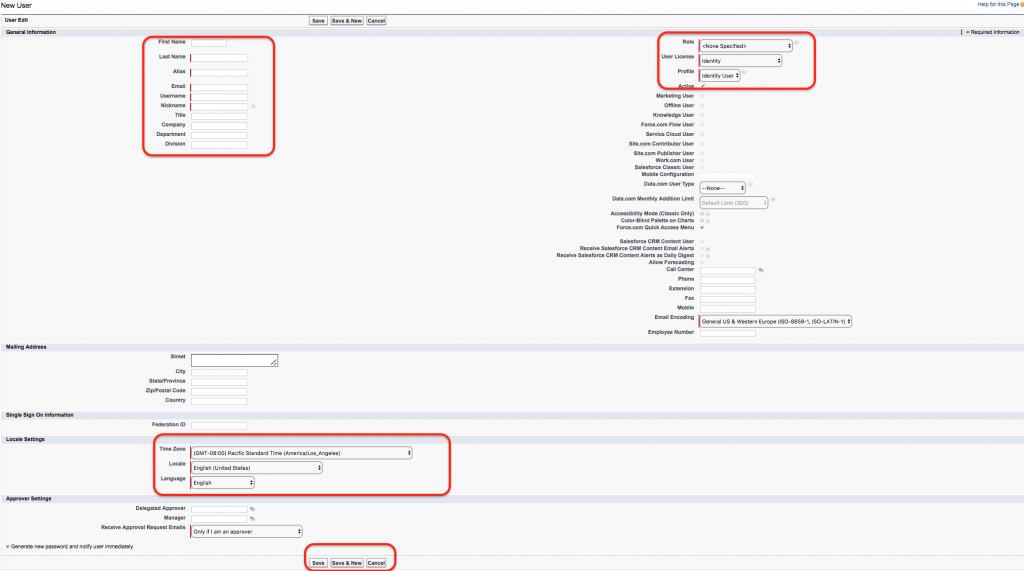
When creating a new user in Salesforce it is important to assign Roles, User license and Profile to the new user.
Note :- Username in Salesforce must be in Email address format and unique.
- Enter First name, last name, Alias, Email address.
- Enter a unique username in email address format.
- Select the correct Time Zone, Locale, Email Encoding, Language, and Currency if these fields are shown in your org.
- Now Assign a Role to the user.
- Now assign user license to the new user.
- Assign a profile to the user.
- Now select generate passwords and notify user via email.
- Click on Save button.
- A verification email will be sent to the Email.
Username, email, license, profile, and role rules for Salesforce users
The most common errors while creating a Salesforce user are related to username uniqueness, unavailable licenses, and profile mismatch. Review these points before saving the user record.
- Username: The username must be in email address format and unique across Salesforce. It does not have to be the same as the user’s email address, but using a clear business format is recommended.
- Email: The email address receives the verification and password setup email when the notification option is selected.
- User License: The selected license decides which profiles are available. If you select the wrong license, the expected profile may not appear.
- Profile: The profile must match the user’s job function and should provide only the required level of access.
- Role: The role is optional in some orgs, but important when role hierarchy is used for record access and reporting.
- Permission Sets: After saving the user, assign permission sets or permission set groups for extra access instead of giving a broader profile than needed.
How to add multiple users in Salesforce
Salesforce provides an Add Multiple Users option on the Users page. This is useful when you need to create several user accounts at the same time. The users should have similar configuration requirements because shared selections such as license and profile can apply during the process.
- Go to Setup and open Users.
- Click Add Multiple Users.
- Enter the required name, email, username, and alias details for each user.
- Select the appropriate user license and profile.
- Review the notification option before saving.
- Save the records and confirm that the users receive their login setup email.
For larger onboarding activities, many Salesforce teams use data loading tools or identity management processes. For normal admin training and small batches, the standard Users page is the easiest place to begin.
After creating a new Salesforce user account
User creation is only the first step. After the new Salesforce user is saved, check the user’s access and login readiness before handing over the account.
- Open the saved user record and confirm that the user is marked active.
- Check whether the correct profile, role, and license are assigned.
- Assign required permission sets, permission set groups, queues, public groups, or managed package permissions.
- Confirm that the user received the password setup or verification email.
- Ask the user to complete login and multi-factor authentication setup if required by your org.
- Verify access by testing the apps, tabs, records, and reports needed for the user’s job.
Common mistakes when creating users in Salesforce
- Using a non-unique username: The username must be unique across Salesforce, so a username already used in another org cannot be reused.
- Selecting the wrong user license: The license controls which features and profiles can be selected for the user.
- Assigning a broad profile: Use the least access needed and extend access with permission sets where appropriate.
- Forgetting the notification email: If the password notification option is not selected, the user may not receive first-time login instructions.
- Skipping role assignment: If your org uses role hierarchy, an incorrect or missing role can affect record visibility.
- Not checking locale and time zone: Wrong locale settings can cause confusing date, time, and number formats for the user.
Interview Questions on Salesforce User Creation
- What is the required format of a Salesforce username?
- Can the Salesforce username be different from the user’s email address?
- How many users can be created at a time from the Add Multiple Users page in Salesforce?
- What is the difference between a user license and a profile?
- Why is role assignment important for record visibility in Salesforce?
- What should an administrator check if a profile is not available while creating a user?
QA checklist for this Salesforce new user tutorial
- Confirm that the article explains the Setup path for creating a Salesforce user.
- Check that the tutorial mentions username uniqueness and email address format.
- Verify that user license, profile, and role are explained as separate settings.
- Confirm that Add Multiple Users is described for small batch user creation.
- Ensure that post-creation checks include active status, permission sets, login email, and access validation.
- Make sure the tutorial does not suggest assigning excessive permissions just to make setup faster.
FAQs on Creating a New User in Salesforce
How do I create a new user in Salesforce?
To create a new user in Salesforce, go to Setup, search for Users in Quick Find, open Users, and click New User. Enter the user’s name, email, username, license, profile, role, locale settings, and notification option, then click Save.
What is the format of a Salesforce username?
A Salesforce username must be in email address format, such as user@example.com. It must also be unique across Salesforce. The username can be different from the user’s actual email address.
Why is the profile not showing while creating a Salesforce user?
The profile list depends on the selected user license. If the required profile is not visible, check whether the correct user license has been selected and whether that profile is available for the license type.
Can I create multiple users at once in Salesforce?
Yes. From the Users page, click Add Multiple Users to create several users in one process. This option is useful for small batches where users have similar license and profile requirements.
What should be assigned after creating a Salesforce user?
After creating the user, assign required permission sets, permission set groups, queues, public groups, managed package permissions, and app access based on the user’s job role. Also confirm that the user receives the login setup email.
Conclusion on creating Salesforce users
In this Salesforce Admin tutorial we have learned about How to add new user in salesforce. We also covered the important user account settings such as username, email, license, profile, role, notification email, and post-creation access checks. In our upcoming Salesforce lecture we are going to learn about Role Hierarchies in Salesforce.