 TutorialKart.com
Salesforce Workflow Rules – Salesforce Help & Training.
In this Salesforce training, we are going to learn about Salesforce Workflow Rules, why they were used in Salesforce automation, the different workflow actions, evaluation criteria, rule criteria, time-dependent actions, and important considerations before editing existing workflow rules.
Important current note: Salesforce Workflow Rules are a legacy automation feature. Salesforce recommends using Flow Builder for new automation. Existing workflow rules may still be found in older Salesforce orgs, so administrators should understand how they work, how to review them, and how to migrate them carefully when required.
What are Salesforce Workflow Rules?
Salesforce Workflow Rules are automated rules that evaluate a record when it is created or edited. When the record meets the defined criteria, Salesforce performs one or more actions such as sending Email alerts, assigning a task, updating a field, or sending an outbound message.
A workflow rule has two main parts: the condition that decides when the rule should run and the action that Salesforce performs after the condition is satisfied. For example, when an Opportunity amount becomes greater than a defined value, a workflow rule can send an email alert to the sales manager or update a field on the same record.
Why Salesforce Workflow Rules were used in business automation
Workflow rules were commonly used to automate repetitive Salesforce tasks that otherwise had to be completed manually. They helped administrators standardize simple actions across records without writing Apex code.
- Send email alerts when a record meets a business condition.
- Create follow-up tasks for users.
- Update a field when a status, amount, date, or checkbox changes.
- Send outbound messages to external systems.
- Run immediate actions or scheduled actions based on time triggers.
For new Salesforce automation, use Flow Builder. For existing orgs that still contain workflow rules, this tutorial helps you read and maintain those rules safely.
Things to be considered when working with Salesforce Workflow Rules
Things to be considered when working with Workflow.
- Object.
- Evaluation criteria.
- Rule criteria.
- Action-Based on criteria.
These four items decide when the workflow rule is checked and what Salesforce does after the rule condition becomes true.
Before creating Salesforce workflow rules we have four steps they are
- Choose the object to which Workflow rule is to be created.
- Evaluation criteria : In evaluation criteria we have three options Created, Created, and every time it’s edited and created, and any time it’s edited to subsequently meet criteria.
- Rule Criteria : Here we have two rule they are criteria are met and formula evaluates to true.
- Workflow actions :- In Salesforce there are two types of workflows they are Immediate workflow and time dependent workflow action.
Salesforce Workflow Rule evaluation criteria explained
The evaluation criteria controls when Salesforce checks the workflow rule against a record. Choosing the correct evaluation criteria is important because it affects whether the workflow runs once, runs repeatedly, or runs only when the record changes from not matching the rule to matching the rule.
| Workflow evaluation criteria | When Salesforce evaluates the rule | Typical use |
|---|---|---|
| Created | Only when a new record is created | Welcome emails, first-time tasks, initial field updates |
| Created, and every time it is edited | When a record is created and whenever it is edited | Rules that must run whenever the criteria is true |
| Created, and any time it is edited to subsequently meet criteria | When a record first meets the criteria after not meeting it | Status changes, approval readiness, threshold-based alerts |
Workflow evaluation criteria.
- Every time a record is created or edited.
- When a record is created or edited and did not previously meet the rule criteria.
Salesforce Workflow Rule criteria: criteria are met or formula evaluates to true
Rule criteria defines the condition that must be satisfied before Salesforce runs the workflow actions. In Salesforce workflow rules, administrators can usually define criteria in either of these ways:
- Criteria are met: Use field, operator, and value rows. This is easier for simple conditions.
- Formula evaluates to true: Use a formula expression when the logic needs functions, multiple conditions, or more control.
Example formula criteria for a workflow rule may look like this:
AND(
  ISPICKVAL(StageName, "Closed Won"),
  Amount > 50000
)
This example checks whether an Opportunity is marked as Closed Won and whether the Amount is greater than 50000. Use object-specific fields and picklist values from your own Salesforce org when creating a real rule.
What are the types of Salesforce Workflow actions?
- Task – Assign a Task.
- Email Alert – Send an Email.
- Field update – Update a Field.
- Outbound message – Send an Outbound message.
Workflow actions can be immediate or time-dependent. Immediate actions run as soon as the rule criteria are met. Time-dependent actions are scheduled to run before or after a selected date or date/time field.
| Workflow action type | What it does | Example use case |
|---|---|---|
| Task | Creates a task for a user, role, record owner, or other assignee | Create a follow-up task when a lead becomes qualified |
| Email Alert | Sends an email using a selected email template | Email the case owner when priority becomes High |
| Field Update | Updates a field value on the record or a supported related record | Set a checkbox when a required condition is met |
| Outbound Message | Sends selected field values to an external endpoint | Notify an external system when an account changes |
Workflow Components.
- Rule.
- Action.
- Time.
What are steps to create Salesforce Workflow Rules?
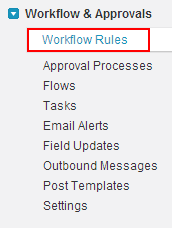
In Salesforce Classic, workflow rules are created from Setup. In Lightning Experience, you can still search for Workflow Rules in Setup in orgs where this legacy feature is available. Use the steps below to understand the creation process, especially when reading or maintaining an older Salesforce implementation.
- Select the object.(accounts, leads, solution etc).It points only to one object and it cannot point to many objects.
- Give the Rule name.
- Evaluation criteria.
- Configuring the Rule criteria.
- Create a workflow rule.
- Create new / Add existing actions to the salesforce workflow rules.
- Activate the Workflow.
Creating the workflow with out actions is useless. Here we have to add new / new rule actions to the workflow rules. The workflow rule that we created and the actions that we add to the workflow rule are basically independent. We can add multiple actions to Salesforce workflow rule. After activating only the workflow rule is triggered.
Step-by-step Salesforce Workflow Rule creation flow
- From Setup, search for Workflow Rules.
- Click New Rule.
- Select the object, such as Account, Lead, Case, Opportunity, or a custom object.
- Enter a clear rule name and description.
- Select the evaluation criteria.
- Define the rule criteria using field conditions or a formula.
- Save the rule.
- Add immediate workflow actions or time-dependent workflow actions.
- Review the rule and activate it only after testing.
A workflow rule applies to one object only. If the same business process must run on several objects, each object needs its own automation design.
Immediate Salesforce Workflow actions and time-dependent Workflow actions
Immediate actions run when the workflow rule criteria are met. Time-dependent workflow actions are queued for a later time. For example, Salesforce can send an email immediately when a case is created and then create a follow-up task two days before the case target date.
- Immediate workflow action: Runs as soon as the rule is triggered.
- Time-dependent workflow action: Runs at a scheduled time based on a date or date/time field.
- Time trigger: Defines when a time-dependent action should run, such as 3 days after a due date.
- Workflow queue: Holds pending time-dependent actions until they are ready to execute or until the record no longer meets the criteria.
Time-dependent actions should be tested carefully because changes to the record can affect queued actions. Also, some evaluation criteria choices do not allow time-dependent action controls.
Salesforce Workflow Rules example for an automated email alert
Workflow rules are used when ever we want to automate the business in Salesforce. Let us consider a scenario say for example when we done with online shopping an automated email will be sent with product information and price details. This is done by automated email alert. If there is no automated email alert they have to do all this manually. So now we are going to automate the process.
Here is a Salesforce-specific example. When a new Case is created with Priority as High, Salesforce can send an email alert to the support manager and create a task for the case owner.
| Object | Case |
| Evaluation criteria | Created, and any time it is edited to subsequently meet criteria |
| Rule criteria | Priority equals High |
| Immediate action | Send email alert to support manager |
| Second action | Create a task for the case owner |
When we consider Workflow these are main consideration Rule Criteria and Rule actions.
- Rule Criteria : – Rule criteria defines when the rule actions should happens.
- Rule Actions : It defines the actions that should happens when the rule criteria is satisfied.
Salesforce Workflow Rules considerations before editing existing automation
Before changing an existing workflow rule, check whether it is still required, whether it has time-dependent actions in the queue, and whether another automation tool already performs the same work. Many Salesforce orgs contain a mix of workflow rules, Process Builder processes, flows, Apex triggers, validation rules, and approval processes. Editing one rule without understanding the full automation chain can create duplicate updates or unexpected results.
- Check whether the workflow rule is active.
- Review the object, rule criteria, and evaluation criteria.
- Open each immediate and time-dependent action attached to the rule.
- Check email templates, field updates, task assignments, and outbound message endpoints.
- Look for flows, triggers, or approval processes that run on the same object.
- Test changes in a sandbox before changing production automation.
- Document the business reason for keeping, changing, or migrating the rule.
Salesforce Workflow Rules and Flow Builder migration planning
Salesforce now recommends Flow Builder for new automation. When an org still has workflow rules, administrators should plan migration instead of creating new workflow-based automation. A record-triggered flow can usually replace many common workflow rule use cases such as field updates, task creation, and email alerts.
- Inventory all active workflow rules by object.
- Group rules that run on the same object and event.
- Identify simple field updates, email alerts, tasks, and outbound messages.
- Check whether the Migrate to Flow tool supports the rule.
- Build and test the replacement flow in a sandbox.
- Deactivate the old workflow rule only after the flow is tested and deployed.
Do not migrate workflow rules one by one without reviewing the full object automation. A better approach is to document all automation on the object and then decide how the final flow design should work.
Common mistakes with Salesforce Workflow Rules
- Choosing the wrong evaluation criteria: The rule may run too often or may not run when expected.
- Using broad rule criteria: A field update or email alert may trigger for more records than intended.
- Forgetting to activate the workflow rule: A saved rule does not run until it is activated.
- Creating duplicate automation: A workflow rule and a flow may update the same field.
- Ignoring time-dependent actions: Pending actions may still be in the workflow queue.
- Using outdated email templates: Email alerts may send old wording or incorrect merge fields.
- Not testing in sandbox: Production records can be updated incorrectly if the rule is changed without testing.
Salesforce Workflow Rules QA checklist for administrators
Use this checklist when reviewing an existing Salesforce workflow rule or preparing to migrate it to Flow Builder.
- The workflow rule has a clear name and description.
- The selected object matches the business process.
- The evaluation criteria matches the expected trigger behavior.
- The rule criteria is narrow enough to avoid accidental updates.
- Formula criteria has been tested with matching and non-matching records.
- All immediate actions are still required.
- All time-dependent actions and time triggers are documented.
- Email alerts use current Salesforce email templates.
- Field updates do not conflict with flows, triggers, or approval processes.
- Outbound message endpoints are still valid.
- The rule has been tested in a sandbox before production changes.
- Migration to Flow Builder has been considered for future maintenance.
Official Salesforce references for Workflow Rules and Flow Builder
For current product behavior and limits, refer to Salesforce Help before creating, editing, or migrating automation.
- Salesforce Help: Workflow Rules
- Salesforce Help: Workflow Considerations
- Salesforce Help: Set the Criteria for Your Workflow Rule
- Salesforce Help: Workflow Rule Examples
FAQs on Salesforce Workflow Rules
What is a Salesforce Workflow Rule?
A Salesforce Workflow Rule is a legacy automation rule that checks record criteria and performs actions such as sending an email alert, creating a task, updating a field, or sending an outbound message when the criteria are met.
What are the four workflow actions in Salesforce?
The four workflow action types are Task, Email Alert, Field Update, and Outbound Message. These actions can be immediate or, where supported, scheduled as time-dependent workflow actions.
What is the difference between rule criteria and workflow action?
Rule criteria defines when the workflow rule should run. Workflow action defines what Salesforce should do after the rule criteria is satisfied, such as sending an email alert or updating a field.
Should I create new Salesforce Workflow Rules or use Flow Builder?
For new Salesforce automation, use Flow Builder. Workflow Rules are legacy automation, and Salesforce recommends migrating existing workflow rules to Flow Builder where possible.
Can a Salesforce Workflow Rule run on more than one object?
No. A workflow rule is created for one selected object. If similar automation is needed for another object, that object needs its own automation design.
Salesforce Workflow Rules summary
In this Salesforce Training we have learned about Salesforce Workflow rules. We covered workflow objects, evaluation criteria, rule criteria, workflow actions, immediate actions, time-dependent actions, and the need to review existing workflow rules before changing them. In our upcoming Salesforce tutorial we are going to learn about creating tasks using workflow, updating a record using Salesforce workflow rules.