 TutorialKart.com
A Salesforce custom object is an object created by an administrator or developer to store data that does not fit cleanly into standard Salesforce objects such as Accounts, Contacts, Leads, Opportunities, Cases, or Campaigns. Custom object API names end with __c, for example Pharma_Product__c. In this Salesforce tutorial, we create a custom object named Pharma Product and explain the settings you should check before saving it.
Salesforce custom objects explained with the Pharma Product example
Salesforce stores business data in objects. You can think of an object as a table-like structure: fields describe the type of information to store, and records hold the actual values entered by users or integrations. For example, a Pharma Product object can have fields such as Product Code, Manufacturer, Dosage Form, Strength, Active Ingredient, and Approval Status.
A custom object is useful when your organization needs to track a separate business entity that is not already represented by a standard object. In this tutorial, Pharma Product is not just a field on Account or Opportunity; it is its own record type of business data, so a separate custom object is a better design.
Object, field, and record meaning in Salesforce custom object design
In Salesforce Objects, an object is the container, a field is one piece of information on that object, and a record is one saved row of data. In database terms, Salesforce objects are similar to tables, fields are similar to columns, and records are similar to rows. The comparison helps beginners understand the structure, but Salesforce objects also include permissions, page layouts, tabs, automation, reporting, search settings, and API behavior.
| Salesforce term | Database-style comparison | Pharma Product example |
|---|---|---|
| Object | Table | Pharma Product |
| Field | Column | Product Code, Strength, Manufacturer |
| Record | Row | One saved product record |
| API Name | Technical identifier | Pharma_Product__c |
Standard objects and custom objects in Salesforce
Salesforce objects are commonly grouped into standard objects and custom objects. Understanding the difference helps you decide whether to create a new object or extend an existing one with custom fields.
Standard objects already available in Salesforce
Standard objects are provided by Salesforce. Common examples include Accounts, Contacts, Leads, Opportunities, Cases, Campaigns, Products, Price Books, Reports, and Dashboards. You can customize many standard objects by adding fields, validation rules, page layouts, record types, and automation, but you do not create or delete the standard object itself.
Custom objects created for organization-specific data
Custom objects are created in your Salesforce org to store data that is specific to your business process. Their API names end with __c. For example, if the object label is Pharma Product, Salesforce can generate the API name Pharma_Product__c.
| Standard component | Custom component |
|---|---|
| Available in Salesforce by default. | Created by an administrator, developer, package, or metadata deployment. |
| Can be customized within Salesforce limits. | Can be designed for a specific data model and business process. |
| Usually cannot be deleted from the org. | Can usually be edited or deleted, subject to dependencies and permissions. |
| Examples: Account, Contact, Lead, Opportunity, Case. | Examples: Pharma Product, Project, Vehicle, Asset Inspection. |
Before creating a Salesforce custom object, decide these settings
It is better to decide the object design before clicking Save. Changing labels is easy, but changing the object name or API name later can affect reports, formulas, automation, integrations, Apex, SOQL queries, and external tools.
- Object label: the singular display name, such as Pharma Product.
- Plural label: the plural display name, such as Pharma Products.
- Object name: the technical name used to create the API name, such as
Pharma_Product. - Record name: the main identifying field shown at the top of each record, such as Pharma Product Name.
- Record name data type: choose Text when users should enter a meaningful name, or Auto Number when Salesforce should generate a sequence.
- Reporting requirement: enable reporting if users need reports on this object.
- Search requirement: allow search if users should find these records from Salesforce search.
- Relationships: decide whether the object needs lookup or master-detail relationships with Account, Product, Case, or another object.
Create Salesforce custom object in Lightning Experience
In Lightning Experience, use Setup → Object Manager → Create → Custom Object. Older Salesforce Classic screens use Setup | Build | Create | Objects. The screenshots below show the older navigation, but the object settings are the same in principle.
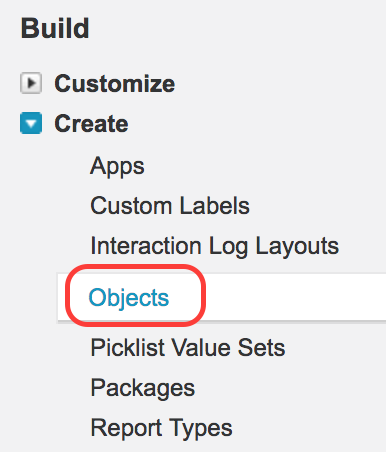
When you open the object creation area, select New Custom Object. In Lightning Experience this button is available from Object Manager. In Salesforce Classic, click New Custom Object from the Custom Objects page.

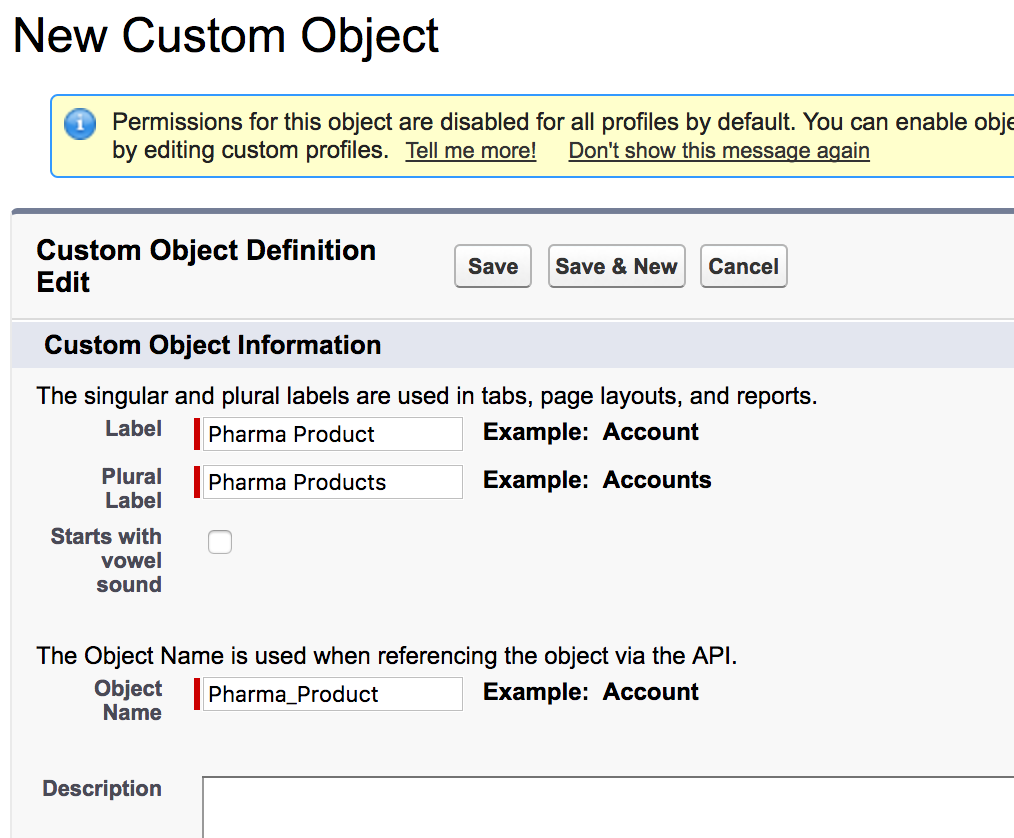
Enter Salesforce custom object label, plural label, and description
Enter the label and plural label for the object. For this tutorial, use these values:
| Custom object setting | Value for this tutorial | Why it matters |
|---|---|---|
| Label | Pharma Product | Singular name shown in setup and record pages. |
| Plural Label | Pharma Products | Name shown in tabs, related lists, and object lists. |
| Object Name | Pharma_Product | Used to form the API name Pharma_Product__c. |
| Description | Stores medicine or pharma product details used by the organization. | Helps future admins understand why the object exists. |
Select Record Name and Data Type for the Pharma Product custom object
The Record Name field is the primary name field for each record. For Pharma Product, a text record name is usually easier because users can enter product names such as Paracetamol 500 mg Tablet. If your records must follow a controlled sequence such as PP-00001, choose Auto Number and define the display format.
For this example, set Record Name to Pharma Product Name and Data Type to Text. Then review the optional features before saving the object.
Choose optional features before saving the Salesforce custom object
On the custom object creation page, Salesforce can show options such as reports, activities, search, notes, attachments, history tracking, and tab creation. The exact options visible depend on your Salesforce edition, permissions, and enabled features. Use the following guidance for the Pharma Product object:
- Allow Reports: select this if users need reports on Pharma Product records.
- Allow Search: select this if users should find Pharma Product records from global search.
- Track Field History: select this only for fields where changes must be audited.
- Allow Activities: select this if tasks and events should be related to Pharma Product records.
- Launch New Custom Tab Wizard: select this if users need a tab to open the object from the app navigation menu.
- Deployment Status: keep the object In Development while configuring it, then change it to Deployed when it is ready for users.
After entering the required details and selecting the correct options, click Save. Salesforce creates the custom object and opens the object definition page.
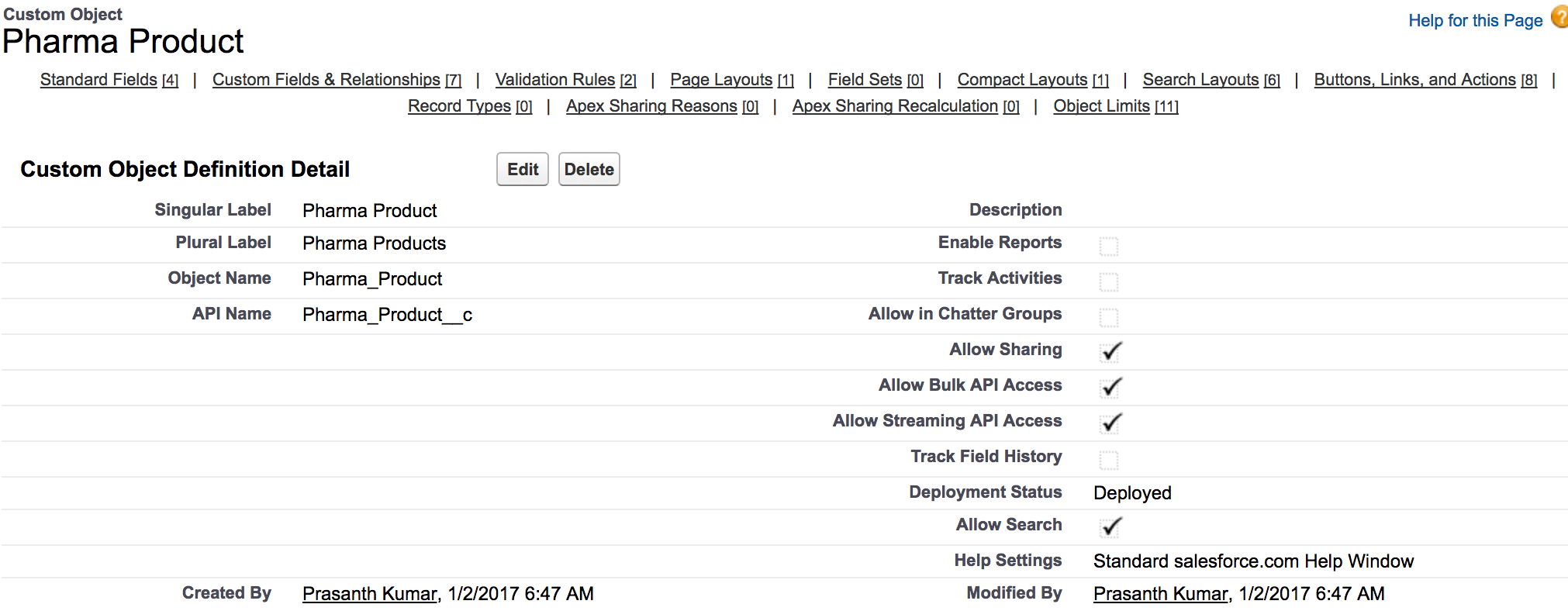
Object definition page after creating a Salesforce custom object
The object definition page is the setup page where you manage the custom object. It shows details such as singular label, plural label, object name, API name, record name, deployment status, created by, modified by, and object options. From this page, you can add custom fields, create validation rules, manage page layouts, create buttons and links, add record types, and configure search layouts.
For the Pharma Product object, confirm that the API name is shown as Pharma_Product__c. The lowercase __c suffix identifies it as a custom object in Salesforce APIs, SOQL, metadata, and many integration tools.
Add custom fields to the Pharma Product object
Creating the object gives you a place to store records, but most business information is stored in fields. In Object Manager, open Pharma Product → Fields & Relationships → New, choose a field type, enter the field label, configure field-level security, and add the field to the required page layouts.
| Field label | Suggested field type | Example value |
|---|---|---|
| Product Code | Text | PCM-500 |
| Manufacturer | Text or Lookup | ABC Pharma Ltd |
| Dosage Form | Picklist | Tablet, Capsule, Syrup, Injection |
| Strength | Text | 500 mg |
| Launch Date | Date | 2026-04-01 |
| Active | Checkbox | Checked |
Choose field types carefully. A picklist is better when users must choose from controlled values. A lookup relationship is better when the value should refer to another Salesforce record. A text field is flexible, but too many free-text fields can make reporting and filtering difficult.
Create a custom tab and add the object to a Salesforce app
A custom object can exist without a tab, but users may not easily find it from the app navigation menu. If you did not create a tab during object creation, go to Setup → Tabs → Custom Object Tabs → New, select the Pharma Product object, choose a tab style, and assign tab visibility for profiles. Then add the tab to the required Lightning app from Setup → App Manager.
After adding the tab, open the app, use the app launcher if needed, and confirm that Pharma Products appears in the navigation. Create one test record to confirm that the record page, page layout, and field visibility are correct.
Set Salesforce custom object permissions before users start entering records
Creating a custom object does not automatically mean every user can read, create, edit, or delete its records. Review object permissions, field-level security, tab visibility, record access, and sharing rules before releasing the object to users.
- Object permissions: grant Read, Create, Edit, Delete, View All, or Modify All only where needed.
- Field-level security: hide sensitive fields from profiles or permission sets that should not see them.
- Page layouts: place the most-used fields in logical sections.
- Record access: check organization-wide defaults, role hierarchy, sharing rules, and manual sharing if the object stores restricted data.
- Tab visibility: make the tab visible only for users who need regular access.
Verify the Salesforce custom object API name with SOQL
Developers and integration tools use the custom object API name, not just the label. For a custom object, the API name includes the lowercase __c suffix. A simple SOQL query for the Pharma Product object can look like this:
SELECT Id, Name, Product_Code__c
FROM Pharma_Product__c
ORDER BY CreatedDate DESC
In this query, Pharma_Product__c is the custom object API name and Product_Code__c is a custom field API name. The standard Name field represents the record name field configured during object creation.
Create a Salesforce custom object from a spreadsheet
If your object design is based on existing spreadsheet data, Salesforce also supports creating a custom object from a spreadsheet in Lightning Experience. This method can create the object, infer fields from spreadsheet columns, and import records at the same time. Review every suggested field name and field type before importing because spreadsheet columns can be interpreted incorrectly.
Use the spreadsheet method when the source data is clean and the columns are already close to the final field design. Use the manual Object Manager method when you need tighter control over field types, relationships, permissions, page layouts, and naming conventions.
Common mistakes while creating Salesforce custom objects
- Creating a custom object when a custom field is enough: if the information belongs directly on Account, Contact, Case, or Opportunity, start with a field instead of a separate object.
- Using unclear object names: choose a name that describes the business entity, not a temporary project name.
- Ignoring the API name: API names are used in reports, formulas, automation, integrations, Apex, and SOQL, so review them before saving.
- Skipping permissions: users may not see the tab or records if object permissions, tab visibility, or sharing settings are incomplete.
- Forgetting reports: enable reporting when users need report types and dashboards for the custom object.
- Adding too many text fields: use picklists, lookups, dates, numbers, and checkboxes when structured data is required.
Official Salesforce references for custom object setup
For current Salesforce setup behavior, compare your org with these official Salesforce resources: Create a Custom Object in Salesforce Help, Create a Custom Object on Trailhead, and Salesforce Developer custom object reference.
Salesforce custom object FAQ
How do I create Salesforce custom objects?
In Lightning Experience, go to Setup → Object Manager → Create → Custom Object. Enter the label, plural label, object name, description, record name, and record name data type. Select optional features such as reports, search, activities, field history, and tab creation. Then click Save.
What is the difference between a Salesforce custom object and a custom field?
A custom object stores a separate set of records, such as Pharma Products. A custom field stores one extra piece of information on an existing object, such as Product Code on Pharma Product or Customer Type on Account. Use a custom object when the data has its own lifecycle, fields, permissions, reports, and relationships.
Why does a Salesforce custom object API name end with __c?
Salesforce appends __c to custom object and custom field API names. This suffix helps distinguish custom metadata created in your org from Salesforce standard objects and fields. For example, Pharma_Product__c is a custom object API name.
Should the Record Name data type be Text or Auto Number?
Use Text when users should enter a meaningful name, such as a product name. Use Auto Number when each record should receive a generated identifier, such as PP-00001. The best choice depends on how users search, identify, and report on the records.
Can I create a Salesforce custom object from a spreadsheet?
Yes. Lightning Object Creator can create a custom object from a spreadsheet and import records. Review the inferred field names and field types carefully before completing the import, especially for dates, numbers, picklists, and identifiers.
Editorial QA checklist for this Salesforce custom object tutorial
- The tutorial uses the current Lightning path Setup → Object Manager → Create → Custom Object and also explains that the screenshots show the older Classic path.
- The custom object suffix is written as lowercase __c, not uppercase __C.
- The Pharma Product example includes label, plural label, object name, record name, and record name data type.
- The tutorial covers what to do after saving: fields, tab, app navigation, permissions, page layout, and verification.
- The FAQ answers the search-intent question: how to create Salesforce custom objects.
- Official Salesforce Help, Trailhead, and Developer reference links are included for current setup and API behavior.