 TutorialKart.com
Customize a Standard Salesforce Application for a Business Use Case
In our previous Salesforce tutorial we learned about Home page layouts, Home page components, and how to create custom list views in Salesforce. In this Salesforce tutorial, we will learn how to customize a Standard Salesforce Application so that it works like a custom application for a specific business process.
A Salesforce app is mainly a container for tabs, objects, navigation items, and related settings. Instead of creating every object and tab from the beginning, an admin can often start with a standard app such as Sales and customize the labels, tabs, page layouts, and access settings to match the organization’s process.
Standard Salesforce Application vs Custom Salesforce Application
In Salesforce.com there are two broad types of components that administrators use while configuring an application.
- Standard components such as standard apps, standard objects, standard fields, standard tabs, and standard page layouts provided by Salesforce.
- Custom components such as custom apps, custom objects, custom fields, custom tabs, validation rules, page layouts, and automation created for a specific business requirement.
The practical approach is to reuse standard components wherever they satisfy the requirement and create custom components only when the standard feature does not fit. This helps keep the org easier to maintain and avoids unnecessary duplication of objects and fields.
Starting from our earlier lessons, we created a custom application called Star Pharma App. We also created custom objects, custom fields, formula fields, Relationships, Rollup Summary fields, and Validation Rules. In a real project, before building all these items from scratch, we should first check whether a standard Salesforce app can be customized to meet the same requirement.
Standard Salesforce Apps That Can Be Customized
Salesforce provides standard apps depending on the products and licenses enabled in the org. Common examples include the following.
- Sales.
- Service or Call Center.
- Marketing.
- App Center.
- Community.
- Salesforce Chatter.
- Contacts.
- AppExchange.
For this tutorial, we will take the standard Sales App and customize it into a Star Pharma-style application. The same idea can be applied to other standard apps when the standard objects and navigation structure are close to the business process.
What You Can Customize in a Standard Salesforce Application
When you customize a standard Salesforce application, you usually work on the following areas.
- Navigation items or tabs: decide which objects and pages appear in the app menu.
- Tab names and object labels: rename standard labels so users see business-friendly names.
- Standard field labels: adjust field labels where Salesforce allows label changes.
- Page layouts: control which fields, buttons, related lists, and sections users see on record pages.
- Profiles and permission sets: decide which users can access the app, objects, tabs, and fields.
To perform these changes, the administrator normally needs permissions such as Customize Application, along with the required object and setup permissions for the specific configuration being changed.
Customizing Standard Sales Application into Star Pharma Application
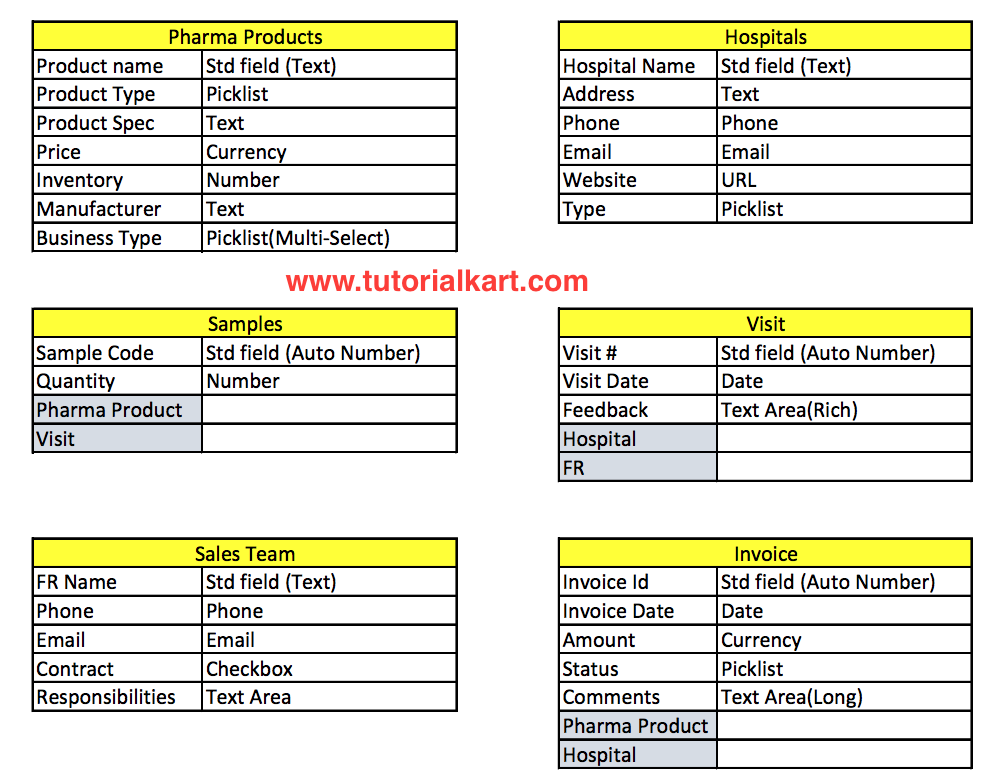
In Star Pharma App, we have six custom objects: Pharma Products, Hospitals, Sales Team, Samples, Visits, and Invoices. As shown below, we created the required fields and relationships in these objects.
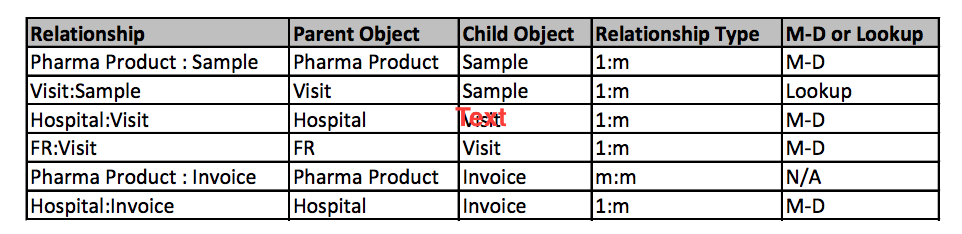
Now we will see how to make the standard Sales App look and work closer to the Star Pharma App by changing tabs, labels, and layouts. The screenshots in this lesson use the older Salesforce Classic setup style. In Lightning Experience, similar settings are available from Setup, especially through App Manager, Object Manager, Rename Tabs and Labels, and Page Layouts.

Select Tabs to Display in the Standard Sales App
The first customization is to choose the tabs or navigation items that users should see in the standard Sales App. This removes unrelated tabs and keeps the app focused on the Star Pharma process.
- Go to the standard Product object | Product Standard Fields | Product Name | Edit.
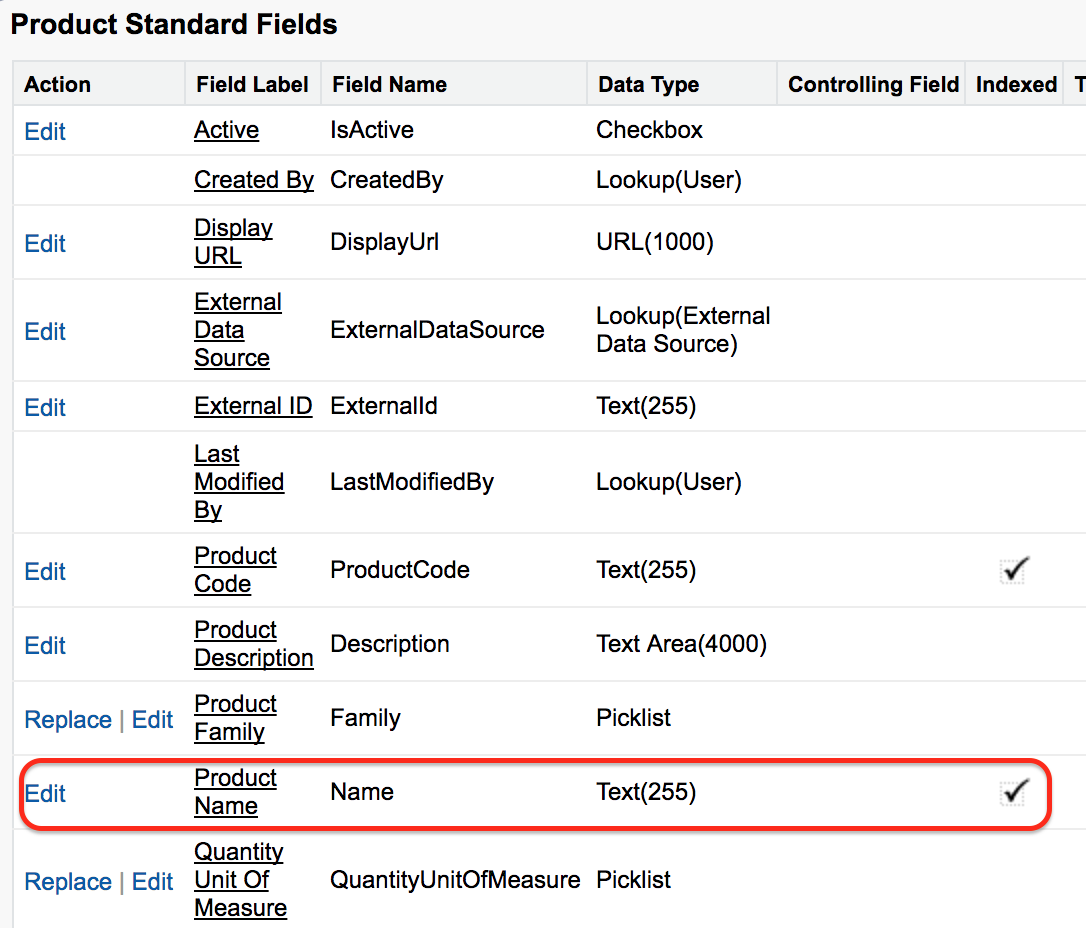
- Click on Edit to choose the tabs that should display in the app tab menu.
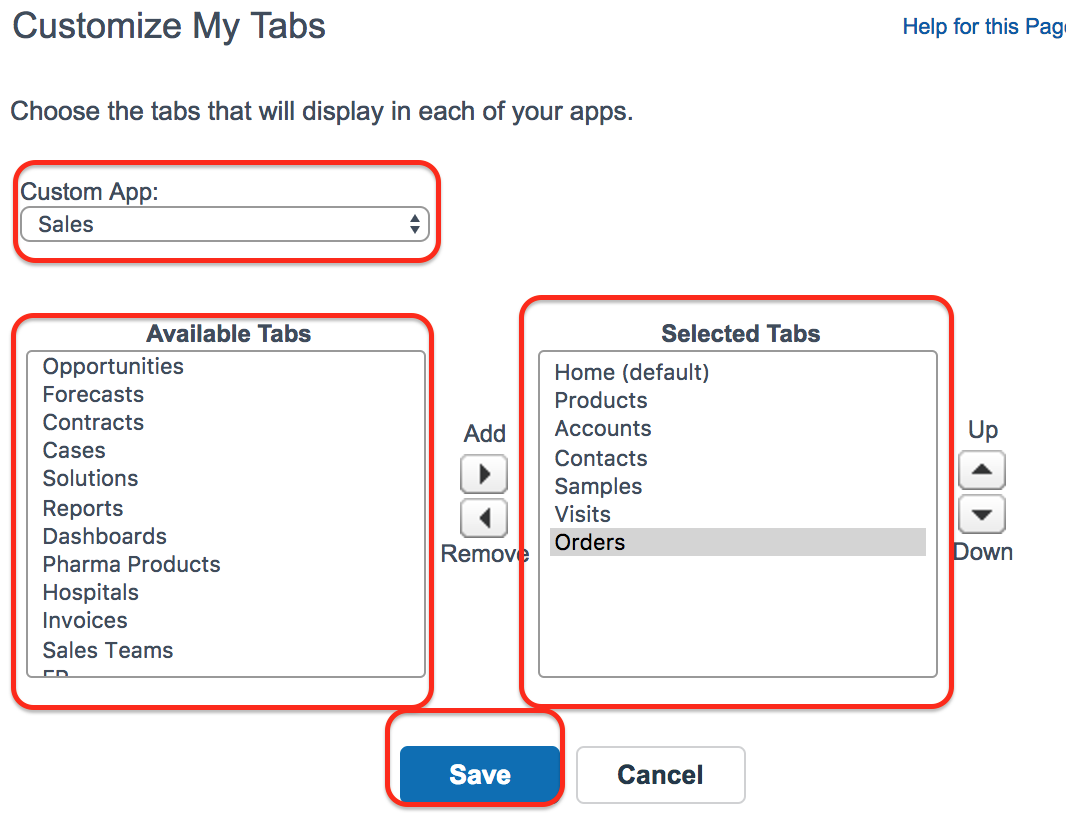
- Move the required tabs from Available Tabs to Selected Tabs.
- Remove tabs that are not required for the Star Pharma process.
- Click Save to apply the tab selection.

In Lightning Experience, this type of change is generally done from Setup | App Manager. Open the required app, click Edit, and update the navigation items for that app.
Rename Standard Salesforce Tabs and Object Labels
The next step is to rename tabs and labels so that the standard Sales App uses the terminology of the Star Pharma business. To rename tab and object labels in Salesforce Classic, go to Build | Customize | Tab Names and Labels | Rename Tabs and Labels. In Lightning Experience, search for Rename Tabs and Labels from Setup.
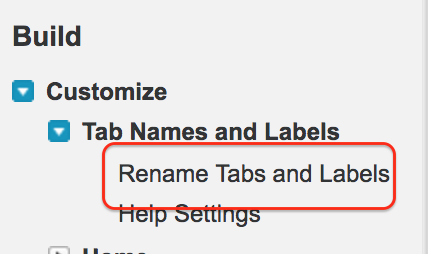
For the Star Pharma example, the standard Sales App objects can be renamed as shown below.
| Standard Sales Object | Renamed Label in Sales App | Business Meaning in Star Pharma App |
|---|---|---|
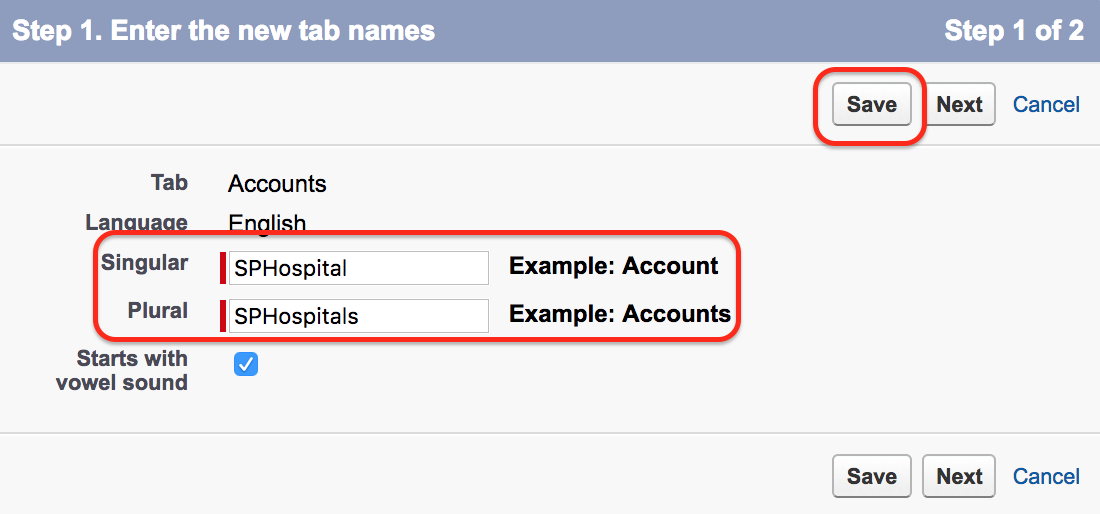
| Accounts | SP Hospitals | Hospitals |
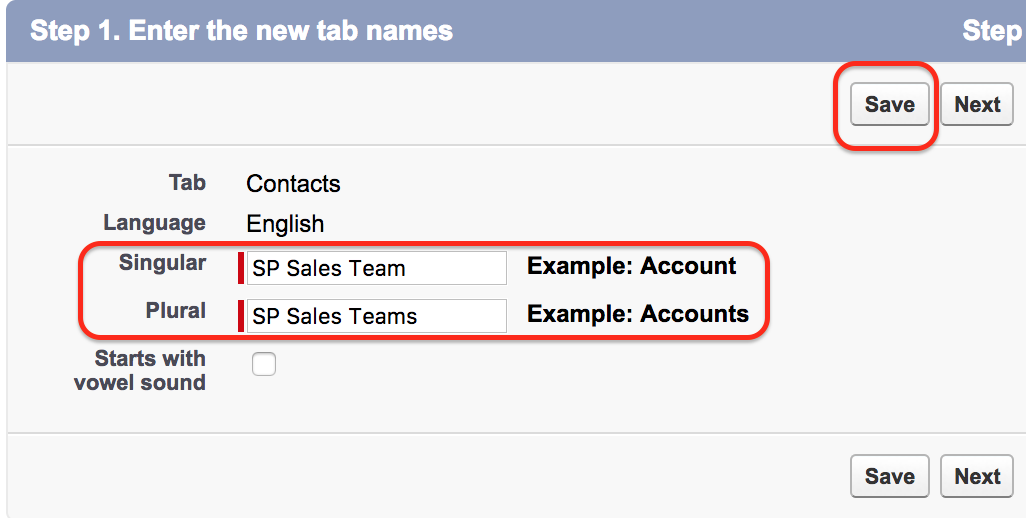
| Contacts | SP Sales Team | Sales Team |
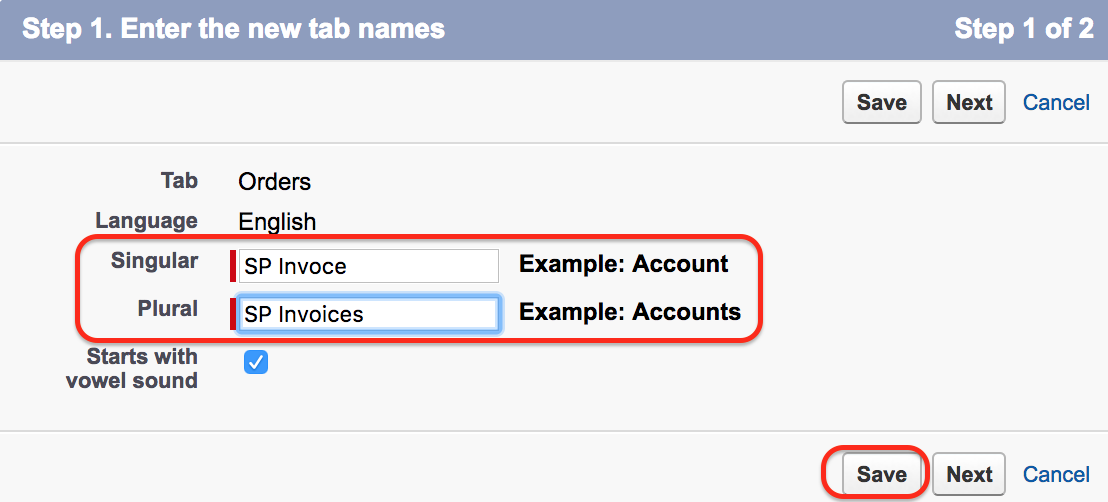
| Orders | SP Invoices | Invoices |
| Products | SP Products | Pharma Products |
From the above table, we are renaming standard Sales App labels to match the Star Pharma business terminology. The prefix SP is used here to make the labels easy to identify as Star Pharma-related labels and to avoid confusion with other standard labels in the org.
- Rename Accounts into SP Hospitals.
- Rename Contacts into SP Sales Team.
- Rename Orders into SP Invoices.
- Rename Products into SP Products.
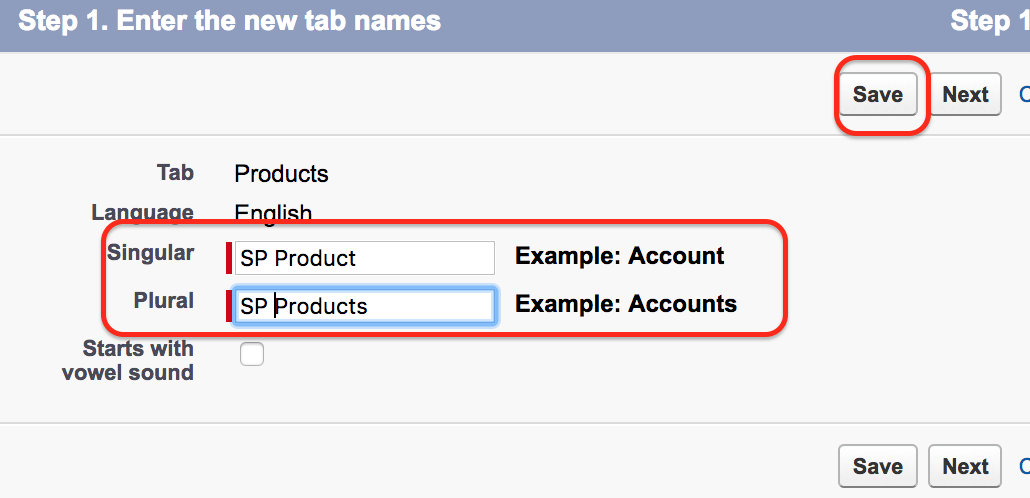
After saving the label changes, go to the Home tab and check the app navigation.

After renaming the Sales App tab menu, the standard Sales App begins to look closer to the Star Pharma App.

From the above comparison, both the custom Star Pharma App and the customized standard Sales App show a similar business-facing navigation structure.
Rename Standard Field Labels in Salesforce Sales App
Up to this point, we renamed object labels and tab menu items. Now we can rename standard field labels where Salesforce allows the label to be customized. This is useful when a standard field is technically suitable but the label should match the terminology used by business users.
- Go to Build | Customize | Tab Names and Labels | Rename Tabs and Labels.
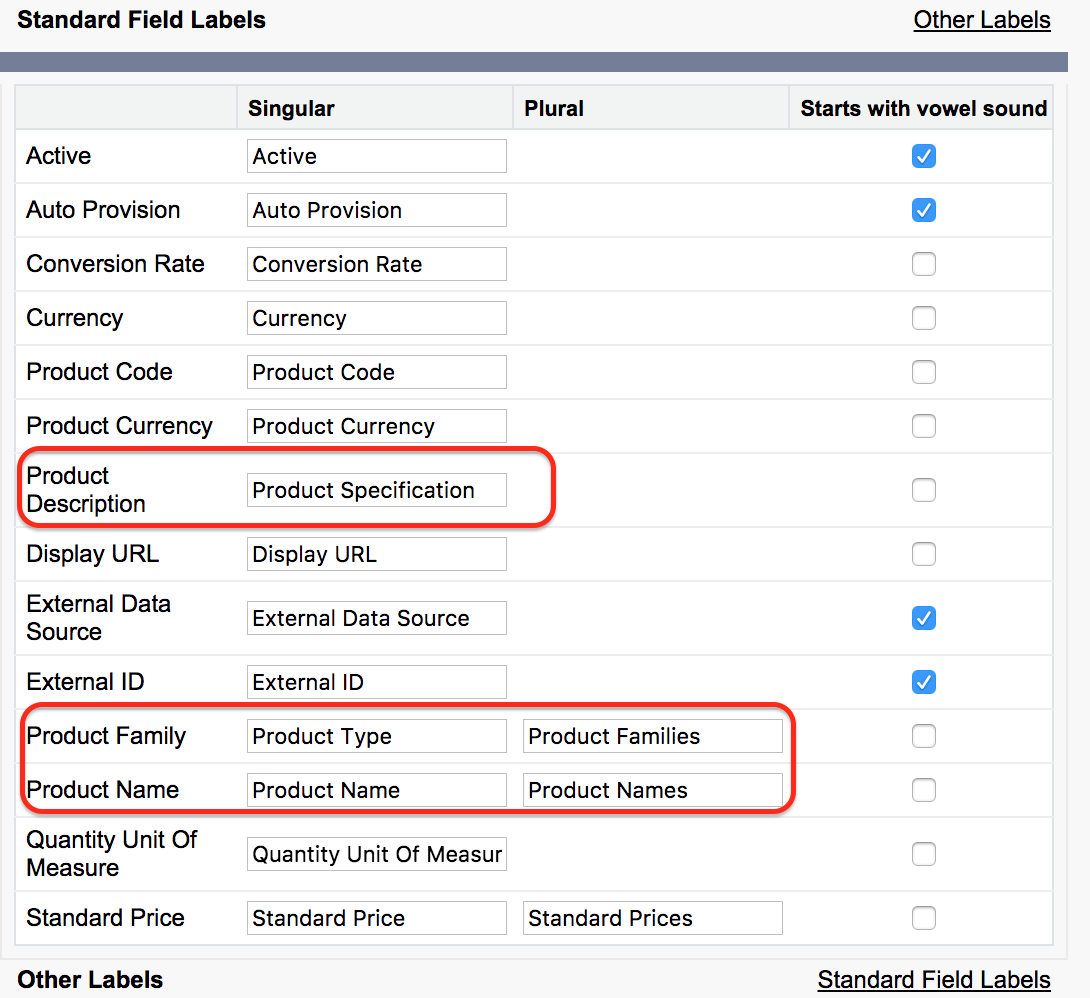
- Select the Product object and click Edit.
- Change Product Description into Product Specification.
- Change Product Family into Product Type.
- Keep Product Name as Product Name, or change it only if the business needs a different label.
- Click Save to save the field label changes.
Renaming a field label changes how the field appears to users, but it does not change the field’s API name. This is important for reports, integrations, formulas, Apex code, flows, and metadata references that may still use the original API name.
Customize Product Object Page Layout for Pharma Products
The Pharma Product object in the Star Pharma App needs only selected information such as Product Name, Sample Product, and Product Specifications. So we customize the standard Product object page layout to make it suitable for the Pharma Product process.
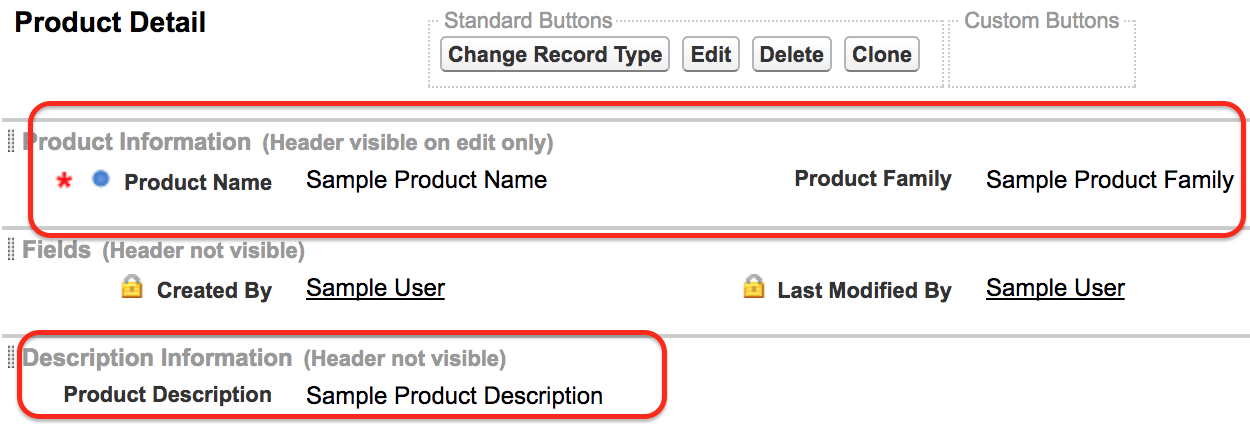
After modifying the page layout, go to the SP Products tab in the Sales App and create a new record.
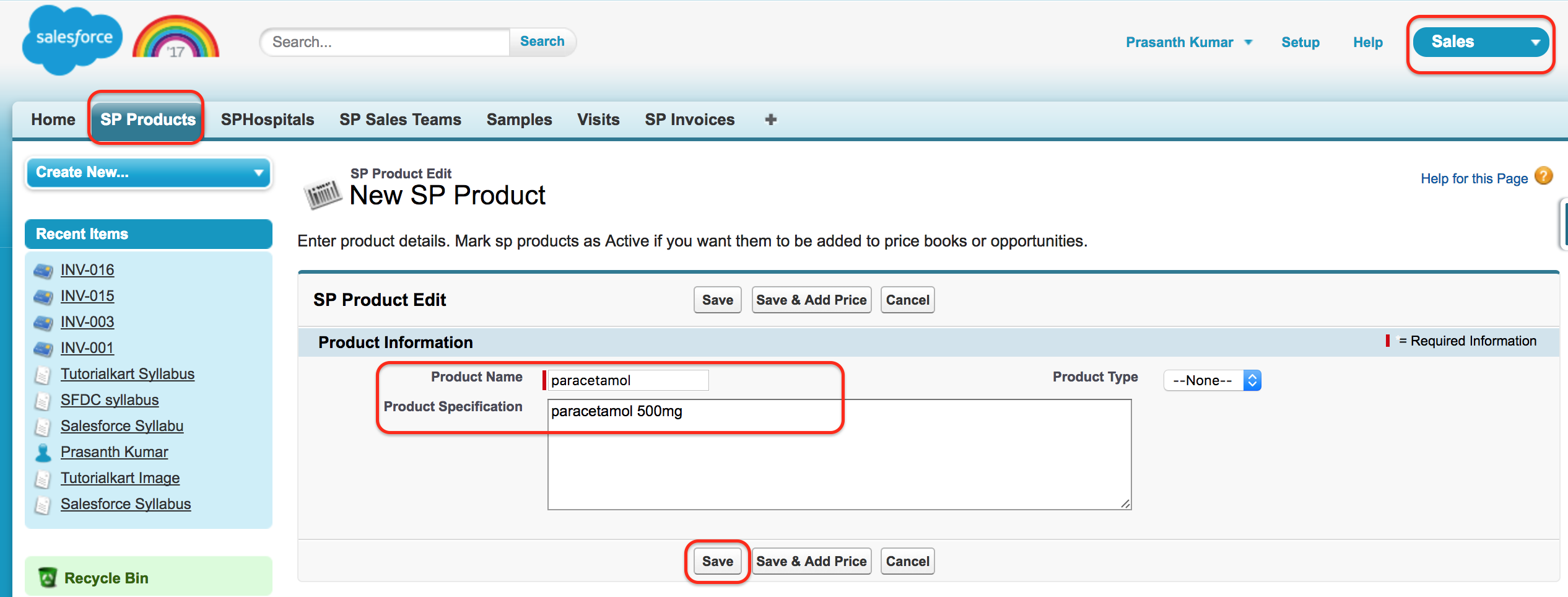
Use the same method for the remaining objects. Rename labels where appropriate, adjust page layouts, add required fields, and create relationships only where the standard Salesforce data model does not already meet the requirement.
Assign Access to the Customized Salesforce Application
After customizing the app, make sure the correct users can access it. App customization is not complete until users have the right app visibility, tab visibility, object permissions, field permissions, and record access.
- Use profiles and permission sets to control who can access the app.
- Check tab visibility for renamed tabs such as SP Hospitals, SP Sales Team, SP Invoices, and SP Products.
- Review object permissions such as Read, Create, Edit, and Delete.
- Check field-level security for renamed or newly added fields.
- Test the app by logging in as, or previewing with, a user who belongs to the intended role or profile.
For Salesforce Classic, the default app for a user can be controlled from profile app settings. In Lightning Experience, users usually open apps from the App Launcher, and app availability is controlled through app settings, profiles, and permission sets.
When to Customize a Standard Salesforce App Instead of Creating a New App
Customizing a standard Salesforce app is a good option when the standard objects already match most of the business process. For example, Accounts can represent hospitals, Contacts can represent people or sales team members, Products can represent pharma products, and Orders can represent invoice-like transactions if the data model fits the requirement.
Create a fully custom app when the standard objects do not match the business process, when the standard object relationships are not suitable, or when using standard objects would confuse reporting, security, or future maintenance.
Checklist Before Publishing a Customized Standard Salesforce Application
- Confirm that each renamed standard object still represents the correct business data.
- Check whether renamed labels are clear to users and do not conflict with other app labels.
- Verify that page layouts show only the fields required for the process.
- Confirm that field-level security matches the page layout design.
- Test record creation, editing, list views, reports, and related lists after the label changes.
- Check profiles and permission sets so the right users can see the customized Sales App.
- Document the original standard object names because API names and backend references may still use the Salesforce standard names.
Reference Links for Salesforce App Customization
For official Salesforce details, refer to Salesforce Help on apps and the Salesforce Metadata API documentation for CustomApplication metadata. These are useful when you want to understand how apps are configured in Setup and how app metadata is represented for deployments.
- Salesforce Help: Apps Overview
- Salesforce Developers: CustomApplication Metadata
- Salesforce Help: Create Custom Apps in Salesforce Classic
FAQs on Customizing Standard Salesforce Application
How do I create a custom application in Salesforce?
In Lightning Experience, go to Setup, open App Manager, and use New Lightning App to create a custom app. You can then add navigation items, assign branding, configure utility items if needed, and control access for users. In Salesforce Classic, custom apps are created from the Apps setup area.
What is the difference between standard apps and custom apps in Salesforce?
Standard apps are provided by Salesforce, such as Sales or Service, and include predefined navigation and standard objects. Custom apps are created by admins for a specific business process and can include standard objects, custom objects, tabs, Lightning pages, and other components.
How do I change the default app in Salesforce?
In Salesforce Classic, admins can set app visibility and default app behavior from profile app settings. In Lightning Experience, users commonly open apps from the App Launcher, while admins control which apps are available through app settings, profiles, and permission sets.
How do I assign Customize Application permission in Salesforce?
Customize Application is usually assigned through a profile or permission set. Search for the permission in the system permissions section, enable it only for trusted admin users, and review related permissions before assigning it in a production org.
Does renaming a Salesforce tab change the object API name?
No. Renaming a tab or label changes what users see in the interface, but it does not change the object or field API name. Formulas, integrations, flows, Apex code, reports, and metadata deployments may still refer to the original API name.
Conclusion on Customizing Standard Salesforce Application
In this Salesforce tutorial, we learned how to customize a Standard Salesforce Application into a business-specific application by selecting tabs, renaming object labels, renaming field labels, and customizing page layouts. We also saw why admins should first check standard Salesforce components before creating new custom apps, custom objects, and custom fields. In our next Salesforce tutorial, we are going to learn about different topics in the Salesforce Security Model.