 TutorialKart.com
Salesforce Documents Tab in Salesforce Classic for Logos and Stored Images
In our previous Salesforce Tutorial, we learned about Home page layouts and Home page components in Salesforce. In this Salesforce tutorial, we will learn how the Salesforce Documents Tab works, how to upload files to the document library, and how to use an uploaded image as a Salesforce Classic sidebar logo or home page image.
The Documents tab is mainly a Salesforce Classic feature. In Lightning Experience, most day-to-day file storage is handled with Salesforce Files and Libraries. However, the Documents tab is still useful in Classic setup work where Salesforce expects an image stored as a document, such as a custom app logo, custom tab icon, Classic email template image, or Classic home page component image.
What the Salesforce Documents Tab Stores in Salesforce Classic
The Salesforce Documents Tab lets administrators store documents and images in folders without attaching those files to a particular record. A document can then be referenced from other Salesforce Classic features by using the document URL or by selecting the image from setup screens.
- Documents are organized in folders, so choose a folder that matches how the file will be used.
- A document uploaded to the Documents tab can be up to 5 MB.
- The document file name can be up to 255 characters, including the file extension.
- A custom app logo stored as a document has a much smaller image limit, so resize and compress the logo before uploading it.
- For images that must render outside the current Salesforce session, select Externally Available Image during upload.
Documents Tab Compared with Salesforce Files in Lightning Experience
Use Salesforce Files for normal file sharing, record attachments, collaboration, and larger files in modern Salesforce orgs. Use the Salesforce Documents Tab only when the Classic feature you are configuring specifically asks for a document image or a document URL.
| Requirement | Recommended Salesforce feature |
|---|---|
| Attach a file to an account, contact, opportunity, case, or custom record | Salesforce Files |
| Share a large file with users or groups | Salesforce Files or Libraries |
| Add an image to a Salesforce Classic email template or letterhead | Documents tab with Externally Available Image selected |
| Add a custom app logo or Classic sidebar image | Documents tab image selected from Classic setup |
How to Access the Salesforce Documents Tab in Classic
Login Salesforce and switch to Salesforce Classic if your org opens in Lightning Experience. To access the Salesforce Documents Tab, go to the all tabs section. When you click the (+) icon, Salesforce displays all available tabs in that app.

Now all tabs in Salesforce.com are displayed. Click on Documents as shown below. If Documents is not visible, check whether the tab is hidden for the current app or profile, and confirm that you are using Salesforce Classic.
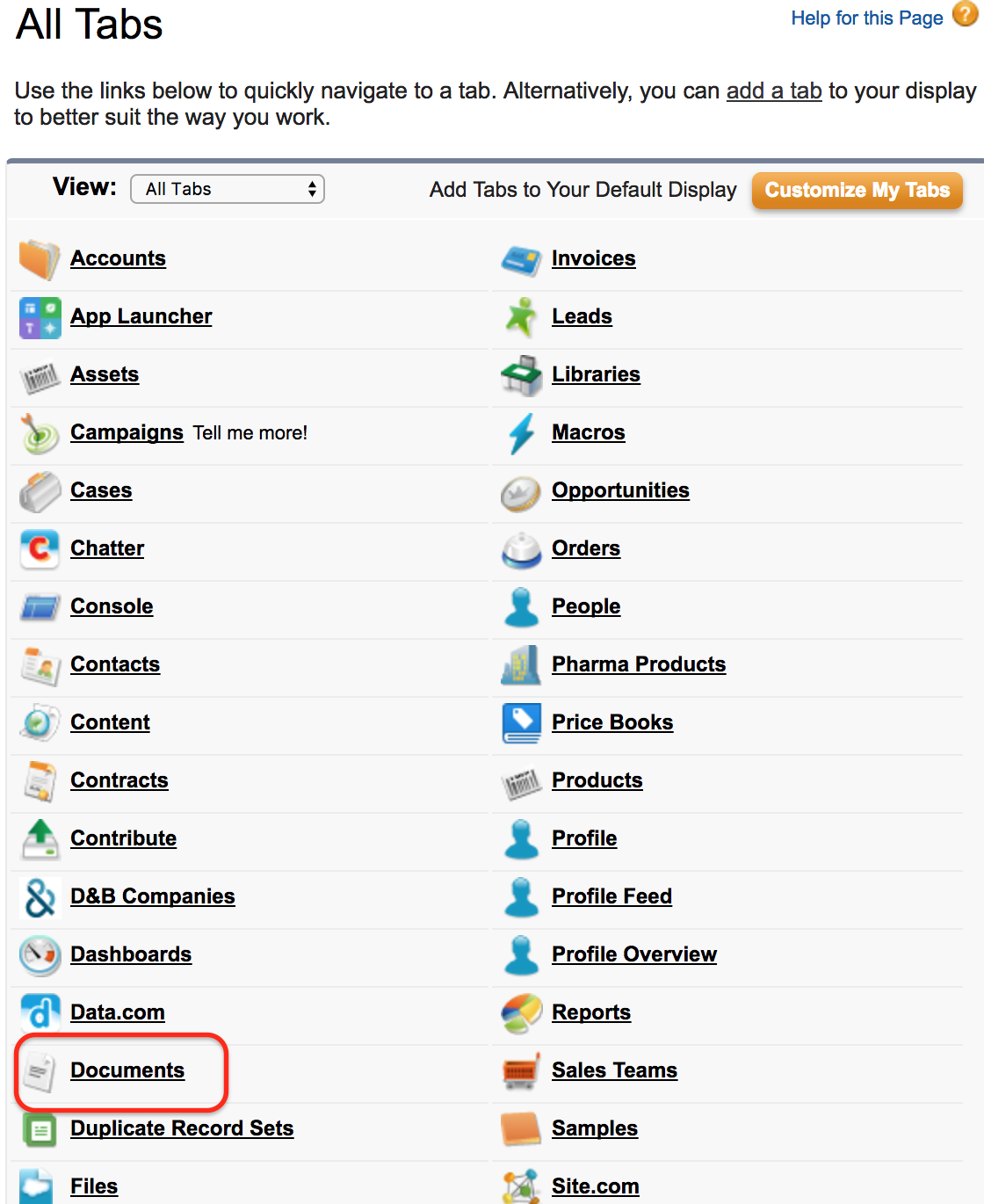
When you click Documents, Salesforce opens the Documents home page. From this page, you can view recent documents, search for a document, open folders, and create or upload a new document.
Upload a File to the Salesforce Document Library
To upload a new document in Salesforce Classic, go to All Tabs | Documents | New.
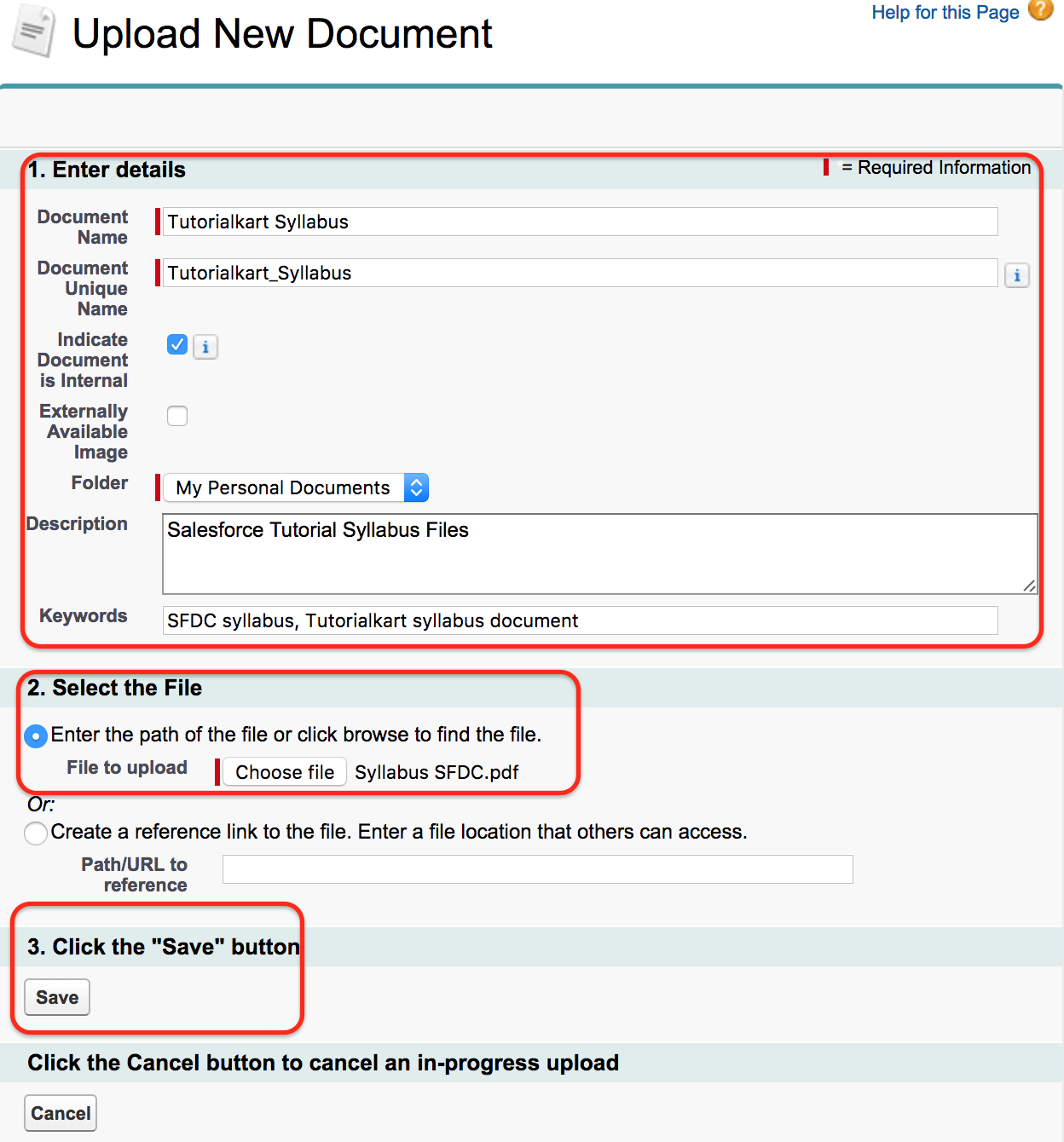
- Enter the document name.
- Review the unique name that Salesforce generates from the document name.
- Select the folder where the document should be stored.
- Enter a useful description so the document can be identified later.
- Browse and select the file from your computer.
- Select Externally Available Image only when the uploaded file is an image that must be used in places such as email templates, letterheads, app logos, tab icons, or Classic home page components.
- Click on the Save button.
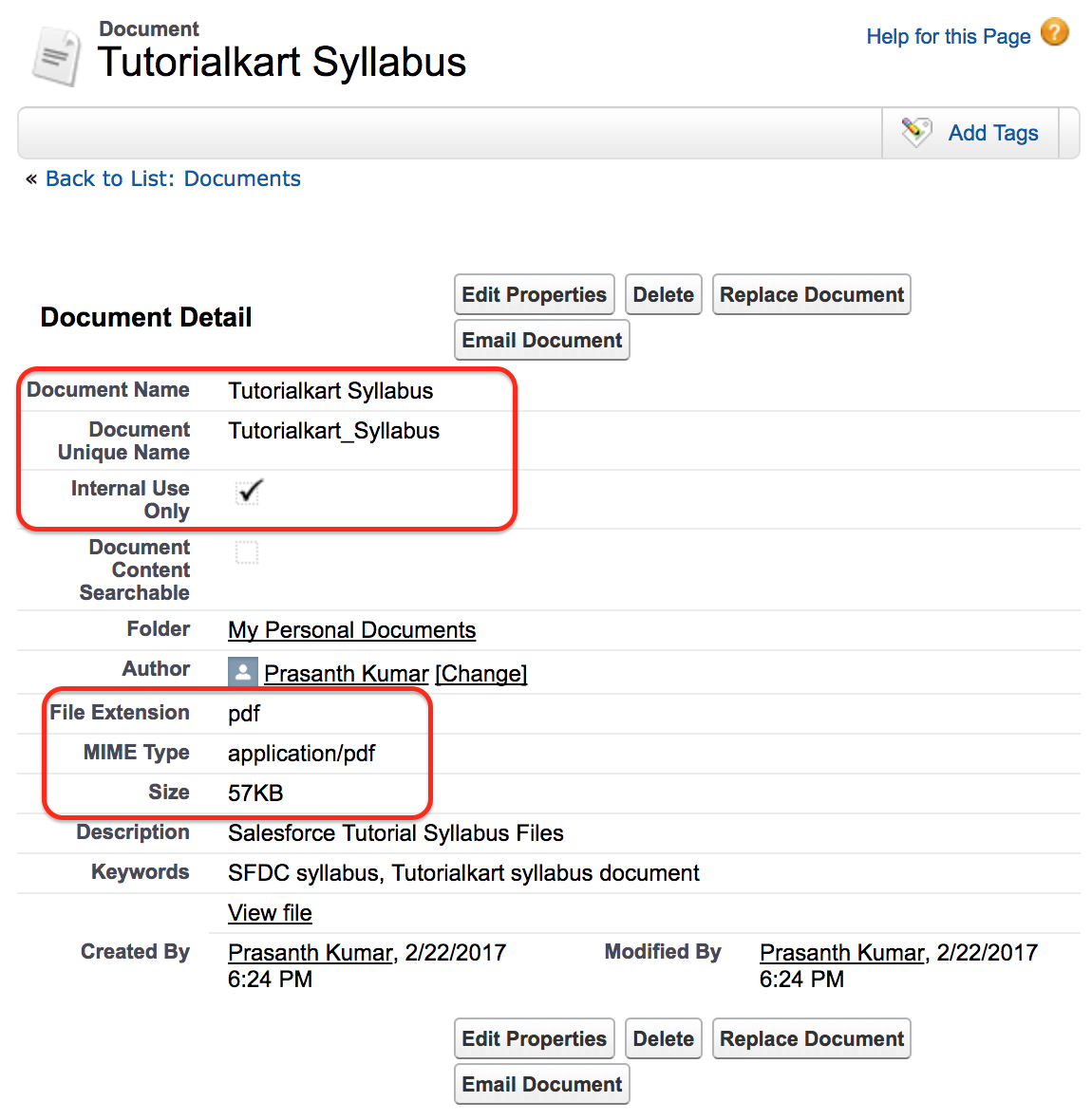
After you click Save, Salesforce opens the document detail page. This page shows information such as document name, folder name, author, file extension, MIME type, and file size. For image use cases, this is also where you can open or copy the image URL.
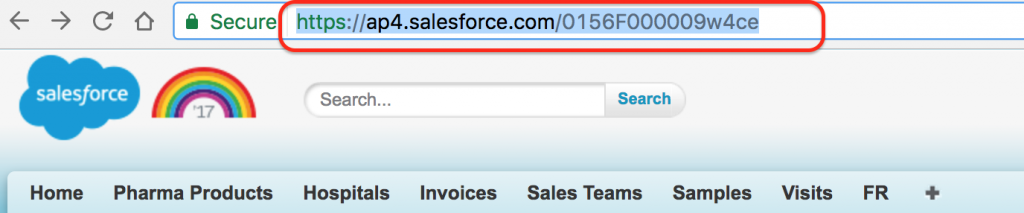
- Now copy the file URL as shown above.
When you need a reusable image URL, open the image document and copy the actual image address, not only the document record page address. This helps avoid broken images in Classic email templates or custom HTML where Salesforce expects the image source URL.
Use the Uploaded Document URL in a Salesforce Classic Home Page Component
To show the uploaded document or image from a Classic home page component, go to Build | Customize | Home | Home page Components | Custom Components | New. In some orgs, the same setup area appears under Setup | Customize | Home | Home Page Components.
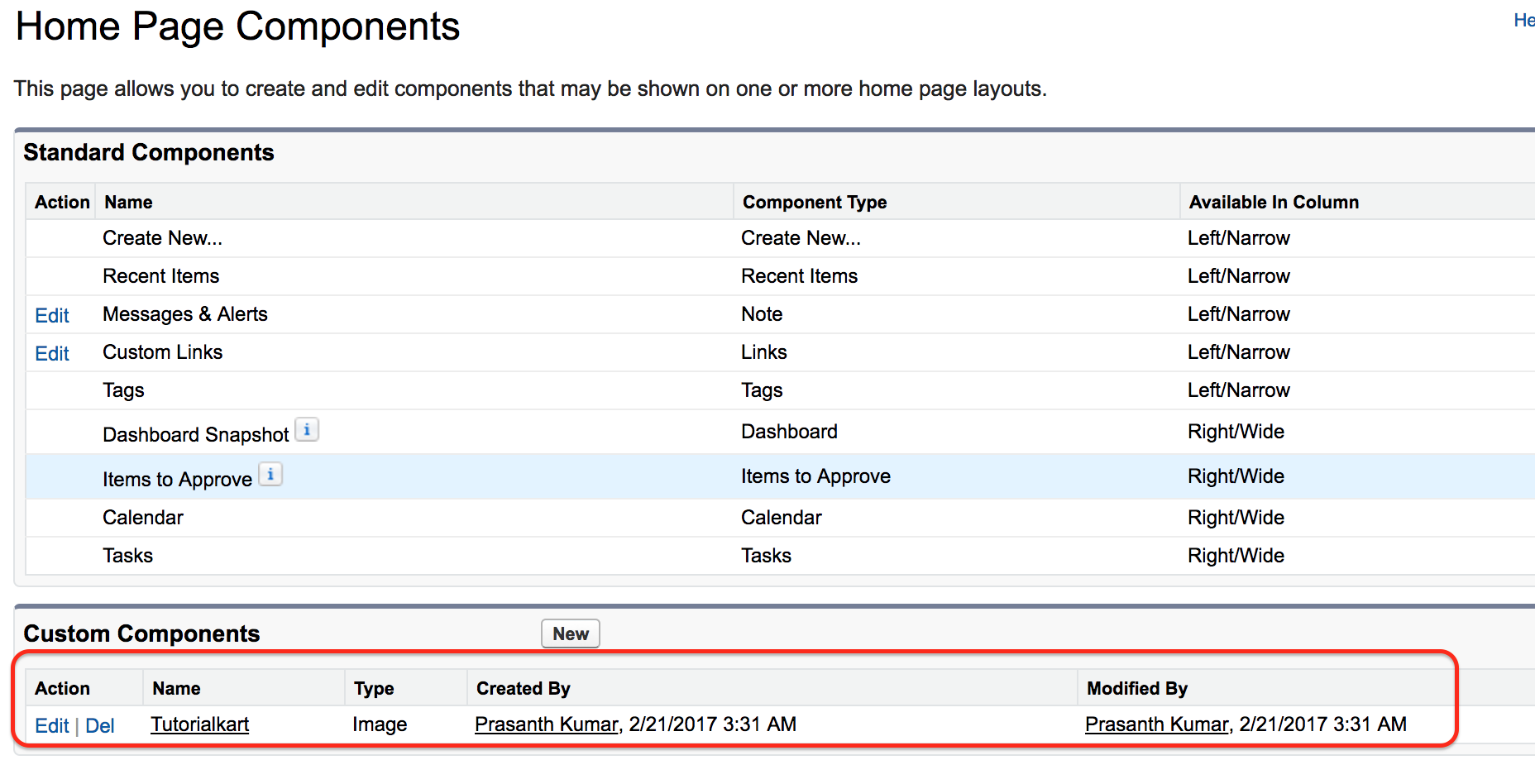
- Click on the New button to create a new custom component.
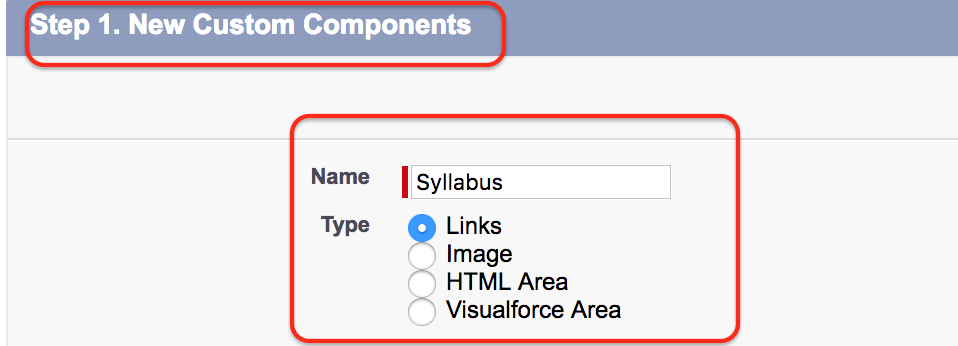
- In step 1, enter the component name and click on the Next button.
- Select the component type based on what you want to show. For a simple URL, select Custom Link. For a sidebar image, select the image option where available.
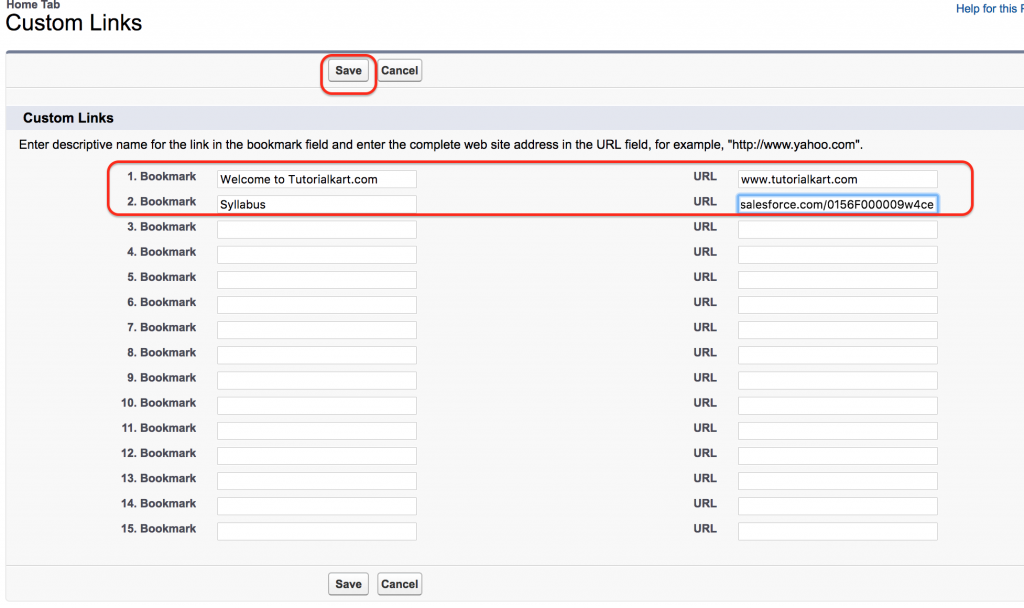
Enter the bookmark name and paste the URL that you copied after uploading the document in Salesforce. Use a clear label so users understand what the link or image represents.
- Click on the Save button.
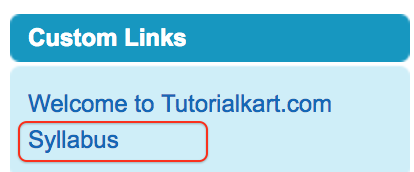
Insert a Salesforce Classic Sidebar Logo from the Documents Tab
As an administrator, you can change the logo shown in a Salesforce Classic sidebar or app area by first uploading the image to the Documents tab. To insert a custom image on the sidebar, go to All Tabs | Documents | New.
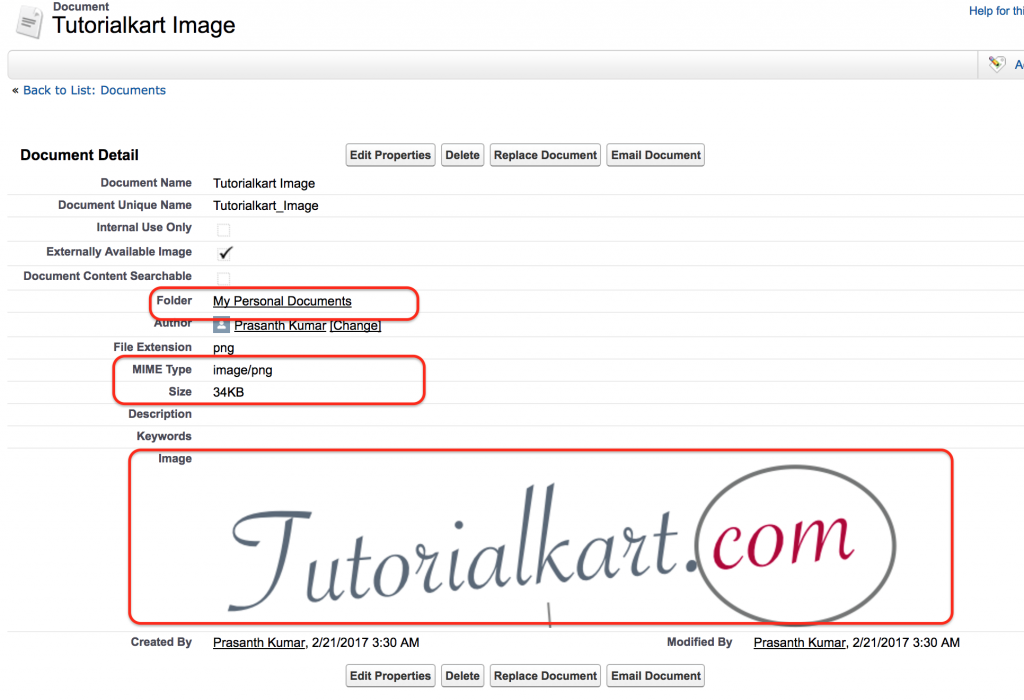
Upload the image to the Documents tab. When uploading an image for a Salesforce Classic logo, tab icon, email template image, or home page image, select the Externally Available Image checkbox. If this checkbox is not selected, the image may not be available in the place where you are trying to insert it.
Now go to Build | Customize | Home | Home page Components | Custom Components | New.
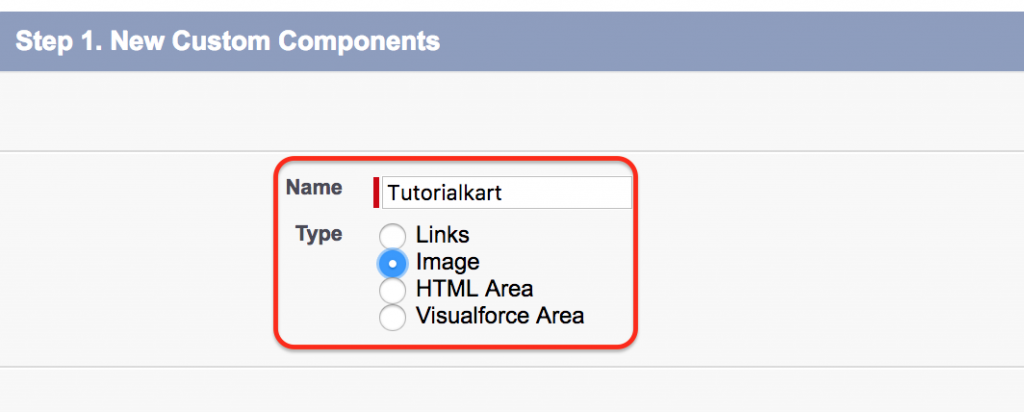
- Select the component type as Image.
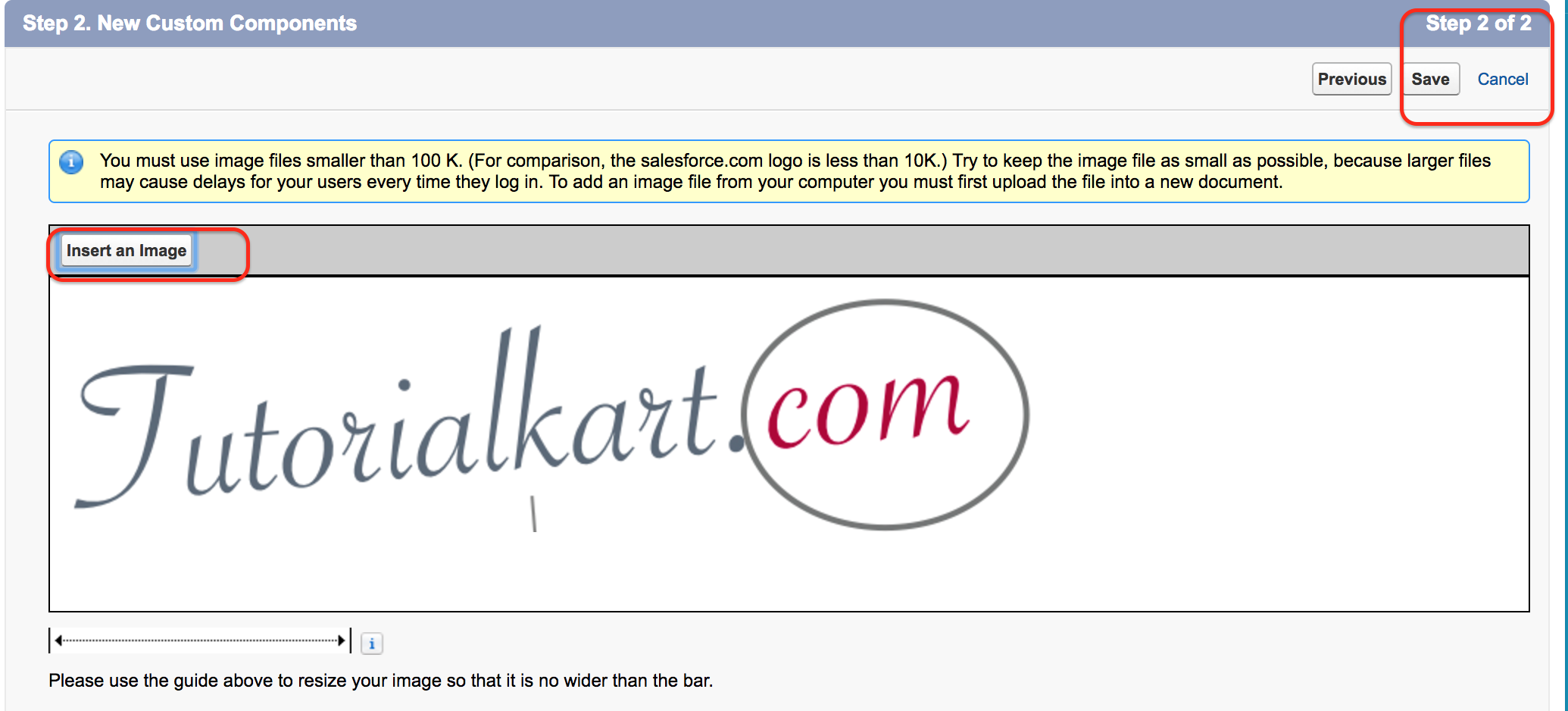
Select the uploaded image, review the display settings, and click on the Save button.
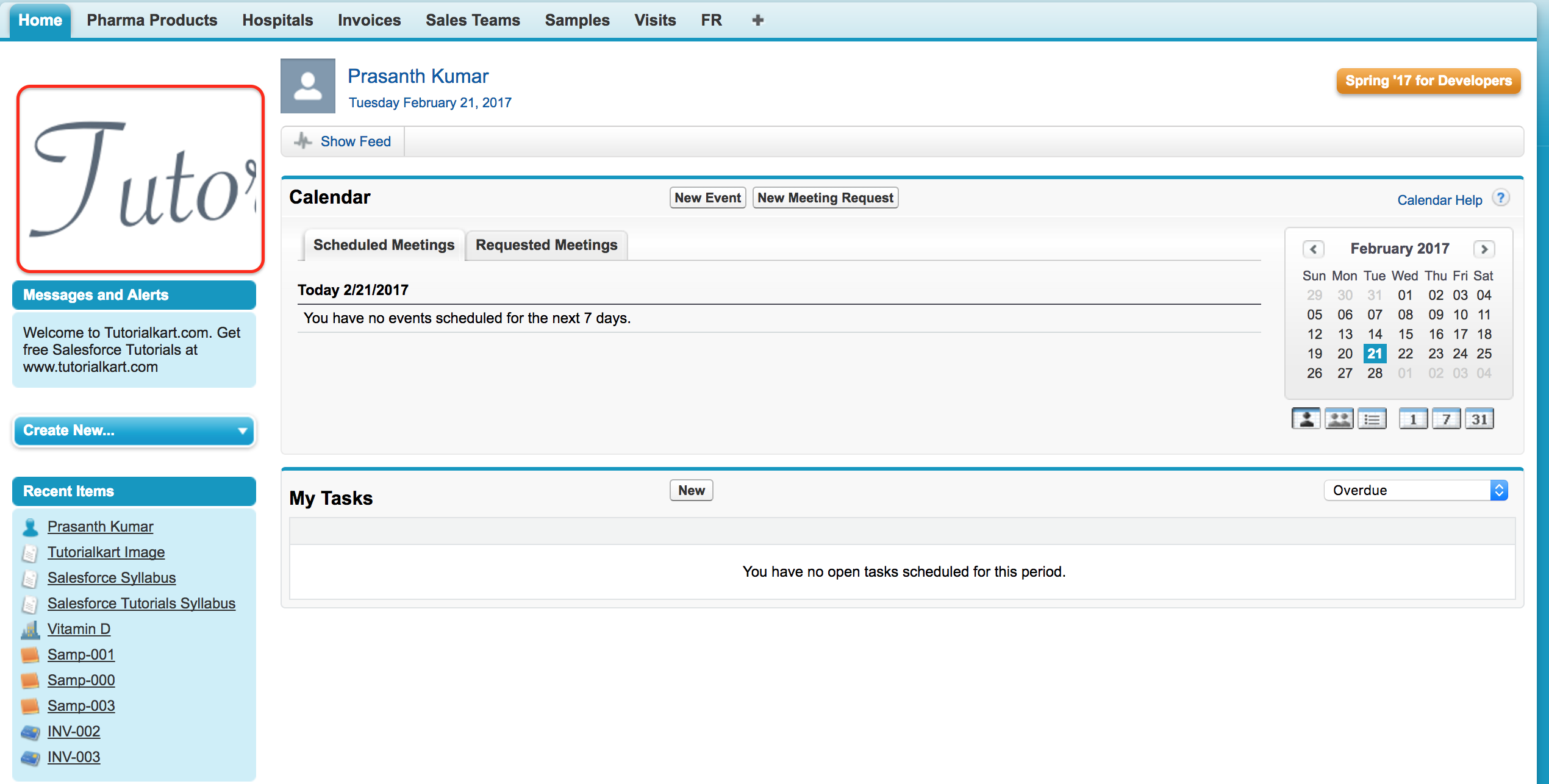
For custom app logos, keep the image very small and within the Salesforce logo file-size limit. If the upload or logo selection fails, resize the image, reduce the file size, and upload it again as an externally available image.
Fix Salesforce Documents Tab Logo and Image Upload Problems
Most issues with the Salesforce Documents Tab occur because the org is in Lightning Experience, the wrong URL was copied, the image was not marked as externally available, or the file is larger than the limit for the intended use.
| Problem | What to check |
|---|---|
| Documents tab is not visible | Switch to Salesforce Classic, open All Tabs, and check whether the tab is hidden for the current app or profile. |
| Logo does not appear after saving | Confirm that the uploaded file is an image and that Externally Available Image was selected. |
| Image appears broken in an email template | Copy the actual image address from the document image, not only the document detail page URL. |
| Upload fails because the file is too large | Compress the image or use Salesforce Files for larger file-storage needs. |
| Logo appears stretched or unclear | Resize the image to the expected logo dimensions before uploading it to Documents. |
Salesforce Documents Tab Official Reference Links
For current Salesforce documentation, see the Salesforce Help pages for Documents Home, Upload and Replace Items on the Documents Tab, Document Properties, and File Size and Sharing Limits.
Salesforce Documents Tab FAQ
Where is the Documents tab in Salesforce?
In Salesforce Classic, click the + icon to open All Tabs, and then click Documents. If you do not see the tab, switch from Lightning Experience to Salesforce Classic and check the app or profile tab visibility settings.
How do I add a logo in Salesforce using the Documents tab?
Upload the logo image from All Tabs | Documents | New, select Externally Available Image, save the document, and then select that image from the relevant Salesforce Classic setup screen, such as a custom app logo or home page image component.
How do I add an image to a document in Salesforce?
Open the Documents tab in Salesforce Classic, click New, enter the document details, select a folder, choose the image file from your computer, select Externally Available Image if the image must be reused in templates or logos, and click Save.
Why can I not find the Salesforce Documents tab in Lightning Experience?
The Documents tab is a Salesforce Classic feature. Lightning Experience uses Salesforce Files and Libraries for most file-management work. Switch to Salesforce Classic when you must work with old document-based images or Classic setup features.
What is the file size limit for the Salesforce Documents tab?
A normal document uploaded to the Salesforce Documents tab can be up to 5 MB. Custom app logos have a much smaller image limit, so keep logo files compressed before uploading them.
QA Checklist for Updating a Salesforce Documents Tab Tutorial
- Confirm that the tutorial clearly separates Salesforce Classic Documents from Lightning Experience Files.
- Check that every logo or email-template image step mentions Externally Available Image.
- Verify that the upload instructions include folder selection, document name, file selection, and save action.
- Confirm that the troubleshooting section explains broken image URLs, hidden Documents tab, and file-size failures.
- Review all screenshots to ensure they still support the Classic navigation steps shown in the tutorial.
Conclusion: Using Salesforce Documents Tab for Classic Logos and Images
In this Salesforce Tutorial, we learned about the Salesforce Documents Tab, uploading files to the Salesforce document library, copying a document URL, and inserting a logo or image in Salesforce Classic. For newer Lightning Experience file storage, use Salesforce Files, but for Classic logo, sidebar image, and document-image use cases, the Documents tab is still the correct place to upload the image. In our next upcoming Salesforce Tutorial, we are going to learn about list views in Salesforce.