 TutorialKart.com
In our previous Salesforce tutorial, we learned about what is Salesforce Sandbox, different Salesforce Sandbox types, and how to create a new Sandbox in Salesforce. In this Salesforce admin tutorial, we will learn how Salesforce sandbox login works through test.salesforce.com, how to format the sandbox username, and what to check when a user cannot sign in.
A Salesforce sandbox is a separate environment from production. It is commonly used for configuration changes, development, testing, integration checks, and user training before changes are moved to the live Salesforce org. Because a sandbox is isolated from production, most setup or data changes made inside a sandbox do not directly affect the production organization. spaceman slot
Salesforce sandbox login URL: when to use test.salesforce.com
Use https://test.salesforce.com when you want to log in to a Salesforce sandbox with a username and password. This URL is different from the production login URL, https://login.salesforce.com. Production users sign in with their normal Salesforce username, while sandbox users usually sign in with the production username plus the sandbox name as a suffix.
| Salesforce environment | Login URL | Username format |
|---|---|---|
| Production | https://login.salesforce.com | Production username |
| Sandbox | https://test.salesforce.com | Production username.sandbox_name |
| My Domain sandbox login | Sandbox My Domain URL | Sandbox username, based on the org settings |
If your company uses My Domain, single sign-on, or a custom Experience Cloud site, the login URL may be different. In that case, use the sandbox login link provided by your administrator or the sandbox activation email.
Find the Salesforce sandbox name before signing in
Sandboxes that are created in Salesforce can be viewed and managed from Setup. To view the list of sandboxes in Salesforce, navigate to Setup | Sandboxes. The sandbox list shows the sandbox name, type, status, location, organization ID, and copy completion details.
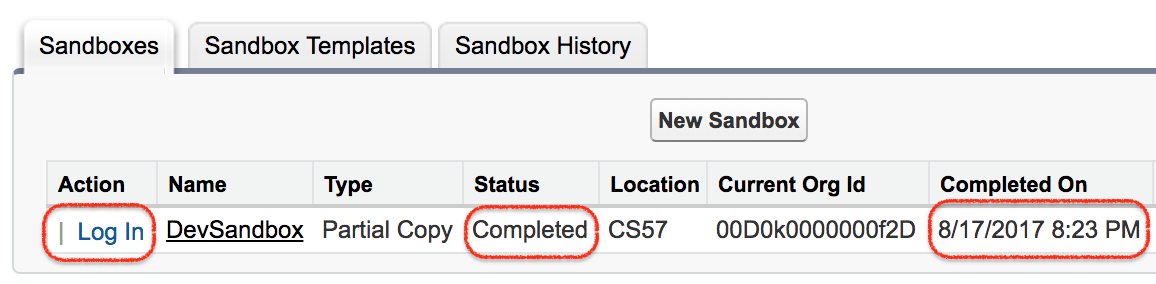
As shown above, one sandbox called DevSandbox has been created. The sandbox type is Partial Copy Sandbox. The details shown on the Sandboxes page help confirm that the sandbox is ready for login.
- The status of the Salesforce sandbox is Completed.
- The location is CS57.
- The current org ID is 00D0k0000000f2D, and Salesforce also displays the date when the copy completed.
Before trying to log in, confirm the exact sandbox name. The sandbox name is the suffix that is added to the production username. If the sandbox name is entered incorrectly, Salesforce treats the username as a different user and login fails.
How to login Salesforce Sandbox from Setup
A system administrator can also access a sandbox from the Sandboxes page in Setup. The Login button is available to administrators for a completed sandbox. When the administrator clicks Login, Salesforce redirects to the selected sandbox environment.
- Open Setup in the Salesforce production org.
- Search for and open Sandboxes.
- Confirm that the sandbox status is Completed.
- Click Login next to the sandbox.
- Check the sandbox name or banner after login to confirm that you are not working in production.
Salesforce sandbox login through test.salesforce.com
When your sandbox is ready for use, you receive a notification email that your sandbox has completed copying.
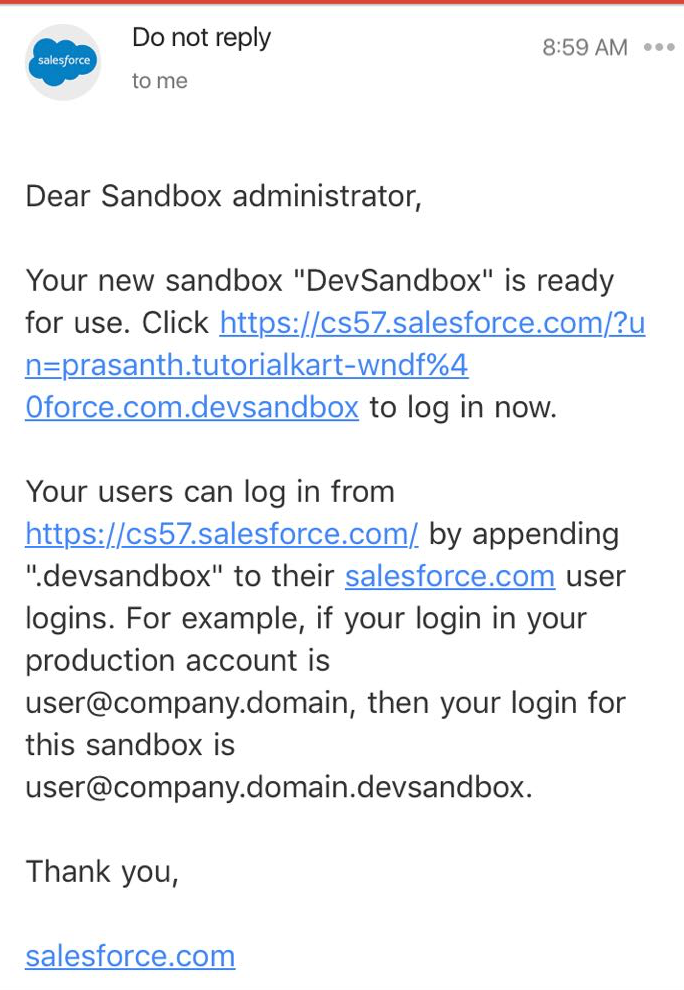
- As shown above, an email alert is sent when the sandbox is ready. You can access the sandbox from the email link or by opening the URL https://test.salesforce.com.
To access your sandbox, click the link in the notification email. Users can log in to the sandbox at https://test.salesforce.com by appending .sandbox_name to their Salesforce usernames.
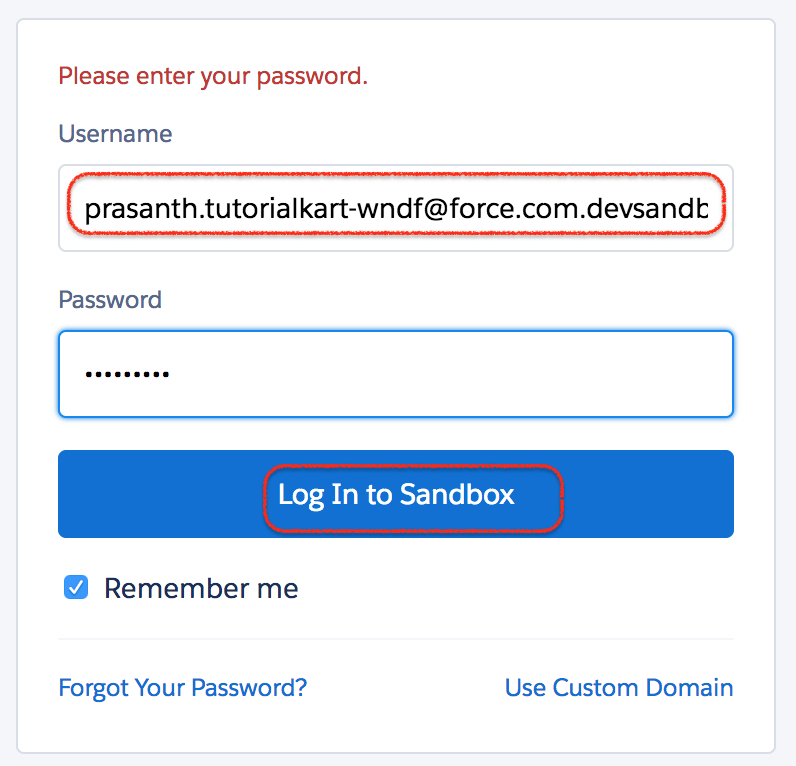
Users can log in to an active sandbox by using the following URL: https://test.salesforce.com and entering a modified username, which is the production username with a suffix for the sandbox name. In this tutorial, the sandbox name is DevSandbox. slot garansi kekalahan
For example, if a username for a production org is prasanth.tutorialkart-wndf@force.com, and the sandbox is named devsandbox, the modified username to log in to the sandbox is prasanth.tutorialkart-wndf@force.com.devsandbox.
Salesforce sandbox username format with examples
The most common Salesforce sandbox login mistake is using the production username without the sandbox suffix. A sandbox username is generally created by adding a period and the sandbox name to the end of the production username.
<production_username>.<sandbox_name>| Production username | Sandbox name | Sandbox login username |
|---|---|---|
| user@example.com | dev | user@example.com.dev |
| admin@company.com | qa | admin@company.com.qa |
| prasanth.tutorialkart-wndf@force.com | devsandbox | prasanth.tutorialkart-wndf@force.com.devsandbox |
Use the sandbox name exactly as it appears in Setup. Salesforce usernames are unique across Salesforce, so a small difference in the suffix can point to the wrong username or cause a login error.
Step-by-step Salesforce sandbox login using test.salesforce.com
- Open https://test.salesforce.com in a browser.
- Enter the sandbox username in the format production_username.sandbox_name.
- Enter the sandbox password. If the sandbox was recently created or refreshed, the password is usually copied from production at the time of the sandbox copy unless your company uses SSO or a different authentication setup.
- Complete any verification step, such as a verification code, authenticator approval, or SSO challenge.
- After login, check the URL, sandbox name, or sandbox banner to confirm that you are inside the sandbox and not the production org.
If your organization uses single sign-on, you may need to start from your identity provider, a My Domain URL, or a sandbox-specific login link instead of typing test.salesforce.com directly.
Why test.salesforce.com login may not work for a sandbox
If test.salesforce.com does not let you log in, check the following sandbox-specific issues before resetting the password.
- Wrong username suffix: confirm that the username ends with the exact sandbox name, such as .dev or .uat.
- Sandbox is not active: wait until the sandbox copy or refresh status is completed.
- Password changed after sandbox refresh: a sandbox refresh copies user records at the refresh time. If the production password changed later, the sandbox password may not match.
- SSO or My Domain requirement: some orgs require login through a specific domain or identity provider.
- User not active in sandbox: the user record must be active in the sandbox.
- Login IP or profile restriction: profile login hours, IP ranges, MFA rules, and session settings can block access.
Administrators can troubleshoot by opening the sandbox from Setup | Sandboxes, verifying the user record in the sandbox, and checking login history after a failed attempt.
Salesforce sandbox login after refresh or inactivity
After a sandbox is refreshed, usernames usually keep the sandbox suffix, but passwords, email deliverability, integrations, and authentication behavior should be checked before users start testing. If a sandbox has not been used for a long period, Salesforce can schedule it for deletion and notify users who created or most recently refreshed the sandbox.
For a refreshed sandbox, ask users to verify the sandbox name and login URL again. A user may have saved an old browser bookmark, a previous My Domain URL, or an outdated sandbox username.
Salesforce sandbox login QA checklist
- Confirm that the tutorial clearly distinguishes test.salesforce.com for sandbox login from login.salesforce.com for production login.
- Confirm that the sandbox username example uses the correct format: production_username.sandbox_name.
- Confirm that the sandbox is marked Completed before advising users to log in.
- Confirm that the troubleshooting section mentions My Domain, SSO, inactive users, password changes, and wrong sandbox suffixes.
- Confirm that users are advised to verify they are working in the sandbox and not in production after login.
FAQs on Salesforce sandbox login and test.salesforce.com
What is the Salesforce sandbox login URL?
The standard Salesforce sandbox login URL is https://test.salesforce.com. Some organizations use a sandbox My Domain URL or an SSO login link instead, so follow your administrator’s instructions when your company uses custom authentication.
How do I format a Salesforce sandbox username?
Use the production username followed by a period and the sandbox name. For example, if the production username is user@example.com and the sandbox name is dev, the sandbox username is user@example.com.dev.
Can I use login.salesforce.com for sandbox login?
Usually, login.salesforce.com is used for production login and test.salesforce.com is used for sandbox login. If your organization uses My Domain or SSO, the required login URL can be different.
Why does my Salesforce sandbox password not work?
The most common reasons are an incorrect sandbox username suffix, a password that changed after the sandbox was refreshed, an inactive sandbox user, SSO restrictions, or login IP and profile restrictions. Ask a Salesforce administrator to check the user record and login history inside the sandbox.
How do I know I am logged in to a Salesforce sandbox?
After login, check the URL, sandbox name, org details, or sandbox banner. This is important before making setup changes, importing data, or testing automation so that changes are not made in production by mistake.