 TutorialKart.com
Field history tracking in Salesforce
Field history tracking in Salesforce records selected field changes on supported standard and custom objects. When a tracked field is edited, Salesforce stores the field name, the old value, the new value, the user who made the change, and the date and time of the change. It is useful when admins want to audit important data changes without building a custom tracking object.
This tutorial explains how to enable field history tracking for a custom object, how to add the history related list to a page layout, how to test the tracked changes, and what limits to check before using it in a production org.
What field history tracking records in Salesforce
Field history tracking starts from the date and time you enable tracking. It does not create history records for changes made before tracking was turned on. For normal supported fields, the History related list shows the field changed, old value, new value, changed by user, and changed date.
- Use it for important fields such as Status, Stage, Owner, Amount, Quantity, Priority, or approval-related values.
- Use it on supported standard objects and on custom objects where users need a visible change trail.
- Do not use it as a replacement for a complete compliance archive. For longer retention, evaluate Salesforce Field Audit Trail.
Salesforce also provides official documentation for Field History Tracking and a Trailhead exercise for Account Field History Tracking. These are useful references when you want to compare your setup with Salesforce’s current guidance.
How to enable field history tracking in Salesforce for custom objects
Field history tracking in Salesforce can be enabled for standard objects and custom objects. In this example, we enable tracking for the custom object named Samples. The same idea applies to other custom objects, but the related list name changes based on the object label.
Step 1: Open the custom object Samples.
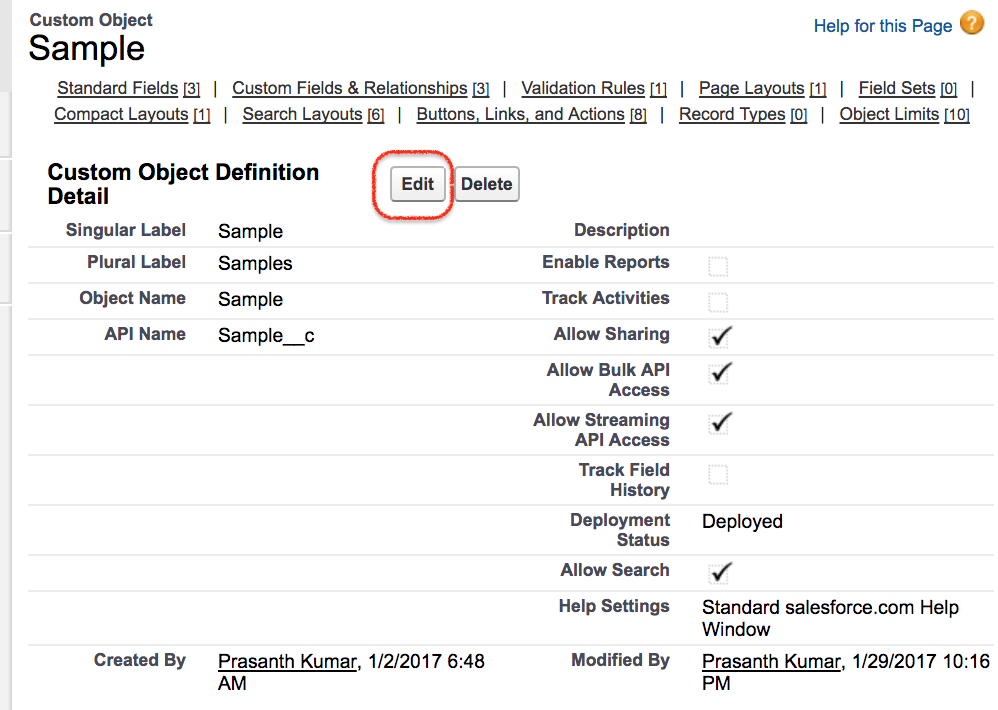
From Setup, open Object Manager, search for the Samples object, and open the object definition page. If you are using the older Setup view shown below, open the Sample object definition page and click the Edit button.
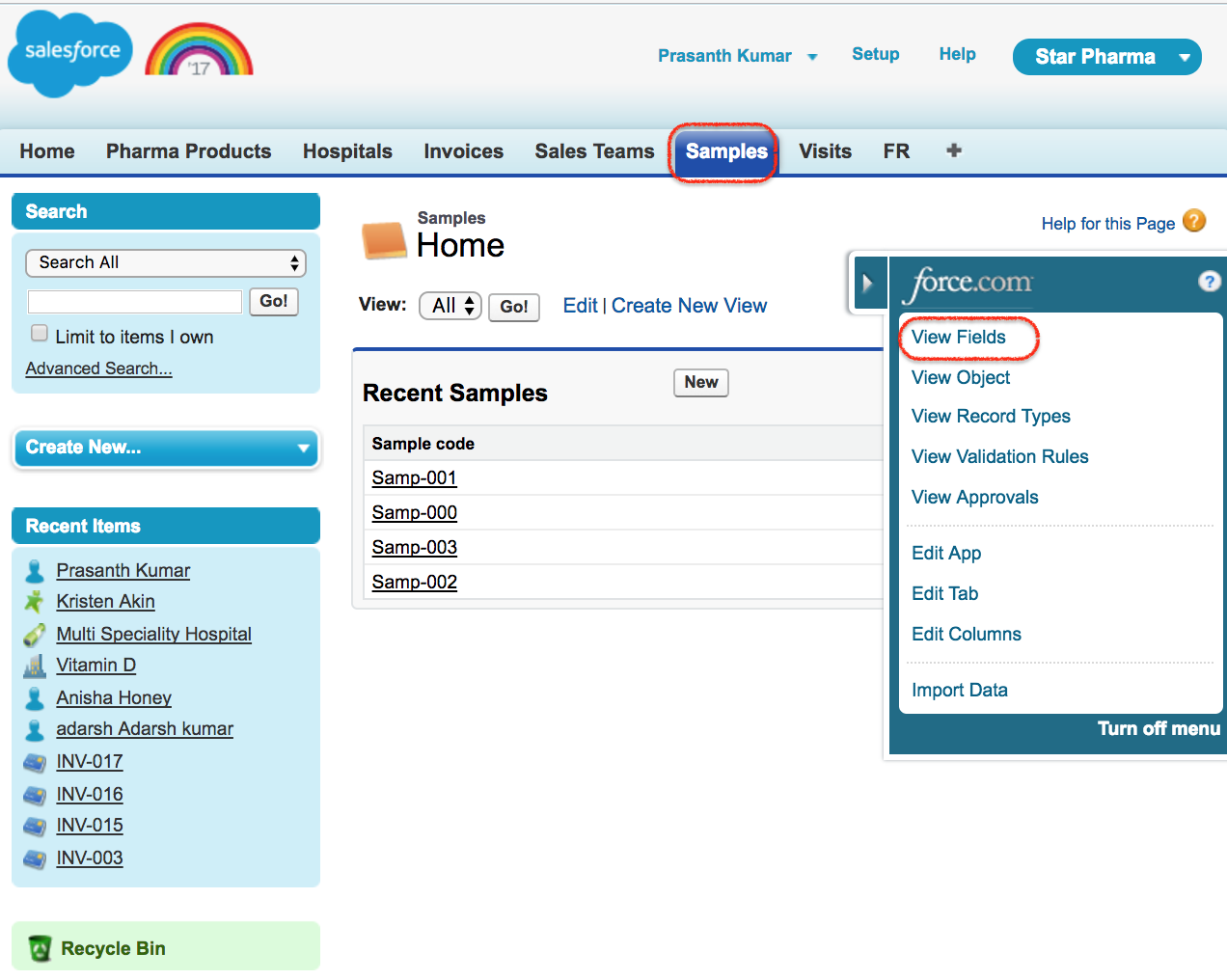
- Click on Edit button and go to Optional features
- Enable Track Field History for the object Samples.
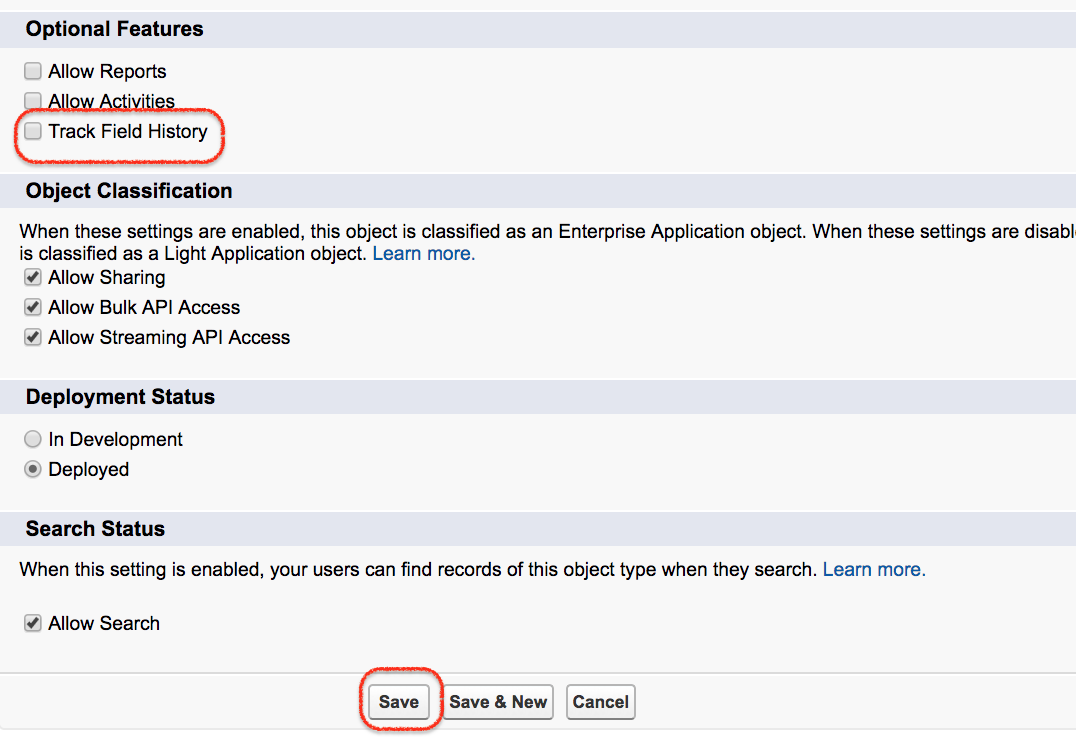
- Click on Save button.
We have enabled field history tracking for the Sample object. This only enables the object-level feature. Next, we must choose the fields whose changes should be tracked.
How to choose fields for Salesforce field history tracking
Open the object’s fields area and choose the fields that must be tracked. In Lightning Experience, go to Setup | Object Manager | Samples | Fields & Relationships | Set History Tracking. In the older Setup view, go to custom fields and Relationships | Set History Tracking.
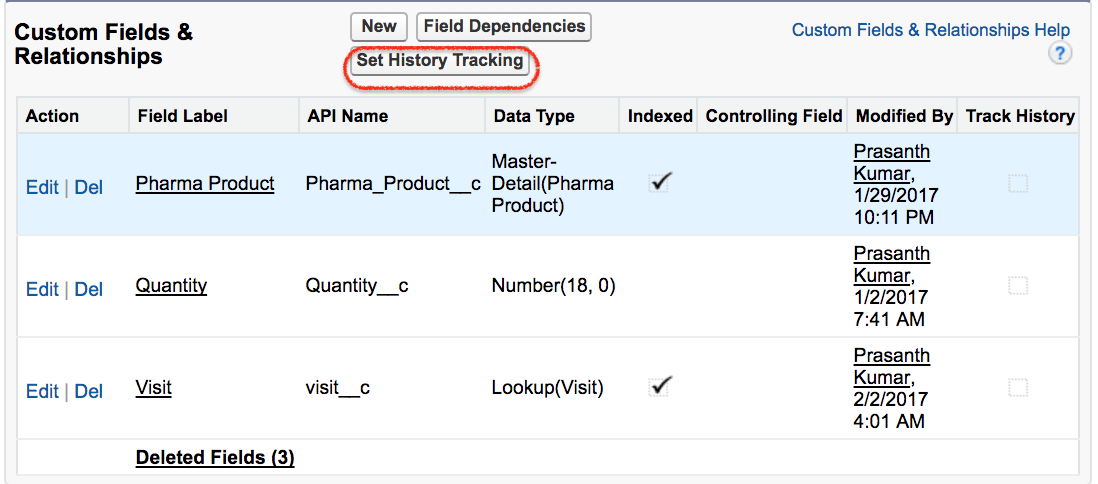
- Click on Set History Tracking.
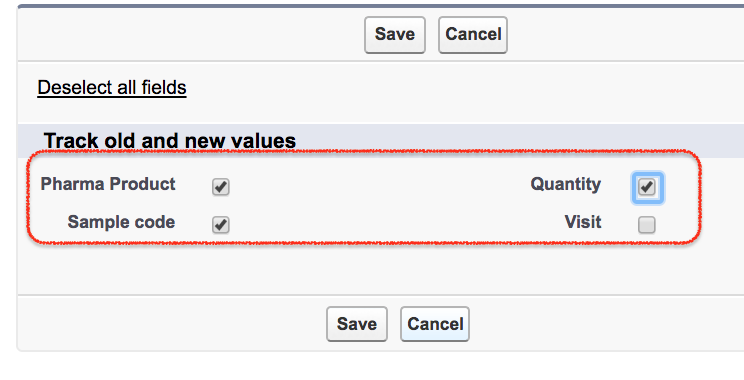
By default, Salesforce lets you track up to 20 fields per object. In this example, we are tracking field history for Pharma Product, Quantity, and Sample Code in the Samples object. Select fields that carry business meaning, because using all 20 slots for low-value fields makes the history list harder to review.
- Select the check box next to each field that must be tracked.
- Click Save after selecting the fields.
- Review the list whenever a field is retired, renamed, or replaced by a new field.
How to add the object history related list to the Salesforce page layout
After selecting fields, add the object history related list in the page layout. Without this step, tracking can be enabled but users may not see the change history on the record page.
To add related list in the page layout, go to any existing record in the object and click on Edit Layout button. You can also open it from Setup by going to Object Manager | Samples | Page Layouts.
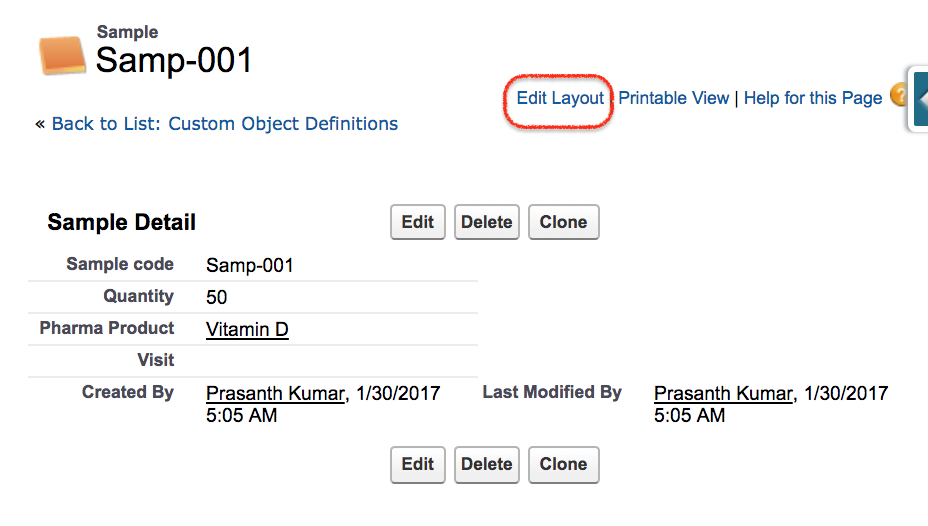
Now add the history related list to the page layout.
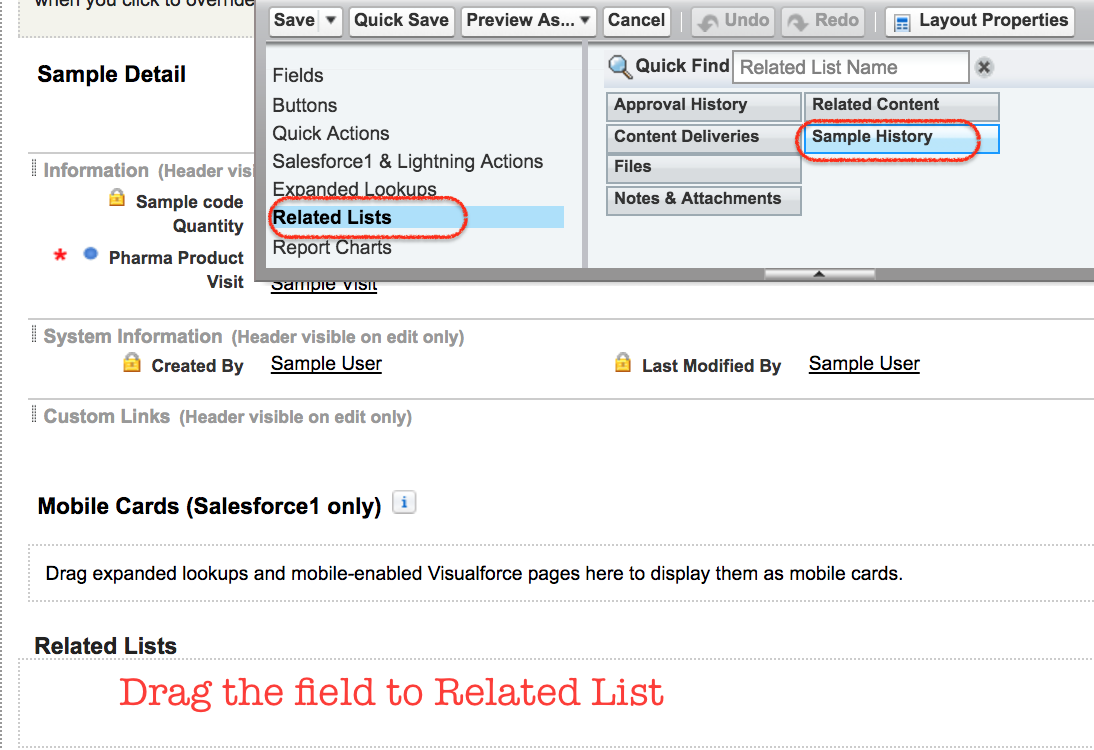
- Go to the Related Lists section in the page layout editor.
- Drag and drop the Sample History related list into the Related Lists area.
- Click on Save button.
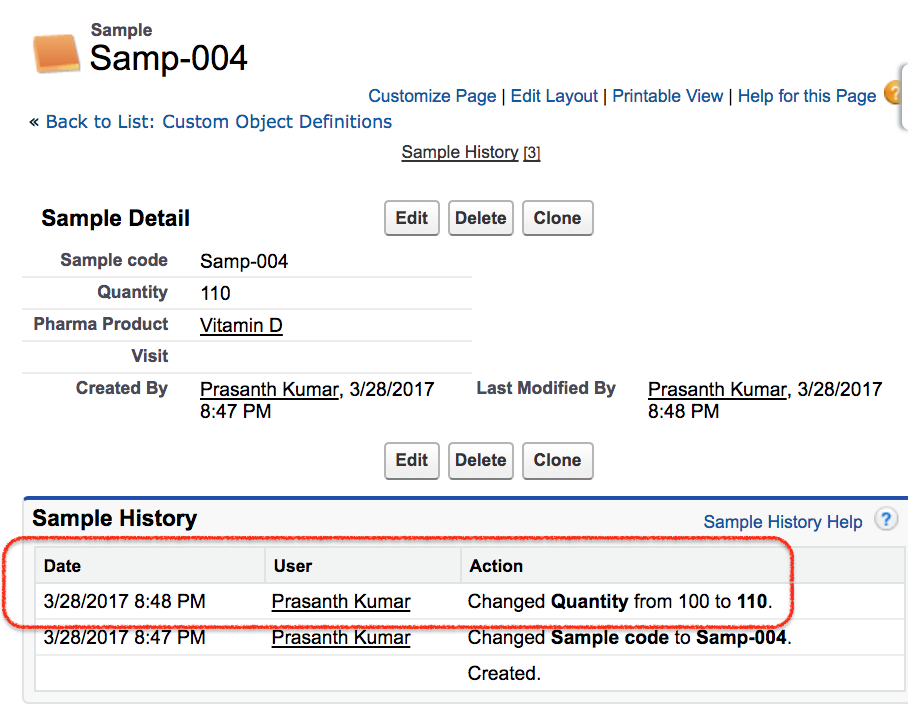
How to test Salesforce field history tracking after setup
To check field history tracking in Salesforce, create any new record in Sample and change a tracked field. In this example, change the Quantity field from 100 to 110. Open the Sample History related list and confirm that Salesforce shows the old value, new value, user, and change date.
For fields with values longer than 255 characters, Salesforce can record that the field was edited, but old and new values are not recorded. Keep this in mind when deciding whether standard field history tracking is enough for long text, rich text, or detailed notes fields.
SOQL query to review field history records in Salesforce
Users usually review field history from the related list or reports. Admins and developers can also query the object history table. For a custom object named Sample__c, the history object is usually Sample__History.
SELECT ParentId, Field, OldValue, NewValue, CreatedById, CreatedDate
FROM Sample__History
ORDER BY CreatedDate DESC
The history object name depends on the object. For example, Account history is stored in AccountHistory, while a custom object history table uses the custom object API name followed by __History.
Field: Quantity__c
OldValue: 100
NewValue: 110
CreatedDate: 2026-06-21T10:15:00Z
Salesforce field history tracking limits and retention rules
Before enabling field history tracking on many objects, review these limits and behavior rules:
- Field limit: The default limit is 20 tracked fields per object. Some special objects can have different limits, so check the object setup screen before finalizing the design.
- Retention: Field history is available in the org for up to 18 months. Data from 18 to 24 months can be retrieved with Data Loader or API methods such as queryAll().
- Start time: Salesforce starts tracking only after tracking is enabled for that field.
- Long values: Changes to fields with more than 255 characters can be tracked as edited, but old and new values are not stored.
- Storage: Field history tracking data is handled separately from normal record data storage, but it should still be reviewed as part of audit and retention planning.
Can field history tracking be deployed in Salesforce?
Field history tracking can be represented in metadata with the field-level trackHistory setting. However, do not assume that every deployment method enables it in the target org automatically. Salesforce notes that change sets do not activate field history tracking in the target org, so admins should verify the target org after deployment or use a supported Metadata API-based deployment approach.
<trackHistory>true</trackHistory>A good deployment check is simple: open the target org, go to the object’s Set History Tracking page, confirm the selected fields, then edit a test record and verify that the History related list receives a new entry.
Field history tracking setup checklist for Salesforce admins
- Confirm that the object supports field history tracking.
- Enable Track Field History at the object level when required for a custom object.
- Select only fields that users, auditors, or support teams will actually review.
- Add the object history related list to every active record page layout where users need to see changes.
- Test by changing a tracked field on a record and checking the old value and new value.
- Document which fields are tracked and why they were selected.
- Decide whether 18-month UI retention is enough or whether Field Audit Trail is required.
Common reasons Salesforce field history is not visible
- The related list was not added: Add the object history related list to the correct page layout.
- The field was not selected: Object-level tracking may be enabled, but the specific field must also be selected.
- The change happened before tracking was enabled: Salesforce does not backfill old field changes.
- The user is viewing a different layout: Check page layout assignments by profile and record type.
- The value is too long: For long values, Salesforce may show that the field changed without displaying old and new values.
FAQs on field history tracking in Salesforce
Can we enable field history tracking for custom objects in Salesforce?
Yes. Open the custom object in Object Manager, enable Track Field History when required, then choose the fields from Fields & Relationships | Set History Tracking. Add the object history related list to the page layout so users can see the changes.
How many fields can be tracked with Salesforce field history tracking?
The default limit is 20 tracked fields per object. Because this limit is small, choose fields that are important for audit, support, reporting, or business process review.
How long is field history retained in Salesforce?
Salesforce keeps field history available in the org for up to 18 months. Older field history from 18 to 24 months can be retrieved with Data Loader or API access. For longer retention, review Field Audit Trail.
How do I add field history tracking to a Salesforce page layout?
Open the object page layout, go to Related Lists, drag the object history related list such as Sample History into the related lists area, and save the layout.
Can field history tracking be deployed using change sets?
Salesforce indicates that change sets do not activate field history tracking in the target org. After any deployment, verify the selected fields in the target org and perform a test field update.
Conclusion: enabling field history tracking in Salesforce
In this Salesforce Tutorial we learned how to enable field history tracking in Salesforce, select tracked fields, add the history related list to the page layout, and test the result on a record. For a wider audit view, continue with setup Audit Trail in Salesforce.