 TutorialKart.com
Sharing Rules in Salesforce | Salesforce Security
In our previous salesforce admin tutorial we learned about Organization wide default settings in Salesforce. In this salesforce admin tutorial, we will learn about sharing rules in Salesforce, how they extend record visibility, and how administrators use them with OWD, roles, public groups, territories, and queues.
Sharing rules are part of Salesforce record-level security. They are used after the baseline access is defined by Organization-Wide Defaults. A sharing rule does not replace OWD, role hierarchy, profiles, permission sets, field-level security, or object permissions. It adds extra record access for selected users when the private or restrictive sharing model needs controlled exceptions.
Define Sharing Rules in Salesforce
Sharing Rules in Salesforce make automatic exceptions to your organization wide sharing settings for a defined set of users. These rules are useful when users who are not record owners, and who do not get access through the role hierarchy, still need access to certain records for business reasons.
- Using Sharing Rules in Salesforce we can extend sharing access to users in public groups, roles, roles and subordinates, territories, or queues, depending on the object and rule type.
- Sharing rules can never be stricter than Organization wide default settings. They open access; they do not remove access that users already have.
- We can create Sharing rules based on record owner and field values in the record.
- Sharing rules are evaluated automatically by Salesforce. When record ownership, field values, group membership, or role membership changes, Salesforce recalculates the related sharing access.
How Sharing Rules Fit with OWD, Role Hierarchy, and Manual Sharing
To understand sharing rules in Salesforce, first decide what the default record visibility should be. OWD defines the baseline. Role hierarchy opens access upward to managers and users above the record owner. Sharing rules then open access sideways or across groups when the role hierarchy does not match the business requirement.
| Salesforce security feature | What it controls | How it relates to sharing rules |
|---|---|---|
| Organization-Wide Defaults | Default record access for each object | Sharing rules are normally used when OWD is Private or Public Read Only. |
| Role Hierarchy | Record access for managers above users in the hierarchy | Sharing rules help when access must be granted across separate branches of the hierarchy. |
| Profiles and Permission Sets | Object permissions, field permissions, app access, and system permissions | A sharing rule cannot give access to an object if the user does not have the required object permission. |
| Manual Sharing | One-off record sharing by a user or administrator | Sharing rules are better for repeatable, policy-based record access. |
For example, if a user does not have Read access to the Lead object from profile or permission set settings, a Lead sharing rule cannot make that user read Lead records. Sharing rules work at the record level after object-level permission is already available.
Different Sharing Rule Components in Salesforce
In Salesforce, a sharing rule has three main components. Each component answers one part of the access question.
- Which records should be shared.
- Which users should receive access.
- What level of access should be granted.
The first component is the source of records. This may be records owned by users in a role, records owned by users in a public group, or records that match specific criteria. The second component is the target audience, such as a public group, role, role and subordinates, territory, or queue. The third component is the access level, commonly Read Only or Read/Write depending on the object.
Types of Sharing Rules in Salesforce
Salesforce mainly supports two commonly used sharing rule types for many standard and custom objects.
- Owner-based sharing rules: These share records owned by users in selected roles, public groups, or territories with another group of users.
- Criteria-based sharing rules: These share records when the record field values match the rule criteria. For example, Leads with a specific Lead Source or Region can be shared with a sales operations group.
Some Salesforce objects have additional sharing behavior or object-specific options. For example, Account sharing can affect related records depending on the access settings available on the sharing rule page. Always review the available fields and access choices for the specific object you are configuring.
How to Control Record Visibility Using Sharing Rules
To understand the significance of sharing rules in Salesforce, we have to clearly understand OWD settings in Salesforce.com.
Example:- OWD settings for a particular record are set to Private. Here we can access our own records, but we cannot access other users’ records in the system. By using role hierarchies, we can expand access upward so that managers can access their subordinates’ information.
The OWD is set to Private and SVP, Customer Service & Support cannot access SVP Human Resources records. Both of them are at the same level in Role Hierarchies. Now the requirement is that SVP, Customer Service & Support should access SVP Human Resources records. How can we do that? Here the concept of sharing rules comes into the picture.
In Lightning Experience, go to Setup | Sharing Settings. In Salesforce Classic, the older navigation is Administer | Security control | Sharing settings.
- Go to Administer | Security control | Sharing settings.
Here we are creating a sharing rules for standard object Leads. We are going to define which Lead records must be shared, who should receive access, and what level of access should be granted.
We have two rule types in salesforce.
- Based on record owner.
- Based on criteria.
Go to Lead Sharing Rules | Create New.
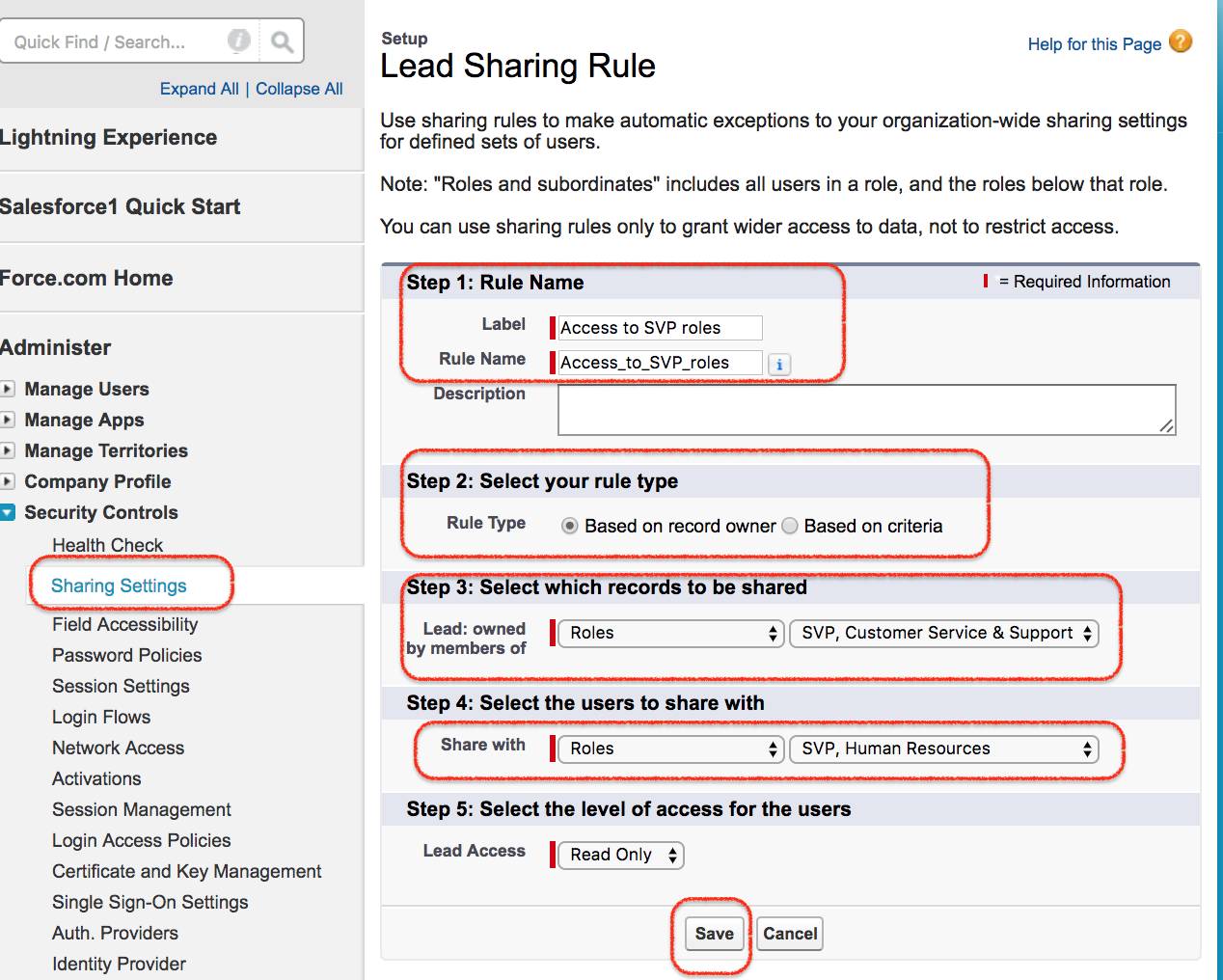
Create a Lead Sharing Rule in Salesforce
Follow these steps to create an owner-based Lead sharing rule for the example requirement.
- Enter Label and Rule name.
- In step 2 select the role type.
- In step 3 select select SVP, Customer Service & Support
- In Step 4 select SVP, Human Resources.
- Select level of access.
- Finally click on Save button.
When selecting the access level, use the least access required for the business process. If users only need to view Lead records, select Read Only. If users need to update the shared Lead records, select Read/Write. Do not select a broader access level just to avoid a later review.
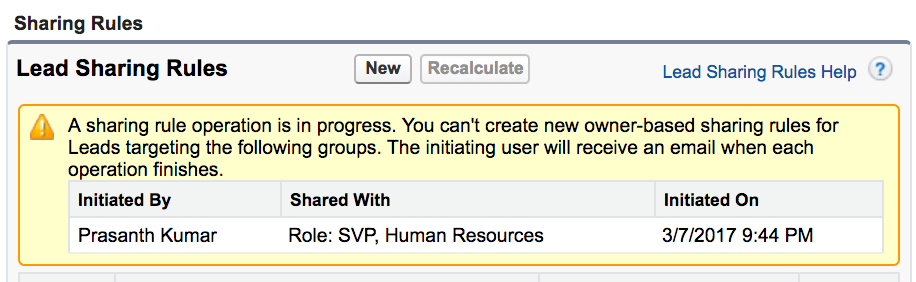
Using Sharing Rules in Salesforce we can share a record to specific groups, Roles, Queues and Roles and subordinates.
Criteria-Based Sharing Rules for Salesforce Record Access
A criteria-based sharing rule is useful when ownership is not the best way to decide access. For example, suppose all high-priority cases should be visible to a support escalation group. Instead of checking who owns each case, the rule can check a field such as Priority and share matching records with the escalation group.
Before creating a criteria-based sharing rule, confirm that the field used in the criteria is reliable. If users can change that field freely, record access may change unexpectedly. For important access rules, choose fields that are controlled by automation, validation rules, approval processes, or a clearly managed business process.
Salesforce Sharing Rule Considerations for Admins
Sharing rules are powerful, but they should be planned carefully. Too many broad rules can make troubleshooting record access difficult. Review the following points before saving a new rule.
- Start with OWD: Create sharing rules only after confirming that the object’s Organization-Wide Default is correct.
- Use public groups when possible: Public groups make rule maintenance easier than selecting many separate roles or users.
- Avoid overly broad access: Prefer Read Only access unless users must edit the records.
- Check object permissions: A sharing rule cannot override missing object-level Read, Create, Edit, or Delete permissions.
- Document the reason: Add a clear rule label and description so another admin can understand why the rule exists.
- Test with sample users: Use a real user scenario to verify that the expected records are visible and unrelated records remain hidden.
Salesforce also provides official guidance on sharing rules, sharing rule considerations, and the Trailhead module on data security sharing rules. These references are useful when planning record access for production Salesforce orgs.
QA Checklist for Reviewing Salesforce Sharing Rules
Use this checklist when reviewing sharing rules in Salesforce before moving changes to production.
- Is the OWD setting for the object still correct after the new rule is added?
- Does the rule share only the intended records and not the entire object unnecessarily?
- Is the target group a maintainable public group, role, territory, or queue?
- Is the selected access level Read Only or Read/Write based on the actual business requirement?
- Have you tested record access with a user who should receive access and a user who should not?
- Is the rule label clear enough for another Salesforce admin to understand later?
Sharing Rules in Salesforce FAQs
What are sharing rules in Salesforce?
Sharing rules in Salesforce are automatic record-level sharing settings that open access to selected records for selected users. They are normally used when Organization-Wide Defaults are Private or Public Read Only and some users need additional access.
Can sharing rules make Salesforce records more private?
No. Sharing rules cannot make record access more restrictive than OWD. They only extend access. To make records more private, review OWD, role hierarchy, object permissions, field-level security, and other access settings.
What is the difference between owner-based and criteria-based sharing rules?
Owner-based sharing rules share records based on who owns the record. Criteria-based sharing rules share records based on field values on the record, such as status, region, priority, or type.
Do sharing rules override profile permissions in Salesforce?
No. A sharing rule does not override profile or permission set object permissions. If a user does not have Read access to an object, a sharing rule cannot give that user useful record access for that object.
When should I use a public group in a Salesforce sharing rule?
Use a public group when the same set of users needs access through one or more sharing rules. Public groups make Salesforce sharing rule maintenance easier because you can update group membership without editing every rule.
Sharing Rules in Salesforce Security: Final Notes
In this Salesforce admin Tutorial we learned about Sharing Rules in Salesforce and Salesforce Security. Sharing rules are used to extend record visibility in a controlled way after OWD and role hierarchy are defined. In our upcoming Salesforce admin tutorial we are going to learn about Record Types in Salesforce.