 TutorialKart.com
Page Layouts in Salesforce: Create, Edit, and Assign Page Layouts to Profiles
Page layouts in Salesforce decide how fields, buttons, custom links, quick actions, and related lists appear on a record page in Salesforce. In this Salesforce tutorial, we will learn what a page layout is, how to access page layouts in Salesforce, how to edit a page layout, how to create a new page layout, and how to assign a page layout to a profile in Salesforce.com.
The screenshots in this tutorial use a custom object named Pharma Product. The same steps apply to most standard and custom objects, although the available buttons, actions, and related lists can vary by object and feature settings.
What a Salesforce Page Layout Controls on a Record Page
Page Layouts in Salesforce control the arrangement and behavior of record page elements. A page layout can include fields, sections, custom links, buttons, Visualforce pages, quick actions, and related lists. From a page layout, an administrator can decide whether a field is visible, read-only, or required on that layout.
When a user opens a record, Salesforce shows a layout assigned for that user’s profile and, where record types are used, the selected record type. Every object needs at least one page layout. Salesforce creates a default layout when an object is created, and administrators can create additional layouts when different teams need different record views.
- A page layout is created by default when an object is created.
- Every object has at least one page layout.
- Multiple page layouts can be created for the same object.
- Page layout assignment can vary by profile and record type.
- Page layouts control the record page UI, but field-level security and object permissions still control actual data access.
Salesforce Page Layouts Compared with Lightning Record Pages
In Lightning Experience, administrators often work with both page layouts and Lightning record pages. A page layout controls fields, field properties, buttons, actions, and related lists for the record details area. A Lightning record page controls the overall page structure and Lightning components shown around the record, such as tabs, highlights, related record components, and custom components.
If a field must be hidden from a user for security reasons, do not rely only on removing it from the page layout. Use field-level security, permission sets, and profiles. Removing a field from a page layout cleans up the user interface, but security settings decide whether the user can actually access the field in reports, APIs, list views, and other places.
How to Access Page Layouts in Salesforce Setup
To access page layouts in Salesforce Lightning Setup, open Setup, go to Object Manager, select the object, and then select Page Layouts. In Salesforce Classic or older setup screens, the path may appear as Object | Page Layouts | Edit.
In this Salesforce Tutorial, we are going to access Pharma Product Page Layouts in Salesforce.

- Click on Edit next to the page layout that you want to modify.
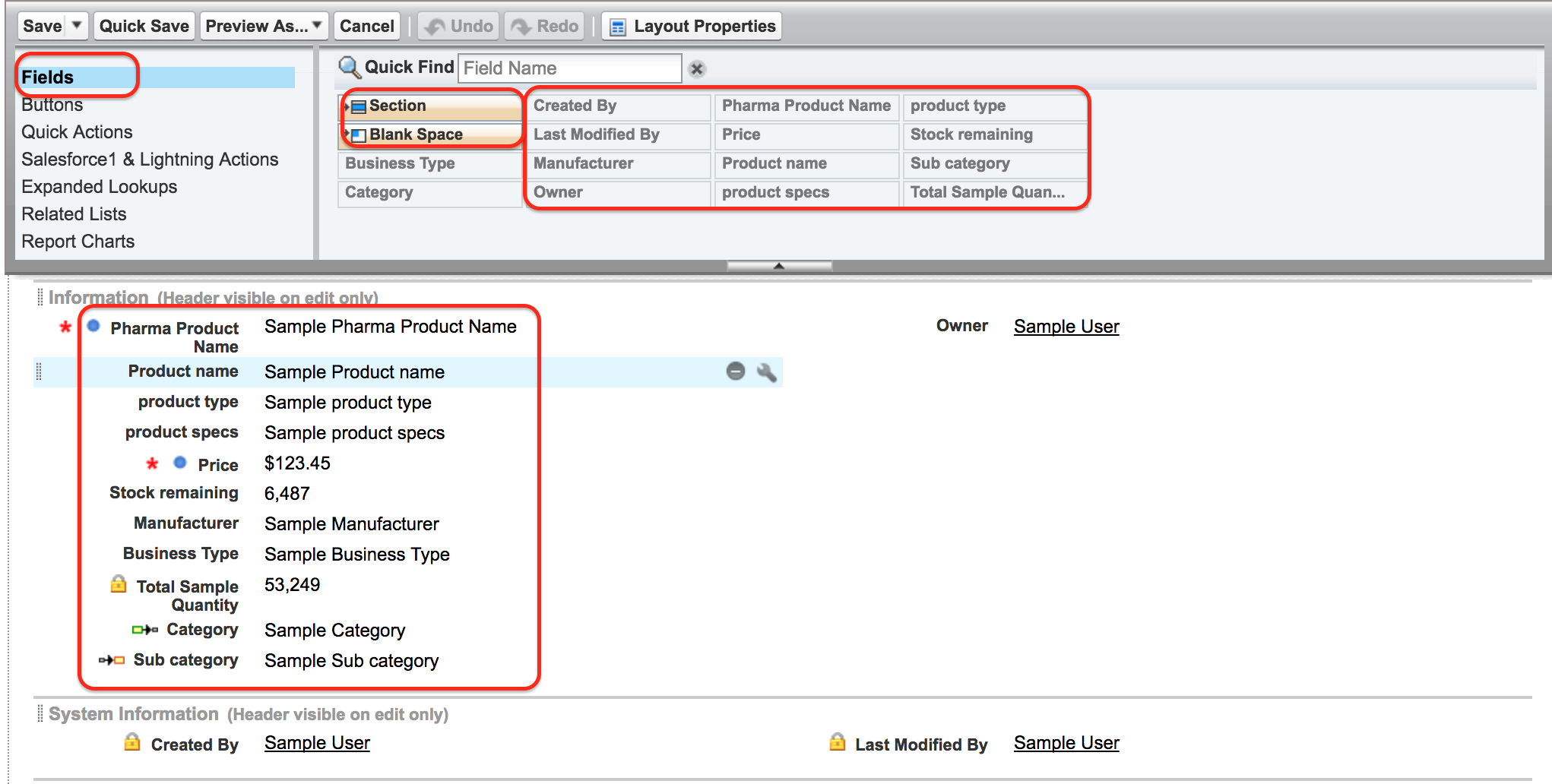
When a page layout in Salesforce is opened in the layout editor, the palette shows components such as Fields, Buttons, Quick Actions, Salesforce1 & Lightning Actions, Expanded Lookups, Related Lists, and Report Charts. When we click Fields, we can see the fields available on the Pharma Product object and drag them into the layout.
How to Edit a Salesforce Page Layout by Moving Fields and Sections
A page layout in SFDC can be modified by rearranging fields, adding or removing fields, creating sections, placing fields in one or two columns, and adding custom buttons or related lists. In the example below, we arrange fields into two columns so that the record page is easier to read.
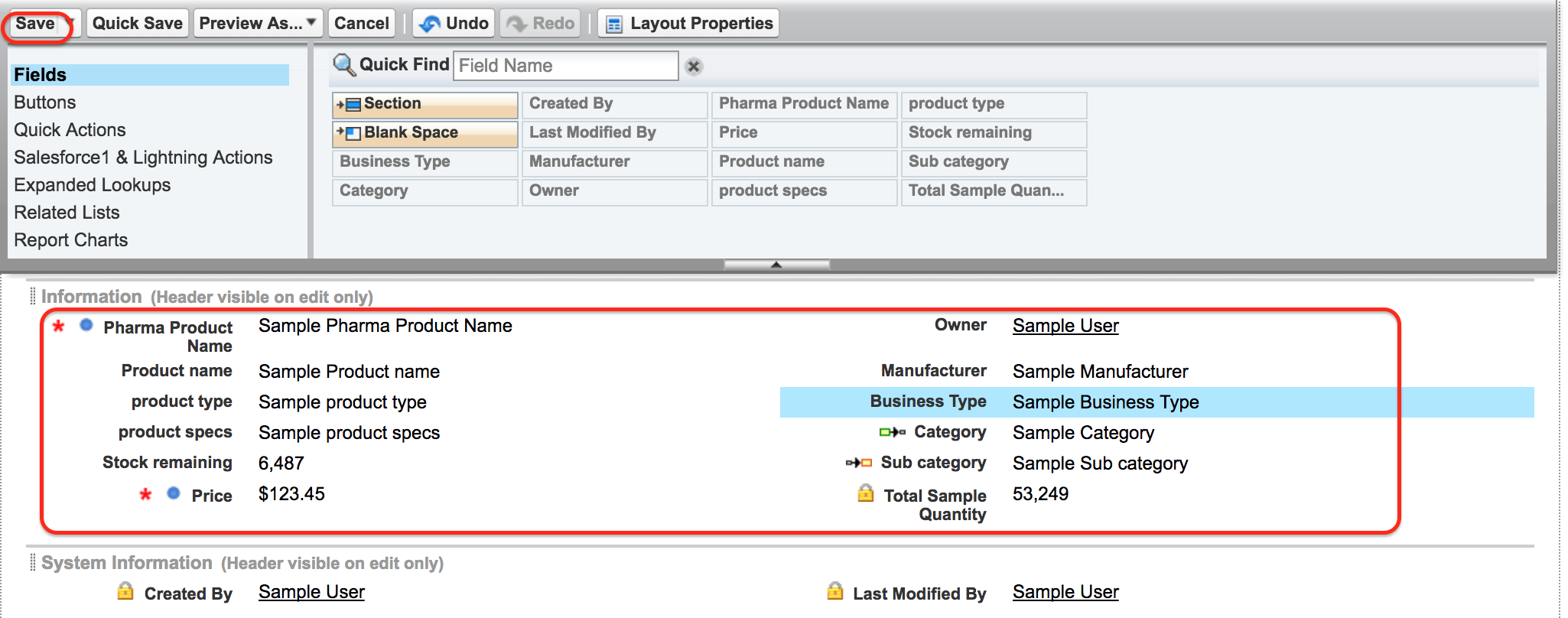
To change the position of a field in a page layout, drag the field to the required section and drop it in place. To change the field behavior for this layout, use the field properties and select options such as Read-Only or Required, where available. Finally, click Save.
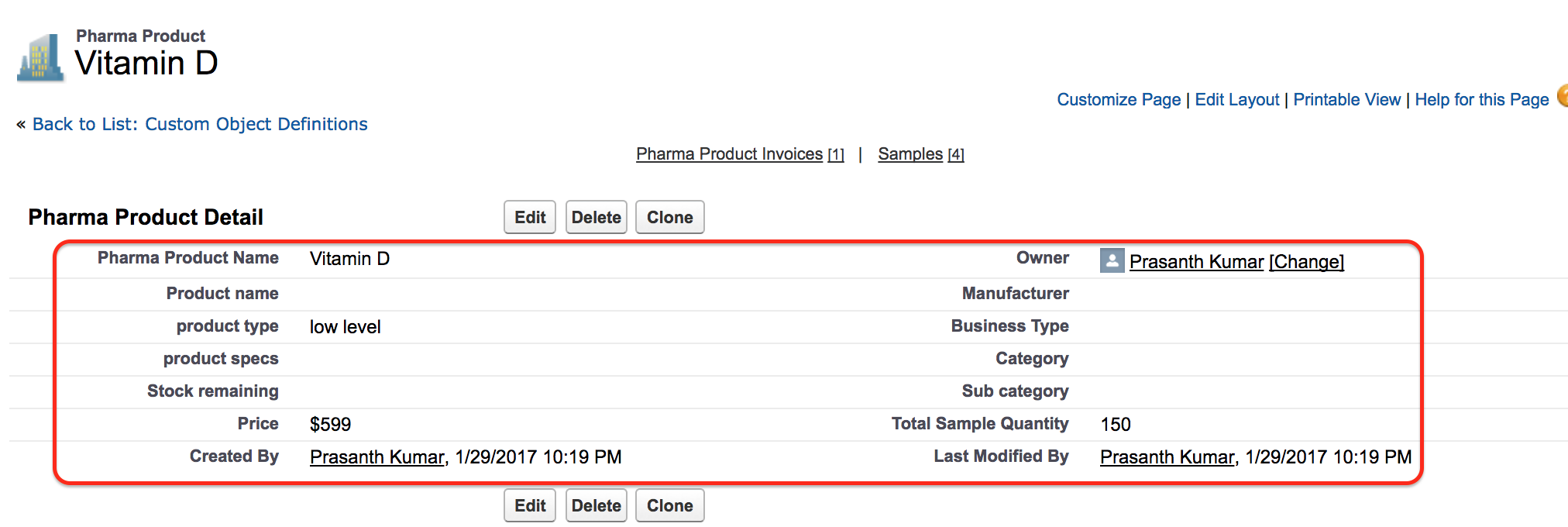
- To check the updated page layout, open a Pharma Product record as shown below.
Common Salesforce Page Layout Edits Administrators Make
Most page layout changes are made to reduce clutter and guide users through the right data entry process. Common changes include moving frequently used fields near the top, creating separate sections for business details, adding related lists that users need often, and removing buttons that should not be used by a specific team.
- Field placement: Move important fields to the first section of the layout.
- Section design: Group fields by purpose, such as product details, pricing, approval information, or system information.
- Field behavior: Mark fields as read-only or required for the layout when the rule is specific to the user interface.
- Buttons and actions: Remove actions that are not useful for the users assigned to that layout.
- Related lists: Add related records that help users understand the full record context.
How to Create a Custom Page Layout in Salesforce
Multiple custom page layouts in Salesforce can be created for the same object. To create custom Page layouts in Salesforce, go to Object Manager, select the object, open Page Layouts, and click New. In older setup navigation, this appears as object | Page Layouts | Create New.

- Click on New to create a new page layout for the Pharma Product object.
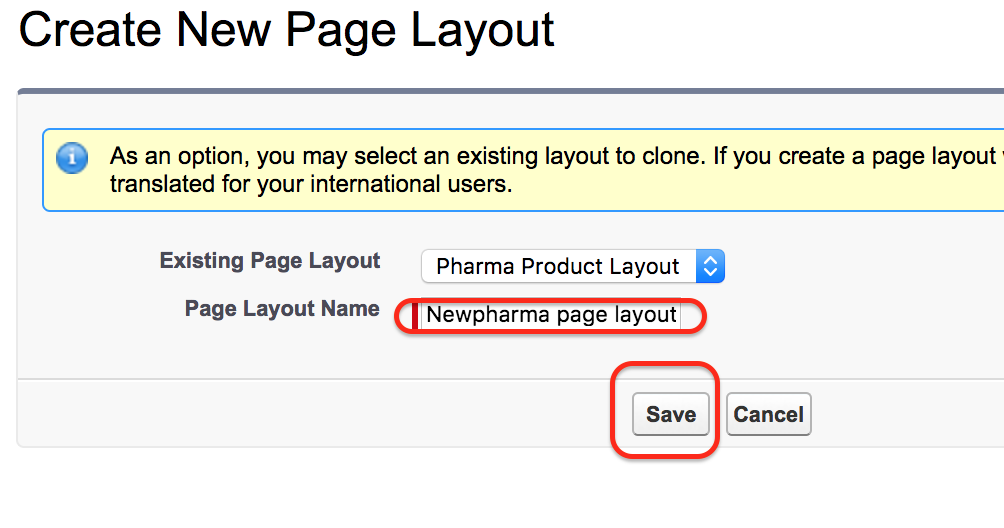
- Select an existing page layout from the drop-down menu to clone its current structure.
- Enter a clear page layout name.
- Click on Save.
Cloning an existing layout is usually faster than starting from a blank structure because the new layout keeps the same sections and field arrangement. After saving, you can remove fields, add new sections, adjust related lists, and change available buttons or actions.
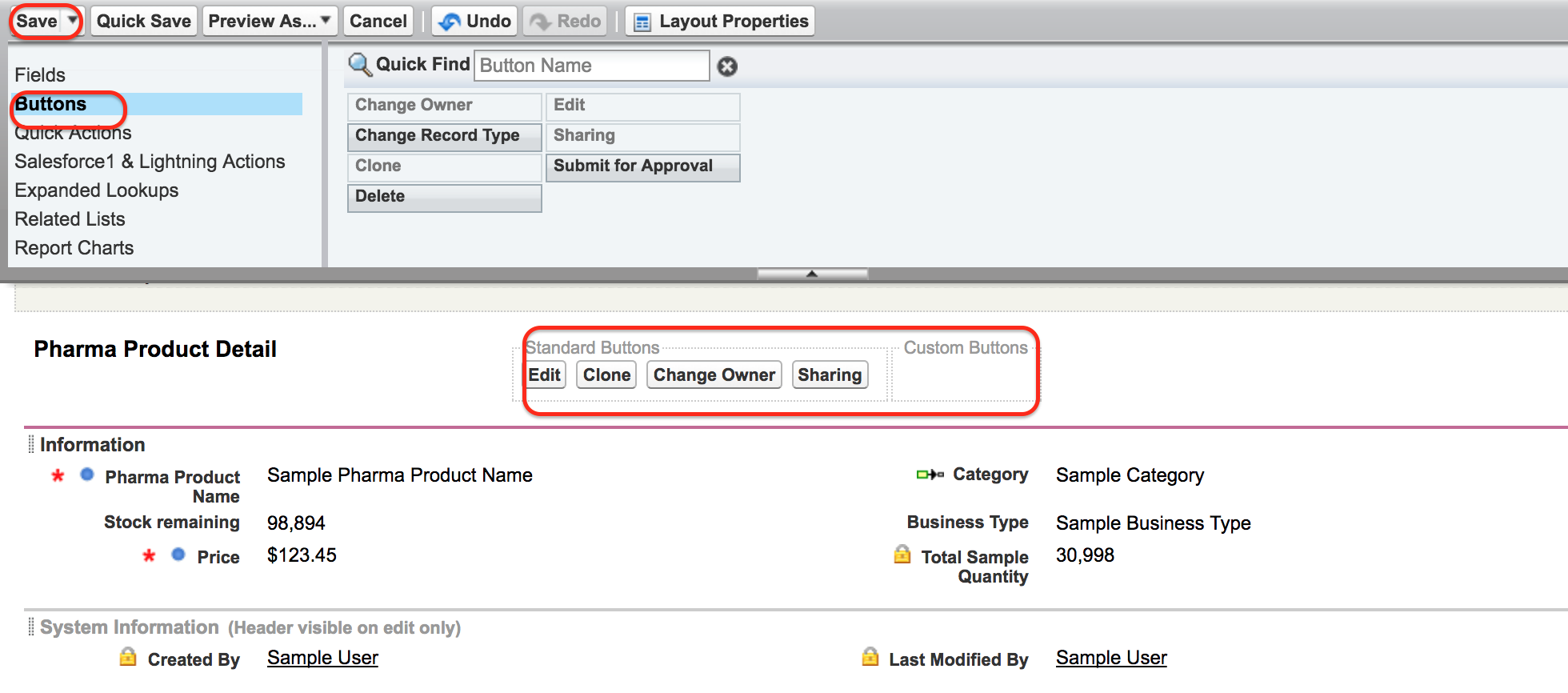
When we click on Save, the new page layout editor is displayed as shown above. Here we can customize fields, buttons, custom links, actions, and related lists. In this example, we removed the Delete button, Change Owner action, and Edit Record Type action from the new Pharma Product page layout.
- Finally click on Save.

- We have successfully created a new page layout in Salesforce.
How to Assign a Salesforce Page Layout to a Profile
A custom page layout in Salesforce can be assigned to one or more profiles. If record types are enabled for the object, page layout assignment is usually managed by profile and record type combination. This lets an administrator show different layouts to different groups of users while keeping the same object.
- Click on the Page Layout Assignment button as shown below.

- The layout mapping page opens with profile and layout assignment options.
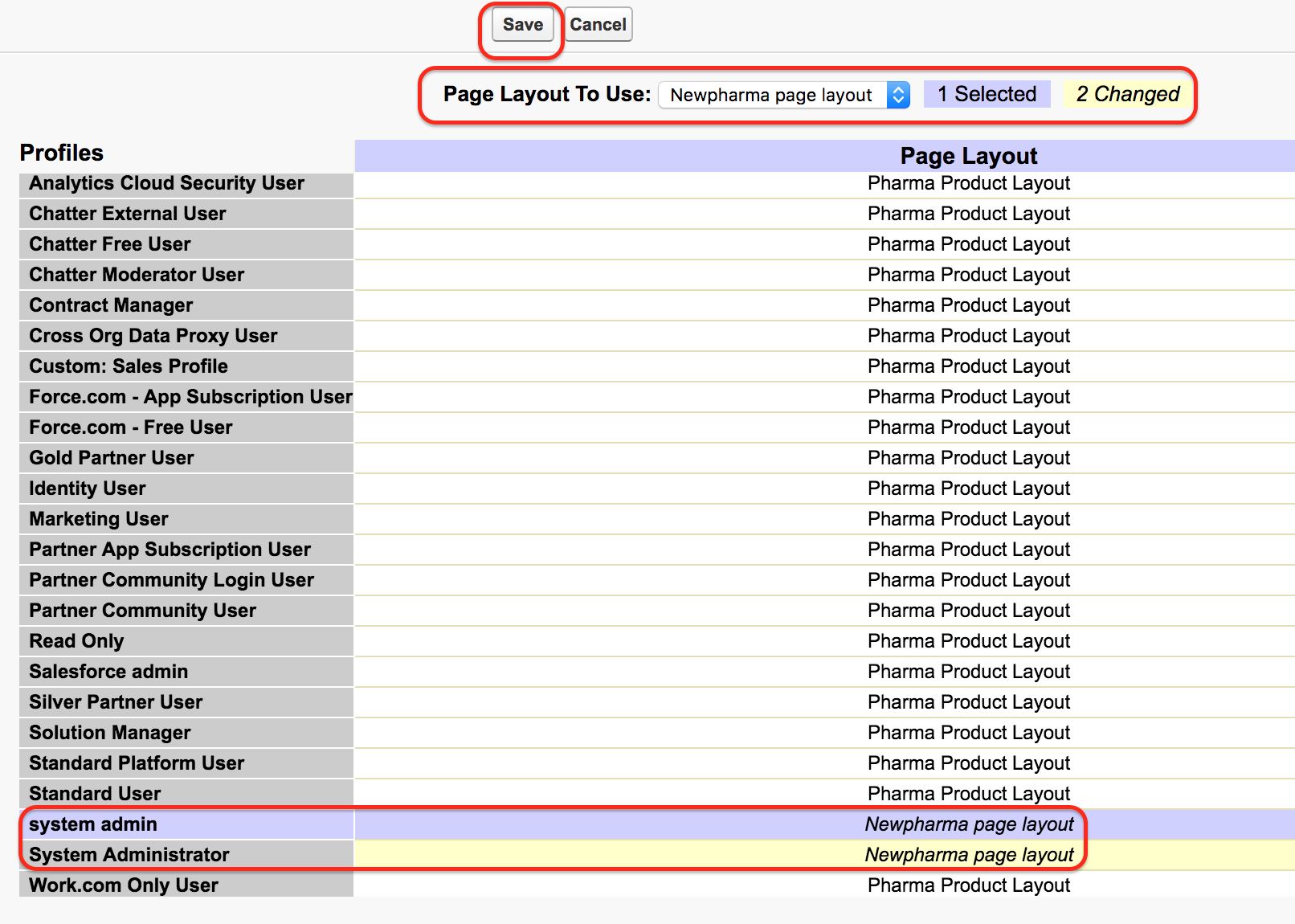
- Click the row for the required profile and select the page layout to use.
- In this example, we changed the page layout for the System Administrator profile.
- Finally click on Save.
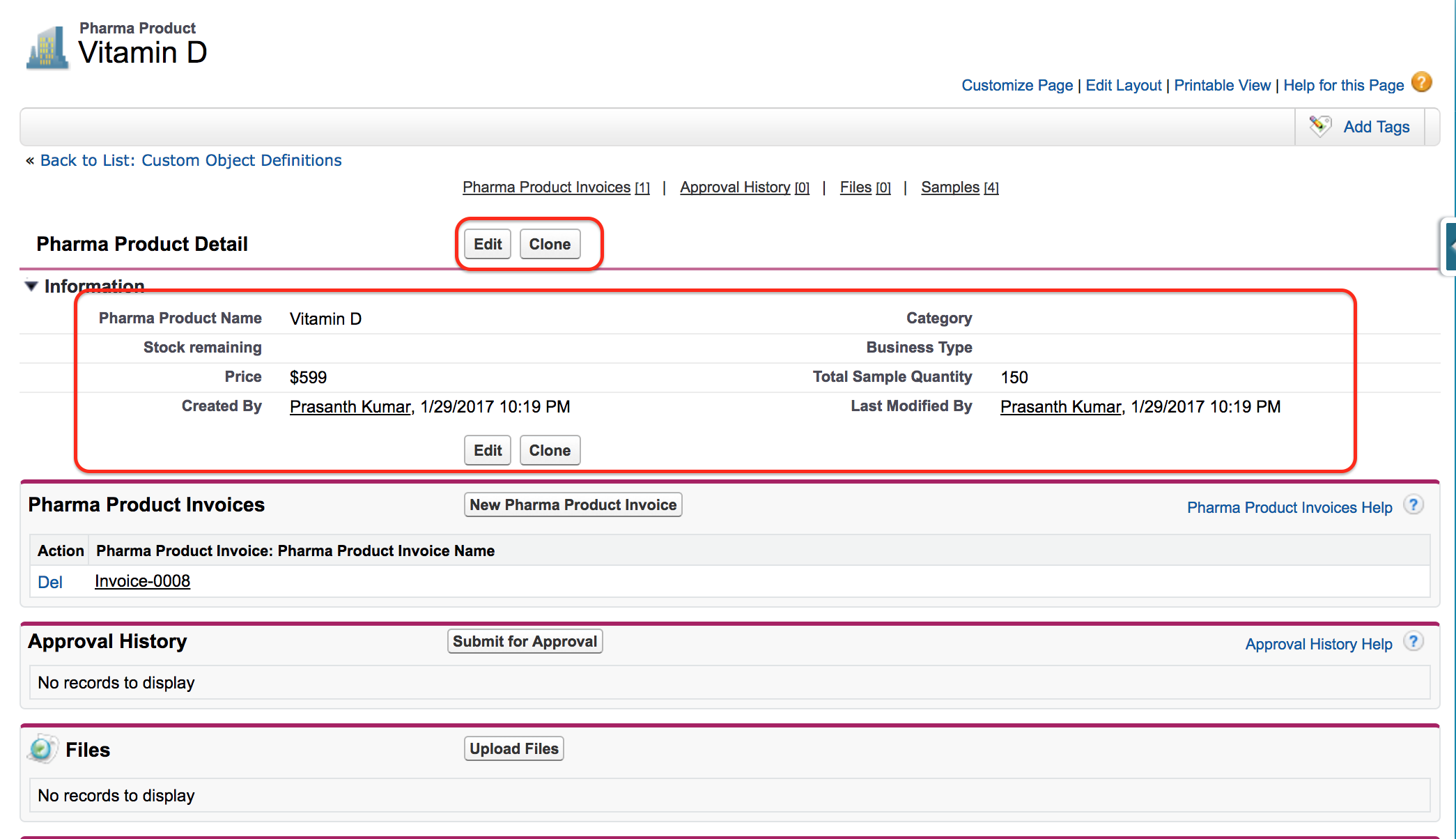
Now open a record and compare the new page layout with the previous page layout as shown below.
To check the page layout assignment from the profile side in Salesforce, go to Setup, open Users, select Profiles, and then open the required profile. In older setup navigation, this may appear as Setup | Administer | Manage User | Profile.
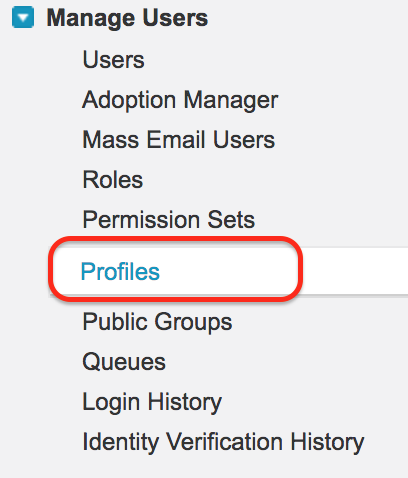
- Click on Profiles and go to System administrator.
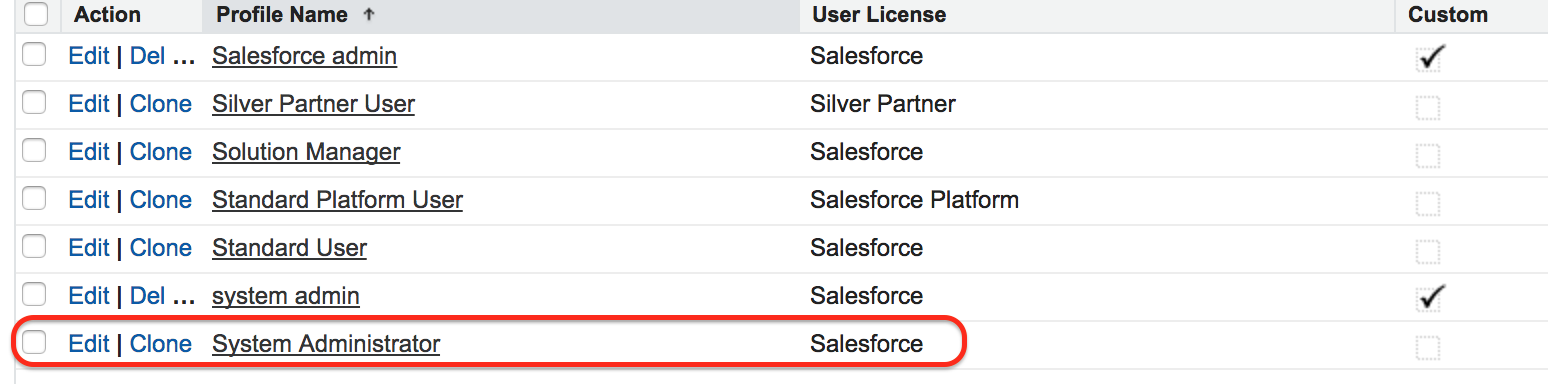
- Now go to custom object layouts as shown below.
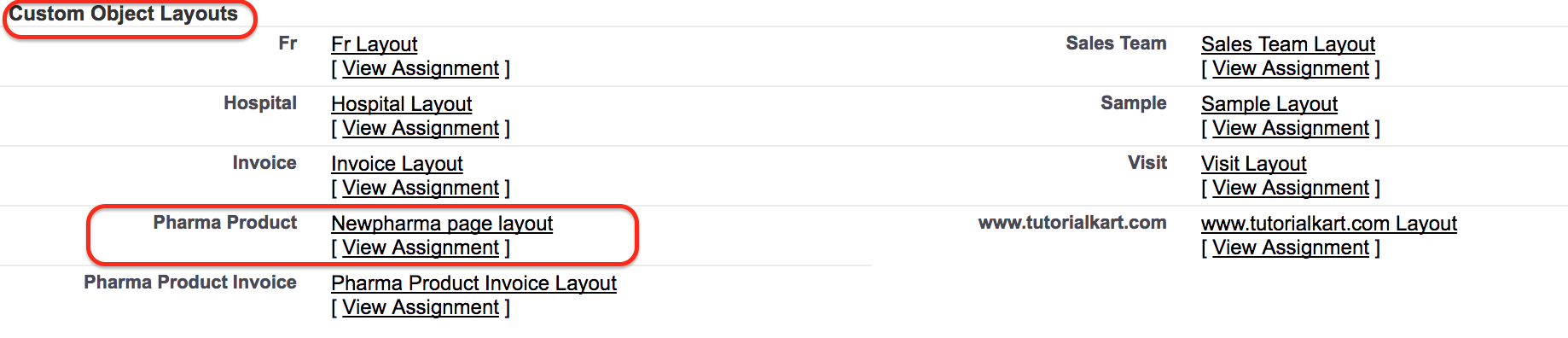
Here we can observe that for the System Administrator profile, the default page layout is Newpharma page layout.
Page Layout Assignment with Record Types in Salesforce
If an object has record types, the page layout assignment screen can show a matrix of profiles and record types. This means one profile can receive different layouts for different record types. For example, a support team and a sales team may use the same object but need different fields and actions depending on the type of record being created or edited.
Before changing layout assignments in a production org, check which profiles and record types are affected. A small assignment change can affect many users if the same profile is shared across teams.
Salesforce Page Layout Limits and Security Points to Remember
Page layouts are useful for record page organization, but they should not be treated as the complete security model. A field removed from a page layout may still be available to a user through reports, search, APIs, list views, or automation if permissions allow it. Use page layouts for user experience and use Salesforce security settings for data protection.
- Use field-level security to control whether users can read or edit fields.
- Use profiles and permission sets to control object access and system permissions.
- Use validation rules when a field must be required based on business logic, not only on one layout.
- Use Lightning App Builder when you need to change the overall Lightning record page structure.
- Test with a user profile after changing layout assignment, especially when record types are used.
Official Salesforce References for Page Layout Setup
For current Salesforce setup details, refer to Salesforce Help topics such as Create Page Layouts and Customize Page Layouts. These references are useful when your org uses Lightning Experience, record types, or newer page customization features.
Editorial QA Checklist for Salesforce Page Layout Tutorials
- Does the tutorial explain that page layout assignment depends on profile and, where enabled, record type?
- Does the tutorial clearly separate page layouts from Lightning record pages?
- Does the tutorial mention that page layouts are not a replacement for field-level security?
- Are the steps written for Object Manager while still making older screenshots understandable?
- Does the example show how to verify the assigned layout by opening a record as the affected user profile?
FAQs on Page Layouts in Salesforce
What is the use of page layouts in Salesforce?
Page layouts in Salesforce are used to control how fields, sections, buttons, actions, custom links, and related lists appear on a record page. They help administrators create a cleaner record page for each group of users.
Can one Salesforce object have multiple page layouts?
Yes. One object can have multiple page layouts. Administrators commonly create different layouts for different profiles, departments, or record types.
How is a Salesforce page layout assigned to users?
A page layout is assigned through page layout assignment. The assignment is based on profile and, if record types are enabled, the profile and record type combination.
Does removing a field from a page layout hide it everywhere?
No. Removing a field from a page layout removes it from that record page layout only. To restrict access to the field, use field-level security and permission settings.
What is the difference between a page layout and a Lightning record page?
A page layout controls the record details area, including fields, related lists, buttons, and actions. A Lightning record page controls the broader Lightning page structure and components around the record.
Final Notes on Creating, Editing, and Assigning Salesforce Page Layouts
In this Salesforce Tutorial, we learned how page layouts in Salesforce work, how to access and edit a layout, how to create a custom page layout, and how to assign a page layout to a profile. Page layouts are most effective when they are used with profiles, record types, field-level security, and Lightning record pages in a clear configuration plan.