 TutorialKart.com
How to create a formula field in Salesforce Object Manager
How to create a formula field in Salesforce is a common setup task when you want Salesforce to calculate a value automatically from other fields. A formula field can show a discount amount, calculate an age, combine text values, display a status, or evaluate business rules without asking users to type the result manually.
In this Salesforce Tutorial , we will create a formula field on an Invoice object and use it to calculate the final amount after a discount. This topic is part of implementing business logic in Salesforce along with Validation rules and Field Dependencies.
What is a Formula Field in Salesforce?
A formula field in Salesforce is a custom field whose value is calculated from a formula expression. Users do not enter a value directly into a formula field. Salesforce evaluates the expression and displays the result based on the values of other fields, functions, operators, and conditions used in the formula.
- A formula field is read-only on records.
- A formula field derives its value from a formula expression.
- When a referenced source field changes, the displayed formula result changes automatically.
- Formula logic can use fields, operators, constants, and functions such as
IF,AND,CASE,ISBLANK, andTODAY. - Formula expressions are also used in validation rules, Flow decisions, workflow criteria, report formulas, and other Salesforce automation areas.
For official reference, see Salesforce Help on building formulas and Trailhead’s module on formula fields.
Formula field example used in this Salesforce tutorial
In this example, the Invoice object has an amount field named Amount__c. We will create a currency formula field that returns the final amount after applying a 20% discount only when the invoice amount is greater than 500.
IF(Amount__c > 500, Amount__c - (20 / 100 * Amount__c), Amount__c)The formula means: if Amount__c is greater than 500, subtract 20% from the amount; otherwise, return the original amount.
Formula Editor options in Salesforce
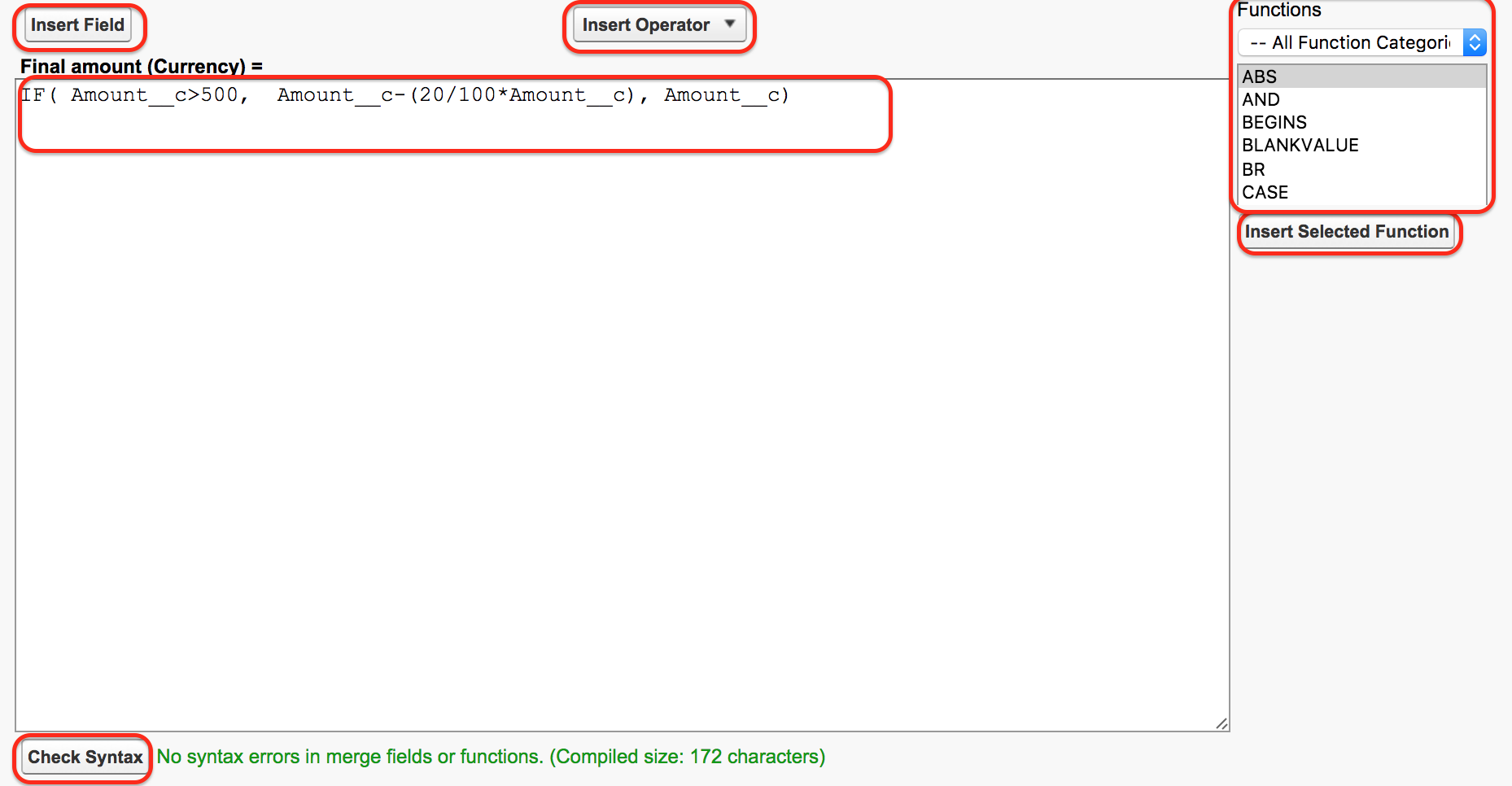
The Salesforce Formula Editor helps you build the formula expression safely instead of typing every field API name manually. The main options are:
- Formula text area: The place where you type or edit the formula expression.
- Insert Field: Opens the object field list so that you can insert the correct field API name into the formula.
- Insert Operator: Provides mathematical and logical operators such as
+,-,*,/,&,=,>, and<. - Functions menu: Lets you insert Salesforce formula functions such as
IF,CASE,AND,OR,ISBLANK,TEXT, andTODAY. - Check Syntax: Validates the expression and displays syntax errors before you save the field.
How to create a formula field in Salesforce step by step
Use the following steps to create the formula field on the Invoice object. In Salesforce Lightning, the usual path is Setup > Object Manager > Invoice > Fields & Relationships > New. In older Salesforce setup screens, the path may appear as Setup | Build | Create | Object | Invoice | Create new Filed.
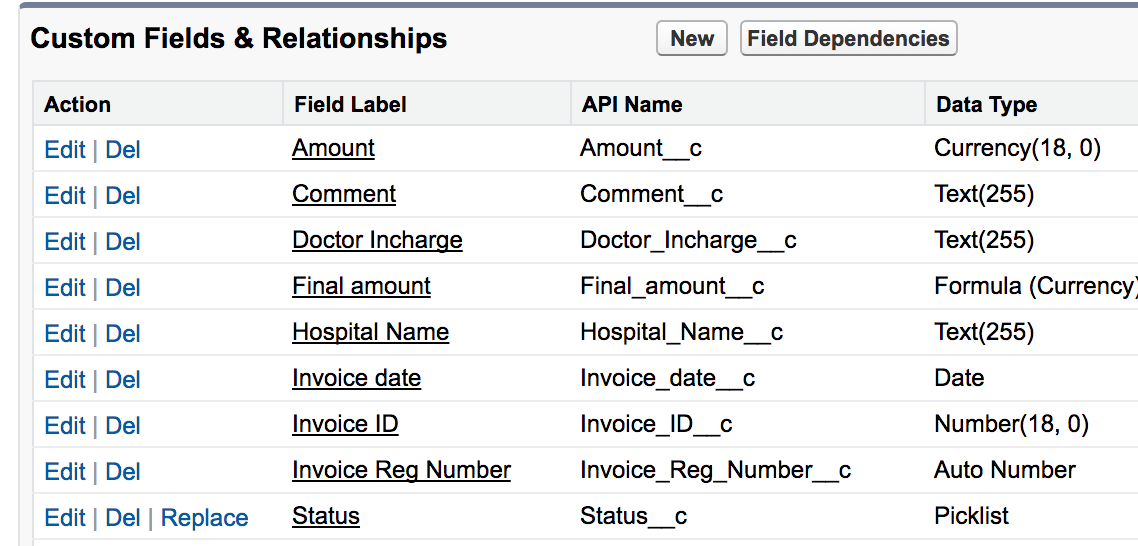
Select the object where the formula field has to be created. In this example, select the Invoice object and open its custom fields or Fields & Relationships section. Then click New to create a new custom field.
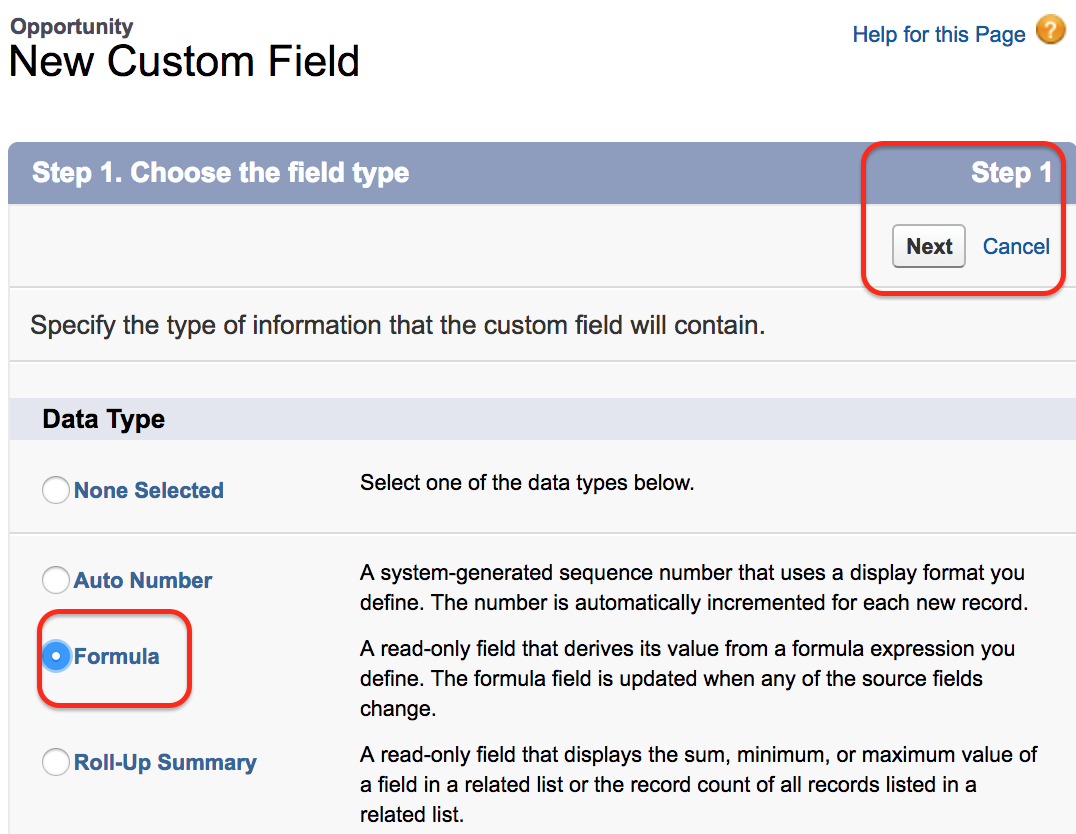
In the field type list, select Formula and click Next. A formula field is the correct field type because Salesforce must calculate the value rather than store a manually entered value.
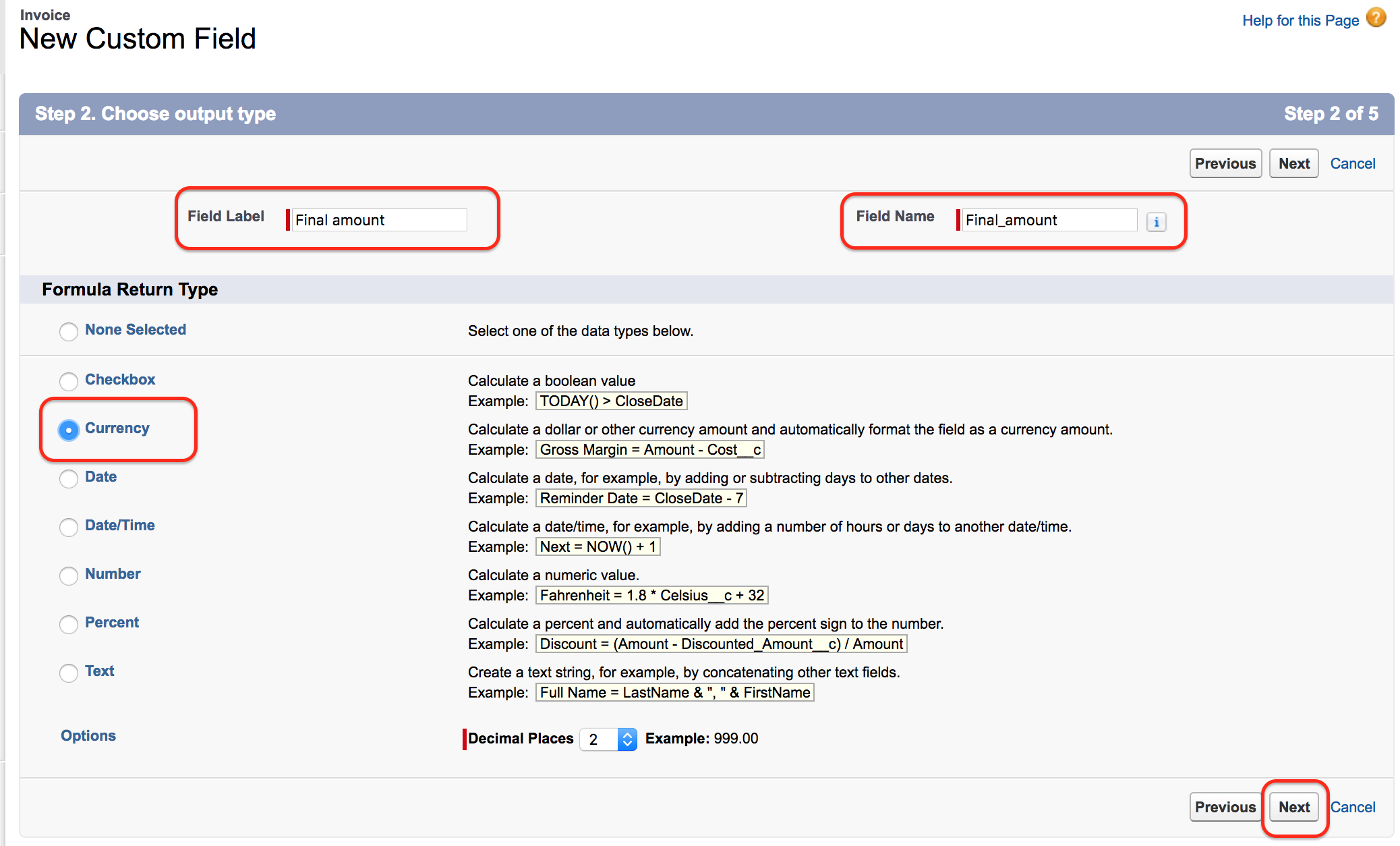
Enter a clear field label such as Final Amount. Salesforce creates the field name from the label, but you can edit it if your naming standard requires a different API name. For the formula return type, select Currency, because the result represents a money value.
In the formula editor, enter the formula expression for the discount calculation:
IF(Amount__c > 500, Amount__c - (20 / 100 * Amount__c), Amount__c)Click Check Syntax. If Salesforce displays no syntax errors, click Next, set field-level security, add the field to the required page layouts, and save the field.
Testing the Salesforce formula field on an Invoice record
After saving the formula field, open the Invoice tab or create a new Invoice record. Enter the amount value and save the record so that Salesforce can display the calculated final amount.
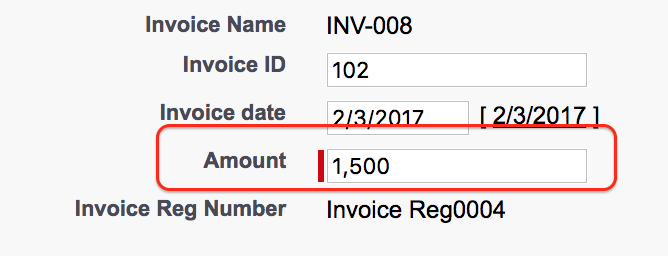
- In this example, the invoice amount is entered as 1500.
- Because 1500 is greater than 500, the formula applies a 20% discount.
- The discount amount is 300, so the final amount is 1200.
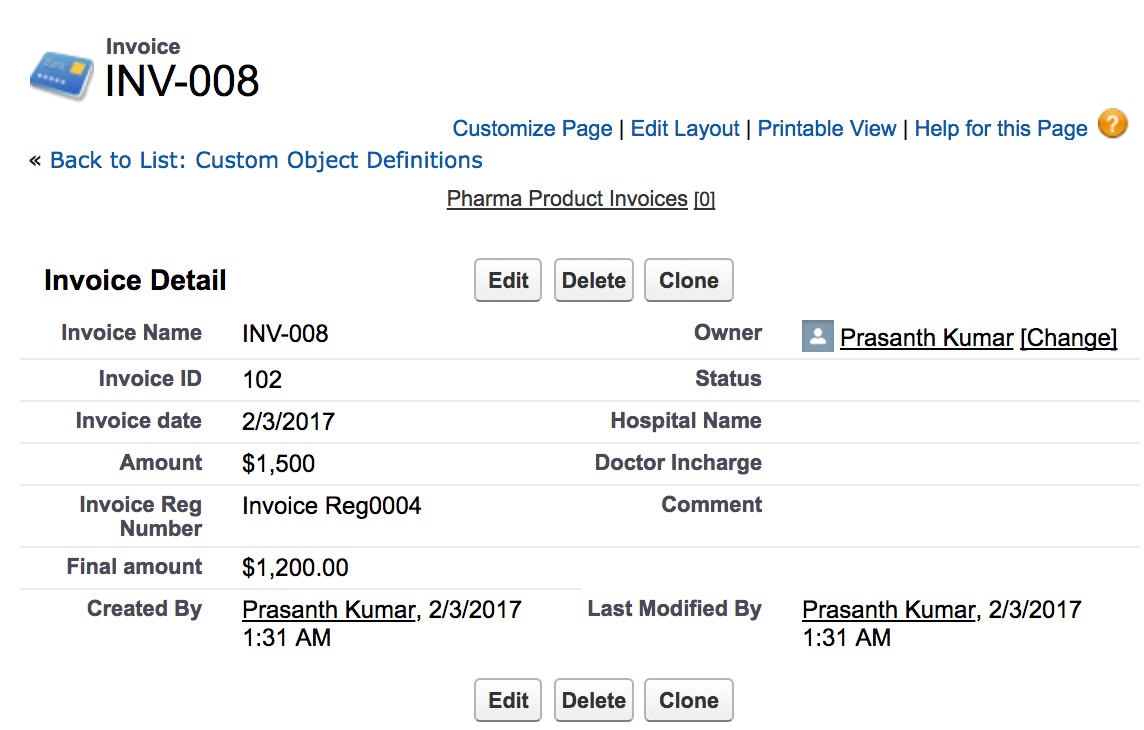
After adding the formula field, the final amount is displayed as 1200. The value is not typed by the user; it is calculated from the formula expression.
Common Salesforce formula field return types
When creating a formula field, choose the return type based on what the formula should display. The return type affects formatting and also determines which functions and operators are suitable.
| Formula return type | When to use it | Example use case |
|---|---|---|
| Currency | For money values | Final invoice amount after discount |
| Number | For numeric calculations that are not currency | Score, quantity difference, percentage value |
| Text | For labels, combined text, or converted picklist values | Customer category or display message |
| Checkbox | For true or false results | High value invoice flag |
| Date | For calculated dates | Renewal date based on start date |
Salesforce formula field mistakes to avoid
- Selecting the wrong return type: Choose Currency for amount values, Number for numeric values, Text for labels, and Checkbox for true/false results.
- Typing field labels instead of API names: Use Insert Field so that the formula contains the correct field API name such as
Amount__c. - Forgetting syntax checks: Always click Check Syntax before saving the formula field.
- Expecting users to edit the formula result: Formula fields are read-only. If users must enter or override a value, use another field type and automation if required.
- Not testing different record values: Test values above, below, and equal to the condition boundary. For this example, test 500, 501, and 1500.
Formula field versus report formula in Salesforce
A formula field is created on an object and can appear on records, page layouts, list views, reports, and automation logic where the field is available. A report formula is created inside a Salesforce report and is used only for that report. If the calculation must be reused across records and business processes, create a formula field. If the calculation is needed only for a specific report, a report formula may be enough.
QA checklist for this Salesforce formula field
- Confirm that the formula field is created on the correct object, such as Invoice.
- Confirm that the return type matches the expected result, such as Currency for final amount.
- Use Insert Field to confirm that the source field API name is correct.
- Run Check Syntax and fix all formula errors before saving.
- Test invoice amounts below 500, equal to 500, and above 500 to confirm the discount condition works correctly.
- Verify field-level security and page layout placement so the right users can view the calculated value.
Frequently asked questions about creating formula fields in Salesforce
How do I add a formula field in Salesforce?
Go to Setup > Object Manager, open the object, select Fields & Relationships, click New, choose Formula, select the return type, enter the formula expression, check syntax, set field security, add it to page layouts, and save.
Is a formula field editable in Salesforce?
No. A formula field is read-only on records. Users cannot type a value into it because Salesforce calculates the displayed result from the formula expression.
Can a Salesforce formula field use another field value?
Yes. Formula fields commonly reference other fields on the same object. Depending on the relationship and Salesforce limits, they can also reference fields from related records through cross-object formulas.
Can you add a calculated field to a Salesforce report?
Yes. Salesforce reports can use report formulas for report-level calculations. Use an object-level formula field when the calculated value must be available outside one report, such as on record pages, list views, automation, or multiple reports.
Why is Check Syntax important when creating a formula field?
Check Syntax helps find formula errors such as missing brackets, incorrect field names, wrong function arguments, or incompatible return values before the formula field is saved.
Conclusion: creating a formula field in Salesforce
In this Salesforce tutorial, we learned how to create a formula field in Salesforce, how the Formula Editor works, and how to test a currency formula field using an Invoice discount example. Formula fields are useful when a value should be calculated consistently from existing record data. In the next Salesforce Tutorial, we will learn about cross Object Formulas.