 TutorialKart.com
How to Create an App in Salesforce Lightning and Salesforce Classic
In this Salesforce tutorial, we will learn how to create an app in Salesforce. The current recommended path in Lightning Experience is Setup → App Manager → New Lightning App. Older Salesforce Classic orgs may still show the classic path Setup → Build → Create → Apps, so this tutorial keeps the Classic screenshots and explains how the same idea maps to Lightning.
A Salesforce app is not a separate installed program like a desktop application. It is a container that groups the items users need for a business process, such as objects, tabs, reports, dashboards, Lightning pages, Visualforce pages, and utility items. For example, a simple Recruiting app can include Candidates, Job Positions, Interviews, Reports, and Dashboards in one navigation menu.
Before creating a Salesforce app: app, object, field, record, and tab
Before creating an application in Salesforce, it is useful to understand a few basic terms. These terms appear in both the Classic app wizard and the Lightning App Manager.
- App: A collection of navigation items and components arranged for a specific user workflow.
- Object: A table-like structure that stores a type of data, such as Account, Contact, Candidate, or Invoice.
- Field: A column on an object, such as Phone, Email, Status, Amount, or Start Date.
- Record: One saved row of data in an object, such as one Account record or one Candidate record.
- Tab: A navigation item that lets users open an object, page, or feature from the app menu.
If the object or tab you want to show in the app does not already exist, create it first. Adding a tab to an app only places that item in the navigation menu; it does not automatically create the object or give users permission to read, create, edit, or delete records.
Types of apps you may see in Salesforce Setup
Salesforce can show different app-related options depending on the org, edition, enabled features, and user permissions.
- Lightning apps: Apps created and managed from App Manager in Lightning Experience. These are the common choice for most current Salesforce implementations.
- Classic apps: Older-style apps created from the Classic Setup area. Many older tutorials and orgs still refer to this path.
- Standard apps: Salesforce-provided apps such as Sales, Service, and Marketing, depending on what is enabled in the org.
- Custom apps: Apps created by admins or developers for a specific team or process.
- Connected apps: A different type of app used for integrations, OAuth, mobile access, or external applications. Do not confuse a connected app with a navigation app used by Salesforce users.
Permissions needed to create an app in Salesforce
To create or edit a Salesforce app, you normally need administrator access or setup permissions that allow you to customize applications. In many orgs, this work is done by a System Administrator. App visibility and object access are separate settings, so users may see an app but still need profile or permission set access to the objects and fields inside it.
How to create a Lightning app in Salesforce App Manager
Use this method for most current Salesforce orgs using Lightning Experience.
- Click the Gear icon and open Setup.
- In Quick Find, type App Manager.
- Open App Manager and click New Lightning App.
- Enter the App Name, Developer Name, and optional description.
- Choose branding options such as an app image and primary color, if required by your org.
- Select the app options, such as standard navigation or console navigation, based on the way users will work.
- Choose the supported form factors, such as desktop and phone, if the wizard asks for them.
- Add navigation items such as objects, dashboards, reports, and pages.
- Assign the app to the required user profiles, or manage access later through setup and permissions.
- Click Save & Finish, then open the app from the App Launcher.
After saving the app, test it with a user who has the intended profile or permission set. Confirm that the user can open the app, see the required tabs, and access the records and fields required for the business process.
What is an application in Salesforce?
An application in Salesforce is a group of tabs and components arranged for a specific purpose. It can include standard objects, custom objects, reports, dashboards, Lightning pages, Visualforce pages, and other supported navigation items. The app helps users start from one place instead of searching for each object or page separately.
For example, a Sales app may include Leads, Accounts, Contacts, Opportunities, Tasks, Reports, and Dashboards. A custom Training app may include Courses, Students, Enrolments, Attendance, Reports, and Dashboards.
How to create an app in Salesforce Classic Setup
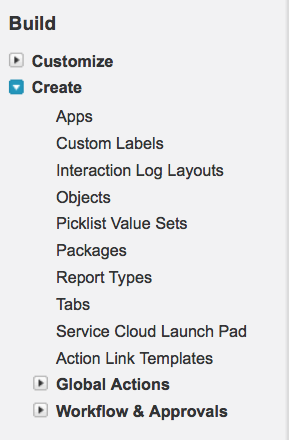
In older Salesforce Classic Setup, you can create an application by navigating to Setup | Build | Create | Apps. In Lightning Experience, use Setup | App Manager instead.
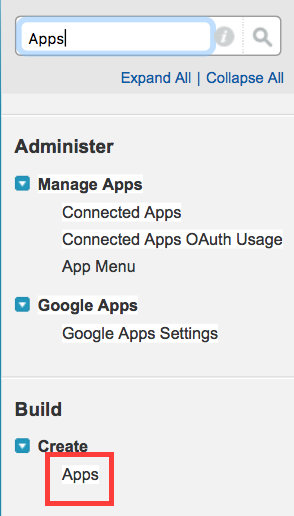
You do not need to navigate through every Setup menu manually. Use the Quick Find box in Setup and search for the feature you need. For this topic, search for App Manager in Lightning Experience or Apps in Salesforce Classic.
When you open the app setup page, Salesforce displays existing apps. Standard apps are supplied by Salesforce and enabled features. Custom apps are created by admins or developers in your org.
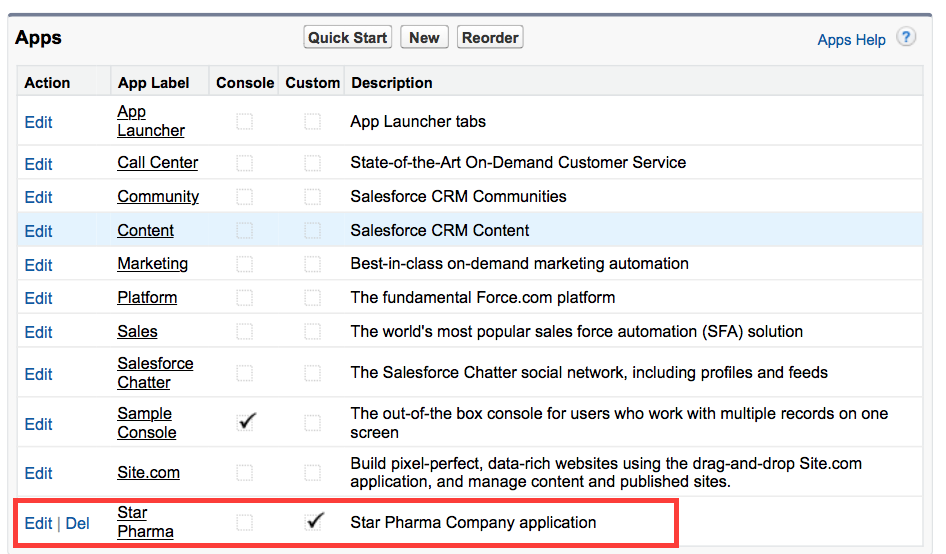
Create a Salesforce custom app using Classic Quick Start
In Salesforce Classic, one way to create a simple custom app is to use Setup | Build | Create | Apps | Quick Start. This option is useful for a basic app because the wizard asks for the main app details and helps create the starting structure quickly.
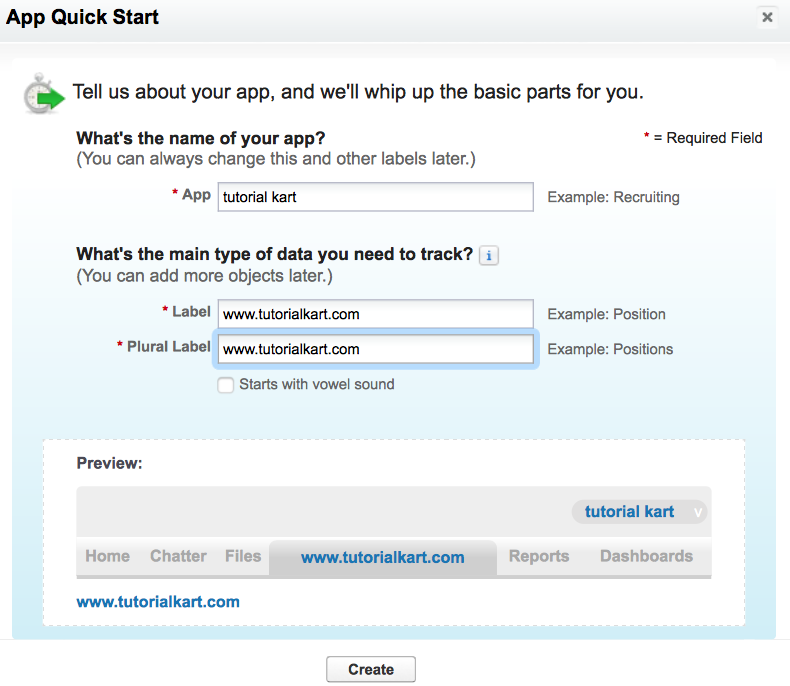
When you click Quick Start, a window appears. Enter the required app and object details carefully because some internal names are used by Salesforce metadata.
- App Label: The name users see in Salesforce.
- App Name or Developer Name: The internal name used by Salesforce metadata, setup, and development tools.
- Plural Name: The plural label used when the wizard creates or refers to a custom object.
- Create: Click this button after reviewing the labels and names.
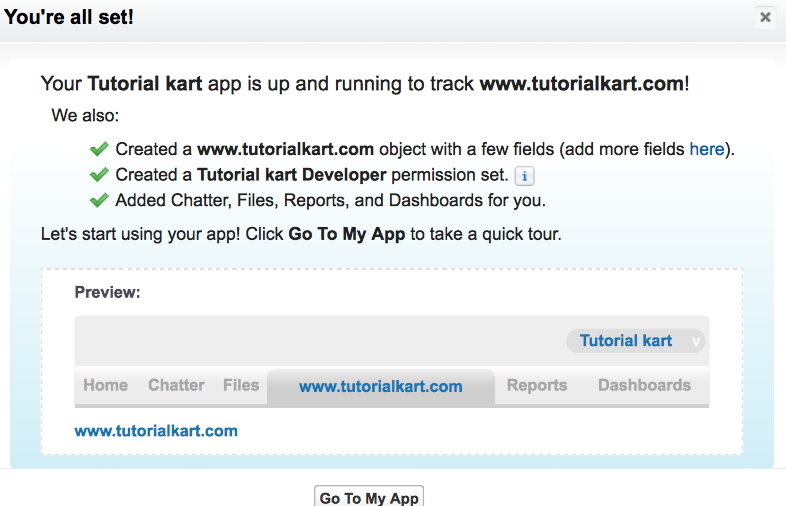
App Label, App Name, and Developer Name in Salesforce
App Label is the user-facing name shown in the App Launcher or app menu. Write it in a way that business users can understand, such as Recruiting, Training, or Customer Support.
App Name or Developer Name is the internal name used by Salesforce. It is usually generated from the label, but you can edit it before saving. Avoid changing names casually in a production org because metadata names may be used in deployments, packages, or documentation.
Create a Salesforce custom app using the Classic New button
You can also create a custom application from the Classic New button. To use this method, navigate to Setup | Build | Create | Apps | New. The wizard takes you through the app type, label, logo, tabs, and profile visibility.
- Click the New button as shown above.
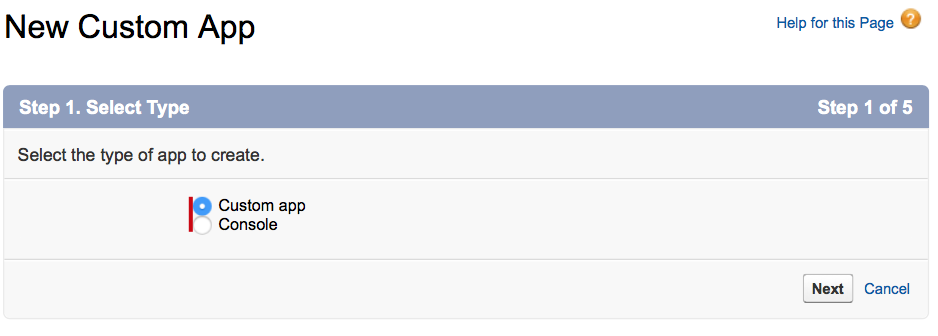
- Select Custom app and click Next.
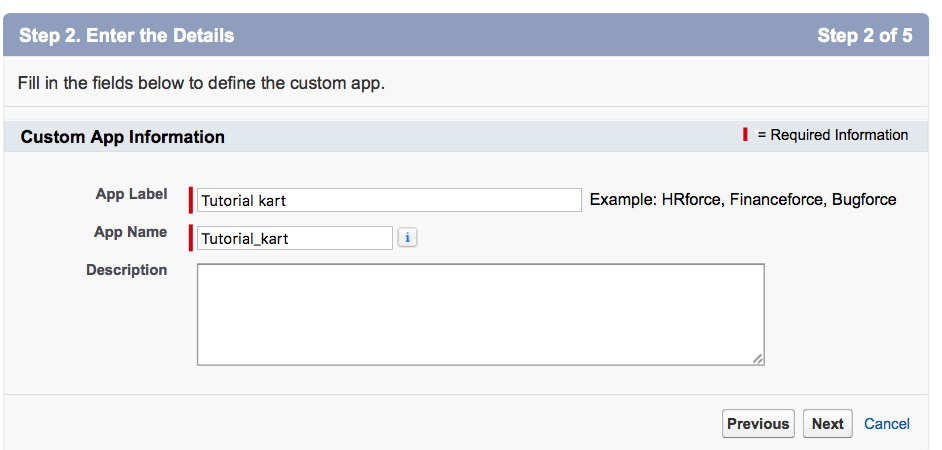
- Enter the App Label, App Name, and Description, then click Next.
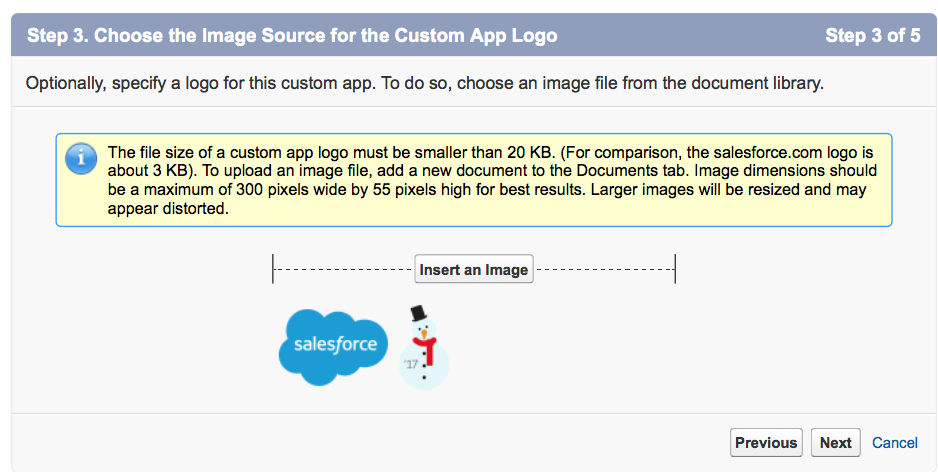
- If your org requires a custom logo, choose an image and click Next. If not, continue without adding a logo.
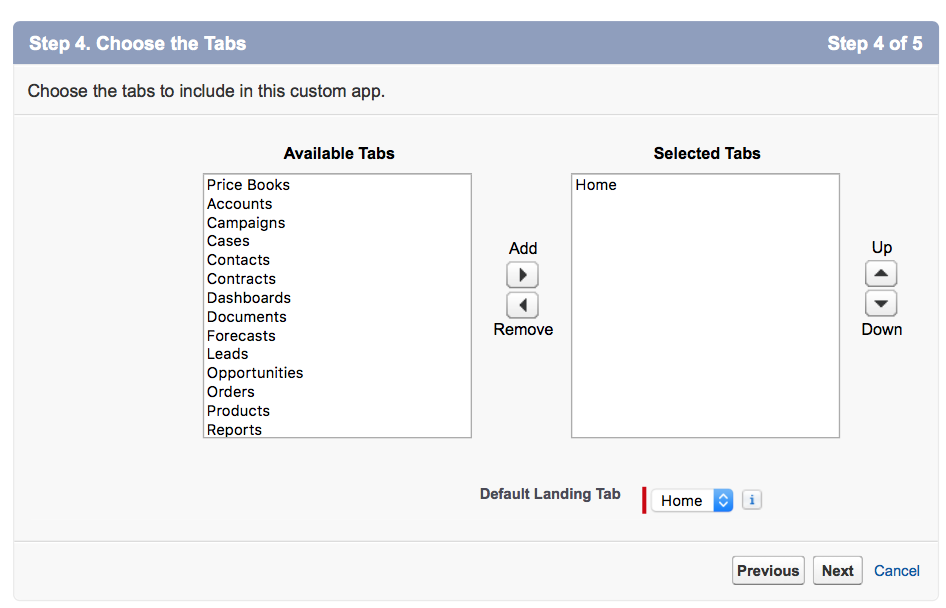
- Choose the tabs to include in this custom application and click Next.
- Choose the profiles that should see this custom app and click Save.
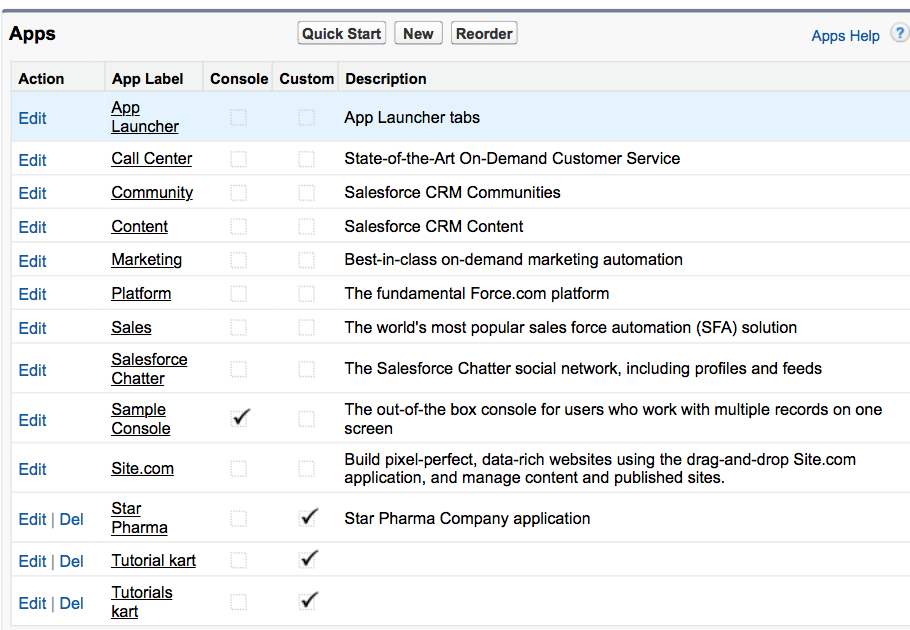
The difference between standard components and custom components is that Salesforce-supplied standard components generally cannot be deleted, while custom components created in your org can usually be edited or deleted if dependencies and permissions allow it. That is why a delete option is available for custom items in setup, but not for many standard Salesforce items.
Choosing tabs for a Salesforce app
Tabs decide what users can open from the app navigation menu. Add only the items needed for the work done in that app. Too many tabs make the app harder to use, while too few tabs force users to leave the app frequently.
- For a Sales app, common tabs may include Leads, Accounts, Contacts, Opportunities, Tasks, Reports, and Dashboards.
- For a Service app, common tabs may include Cases, Accounts, Contacts, Knowledge, Reports, and Dashboards.
- For a custom app, include the custom objects, reports, dashboards, and pages that belong to that process.
Making a Salesforce app visible to users
When you assign a Salesforce app to profiles, you decide which users can see and launch the app. This setting does not replace object permissions, field-level security, record sharing, or page layout access. If users report that a tab is visible but records are missing, check their object permissions, field permissions, sharing settings, and record ownership rules.
In many current Salesforce orgs, permission sets and permission set groups are used along with profiles. Use the access model followed by your org, and test with a real user profile before considering the app ready.
Common mistakes when creating an app in Salesforce
- Creating only the app but not the objects: An app is a navigation container. It does not automatically create every object needed for the process unless a specific wizard does so.
- Adding a tab without permission access: A user may see the tab but still fail to open records if object or field permissions are missing.
- Using unclear labels: App labels should be readable for business users, not only for developers.
- Adding too many navigation items: Keep the app focused on the work users do inside it.
- Confusing custom apps with connected apps: A connected app is mainly for authentication and integration, not for arranging tabs in the Salesforce UI.
Salesforce app creation checklist for admins
- Confirm the business purpose of the app before creating it.
- List the objects, tabs, reports, dashboards, and pages users need.
- Create missing custom objects and tabs before adding them to the app.
- Use a clear App Label and a stable Developer Name.
- Assign the app to the correct profiles or access model used by the org.
- Verify object permissions, field-level security, page layouts, and record sharing.
- Open the app from the App Launcher and test it as an intended user.
Official Salesforce references for creating apps
Salesforce setup screens can differ by release, org edition, and enabled features. For the latest product-specific details, refer to Salesforce Help and Trailhead while using this tutorial for the step-by-step learning flow.
- Salesforce Help: Apps overview
- Trailhead: Quick Start app project
- Salesforce Help: Create a connected app
FAQs on creating an app in Salesforce
Can you build an app on Salesforce without writing code?
Yes. Many internal Salesforce apps can be created declaratively using Setup, App Manager, custom objects, fields, tabs, Lightning pages, reports, dashboards, flows, and permissions. Code is required only when the requirement cannot be handled with standard configuration or low-code tools.
How do I create an application in Salesforce Lightning?
Open Setup, search for App Manager in Quick Find, click New Lightning App, enter the app details, choose options and navigation items, assign access, and save the app. After saving, users can open it from the App Launcher if they have the required access.
What is the difference between a Salesforce app and a connected app?
A Salesforce app used in App Manager groups tabs, pages, and items for users inside Salesforce. A connected app is used for integration, authentication, OAuth access, mobile access, or external applications connecting to Salesforce.
Why can users see my Salesforce app but not the records inside it?
App visibility only controls whether users can open the app. Record access depends on object permissions, field-level security, sharing rules, role hierarchy, teams, ownership, and other security settings in the org.
Should I create a Classic app or a Lightning app in Salesforce?
For most current Salesforce orgs, create a Lightning app from App Manager. Use Classic app steps only when your org still uses Salesforce Classic or when you are maintaining an older setup that was originally created in Classic.
Editorial QA checklist for this Salesforce app creation tutorial
- The tutorial clearly separates Lightning App Manager steps from older Salesforce Classic steps.
- The explanation does not confuse custom apps with connected apps.
- The tutorial explains that app visibility is separate from object, field, and record access.
- Existing Classic screenshots are retained and explained as Classic Setup screens.
- FAQs answer real search questions about building, creating, and setting up a Salesforce app.