 TutorialKart.com
This tutorial explains how to navigate the salesforce.com application, including the App Launcher, navigation bar, tabs, global search, user menu, Setup, Help, and Quick Find. It is written for beginners who are learning the Salesforce user interface in Lightning Experience and also need to understand older tab-based navigation shown in many Developer Edition examples.
Navigating salesforce.com application
Every Salesforce Administrator and Salesforce Developer should understand how to move through the salesforce.com application. The exact screens can vary by Salesforce edition, enabled features, user permissions, app, profile, and customizations, but the main navigation areas remain similar across most Salesforce orgs.

In this Salesforce Tutorial, you will learn how the main navigation elements work and when to use each one. The older Salesforce interface used a clear tab-based layout, while Lightning Experience commonly uses the App Launcher, navigation bar, object tabs, record pages, and Setup menu. Both styles are useful to understand because many Salesforce concepts still use terms such as apps, tabs, objects, records, and Setup.
1 Main navigation areas in the Salesforce application
When you log in to Salesforce, you usually land on the Home page of the selected app. From there, you can open records, switch apps, search for information, change personal settings, or go to Setup for administration tasks.
The key Salesforce navigation areas are:
- App Launcher or Application Menu.
- Navigation bar and object tabs.
- Global Search.
- User Menu.
- Setup Menu.
- Help Menu.
- More tab menu and pinned navigation items.
Different users may see different apps, tabs, and objects. For example, a Sales user may see Leads, Accounts, Contacts, and Opportunities, while a Service user may see Cases, Knowledge, and Service Console features. Visibility depends on permissions, licenses, app configuration, page layouts, and other customizations.
2 App Launcher and Application Menu in Salesforce
The App Launcher is used to open Salesforce apps and available items. In Lightning Experience, it is commonly accessed from the grid icon near the top-left corner. You can search for an app or select one from the list of available apps.
An app in Salesforce is a collection of tabs, objects, and pages arranged for a specific business process. For example, the Sales app may include Leads, Accounts, Contacts, Opportunities, Reports, and Dashboards. A custom app may include custom objects created for a company’s process.
Use the App Launcher when you need to switch from one Salesforce app to another, such as from Sales to Service, Marketing, or a custom application created by your organization.
3 Navigation bar and tabs in Salesforce
The navigation bar shows the tabs and items available in the current app. Tabs usually represent Salesforce objects or pages. Common tabs include Home, Accounts, Contacts, Leads, Opportunities, Cases, Reports, and Dashboards.
- Standard object tabs: Tabs for built-in Salesforce objects such as Accounts, Contacts, Leads, Opportunities, and Cases.
- Custom object tabs: Tabs for objects created specifically for an organization.
- Utility or page tabs: Tabs for pages such as Home, Reports, Dashboards, Tasks, Calendar, or custom Lightning pages.
If a tab is not visible on the navigation bar, it does not always mean the object is unavailable. It may be hidden from that app, placed under the More menu, or restricted by permissions. In Lightning Experience, users may also personalize their navigation by adding or reordering some items, depending on org settings.
4 Global Search for finding Salesforce records
Global Search helps you find records across Salesforce. You can search for names, record numbers, email addresses, company names, case numbers, and other searchable data. Search results are grouped by object, such as Accounts, Contacts, Opportunities, Cases, or custom objects.
Use Global Search when you know part of the record name or value but do not want to open an object tab first. For example, if you remember a customer name, you can search from the top search box and open the matching Account or Contact record from the results.
5 Opening object tabs, list views, and Salesforce records
Most Salesforce work happens inside object tabs and records. An object stores a type of business data. A record is one row of data inside that object. For example, Account is an object, and a specific customer account is a record.
A typical navigation path is:
- Open an app from the App Launcher or Application Menu.
- Select an object tab, such as Accounts or Contacts.
- Choose a list view, such as Recently Viewed or All Accounts.
- Open a record from the list.
- Use the record page to view details, related records, activity, files, and actions.
List views are important because they control which records are shown on an object tab. If you do not see the expected records, check the selected list view before assuming the records are missing.
6 User Menu in the Salesforce interface
The User Menu is opened from the user avatar or profile icon. It is used for personal options such as viewing user details, opening personal settings, switching experience when available, and logging out.
For administrators and developers, the User Menu is also useful when testing how a user experiences the application, because navigation, available tabs, and page access may differ from one user to another.
7 Setup Menu for Salesforce administration
Setup is the administration area of Salesforce. It is used to configure users, security, objects, fields, automation, apps, permissions, company settings, integrations, and many other platform features. In Lightning Experience, Setup is commonly opened from the gear icon.
Salesforce Setup is mainly used by administrators and developers. Regular business users may not have access to all Setup options. The available Setup pages depend on user permissions and the features enabled in the org.
8 Quick Find in Salesforce Setup
Quick Find is the search box inside Setup. It helps administrators quickly locate Setup pages without browsing through the full Setup tree. For example, instead of manually navigating through user management menus to find profiles, you can type Profiles in Quick Find and open the Profiles page directly.
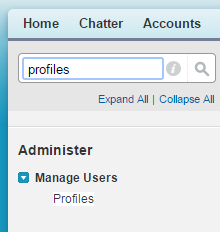
Quick Find is one of the most frequently used tools for Salesforce administrators. It is useful for finding pages such as Users, Profiles, Permission Sets, Object Manager, Flows, Apex Classes, Email Templates, Company Information, and Security settings.
9 Help Menu and Salesforce documentation access
The Help Menu provides access to Salesforce help resources, release information, guidance, and support options. When you click Help, Salesforce may open help content related to the page you are currently using or direct you to Salesforce Help.
Use Help when you need official guidance for a feature, want to understand a page in Salesforce, or need more information before changing a setting. For new administrators, it is a good habit to check Help before changing Setup options that affect users, security, automation, or data access.
10 More menu and hidden Salesforce tabs
The More menu appears when the current app has more tabs than can fit on the navigation bar. It may contain additional objects, reports, dashboards, or custom tabs. If you cannot find an expected tab on the navigation bar, open More and check whether it is listed there.
In some apps, you may also be able to add items to the navigation bar or reorder them. This helps users keep frequently used tabs such as Accounts, Contacts, Opportunities, Cases, Reports, or a custom object within easy reach.
11 Practical Salesforce navigation flow for beginners
If you are new to Salesforce, practice navigation in this order:
- Log in and identify the current app name.
- Open the App Launcher and switch to another available app.
- Open an object tab such as Accounts or Contacts.
- Change the list view to see a different group of records.
- Open a record and review the Details, Related, and Activity areas.
- Use Global Search to find a record by name or keyword.
- Open Setup and use Quick Find to search for a Setup page.
- Open Help from the interface when you need official Salesforce guidance.
This flow covers the navigation tasks that most Salesforce users, administrators, and developers perform regularly.
12 Common issues while navigating Salesforce
- A tab is not visible: Check the More menu, app navigation settings, profile permissions, permission sets, and object tab settings.
- A record is not visible: Check the selected list view, search filters, object permissions, record ownership, sharing rules, and role hierarchy access.
- Setup option is missing: The user may not have the required administrative permission, or the feature may not be enabled in the org.
- Search does not show expected results: Confirm that you are searching the correct term, object, and record field. Also check whether the user has access to that record.
- The screen looks different from a tutorial: The org may be using Lightning Experience, Salesforce Classic, a console app, a custom app, or a customized record page.
13 Editorial QA checklist for this Salesforce navigation tutorial
- Confirm that the tutorial explains both older tab-based navigation and current Lightning Experience navigation.
- Check that the App Launcher, navigation bar, tabs, Global Search, User Menu, Setup, Help, and Quick Find are each explained clearly.
- Verify that the content does not imply every Salesforce user sees the same apps, tabs, records, or Setup options.
- Ensure that Setup and Quick Find are described as administration tools, not normal data-entry screens.
- Confirm that object tabs, list views, records, and permissions are explained in a beginner-friendly way.
FAQs on navigating the salesforce.com application
How do I navigate through Salesforce?
To navigate through Salesforce, start from the selected app, use the navigation bar to open object tabs, use list views to find groups of records, open records to view or edit details, use Global Search to find records quickly, and use Setup for administration tasks.
What is the Salesforce App Launcher used for?
The Salesforce App Launcher is used to open apps and available items in the org. It helps users switch between apps such as Sales, Service, Marketing, or custom apps created for the organization.
Why can I not see a tab in Salesforce?
A tab may be hidden under the More menu, removed from the current app navigation, restricted by profile or permission set settings, or unavailable because the object or feature is not enabled for the user.
What is Quick Find in Salesforce Setup?
Quick Find is the search box inside Salesforce Setup. Administrators use it to quickly locate Setup pages such as Users, Profiles, Permission Sets, Object Manager, Flows, Apex Classes, and Company Information.
What is the difference between Global Search and Quick Find in Salesforce?
Global Search is used to find Salesforce records and data, such as accounts, contacts, opportunities, and cases. Quick Find is used inside Setup to find configuration and administration pages.
Conclusion: navigating salesforce.com application screens
Navigating salesforce.com application screens becomes easier once you understand apps, tabs, records, search, Setup, Help, and Quick Find. Business users mainly work with apps, tabs, list views, and records, while administrators and developers also spend time in Setup. The exact menu items can differ by org, but these navigation concepts apply across most Salesforce environments.