 TutorialKart.com
Salesforce Lightning App Builder is a point-and-click tool for creating and customizing Lightning pages with standard, custom, and managed-package components. Administrators can arrange components on a page, configure component properties, apply visibility rules, preview the result, and activate the page without building the complete interface in code.
What Salesforce Lightning App Builder is used for
Lightning App Builder provides a visual canvas for designing pages used in Lightning Experience and the Salesforce mobile app. It controls the page structure and the components displayed within each region of the selected template.
- Create an App Page for a collection of components that users access as a navigation item.
- Customize a Lightning Home Page for an app or selected user profiles.
- Customize a Lightning Record Page for a Salesforce object.
The builder is intended for page composition. It does not replace object configuration, page layouts, field-level security, permission sets, or custom development when business logic is required.
Lightning App Builder page types
Lightning App Page
An App Page is a standalone Lightning page that can contain dashboards, lists, reports, custom components, and other supported components. After activation, it can be added to the navigation of one or more Lightning apps.
Lightning Home Page
A Home Page is the landing page users see when they open a Lightning app. It can be assigned as the organization default, an app default, or an app-and-profile-specific page, depending on the available activation options.
Lightning Record Page
A Record Page controls the arrangement of components displayed for a record, such as an Account, Contact, Opportunity, or custom object record. Record pages can be assigned by app, record type, and profile where those assignment options are supported.
Lightning App Builder components
The component palette on the left side of Lightning App Builder lists the components that can be placed on the current page. The available items depend on the page type, enabled Salesforce features, installed packages, and custom components exposed to the builder.
- Standard components: Components supplied by Salesforce, such as Record Detail, Related Lists, Tabs, Rich Text, Report Chart, List View, and Recent Items.
- Custom components: Lightning Web Components or Aura components created by developers and configured for use on Lightning pages.
- Managed components: Components installed from a managed package, including packages obtained through AppExchange.
Selecting a component on the canvas opens its properties panel. Depending on the component, the panel may provide settings for labels, filters, record fields, display behavior, actions, or component visibility.
Create a new Lightning Page using Lightning App Builder
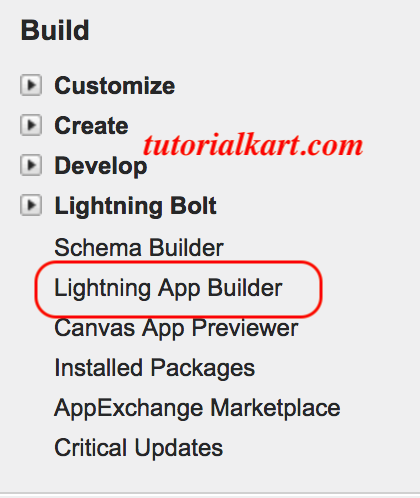
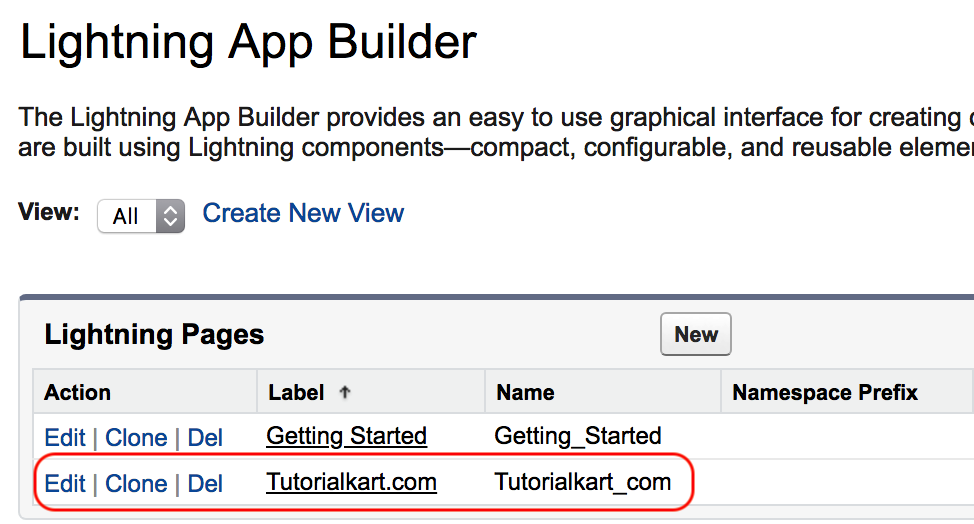
To create a Lightning page, open Salesforce Setup, search for Lightning App Builder in the Quick Find box, select Lightning App Builder, and click New. In older Salesforce interfaces, the navigation path may appear as Build => Lightning Bolt => Lightning App Builder => New.
Salesforce displays the page types available in Lightning App Builder. Select the type that matches how users should access the page.
Create a Lightning App Page
- Select App Page and click Next.
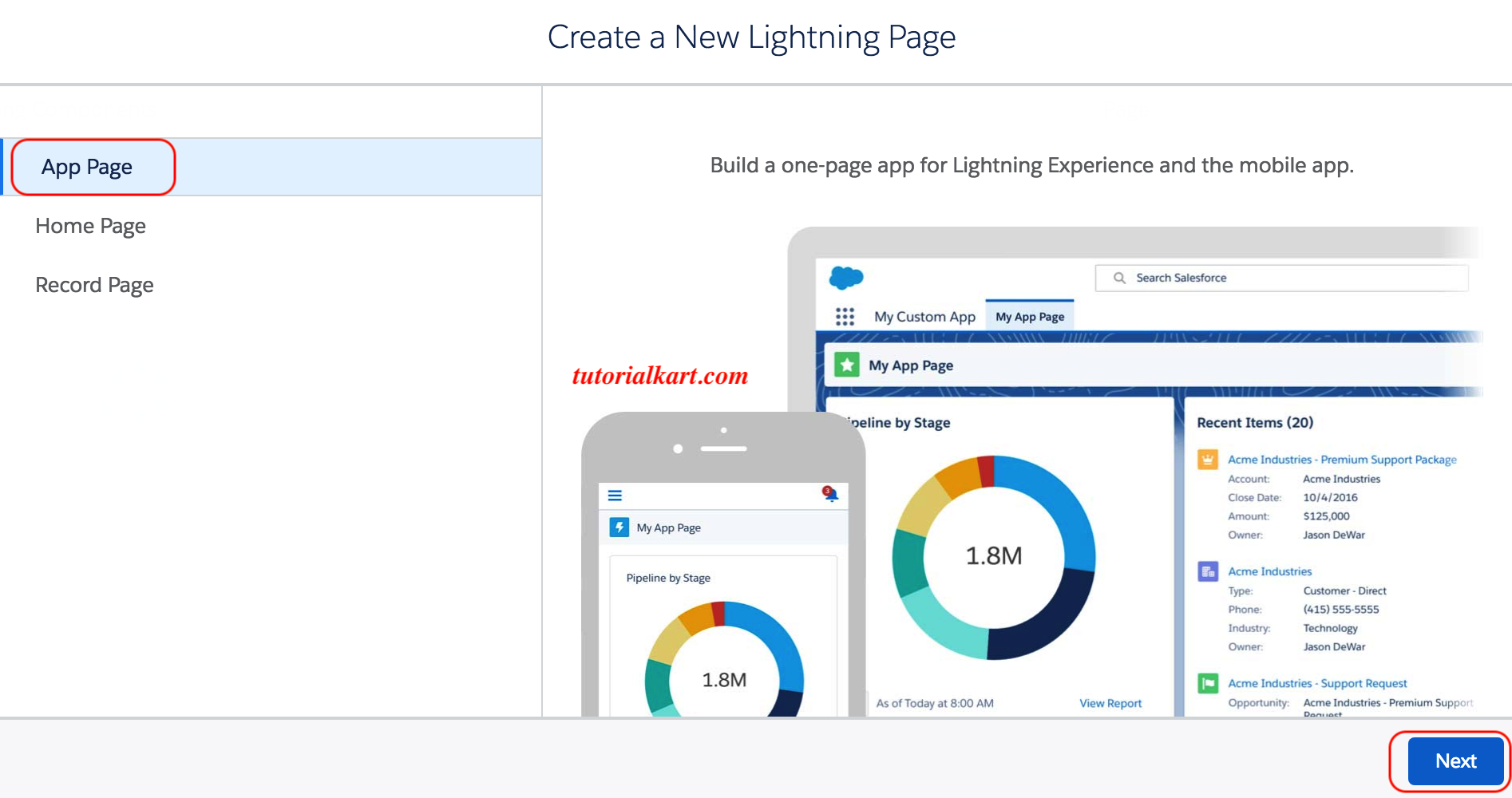
- Enter a clear label for the Lightning page and click Next.
- Select a page template. The template determines the number, size, and arrangement of regions on the canvas.
- Click Done or Finish, depending on the interface displayed in your Salesforce release.
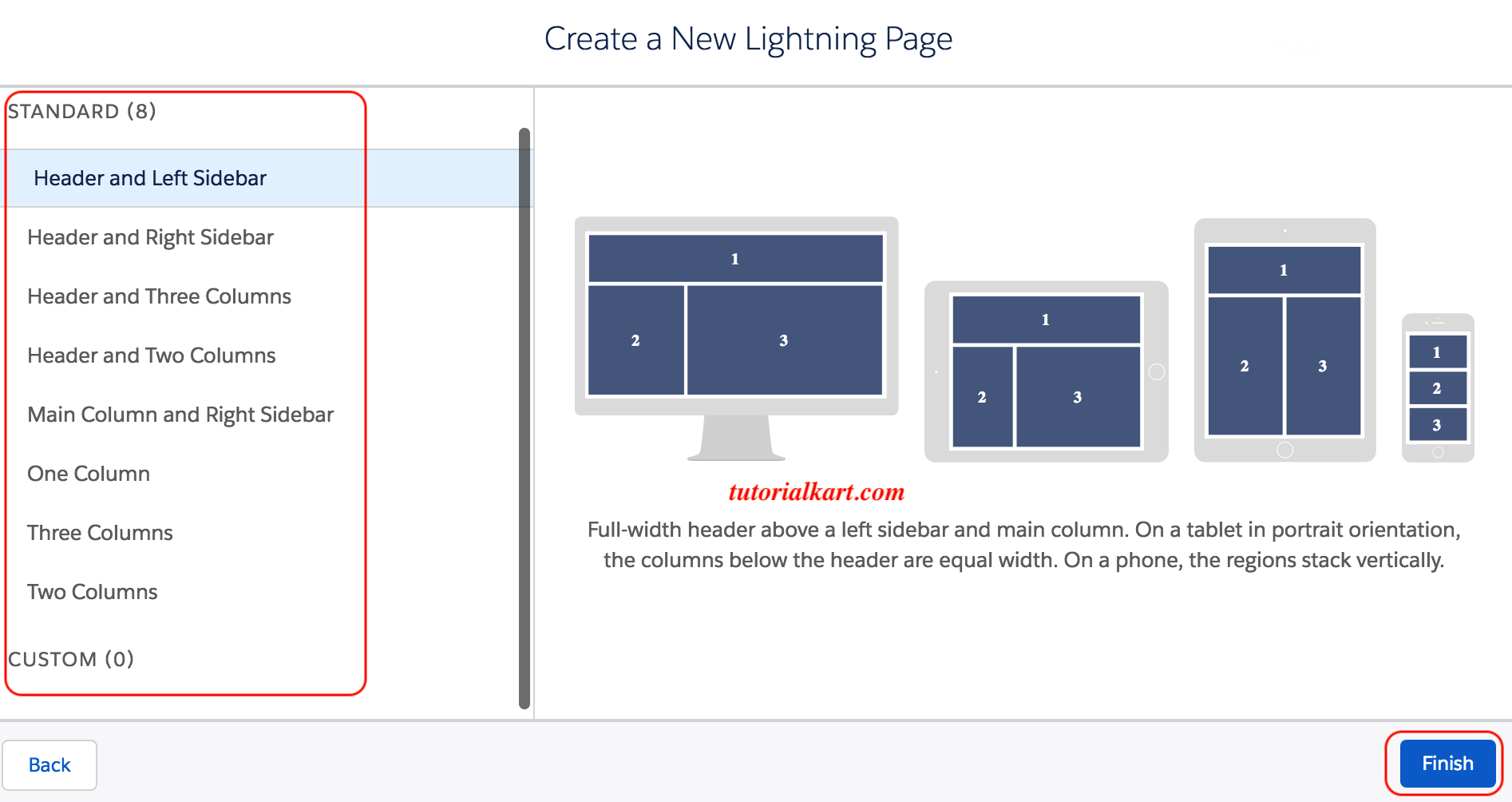
After the template is selected, Lightning App Builder displays the page canvas. The component palette appears on the left, the selected page layout appears in the center, and component or page properties appear on the right.
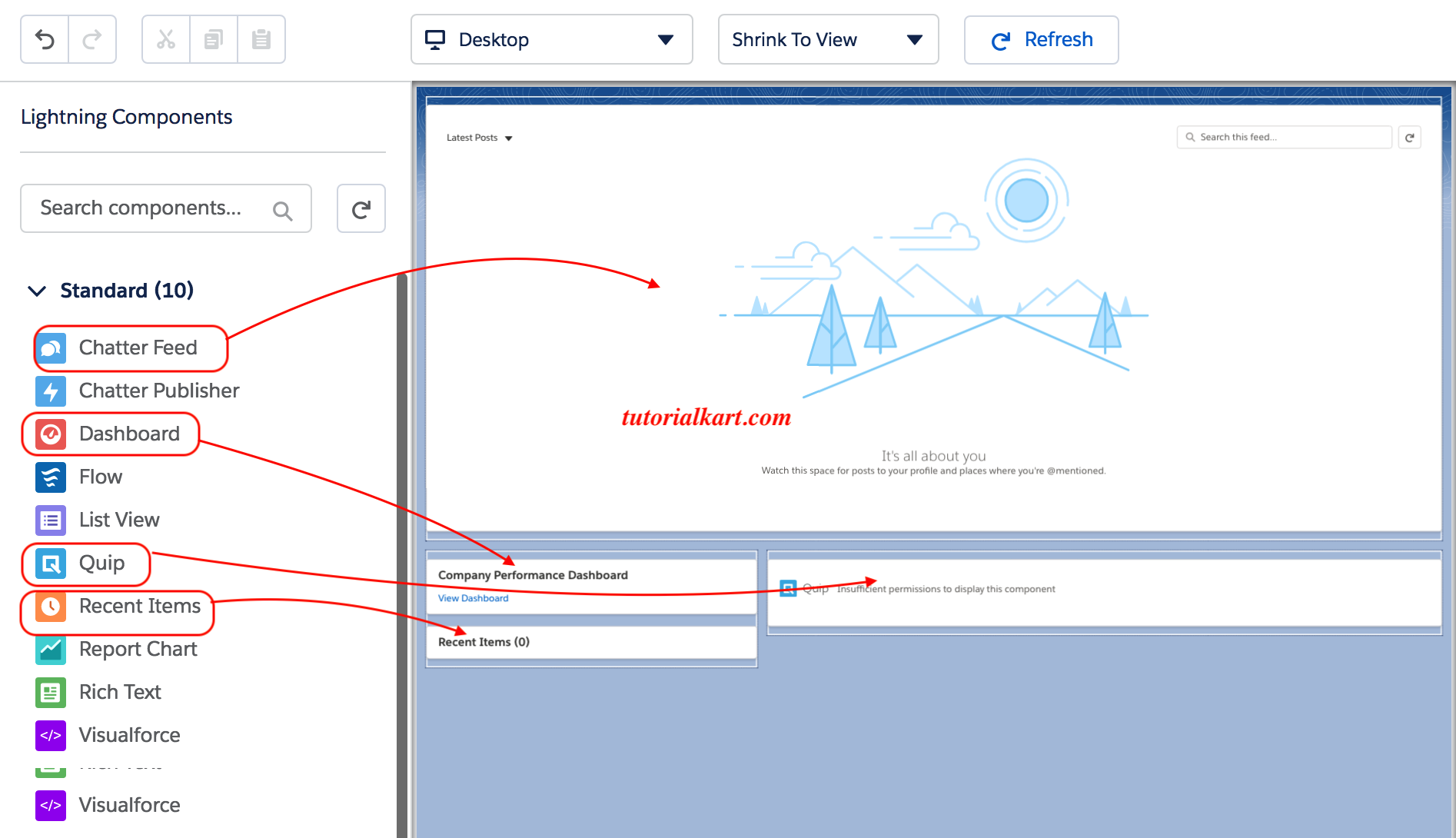
- Drag a component from the palette into a compatible region on the canvas.
- Select the component and configure its properties in the right panel.
- Repeat the process for each component required on the page.
- Reorder components by dragging them to another compatible location.
- Use the preview options to check desktop, tablet, or phone layouts when those options are available.
- Click Save.
Developers can create Lightning Web Components or Aura components and expose them to Lightning App Builder. Managed packages can also provide components that appear in the component palette after installation.
Configure Lightning component visibility rules
Component visibility rules control when a component appears. They are useful when different users, records, or form factors require different information on the same Lightning page.
- Select a component on the Lightning App Builder canvas.
- Locate the component visibility section in the properties panel.
- Add one or more filters based on supported criteria, such as record fields, user details, device form factor, or permissions.
- Choose whether all conditions or any condition must be true.
- Save and test the page with representative users and records.
Visibility rules affect whether a component is displayed, but they do not grant access to records, fields, objects, or actions. Salesforce security settings continue to control access.
Activate a Lightning Page
Saving a Lightning page stores the configuration, but users may not see it until the page is activated and assigned. Click Activation or Activate in Lightning App Builder after saving the page.
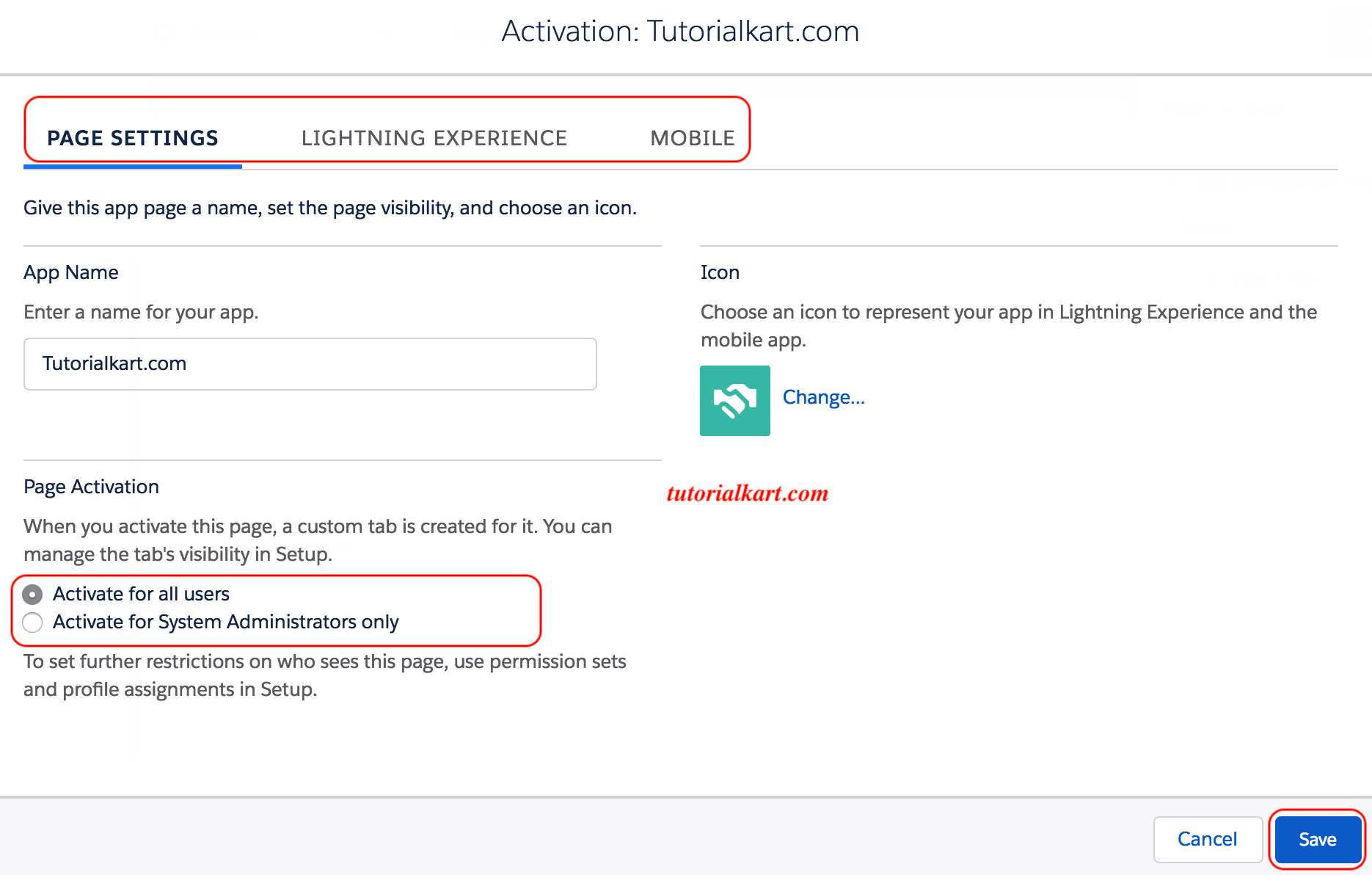
The available activation choices depend on whether the page is an App Page, Home Page, or Record Page.
- App Page activation: Add the page to one or more Lightning apps and choose its navigation position where applicable.
- Home Page activation: Assign the page as the organization default, an app default, or an app-and-profile-specific page.
- Record Page activation: Assign the page as the organization default or by app, record type, and profile, depending on the object and available assignment options.
- Salesforce mobile activation: Configure the page for mobile use when the page type and selected components support the mobile form factor.
Review the assignment summary carefully, complete the activation steps, and click Save.
Lightning App Builder versus Salesforce page layouts
Lightning App Builder and page layouts affect different parts of the record-page experience. They are commonly used together rather than as alternatives.
| Configuration tool | What it controls |
|---|---|
| Lightning App Builder | The page template, component placement, tabs, related components, visibility rules, and page activation assignments. |
| Page Layout | The fields, sections, buttons, related lists, and actions associated with a record layout. |
| Compact Layout | The key record fields shown in selected highlights and mobile contexts. |
| Dynamic Forms | Field and field-section placement directly in Lightning App Builder for supported objects and configurations. |
For example, placing the Record Detail component on a Lightning Record Page can still cause the component to display fields according to the applicable page layout. When Dynamic Forms is configured, supported fields and sections can instead be placed individually on the Lightning page.
Lightning App Builder design practices
- Choose a template that matches the amount and priority of information users need.
- Place frequently used information and actions near the top of the page.
- Avoid placing too many data-heavy components on the initial page view.
- Use tabs or accordions to organize secondary information where appropriate.
- Apply component visibility rules only when the conditions are easy to maintain and test.
- Test the page with the profiles, permission sets, record types, and devices used by its intended audience.
- Confirm that each custom or managed component supports the required page type and form factor.
Salesforce Lightning App Builder FAQs
What is Lightning App Builder in Salesforce?
Lightning App Builder is Salesforce’s visual page-composition tool for creating App Pages and customizing Home Pages and Record Pages. It lets administrators arrange supported components, configure properties, define visibility rules, and activate page assignments.
What can be built with Lightning App Builder?
You can create standalone App Pages and customize Lightning Home Pages and Record Pages. The exact components and assignment options depend on the selected page type, Salesforce features, installed packages, and custom components available in the organization.
What components can be added to a Lightning Page?
A Lightning Page can contain Salesforce standard components, custom Lightning Web Components or Aura components, and components supplied by installed managed packages. Only components configured for the selected page type appear in the palette.
What is the difference between Lightning App Builder and a page layout?
Lightning App Builder controls the overall Lightning page structure and component arrangement. A page layout primarily controls record fields, sections, related lists, buttons, and actions. Both can affect the same record-page experience.
Why is an activated Lightning Page not visible to a user?
Check the page assignment, app, profile, record type, object access, field permissions, component visibility rules, and device form factor. Also verify that the user opened the same app and record context used in the activation assignment.
Lightning App Builder editorial QA checklist
- Confirm that App Page, Home Page, and Record Page are described as separate Lightning page types.
- Verify that the Setup navigation reflects the current Lightning App Builder interface while retaining the existing historical navigation reference.
- Check that the selected template, component placement, properties, saving, and activation steps are all included.
- Confirm that standard, custom, and managed-package Lightning components are distinguished correctly.
- Verify that component visibility is not described as a substitute for Salesforce permissions and sharing controls.
- Check that Lightning App Builder and page layouts are explained as related but different configuration tools.
- Test activation guidance separately for App Pages, Home Pages, and Record Pages.
- Confirm that all original images and links remain unchanged.