 TutorialKart.com
Salesforce Classic and Lightning Experience are two desktop user interfaces available in Salesforce. This tutorial explains how to switch to Lightning Experience from Salesforce Classic, how the Lightning navigation bar works, how to use the App Launcher, where to find Setup, and what to check when the switch option is not visible.
- Before switching from Salesforce Classic to Lightning Experience
- How to switch to Lightning Experience from Salesforce Classic
- Navigation Bar in Salesforce Lightning Experience
- App Launcher In Lightning Experience.
- How to search Records in lightning experience.
- Setup menu in Lightning Experience
- Help Menu in Lightning experience
- Troubleshooting missing Lightning Experience switch options
What is Salesforce Lightning Experience?
Salesforce Lightning experience is the modern Salesforce desktop interface used for working with records, apps, dashboards, reports, service tools, sales tools, and Setup. It replaces many of the page layouts and navigation patterns used in Salesforce Classic with a header-based interface, an App Launcher, app-specific navigation items, contextual help, and a more visual record experience.
Lightning Experience does not mean that your Salesforce data is moved to a separate system. Accounts, contacts, opportunities, cases, custom objects, reports, dashboards, permissions, and most Setup configuration remain in the same Salesforce org. The main change is the user interface and the way users navigate to apps, records, list views, and setup tools.
Before switching from Salesforce Classic to Lightning Experience
Before a user switches from Salesforce Classic to Lightning Experience, the Salesforce org and the user must be allowed to use Lightning Experience. In many Salesforce orgs this is already enabled, but some users may still be limited by profile settings, permission sets, app access, or admin decisions.
| Item to check | Why it matters before switching to Lightning Experience |
|---|---|
| Lightning Experience User permission | The user needs access to Lightning Experience. Admins can grant this through profiles or permission sets. |
| Business-critical customizations | Visualforce pages, JavaScript buttons, custom links, and managed packages should be reviewed so users do not lose important actions after switching. |
| App and tab visibility | Apps and navigation items shown in Lightning depend on profile, permission set, and app configuration. |
| User training | Users should know where to find the App Launcher, global search, Setup, list views, and the profile menu in Lightning Experience. |
Salesforce provides official guidance for admins who are preparing users for Lightning Experience. For more details, see Salesforce Help on transitioning from Salesforce Classic to Lightning Experience and giving users access to Lightning Experience.
How to Switch to Lightning Experience from Salesforce Classic?
To switch to Lightning Experience from Salesforce Classic, use the switch option in the Salesforce Classic header or user menu. The exact location can vary slightly depending on org settings and Salesforce updates, but the option is usually visible near the user name or profile menu.
- Log in to your Salesforce org in Salesforce Classic.
- Click your name or profile menu in the top-right area of the Salesforce Classic page.
- Select Switch to Lightning Experience. In some Classic layouts, the same switch link can also appear in the top navigation header.
- Wait for Salesforce to reload the page in Lightning Experience.
- In Salesforce Classic, open your user menu and select Switch to Lightning Experience.
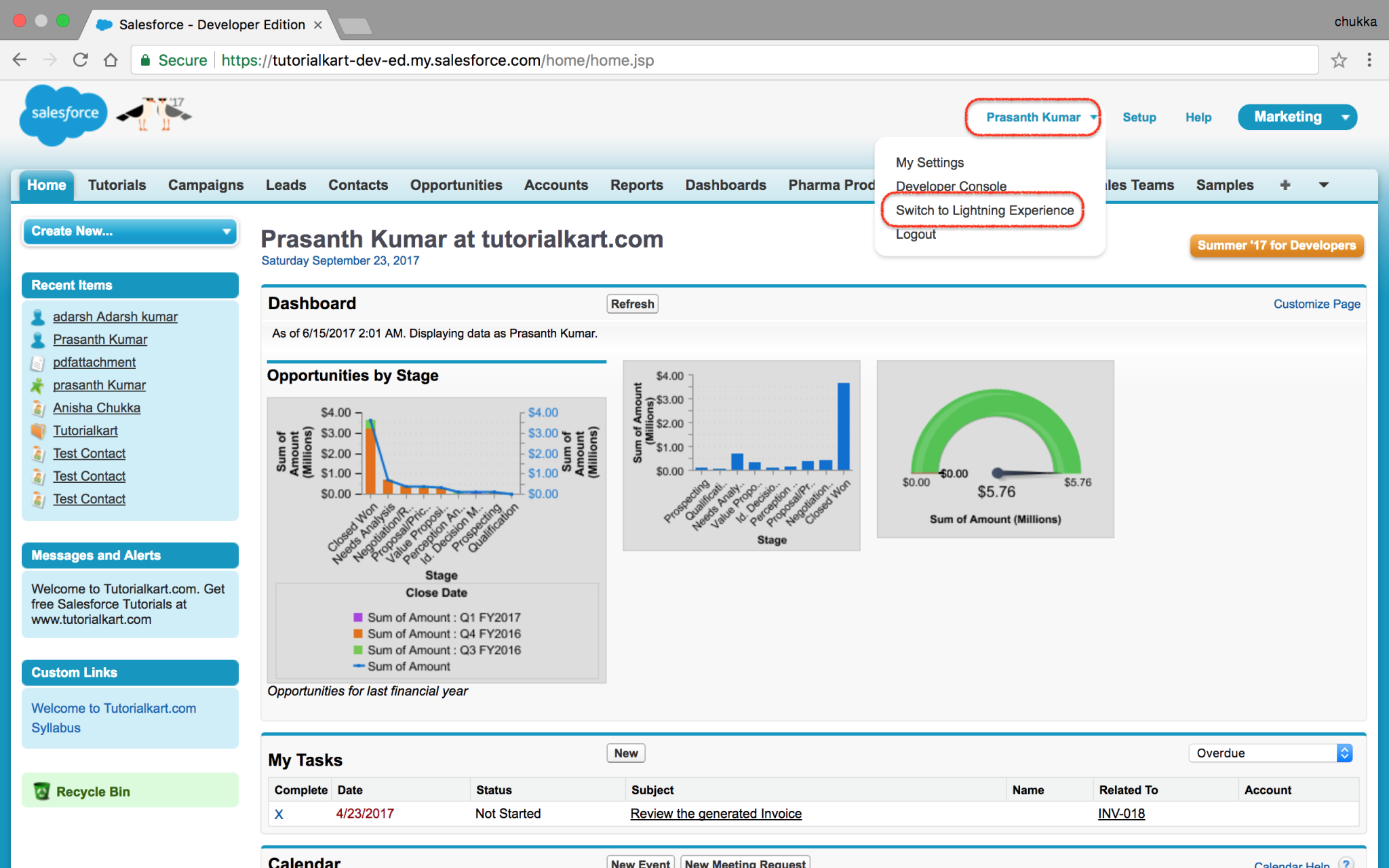
When we click on Switch to Lightning experience we will be redirected to new lightning experience user interface as shown below.
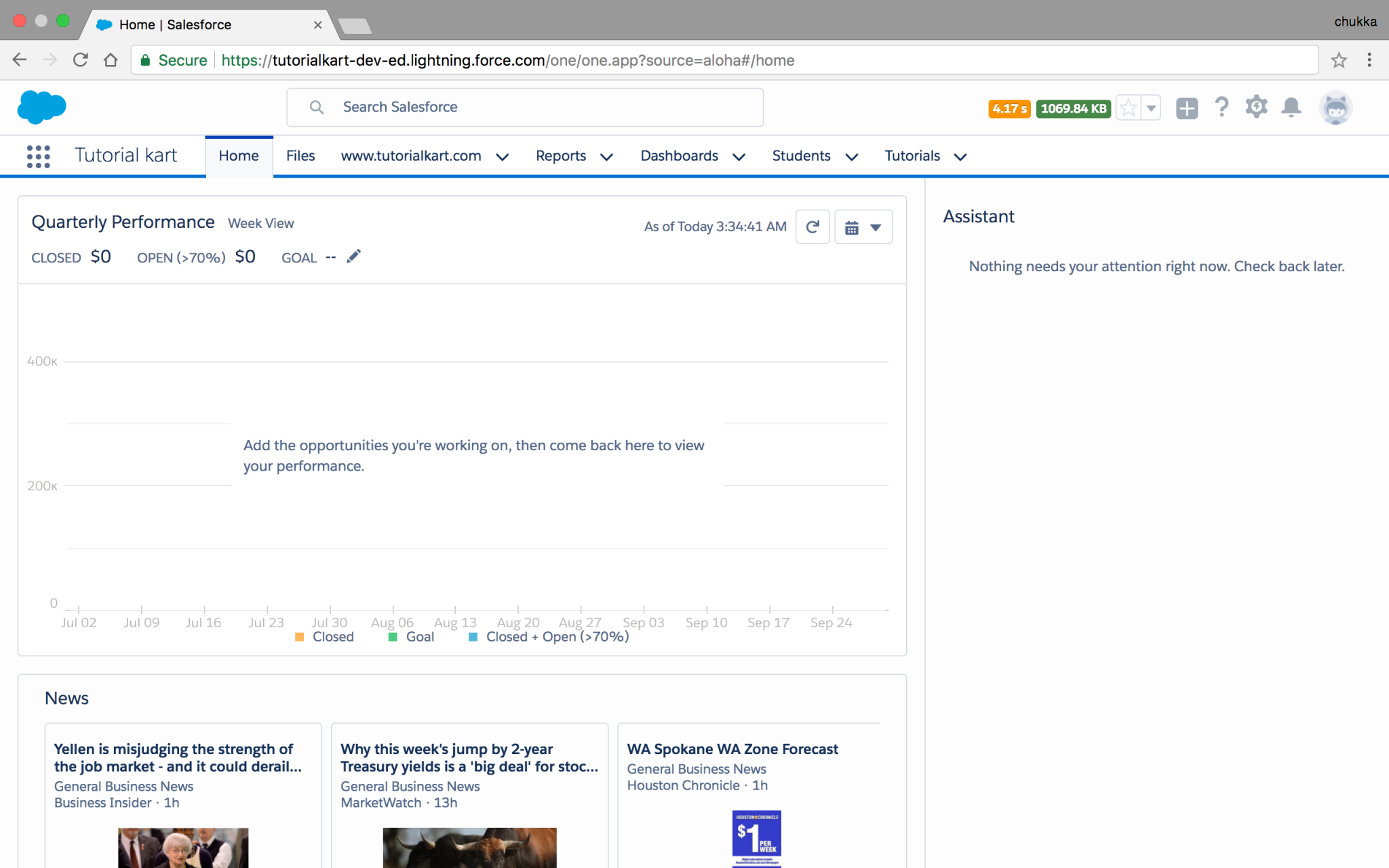
If the Switch to Lightning Experience option is not available, ask a Salesforce admin to check whether Lightning Experience is enabled for the org and whether your user has the required permission. Salesforce also documents the user-facing switch process in How to Switch Between Salesforce Lightning Experience and Salesforce Classic.
Navigation Bar in Salesforce Lightning Experience
In Salesforce.com, developers and administrators spend lot of their time using Setup. Now we learn how to customize, configure and setup lightning experience.
The navigation bar in Lightning Experience is app-specific. When you change from one Lightning app to another, the items in the navigation bar can also change. For example, a Sales app can show items such as Home, Opportunities, Leads, Accounts, Contacts, Reports, and Dashboards, while a Service app can show Cases, Knowledge, Service Console tools, and related service objects.
Navigation Bar in Lightning Experience.
Navigation bar in Lightning experience is totally different from Salesforce classic UI. It provides an efficient and consistent interface to navigate through various Salesforce organization Apps. Every application will have their own navigation bar at the top of the page which helps to find records, list and items.
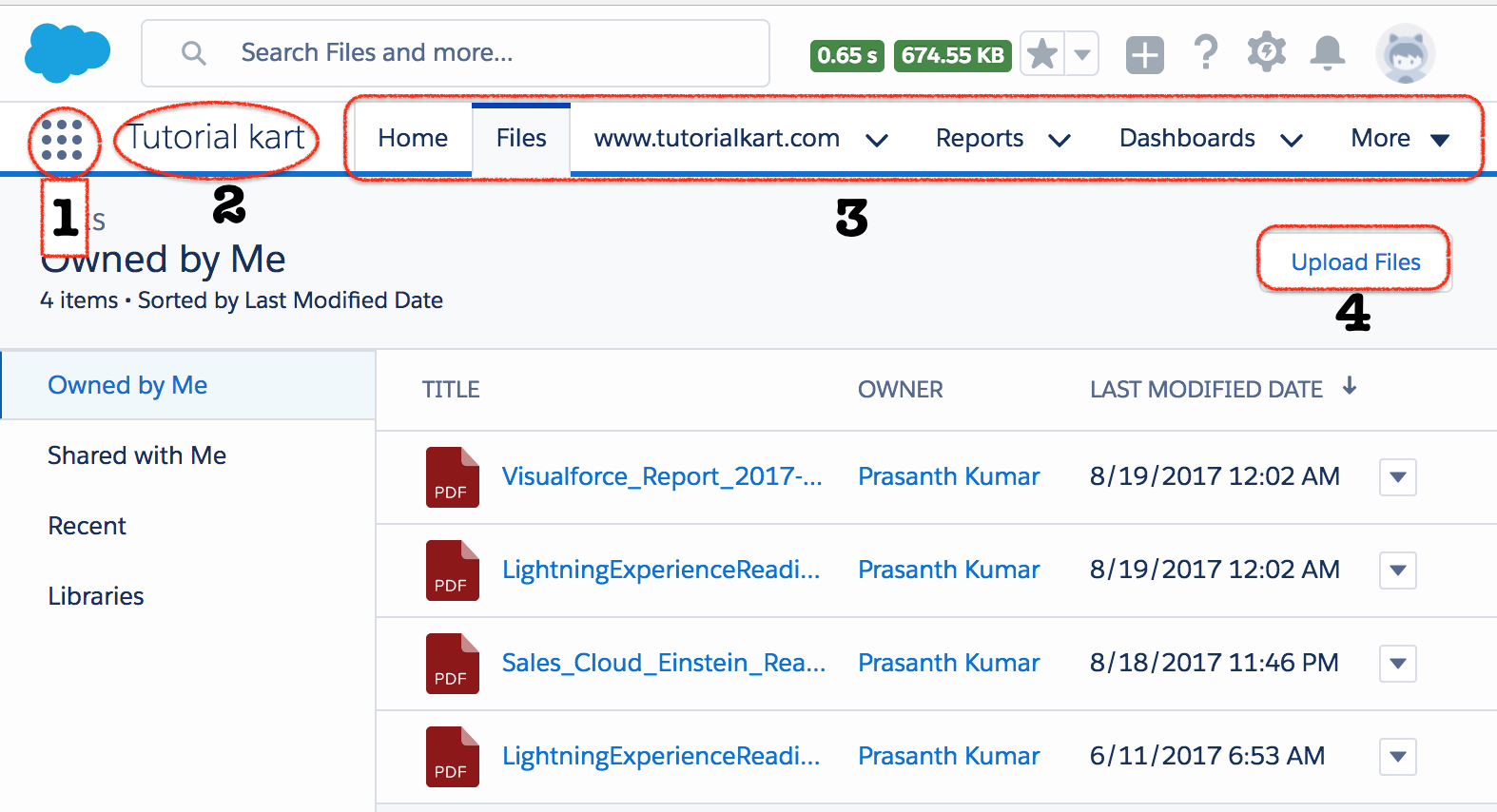
- App Launcher Icon : Here user can access items and Salesforce applications.
- Application name.
- Salesforce items like Files, reports, opportunities, Accounts, Dashboards. Using this section we can upload files, can create records directly from the navigation bar.
- In files, we can upload files to salesforce directly from navigation bar.
Salesforce classic contains standard objects, custom objects, visualforce tabs, chatter feets, groups, people and many more. In Salesforce lightning experience we can add multiple items like lightning page tabs and utilities in the navigation menu bar .
In Lightning Experience, the navigation bar can contain standard objects, custom objects, Lightning page tabs, Visualforce tabs, web tabs, and utility items depending on the app type. Users may also be able to personalize their own navigation bar by adding, reordering, or removing eligible items, unless an admin has disabled personalization for the app or org.
For admin guidance on this area, refer to Salesforce Help on efficient navigation and customization basics and personalizing navigation in Lightning Experience.
App Launcher in Lightning Experience.
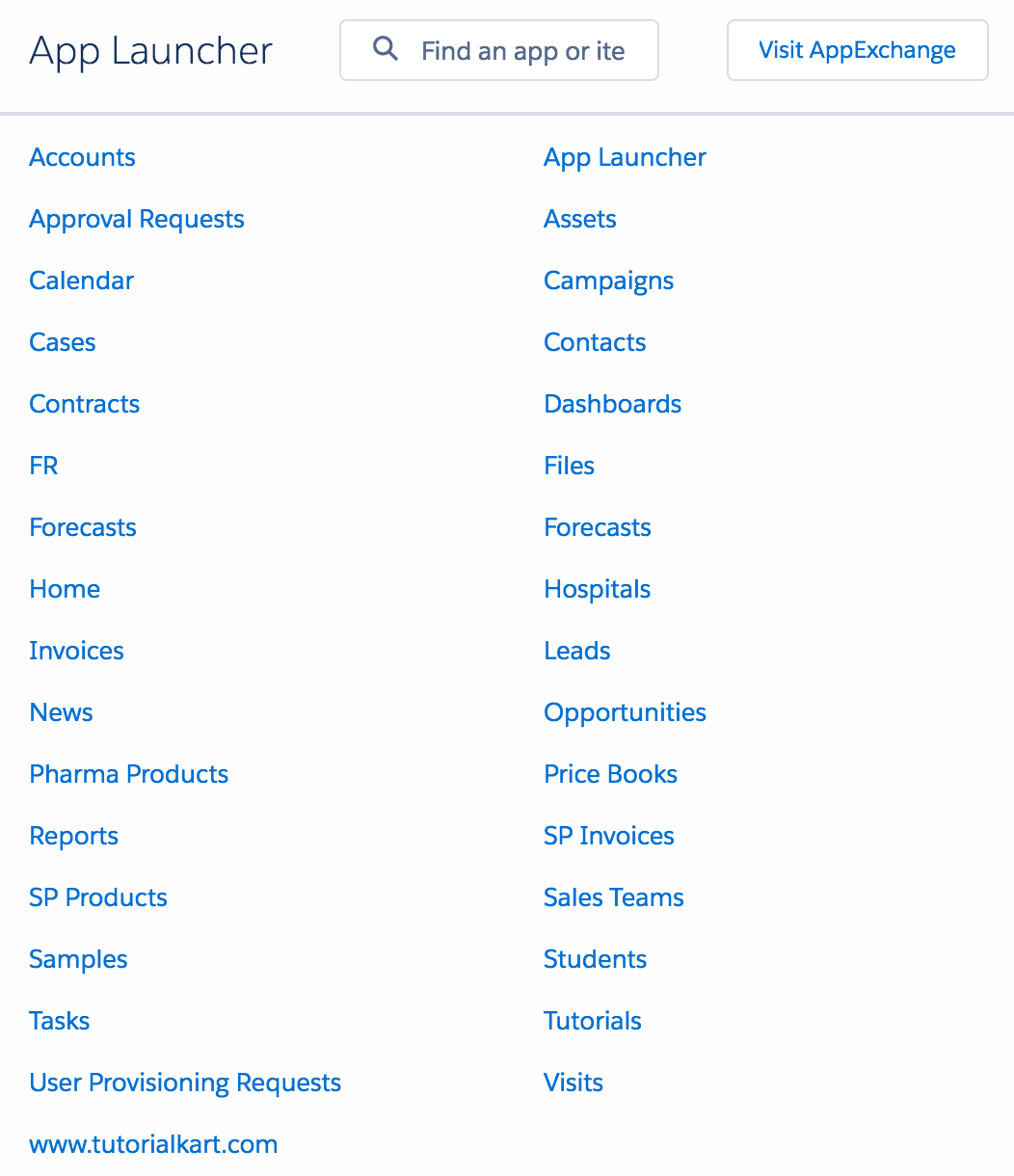
The App Launcher is the main place to open Salesforce apps and available items in Lightning Experience. It is useful when a user needs to move from one app to another, such as from Sales to Service, Marketing, a custom Lightning app, or an installed connected app.
In Salesforce Classic UI, users can switch from one App to another App using App launcher. In Salesforce classic, navigate to Force.com App Menu | App Launcher.
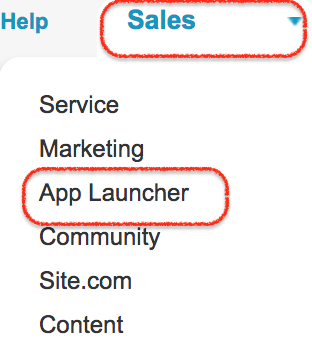
In Salesforce lightning Experience, to get App Launcher simply click on  icon as shown above. Now every Salesforce standard App, custom app and connected apps like Gmail, Google Drive will be listed in App Launcher.
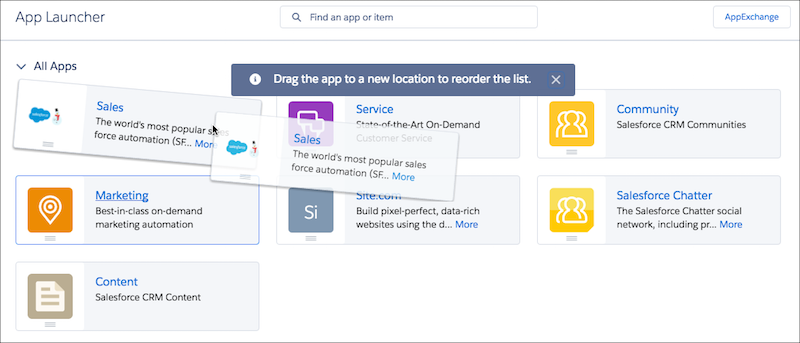
Salesforce user can drag titles to sort their personal view of the App launcher as shown below.
App visibility is permission-based. If a user cannot see an app in the App Launcher, the app may not be assigned to the user profile, the required permission set may be missing, or the app may not be available in Lightning Experience. Salesforce Help explains app switching in App Switching in Lightning Experience.
How to search records in Lightning experience?
To search for a record in Salesforce lightning, click on the search bar and enter the record name that you are looking for.
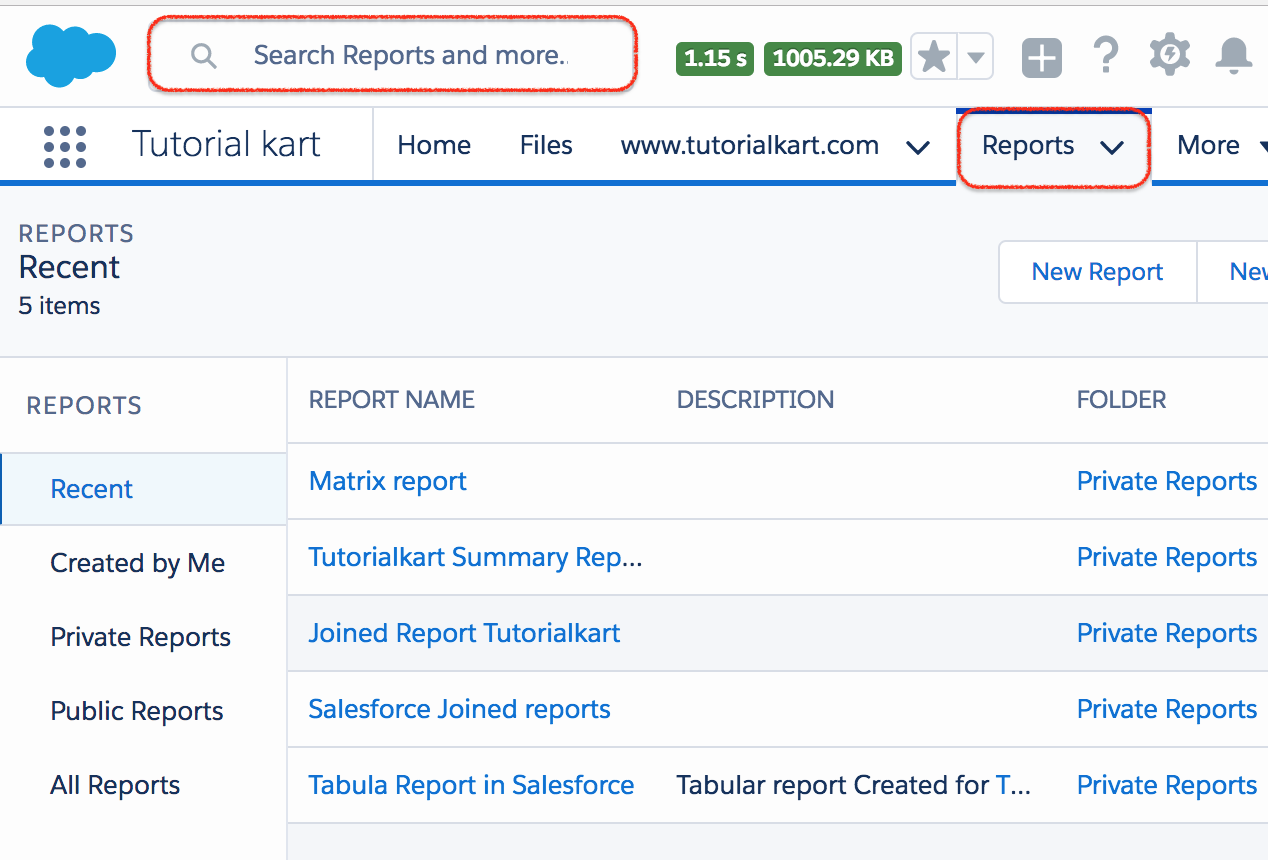
Global search appears in the Lightning header. You can search by record name, keyword, phone number, email address, or another searchable field depending on the object and search configuration. After typing a search term, Salesforce can show suggested records first. Press Enter or choose a result to open the full search results page.
- Use global search when you do not know the exact object that contains the record.
- Use object-scoped search when you want results from one object, such as Accounts, Contacts, Cases, or Opportunities.
- Use list views when you need a filtered set of records, such as recently viewed accounts or open opportunities.
- Check permissions when a record does not appear. Salesforce search respects sharing rules, object permissions, and field visibility.
Setup menu in Salesforce Lightning Experience
Setup is accessed differently in Lightning Experience than in Salesforce Classic. In Lightning Experience, click the gear icon in the upper-right corner and select Setup. The Setup page opens with tools such as Setup Home, Object Manager, Quick Find, user management, security settings, automation, and app configuration.
| Lightning Setup area | Common use in Salesforce administration |
|---|---|
| Quick Find | Search for setup pages such as Users, Profiles, Permission Sets, Flows, Email Deliverability, or Object Manager. |
| Object Manager | Manage standard and custom objects, fields, page layouts, record types, buttons, links, and compact layouts. |
| Setup Home | Review admin tasks, release updates, recommended setup actions, and configuration shortcuts. |
| App Manager | Create or edit Lightning apps, navigation items, branding, utility bars, and app visibility. |
Users who do not have admin permissions may not see all Setup options. This is expected because Setup visibility depends on Salesforce permissions such as View Setup and Configuration, Manage Users, Customize Application, and other administrative permissions.
Help Menu in Salesforce Lightning Experience
Help Menu in Salesforce Lightning Experience is different when compared with Salesforce classic. In lightning experience, each page has a contextual help menu with links to resources, help topics, walkthroughs, videos, developer guides and PDF manuals relates to that specific page.
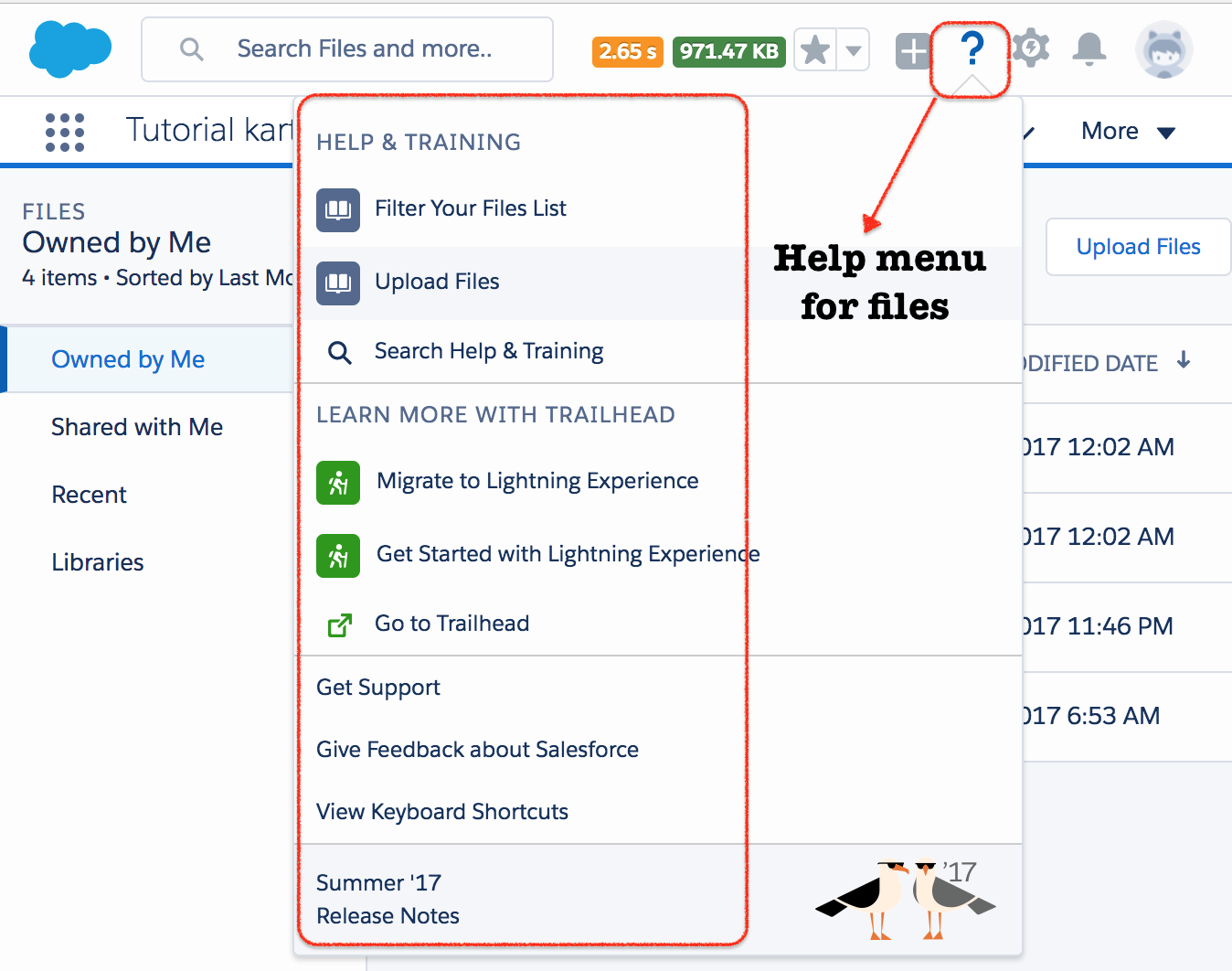
The Help menu is useful when a user is learning a new Lightning page because the suggested help content can change based on where the user is working. For example, a record page, report builder, dashboard page, Setup page, and app page can surface different help topics.
Troubleshooting missing Lightning Experience switch options
If a user cannot switch to Lightning Experience, the reason is usually related to permissions, org settings, or the current Salesforce edition and configuration. Use the following checks before assuming that Lightning Experience is unavailable.
| Problem in Salesforce | What to check |
|---|---|
| Switch to Lightning Experience is not visible in Salesforce Classic | Ask an admin to verify that Lightning Experience is enabled and that the user has the Lightning Experience User permission. |
| User gets a message that Lightning Experience is not enabled for them | Assign the correct profile permission or permission set that includes Lightning Experience access. |
| Switch to Salesforce Classic is not visible from Lightning Experience | An admin may have enabled the setting that hides the option to switch back to Salesforce Classic. |
| Apps or tabs are missing after switching to Lightning Experience | Review app assignments, tab visibility, object permissions, and whether the app or component is supported in Lightning Experience. |
| Custom buttons or pages behave differently in Lightning Experience | Review Visualforce pages, JavaScript buttons, custom links, managed packages, and Lightning-compatible replacements. |
Salesforce Classic can still be available in many orgs, but admins can control whether users can switch back from Lightning Experience. Salesforce documents these behaviors in Salesforce Classic Doesn’t Go Away When You Move to Lightning Experience and in its help article about the missing Switch to Salesforce Classic option.
Salesforce Lightning Experience switching FAQs
How do I switch from Salesforce Classic to Lightning Experience?
In Salesforce Classic, click your name or profile menu and select Switch to Lightning Experience. In some orgs, the switch link also appears in the Classic header. If the option is missing, contact your Salesforce admin.
Why can’t I see the Switch to Lightning Experience option?
The option can be missing when Lightning Experience is not enabled for the org, when your user does not have the Lightning Experience User permission, or when an admin has restricted switching behavior through profile or permission settings.
Can I switch back to Salesforce Classic after using Lightning Experience?
In many Salesforce orgs, users can switch back from the profile menu in Lightning Experience. However, admins can hide the option to switch to Salesforce Classic, so the choice depends on org configuration.
Where is Setup in Salesforce Lightning Experience?
In Lightning Experience, click the gear icon in the upper-right corner and select Setup. Use Quick Find or Object Manager to reach the setup page you need.
Why are some apps missing from the Lightning App Launcher?
Apps in the App Launcher depend on app availability, profile assignments, permission sets, and user access. If an app is missing, ask an admin to review the app settings and your permissions.
Editorial QA checklist for this Salesforce Lightning Experience tutorial
- Confirm that the switching steps mention the current user menu or header link, not only the older Salesforce Classic layout shown in the screenshot.
- Verify that the tutorial distinguishes between enabling Lightning Experience for an org and switching an individual user interface.
- Check that navigation guidance covers the Lightning App Launcher, app-specific navigation bar, global search, Setup gear icon, and Help menu.
- Confirm that troubleshooting explains missing switch links, missing apps, missing tabs, and permissions without implying that all users can control these settings themselves.
- Review all Salesforce Help links periodically because Salesforce can update help article URLs, labels, and Setup navigation names.