 TutorialKart.com
How to search in Salesforce using Global Search, list views, lookup search, and search layouts
Salesforce search helps users find records and other searchable items that they are allowed to access. In Salesforce, most users start with the global search bar in Lightning Experience. Users can also search inside a list view, search a lookup field while selecting a related record, and use Classic search options in older orgs.
In this salesforce tutorial, we will cover Salesforce Global Search, Classic Sidebar Search, Classic Advanced Search, lookup search, list view search, and Salesforce search layouts.
Salesforce search options users commonly see
- Global Search: Search across many searchable Salesforce objects from the top search bar.
- List View Search: Search within the records shown in a selected object list view.
- Lookup Search: Search for a related record while filling a lookup field.
- Sidebar Search: A Salesforce Classic search option shown in older Classic page layouts.
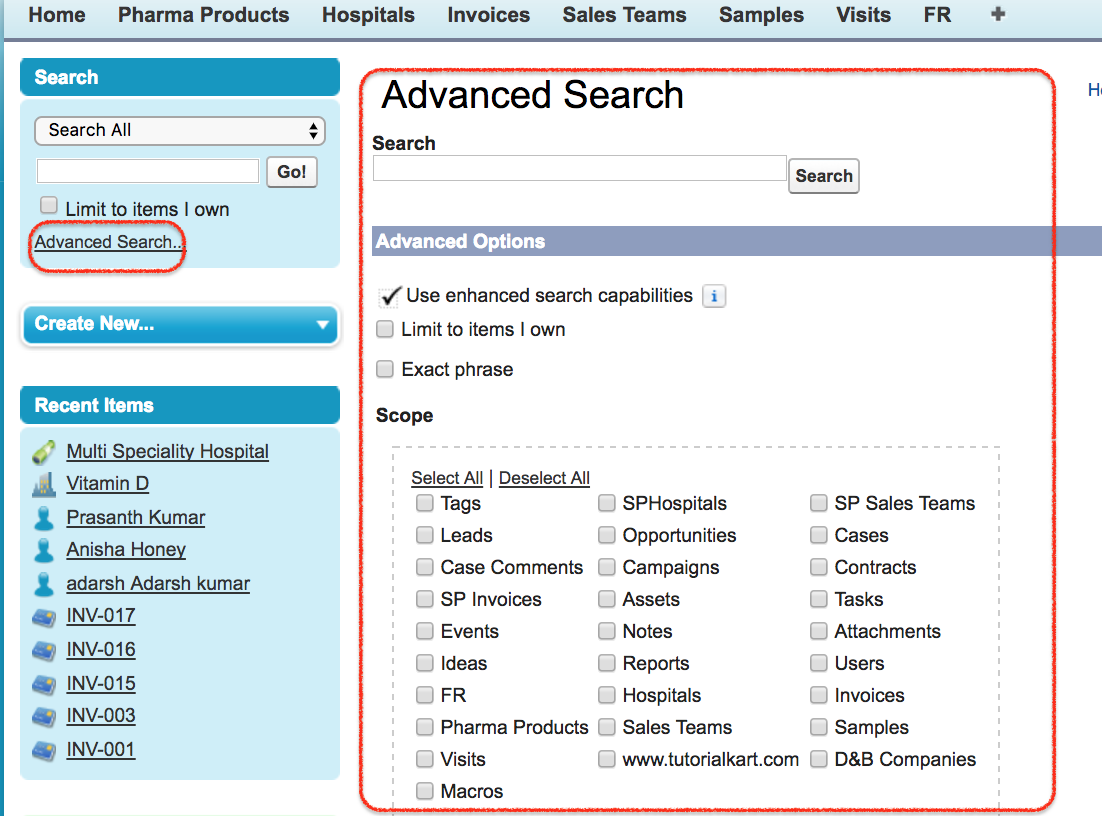
- Advanced Search: A Salesforce Classic search option that lets users choose objects and refine search terms.
- Search Layouts: Admin settings that control the fields shown in search results and lookup dialogs.
The older description of Salesforce search focused on Global Search, Sidebar Search, and Advanced Search. In Lightning Experience, users normally use the top global search bar first and then narrow results by object or filters.
What is Salesforce Global Search?

Salesforce Global Search is the search bar at the top of Salesforce. It is useful when you know a name, keyword, phone number, email address, or record detail but do not want to open each object separately. Start typing in the search bar, choose a suggested record if it appears, or press Enter to view the full search results page.
To search a specific object, select the object from the search dropdown before running the search. For example, select Accounts if you want Account records only. Salesforce describes the current Lightning search behavior in its official Search for Records documentation.
Salesforce search respects permissions and sharing. If a user does not have access to a record, search should not expose that record. When users cannot find a record, check access, object permissions, object search settings, and whether the search index has updated.
How to search a list view in Salesforce
List view search is best when the user already knows the object. Open the object, choose the required list view, and use the search box above the list view table. List view search narrows the records shown in that list view; it does not search the whole Salesforce org like Global Search.
- Open the object, such as Accounts, Contacts, Leads, or a custom object.
- Select the list view you want to search.
- Enter a search term in the list view search box.
- Clear the search box to return to the full list view results.
What is Sidebar Search in Salesforce Classic?
Sidebar Search is a Salesforce Classic search option that appears in the sidebar in older Classic layouts. It is mainly relevant for Salesforce Classic users and legacy orgs. Lightning Experience users normally use Global Search instead.
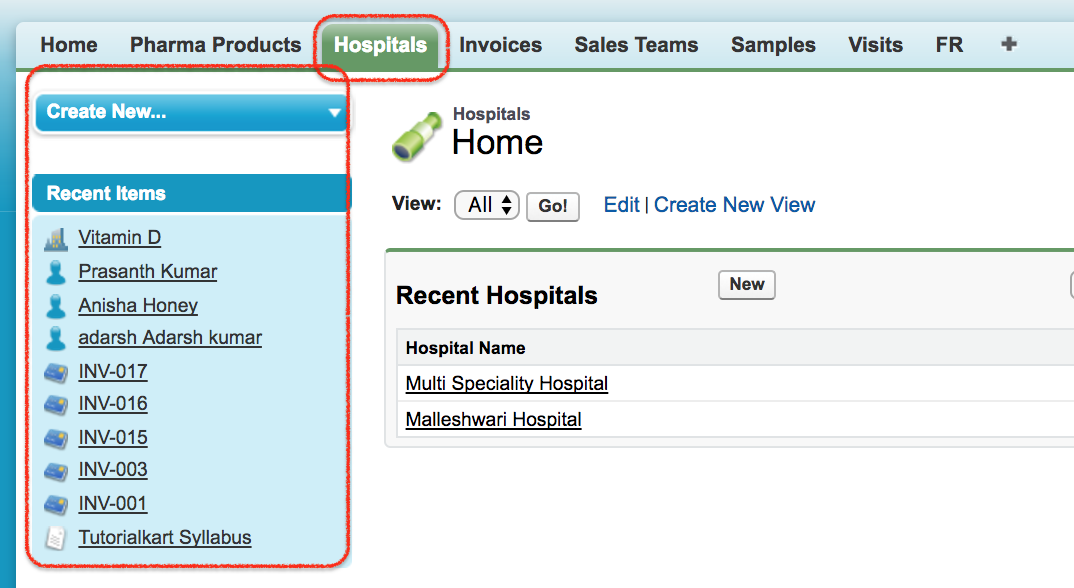
In older Salesforce Classic examples, Sidebar Search and Advanced Search are connected with Classic search settings and Chatter behavior. Admins used the path Setup | Chatter Settings | Edit to review whether Chatter was enabled or disabled.
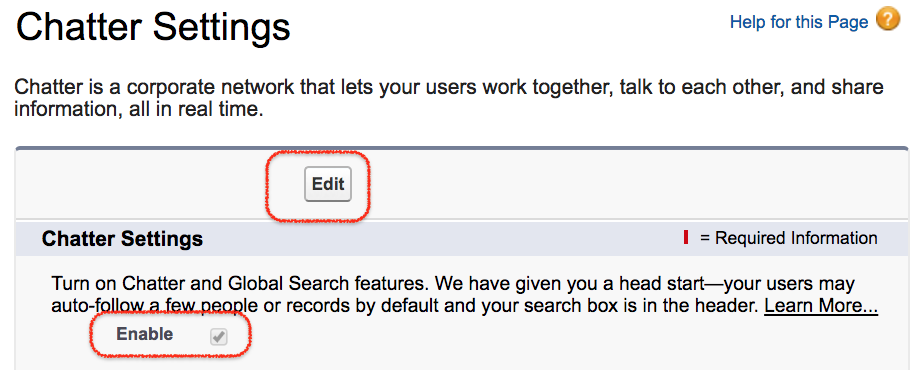
- In Salesforce Classic, disabling Chatter can make the Classic sidebar search option available in some orgs.
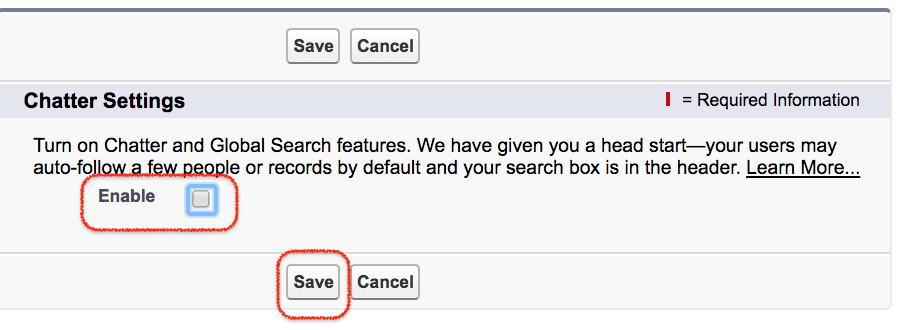
- After changing Classic search or Chatter settings, return to the object page and confirm which search option is visible.
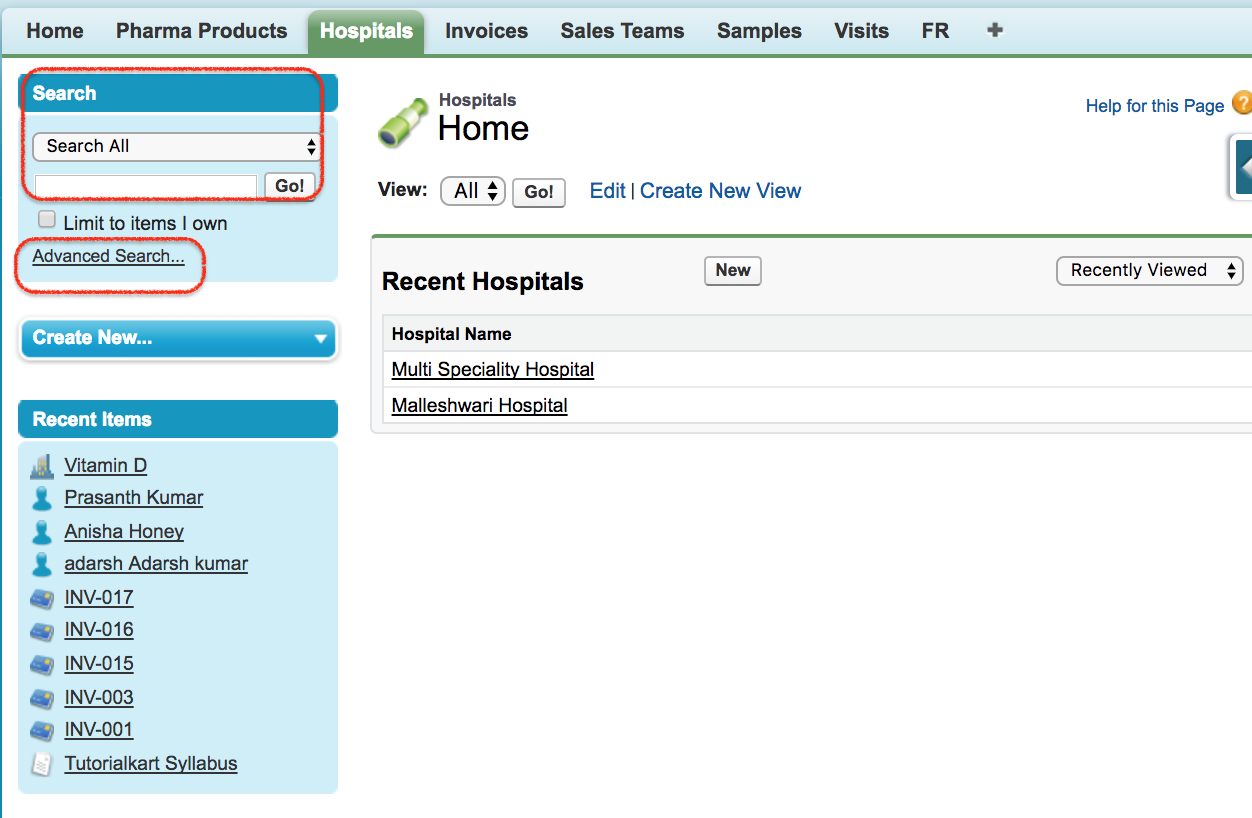
How Salesforce Advanced Search works in Classic
Salesforce Advanced Search is a Classic search option that lets users choose objects and refine the search. It is useful in Classic orgs when users need more control than a simple sidebar search box.
What is lookup search in Salesforce?
Lookup search is the search experience inside a lookup field. A lookup field connects one record to another record. For example, Contact has an Account lookup field, and the user searches Accounts while selecting the related Account. Admins can improve lookup search by configuring lookup filters and lookup dialog search layouts.
How to query a Salesforce lookup field with SOQL
In SOQL, a lookup field stores the related record Id. To display fields from the related record, use relationship notation.
SELECT Id, Name, AccountId, Account.Name
FROM Contact
WHERE Account.Name LIKE 'Acme%'
Standard relationships commonly use names such as Account.Name or Owner.Name. Custom lookup relationship fields store the Id in a field ending in __c, and the relationship query usually uses a name ending in __r.
Search Layouts in Salesforce for search results and lookup dialogs
Salesforce Search Layouts control which fields users see in search-related places. Search layouts are configured per object. They can affect search results, lookup dialogs, lookup phone dialogs, object tabs, list views, and search filter fields for supported objects. This is useful for custom Objects and custom Fields where users need more context than the default columns provide.
For current admin steps, refer to Salesforce Help for Customize Search Layouts and Edit Your Search Layout.
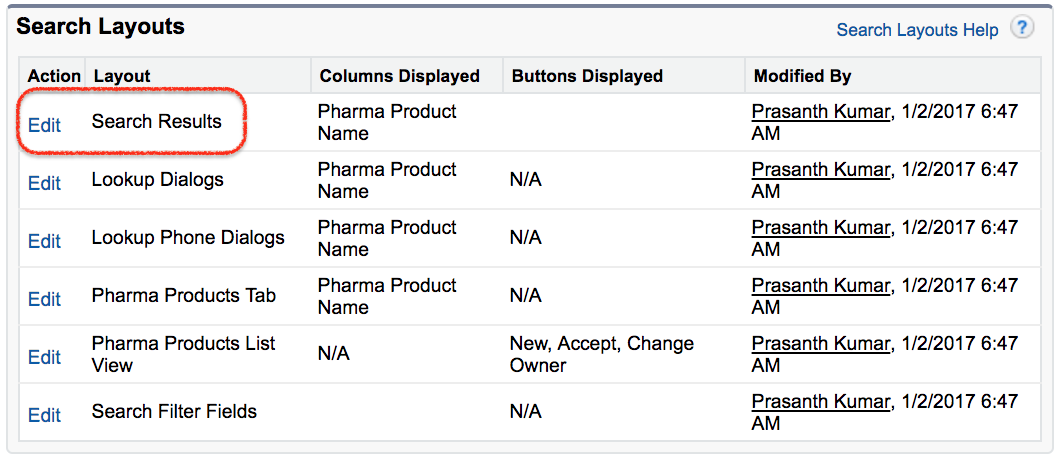
Steps to edit Salesforce Search Results layout for an object
- From Setup, open Object Manager.
- Select the object whose search fields you want to change.
- Open Search Layouts.
- Edit Search Results, Lookup Dialogs, or another available layout.
- Move useful fields from Available Fields to Selected Fields.
- Save and test with a normal user profile.
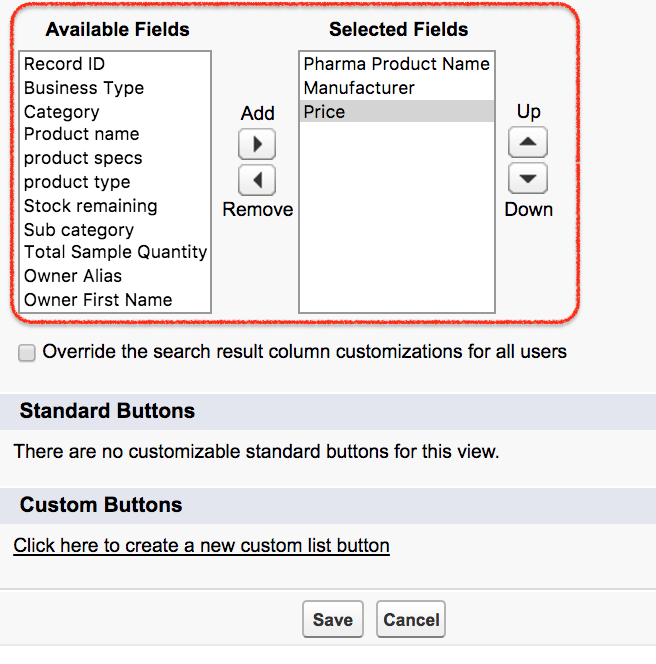
Choose fields that help users identify the right record quickly. For Account search results, useful fields may include Account Name, Phone, Billing City, Owner, and Type. For Contact search results, useful fields may include Name, Account Name, Email, Phone, and Owner.
How to allow search for a custom object in Salesforce
If custom object records do not appear in Salesforce search, open Object Manager, select the custom object, and review the object details. For custom objects, the Allow Search setting must be enabled for the object to be searchable. Users also need object permission and record access.
Salesforce search troubleshooting checklist
- Confirm that the user can open the record directly.
- Check profile and permission set access for the object.
- For custom objects, confirm that Allow Search is enabled.
- Make sure the user is not searching only inside the wrong object or list view.
- Review Search Results and Lookup Dialogs layouts for useful fields.
- Allow time for search indexing after creating records or changing settings.
- Test Global Search, list view search, and lookup search separately.
Salesforce search FAQs for Global Search, lookup search, and list view search
How do I allow search in Salesforce for a custom object?
Open Setup, go to Object Manager, select the custom object, and review the object details. Enable Allow Search if it is not already enabled. Also confirm object permission, record access, and app or tab visibility.
How do I search a list in Salesforce?
Open the object, choose the required list view, and use the list view search box above the records. This searches within the selected list view, not the whole org.
What is lookup search in Salesforce?
Lookup search is the search used inside a lookup field to select a related record, such as choosing an Account while editing a Contact.
How do I query a lookup field in Salesforce?
In SOQL, query the lookup Id field, such as AccountId, or use relationship notation such as Account.Name to return fields from the related record.
Why are Salesforce search result columns not showing the fields I need?
Edit the object’s Search Results or Lookup Dialogs search layout in Object Manager. Add fields that help users identify records quickly.
Salesforce search summary for admins and users
Use Global Search to search across Salesforce, list view search to narrow records inside one object list, and lookup search to select related records. Admins should configure search layouts for important objects so search results and lookup dialogs show practical fields. For related admin topics, continue with Salesforce field history tracking and setup Audit Trail.