 TutorialKart.com
Creating role hierarchies in Salesforce for record access
In our previous Salesforce admin Tutorial we learned about Creating and Managing users in Salesforce. In this Salesforce tutorial, we are going to learn what role hierarchies do, how they work with Organization-Wide Defaults, and how to create role hierarchies in Salesforce.
A Salesforce role hierarchy is used to open record access upward in the organization structure. It does not give users object permissions, field permissions, login access, or app access by itself. Those permissions are controlled separately by profiles, permission sets, permission set groups, and field-level security.
What role hierarchies mean in Salesforce security
Role hierarchies in Salesforce are part of the record sharing model. They work along with sharing settings and Organization-Wide Defaults to decide which records a user can see or edit. When access is granted using hierarchies, users higher in the role hierarchy can get access to records owned by users below them, depending on the object access level and sharing configuration.
For example, a Sales Manager role can be placed above Sales Executive roles. When the object sharing model allows hierarchy access, the manager can access the records owned by the sales executives below that manager in the hierarchy. This is useful when Salesforce record visibility needs to follow management responsibility.
Role hierarchy, profile, and sharing settings in Salesforce
Before creating roles, it is important to understand what a role hierarchy can and cannot do. A role affects record visibility. A profile or permission set decides whether the user can access an object or field at all. Sharing rules, manual sharing, teams, territories, and other sharing features can also open record access.
| Salesforce security feature | Main purpose |
|---|---|
| Role hierarchy | Opens record access upward to users above the record owner in the hierarchy. |
| Organization-Wide Defaults | Sets the baseline record access for each object. |
| Profile and permission set | Controls object permissions, field permissions, app access, and system permissions. |
| Sharing rules | Extends record access to selected users, roles, groups, or territories. |
| Manual sharing | Allows record owners or users with proper access to share individual records. |
The best practice is to keep the Salesforce role hierarchy focused on data access needs, not only on job titles. A company may have many job titles, but Salesforce roles should be created only where record visibility needs to differ.
Creating a Role Hierarchy in Salesforce
To create a role hierarchy in Salesforce, go to Setup | Administer | Manage Users | Roles. In Lightning Setup, you can also search for Roles in the Quick Find box and open the Roles setup page.
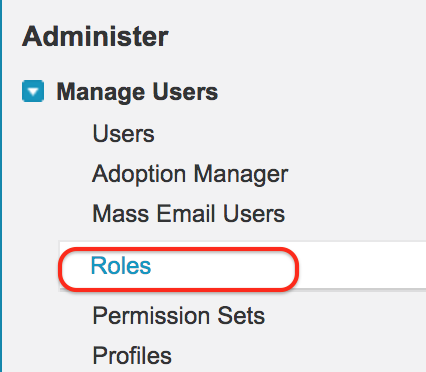
- Click on Roles.
- Now a sample Role hierarchy tree list will be displayed.
- Click on Set up Roles.
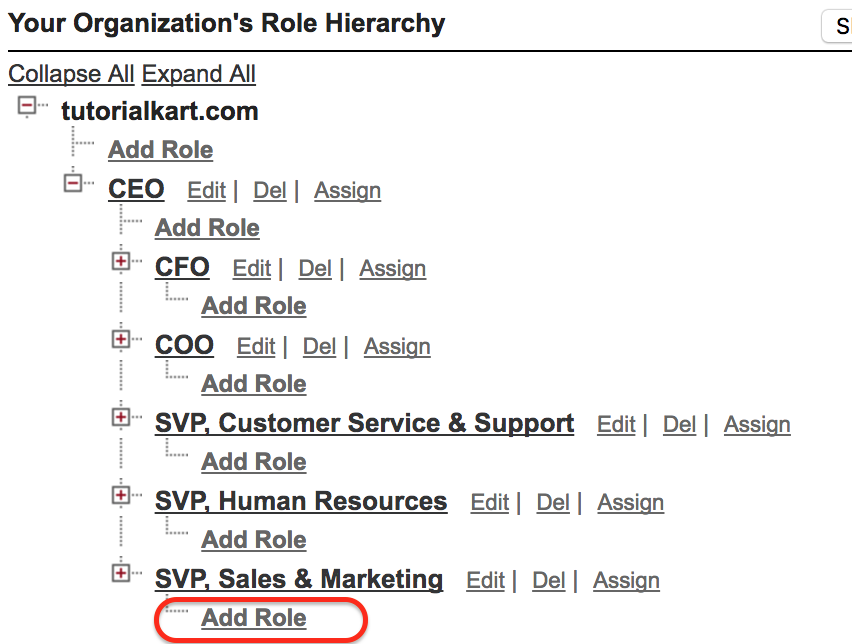
In this Salesforce tutorial, we are adding a role under SVP, Sales & Marketing. The same process can be used to add other roles under the correct parent role in the hierarchy.
- Click on Add Role.
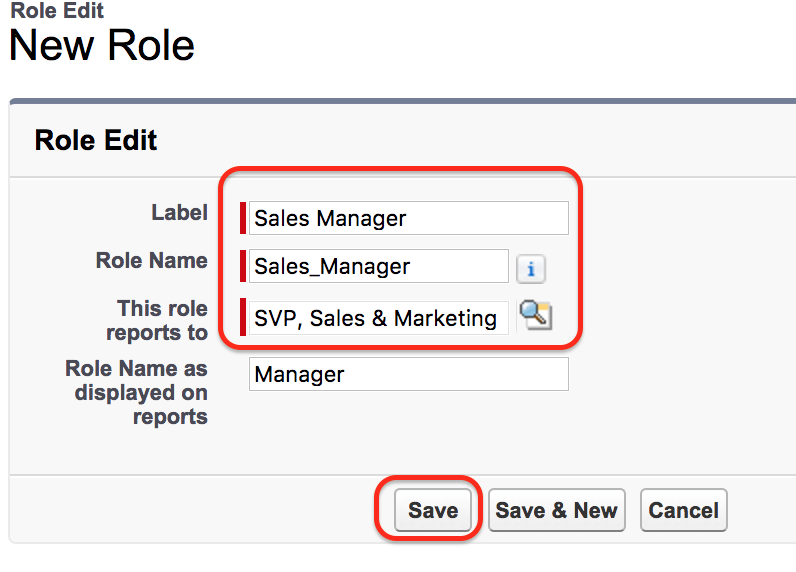
- Enter label name.
- Enter Role Name.
- Select the role to which this role has to report.
- Enter Role name to display on Reports.
- Click on Save button.
The This role reports to field is important because it decides the role’s position in the hierarchy. If the role is placed under the wrong parent, users above that parent may get access that does not match the intended business structure.
Role fields to review before saving a Salesforce role
When you create a role in Salesforce, review the role name, parent role, and report display name carefully. These values help administrators understand the hierarchy later and can affect how users are grouped in reports.
- Label: The readable name shown to administrators and users.
- Role Name: The unique API-style name generated from the label or entered by the administrator.
- This role reports to: The parent role that sits above the new role.
- Role name as displayed on reports: The name used when role information is shown in reporting contexts.
How to add Users to Roles in Salesforce?
To add a User to Roles in Salesforce go to detail page of the Role as shown below.
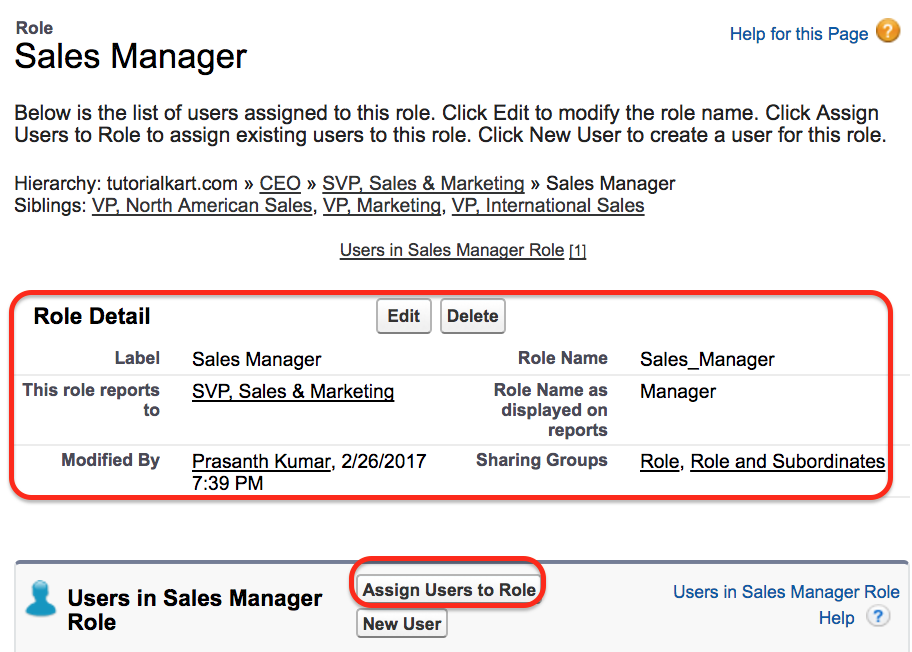
- Click on Assign users to Role.
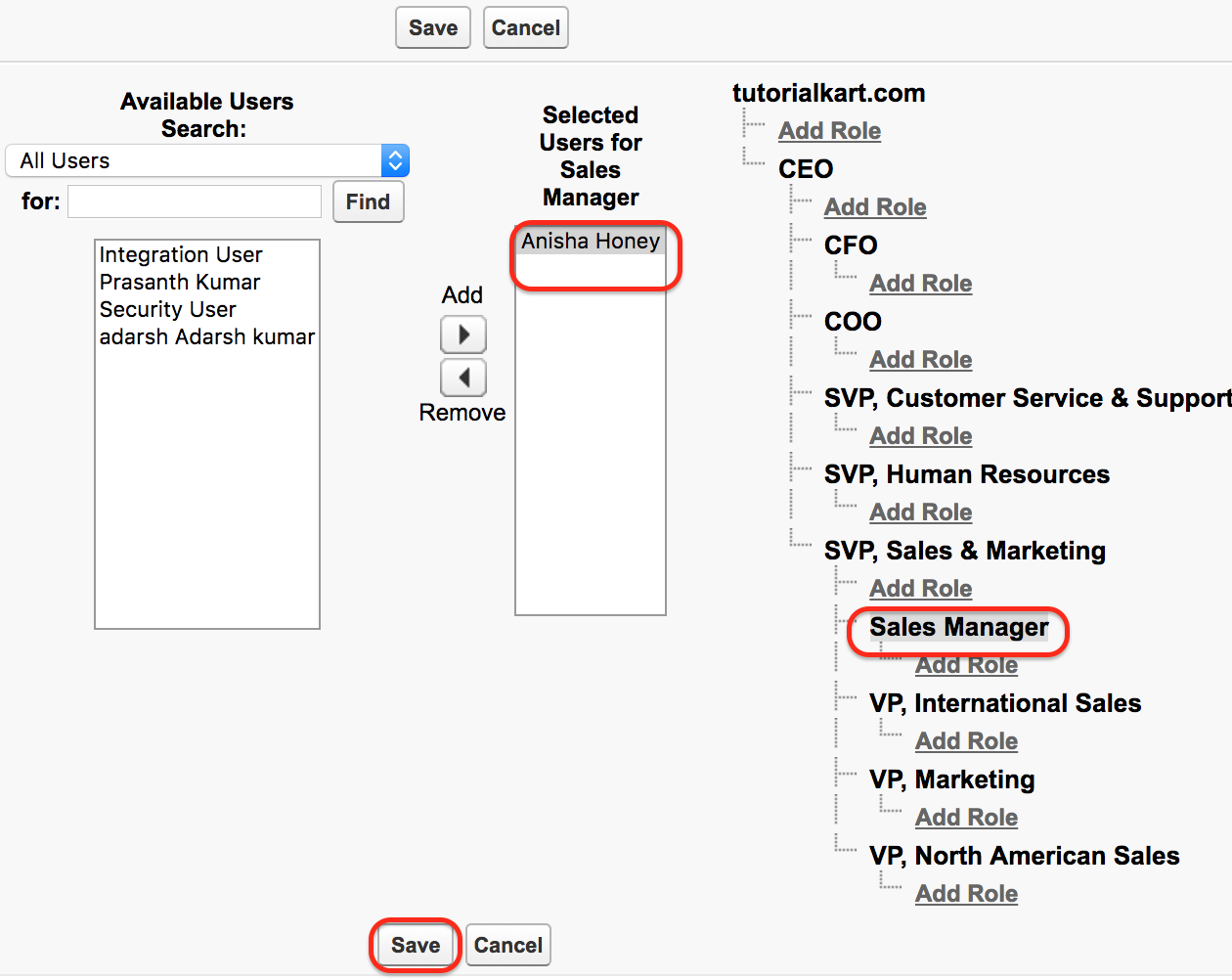
- Select all users from the picklist.
- Now all users available in Salesforce account will be displayed in available user section.
- Select the user to which this role is to be assigned.
- Click on Save button.
A user can have only one role at a time. If a user changes teams or reporting structure, update the user’s assigned role so that record access continues to match the current business requirement.
Grant Access Using Hierarchies in Salesforce role hierarchy
Before creating role hierarchies in Salesforce we have to set Organization wide default settings. To restrict users from automatic accessing to the data we have to deselect Grant Access Using Hierarchies where Salesforce allows it.
- Grant Access Using Hierarchies is enabled to all object by default.
- We can deselect Grant Access Using Hierarchies for custom objects only.
Go to Security Control | Sharing Settings | Edit.
- In Managing sharing settings we have to select custom object only.
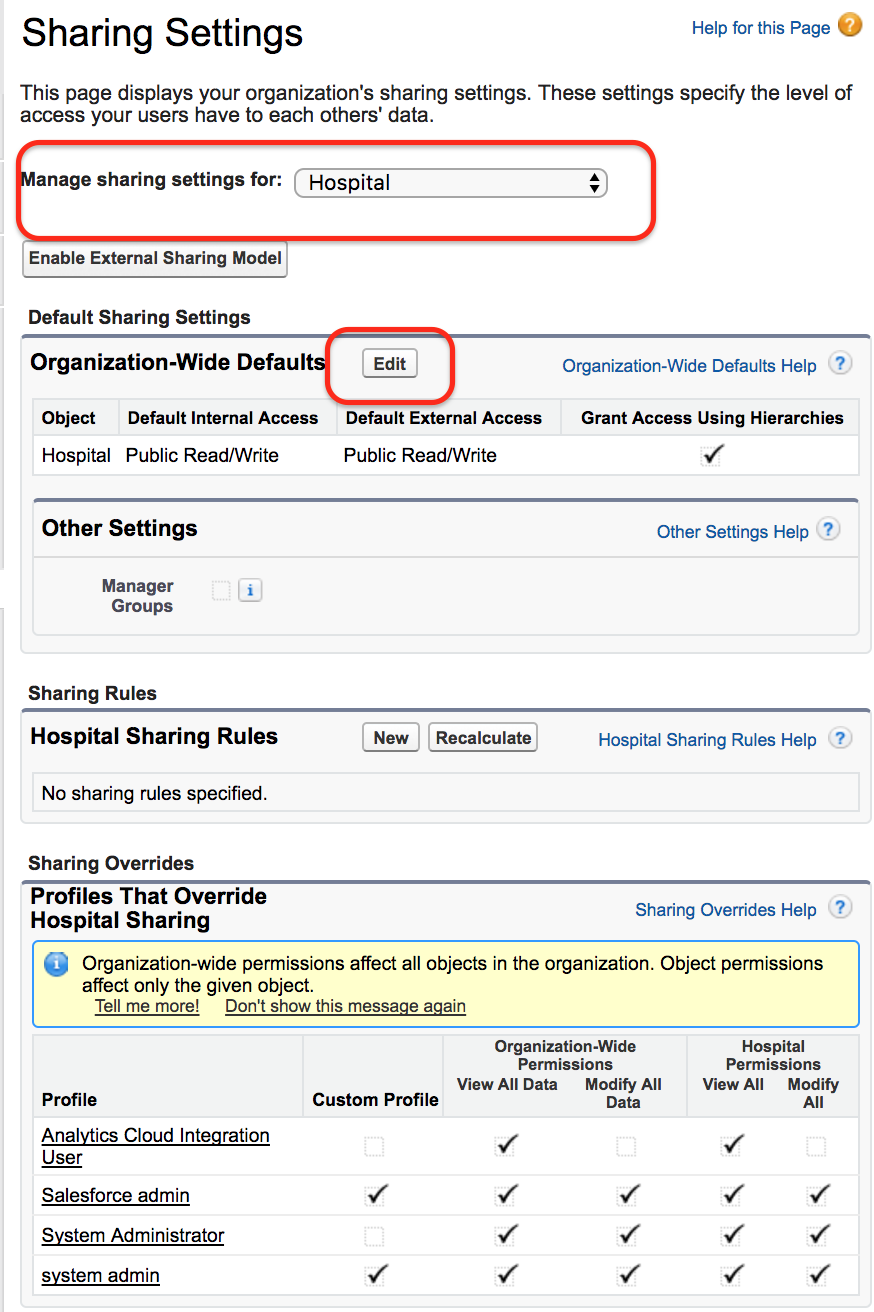
- Go to Organization wide defaults settings. Click on Edit button.
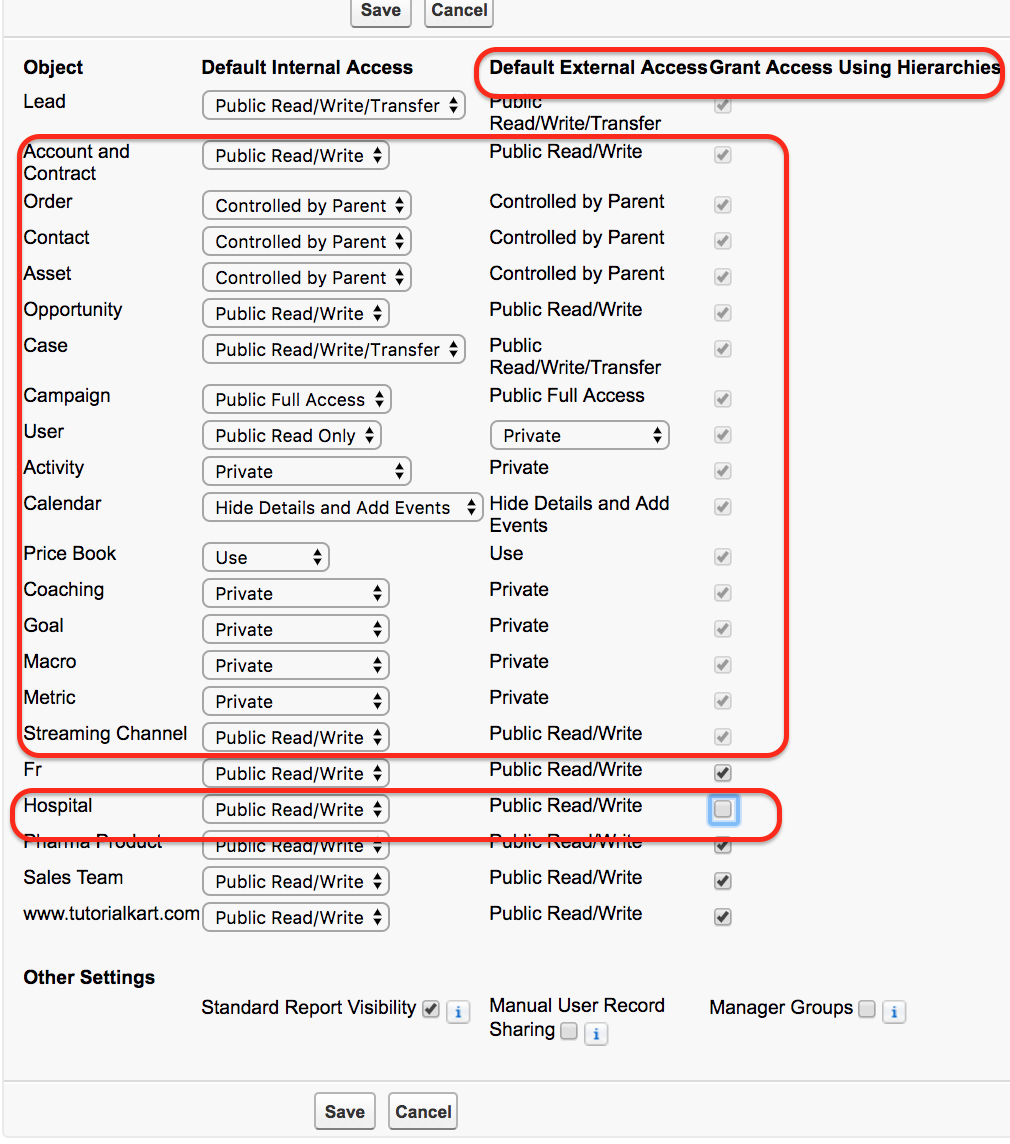
Now a list of all object in user account will be displayed. Select custom object as shown above and deselect Grant Access Using Hierarchies as shown above. Finally click on Save button.
Grant Access Using Hierarchies means users in higher roles can get access to records owned by users in roles below them. In Salesforce Role hierarchies, a manager can get access to subordinate records when the sharing model permits it. As shown above, Grant Access Using Hierarchies is enabled for standard objects and custom objects by default. You cannot disable this behavior for standard objects, but you can disable it for custom objects when the object access model requires stricter record separation.
Example Salesforce role hierarchy for a sales team
A simple sales role hierarchy may be arranged like this:
- CEO
- VP Sales
- Regional Sales Manager
- Sales Manager
- Sales Representative
If a Sales Representative owns an opportunity, the Sales Manager above that representative may be able to see the opportunity. The Regional Sales Manager may also be able to see it because that role is higher in the same branch. A manager from another branch should not automatically get access unless another sharing mechanism gives that access.
Common Salesforce role hierarchy mistakes to avoid
- Creating a role for every job title: Add roles only where record visibility needs to be different.
- Using roles instead of permissions: A role does not grant object-level permissions such as Read, Create, Edit, or Delete.
- Placing roles under the wrong parent: The parent role controls who can inherit access upward.
- Ignoring Organization-Wide Defaults: Role hierarchy access depends on the baseline sharing model of the object.
- Leaving unused roles active in the design: Review old roles after team restructuring so the hierarchy stays understandable.
QA checklist for Salesforce role hierarchy setup
- Check whether the role hierarchy matches record access requirements, not just the HR organization chart.
- Confirm that each role reports to the correct parent role.
- Verify that users are assigned to the correct role after creation.
- Review Organization-Wide Defaults before testing record visibility.
- Test access with real user scenarios, such as manager access, peer access, and cross-branch access.
- For custom objects, confirm whether Grant Access Using Hierarchies should remain enabled.
FAQs on role hierarchies in Salesforce
What is a role hierarchy in Salesforce?
A role hierarchy in Salesforce is a record access structure that allows users higher in the hierarchy to access records owned by users below them, depending on the object’s sharing settings and permissions.
Does a Salesforce role hierarchy give object permissions?
No. A role hierarchy does not give object permissions or field permissions. Object and field access are controlled by profiles, permission sets, permission set groups, and field-level security.
Can one Salesforce user have multiple roles?
No. A Salesforce user can be assigned to only one role at a time. If a user needs extra access outside the role hierarchy, use sharing rules, teams, manual sharing, or another suitable sharing feature.
Can Grant Access Using Hierarchies be disabled for standard objects?
No. Grant Access Using Hierarchies is always enabled for standard objects. For custom objects, Salesforce allows administrators to disable this setting when the custom object’s sharing model requires it.
Should Salesforce roles follow the company organization chart exactly?
Not always. Salesforce roles should follow record visibility requirements. A role hierarchy may look similar to the company structure, but it should not include unnecessary roles that do not affect data access.
Role hierarchy setup summary for Salesforce admins
In this Salesforce admin tutorial we have learned about Role Hierarchies and their settings. Role hierarchies help Salesforce administrators open record access upward through a defined management structure. They should be planned with Organization-Wide Defaults, sharing settings, profiles, and permission sets so that users get the access they need without unnecessary visibility. In our upcoming Salesforce tutorial we are going to learn about Public Groups in Salesforce.