 TutorialKart.com
In this SAP tutorial, you will learn how to create screen layout rules in SAP Asset Accounting. A screen layout rule controls how asset master data fields appear for an asset class, such as whether a field is optional, required, suppressed, or only displayed. These rules are normally created by copying an existing SAP standard screen layout rule and adjusting it according to business requirements.
Screen layout rules are important because asset master records are used throughout fixed asset accounting. If the screen layout is too open, users may enter unnecessary or inconsistent information. If it is too restrictive, users may not be able to maintain the data needed for depreciation, reporting, cost center tracking, or asset management. For this reason, screen layout rules should be designed together with asset classes, chart of depreciation, account determination, and company-code requirements.
Also Read-
How to define chart of depreciation / depreciation areas
How to assign chart of depreciation to company code
How to specify account determination
What is a screen layout rule in SAP Asset Accounting?
A screen layout rule in SAP Asset Accounting defines the field status for asset master data. It decides how fields are shown when users create or change an asset master record. For example, fields related to general data, time-dependent data, depreciation areas, leasing, insurance, or origin can be controlled through screen layout settings.
The screen layout rule itself does not create an asset class. Instead, it is assigned to an asset class so that all asset master records created under that asset class follow the same field behavior. This helps maintain consistent master data for assets such as buildings, vehicles, computers, furniture, machinery, or low-value assets.
Field status options used in SAP asset screen layout rules
When you maintain a screen layout rule for asset master data, SAP lets you control the behavior of fields or field groups. The common field status options are explained below.
- Required entry: The user must enter a value before the asset master record can be saved.
- Optional entry: The field is available, but the user can save the asset master record even if it is left blank.
- Display: The field is visible but cannot be changed in that screen.
- Suppress: The field is hidden from the asset master screen.
For example, a company may make the cost center field mandatory for office equipment assets, while keeping a vehicle-specific field suppressed for the same asset class. This reduces incorrect entries and keeps the asset master screen relevant to the selected asset class.
Prerequisites before creating asset accounting screen layout rules in SAP
Before creating screen layout rules in SAP Asset Accounting, review the basic configuration objects that are connected to fixed asset master data. This helps you choose the right standard screen layout to copy and prevents unnecessary rework later.
- Chart of depreciation should be copied or defined for the country or business requirement.
- Depreciation areas should be reviewed for book depreciation, tax depreciation, and other reporting needs.
- Chart of depreciation should be assigned to the company code.
- Account determination should be available for the asset classes that will use the screen layout rule.
- Asset classes should be planned clearly, because the screen layout rule is assigned at asset-class level.
How to create Screen Layout rules in SAP
We can configure screen layout rule for asset accounting by using one of the following navigation method.
Transaction code: – SPRO
SAP IMG Path: – SPRO > SAP Reference IMG > Financial Accounting > Asset Accounting > Organizational Structures > Asset classes > Create Screen Layout Rules.
Step 1) Enter transaction code “SPRO” in the SAP command field and enter.
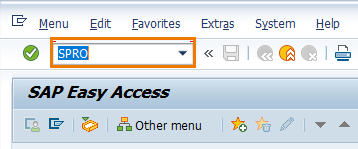
Step 2) On execute project screen, choose “SAP Reference IMG” option.

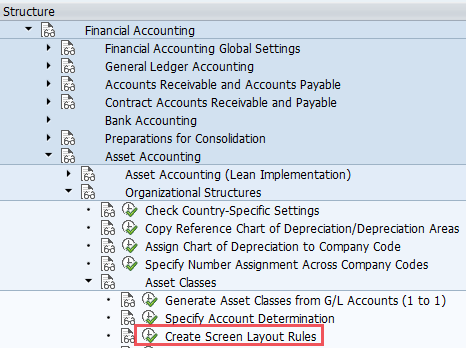
Step 3) On display IMG screen, follow the menu path Financial Accounting – Asset Accounting – Organizational Structures – Asset classes and click on “Create Screen Layout Rules“.
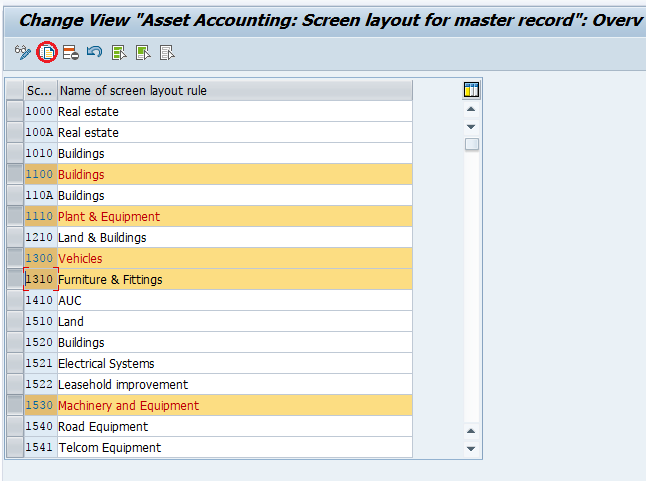
Step 4) On change view Asset Accounting screen layout for master record overview screen, select the required screen layouts as per your requirements and click on copy as icon.
Step 5) Now change the screen layout rule name as per your requirements and press enter to continue.
- Screen Layout rule: – Update the name of screen layout rule that specifies in SAP.
- Name : – Update the descriptive name of screen layout rule
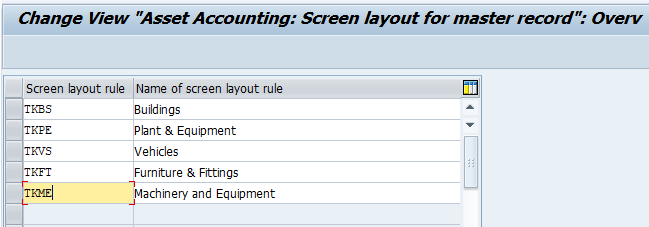
Click on save button and save the configured screen layout rules in SAP.
How to maintain field groups in an SAP asset screen layout rule
After creating or copying the screen layout rule, open the rule details and review the field groups available for asset master data. The exact list of field groups can vary based on SAP version and activated functions, but the configuration usually includes groups for general data, posting information, time-dependent assignments, depreciation areas, insurance, leasing, origin, and other asset master sections.
For each field group, choose the field status that matches your asset class design. Do not make every field mandatory. Mandatory fields should be limited to information that is genuinely required for accounting, reporting, control, or statutory needs. Fields that are not relevant for the asset class should be suppressed to keep the asset master screen simple for users.
Assigning the screen layout rule to an SAP asset class
Creating a screen layout rule is only one part of the configuration. To make the rule effective, assign it to the relevant asset class. When users create an asset under that asset class, SAP uses the assigned screen layout rule to determine which fields are required, optional, displayed, or suppressed.
For example, a screen layout rule for vehicles may include vehicle-specific fields, while a rule for computers may focus on cost center, location, inventory number, and useful life details. This is why copying a standard layout and adjusting it for each asset class is safer than changing a standard rule directly.
Example configuration approach for SAP asset master screen layout
The following example shows a practical approach for deciding field status in a screen layout rule. The values are only illustrative; the final settings should follow the organization’s asset accounting policy.
| Asset master section | Suggested field status | Reason |
|---|---|---|
| Cost center | Required entry | Useful for cost tracking, depreciation allocation, and internal reporting. |
| Inventory number | Optional entry | Useful for physical verification, but not always required for all assets. |
| Leasing data | Suppress | Can be hidden when the asset class is not used for leased assets. |
| Depreciation area values | Display or optional entry | Depends on whether values are derived automatically or manually maintained. |
| Asset location | Required or optional entry | Useful when assets are physically tracked by plant, office, or department. |
Common mistakes while creating screen layout rules in SAP Asset Accounting
- Changing SAP standard rules directly: It is better to copy a standard screen layout rule and then change the copied rule.
- Making too many fields mandatory: This can slow down asset creation and create unnecessary user errors.
- Suppressing fields needed for reporting: Hidden fields cannot be maintained by users, so verify reporting needs before suppressing important fields.
- Not assigning the rule to the asset class: A rule that is created but not assigned will not control asset master entry for that asset class.
- Using the same rule for every asset class: Different asset types often require different master data fields.
Testing the SAP asset accounting screen layout rule
After saving the screen layout rule and assigning it to an asset class, test the configuration by creating a sample asset master record for that asset class. Check whether the required fields are enforced, irrelevant fields are hidden, and display-only fields cannot be changed. If any field status does not match the requirement, return to the screen layout rule configuration and adjust the relevant field group.
Testing should be done for each asset class that uses a new or changed screen layout rule. This is especially important in implementation and rollout projects where different company codes or business units may have different asset master data requirements.
QA checklist for SAP asset screen layout rule configuration
- Check that the screen layout rule name is meaningful and follows the project naming standard.
- Confirm that the rule was copied from a suitable standard layout instead of changing a standard layout directly.
- Review required fields for asset creation, depreciation processing, and reporting.
- Verify that suppressed fields are not needed by asset accountants or reporting users.
- Confirm that the screen layout rule is assigned to the correct asset class.
- Create a test asset master record and validate the field behavior before moving the configuration to production.
FAQs on SAP screen layout rules in Asset Accounting
What is the use of a screen layout rule in SAP Asset Accounting?
A screen layout rule controls the field status of asset master data. It decides whether fields are required, optional, displayed, or suppressed when an asset master record is created or changed.
Where do you create screen layout rules for asset classes in SAP?
You create screen layout rules from SPRO under SAP Reference IMG > Financial Accounting > Asset Accounting > Organizational Structures > Asset classes > Create Screen Layout Rules.
Should SAP standard screen layout rules be changed directly?
In most projects, it is better to copy a standard screen layout rule and change the copied version. This keeps the original SAP standard configuration available for reference and reduces the risk of affecting other asset classes.
Why is my screen layout rule not working for an asset class?
The most common reason is that the screen layout rule has not been assigned to the correct asset class. Also check whether the asset class is being used in the test asset master record and whether the correct field group was changed in the screen layout rule.
Can different asset classes use different screen layout rules in SAP?
Yes. Different asset classes can use different screen layout rules. This is useful because buildings, vehicles, machinery, computers, and low-value assets may require different master data fields.