 TutorialKart.com
How to Define a Zero-Balance Clearing Account in SAP FICO
A zero-balance clearing account is used by SAP document splitting when additional clearing lines are required to make defined document-splitting characteristics balance to zero. This configuration assigns the G/L account to which SAP posts those automatically generated balancing lines.
This tutorial explains how to define the zero-balance clearing account in SAP FICO through the Implementation Guide. The exact menu labels can vary slightly between SAP ERP and SAP S/4HANA releases, but the configuration purpose remains the same.
When SAP Uses the Zero-Balance Clearing Account
During document splitting, SAP can split accounting line items by characteristics such as profit center, segment, or business area. If the split document does not balance for a characteristic on its own, SAP generates zero-balance clearing lines using the account configured in this activity.
- The account supports zero balancing within document splitting.
- It is used for system-generated balancing lines rather than normal business postings.
- The required G/L account must already exist in the relevant chart of accounts.
- The account assignment must be maintained for the correct account key and chart of accounts.
Prerequisites for Zero-Balance Clearing Account Configuration
Before starting the configuration, confirm that document splitting is part of the intended General Ledger design. Also verify that the proposed clearing account has been created as a G/L account in the applicable chart of accounts and is suitable for automatic postings.
- Document splitting settings have been designed for the relevant company codes.
- The chart of accounts used by the company code is known.
- A dedicated G/L account is available for zero-balance clearing postings.
- The account master data permits the required automatic postings.
- You have authorization to maintain SAP IMG configuration.
SAP IMG Path for Defining the Zero-Balance Clearing Account
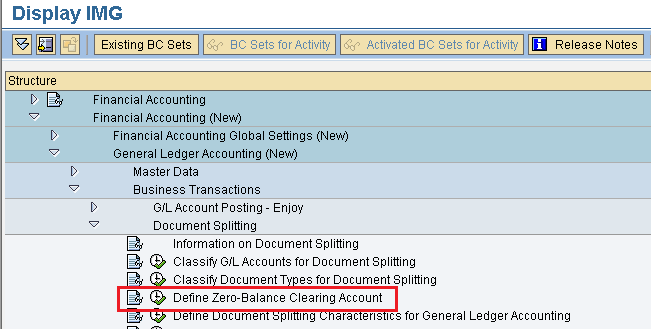
Path: SPRO > SAP Reference IMG > Financial Accounting (New) > General Ledger Accounting (New) > Business Transactions > Document Splitting > Define Zero-Balance Clearing Account.
In some SAP S/4HANA systems, the General Ledger and document-splitting menu structure may be displayed with updated labels. Search for the IMG activity Define Zero-Balance Clearing Account when the path differs.
Steps to Assign the Zero-Balance Clearing G/L Account
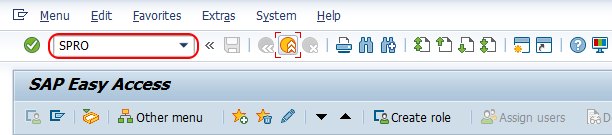
Step 1: Enter SAP t-code “SPRO” in the command field and press Enter.
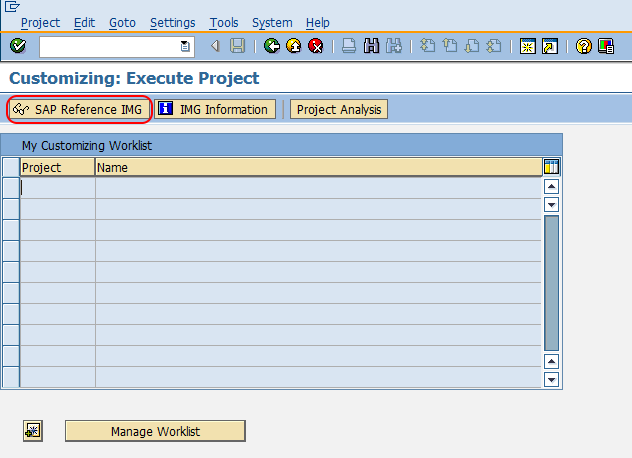
Step 2: Choose “SAP Reference IMG” to open the SAP Customizing Implementation Guide.
Step 3: Follow the navigation path Financial Accounting (New) > General Ledger Accounting (New) > Business Transactions > Document Splitting. Open the IMG activity Define Zero-Balance Clearing Account.
Step 4: On the change view for posting keys or account keys, select accounting key 000. Then choose Accounts from the dialog structure.
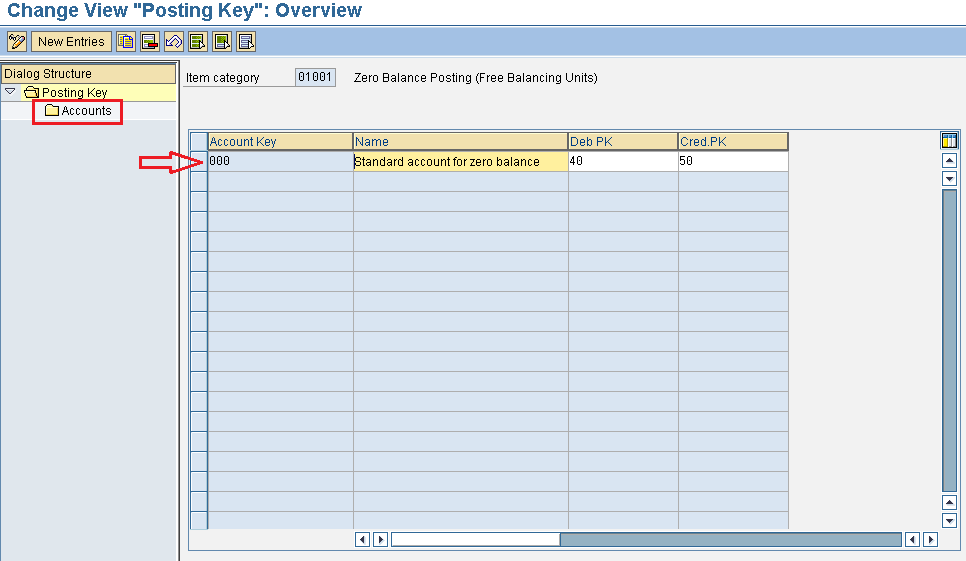
The account key identifies the type of automatically generated line for which an account is being assigned. Use the key displayed for zero-balance clearing in your system and avoid changing other account-key assignments unless they are part of the approved configuration design.
Step 5: On the cluster maintenance initial screen, enter the required chart of accounts. In this example, the chart of accounts is TKCA. Press Enter to continue.
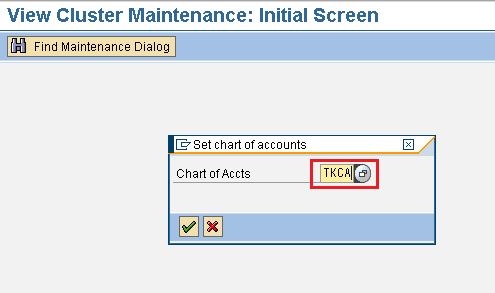
Use the chart of accounts assigned to the company codes for which document splitting is configured. Do not copy the example value TKCA unless it is the actual chart of accounts in your SAP system.
Step 6: On the change view Accounts overview screen, choose New Entries to create the zero-balance clearing account assignment.
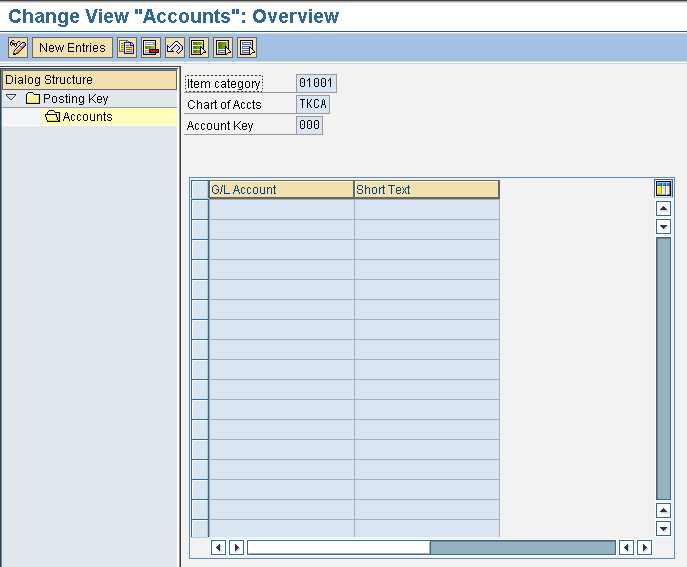
Step 7: Enter the G/L account that will be used for zero-balance clearing postings. Confirm that the account exists in the selected chart of accounts and is intended for automatic document-splitting entries.
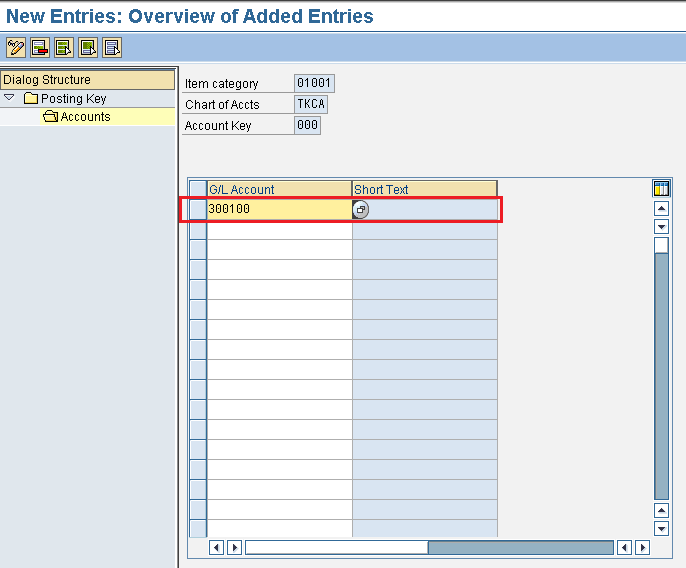
Step 8: Choose the save icon and save the configured account assignment. When prompted, assign the change to an appropriate Customizing transport request.
Example of a Zero-Balance Clearing Posting
Assume an accounting document contains postings assigned to different profit centers. The document may balance at the company-code level but remain unbalanced for each profit center. When zero balancing is active for the profit center characteristic, SAP creates additional clearing lines so that each profit center balances independently.
| Line | Profit center | Debit | Credit | Purpose |
|---|---|---|---|---|
| Expense posting | PC100 | 1,000 | – | Original business posting |
| Vendor posting | PC200 | – | 1,000 | Original business posting |
| Zero-balance line | PC100 | – | 1,000 | System-generated balancing line |
| Zero-balance line | PC200 | 1,000 | – | System-generated balancing line |
The generated lines use the configured zero-balance clearing G/L account. The precise result depends on the document-splitting method, item categories, business transaction variants, active characteristics, and inheritance rules configured in the system.
How to Validate the Zero-Balance Clearing Account Setup
After saving the account assignment, test the configuration with a representative accounting document in a non-production system. Use a transaction that posts across the document-splitting characteristics for which zero balancing is enabled.
- Post or simulate a document that uses more than one relevant characteristic value, such as two profit centers.
- Display the generated General Ledger view of the document.
- Check whether SAP created balancing lines using the assigned clearing account.
- Confirm that each required characteristic balances to zero.
- Verify that the generated lines contain the expected profit center, segment, and other inherited assignments.
Common Zero-Balance Clearing Account Errors
Posting Is Only Possible with a Zero Balance
This message can occur when the document does not balance for a required document-splitting characteristic and SAP cannot generate or determine the necessary clearing line. Review the zero-balance account assignment, document-splitting rules, item categories, inheritance settings, and the account assignments in the original document.
Zero-Balance Clearing G/L Account Is Not Determined
Check whether the account is maintained for the correct account key and chart of accounts. Also confirm that the company code uses that chart of accounts and that the G/L account exists with valid company-code data.
Document-Splitting Items for Clearing Are Not Found
This issue is generally related to the broader document-splitting configuration rather than only the clearing account. Review the business transaction, business transaction variant, item categories, splitting method, inheritance, and zero-balancing characteristics used by the posting.
Unexpected Balances Remain in the Clearing Account
The zero-balance clearing account can contain offsetting entries across generated lines, but unexpected residual balances should be investigated. Check whether documents were reversed, migrated, posted before the configuration was complete, or processed with inconsistent document-splitting settings.
Zero-Balance Clearing Account and OB53 Are Different
The document-splitting zero-balance clearing account should not be confused with the retained earnings account maintained through transaction OB53. OB53 assigns retained earnings accounts for year-end balance carryforward of profit and loss accounts. The zero-balance clearing account described here is used to generate balancing lines for document-splitting characteristics.
Zero-Balance Clearing Account Configuration Checklist
- Confirm that the IMG activity belongs to document splitting and not retained earnings configuration.
- Verify the account key selected for the zero-balancing function.
- Use the chart of accounts assigned to the relevant company code.
- Confirm that the clearing G/L account exists and permits automatic postings.
- Test the setup with postings across multiple profit centers or segments.
- Review the General Ledger view to confirm that generated lines balance each active characteristic.
- Transport and test the configuration before moving it to production.
Frequently Asked Questions About SAP Zero-Balance Clearing Accounts
What is a zero-balance clearing account in SAP?
It is a G/L account used by SAP document splitting for automatically generated lines that make selected splitting characteristics, such as profit center or segment, balance to zero.
Is a zero-balance clearing account the same as a bank Zero Balance Account?
No. In this SAP FICO configuration, the term refers to a document-splitting clearing account. A bank Zero Balance Account is a cash-management arrangement in which balances are swept between subsidiary and master bank accounts.
Why does SAP generate zero-balance clearing lines?
SAP generates the lines when a document balances overall but does not balance separately for a characteristic configured for zero balancing. The generated lines create a balanced view for each characteristic value.
Can the same zero-balance clearing account be used for every chart of accounts?
The assignment is maintained by chart of accounts. The same account number can be used only when that G/L account exists and is valid in each applicable chart of accounts. Organizations may instead use different account numbers according to their account design.
How can I check whether the zero-balance clearing account is working?
Post or simulate a document involving multiple values of an active splitting characteristic, then inspect the General Ledger view. SAP should generate clearing lines with the configured G/L account and balance each required characteristic to zero.