 TutorialKart.com
How to activate New General Ledger Accounting in SAP ECC
In this SAP Fico tutorial, you will learn how to activate New General Ledger Accounting in SAP ECC by using transaction code FAGL_ACTIVATION or the corresponding SAP Reference IMG activity.
This procedure applies to SAP ERP systems in which classic General Ledger Accounting is still active and New G/L must be enabled. It should not be confused with creating a G/L account through FS00. In SAP S/4HANA, the general ledger architecture and migration approach are different, so follow the documentation and conversion procedure for your specific S/4HANA release.
What changes when New General Ledger Accounting is activated
Activation makes the New G/L configuration nodes and functions available in the SAP Reference IMG and SAP Easy Access menu. It also activates the tables used by New General Ledger Accounting. Depending on the implementation design, New G/L can support ledger-based parallel accounting, document splitting, segment reporting, and real-time integration between Controlling and Financial Accounting.
In the standard SAP ERP setup, classic G/L totals and New G/L tables may initially be updated in parallel. This allows the project team to compare ledger results during implementation. Any later decision to stop updating classic G/L tables should be made only after reconciliation and approval.
Checks before running FAGL_ACTIVATION
- Confirm that the system is an SAP ERP/ECC system for which New G/L activation is applicable.
- Complete the New G/L design for leading and non-leading ledgers, currencies, fiscal year variants, document splitting, and CO integration.
- Test the configuration and migration procedure in a sandbox and quality system before production.
- Plan the migration date, reconciliation, posting controls, and cutover with the FI/CO implementation team.
- Take a current backup and ensure that the required transport and change-management approvals are available.
Important: Selecting the activation checkbox is only one step in a New G/L implementation. For an existing productive system, historical and current-year accounting data may require a controlled migration. Do not treat activation as an isolated configuration change or enable it directly in production without a tested migration plan.
If the activation view is opened outside its permitted maintenance context, SAP may display a maintenance restriction message such as the one shown below.

New G/L activation transaction code and IMG path
| Configuration item | Value |
|---|---|
| Direct transaction code | FAGL_ACTIVATION |
| IMG transaction | SPRO |
| Menu path | SPRO > SAP Reference IMG > Financial Accounting > Financial Accounting Global Settings > Activate New General Ledger Accounting |
Step-by-step New General Ledger activation in SPRO
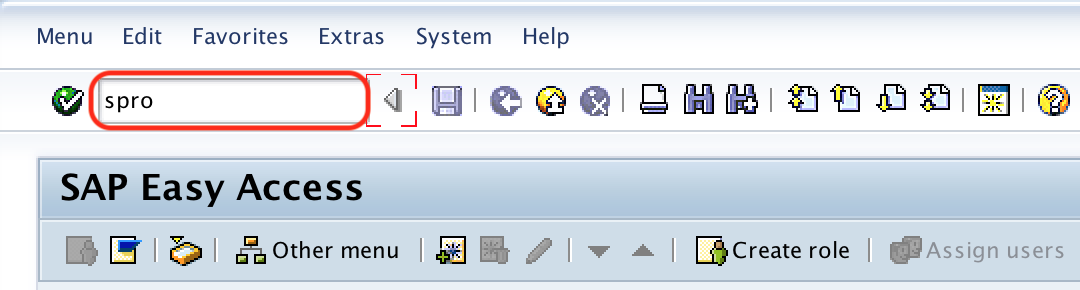
Step 1: Enter the transaction code SPRO in the SAP command field and press Enter.
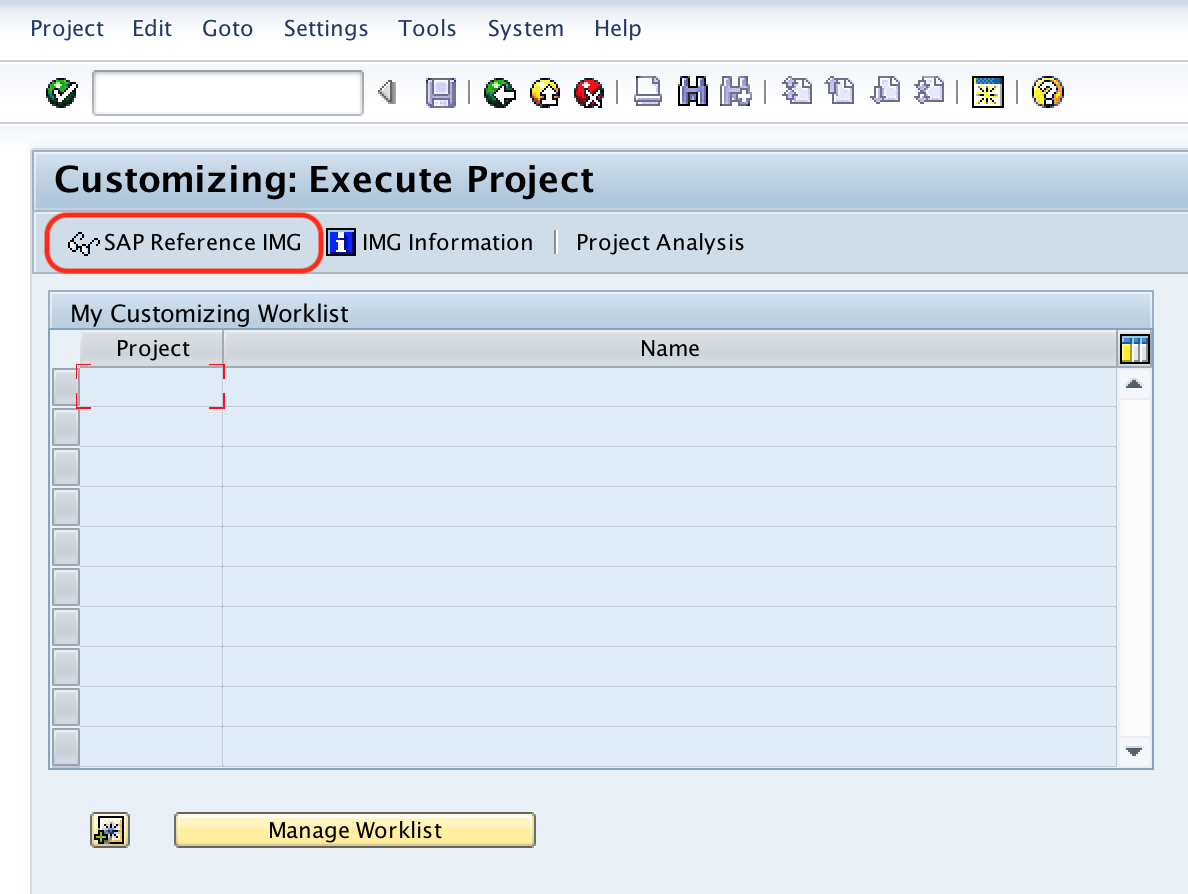
Step 2: Choose SAP Reference IMG.
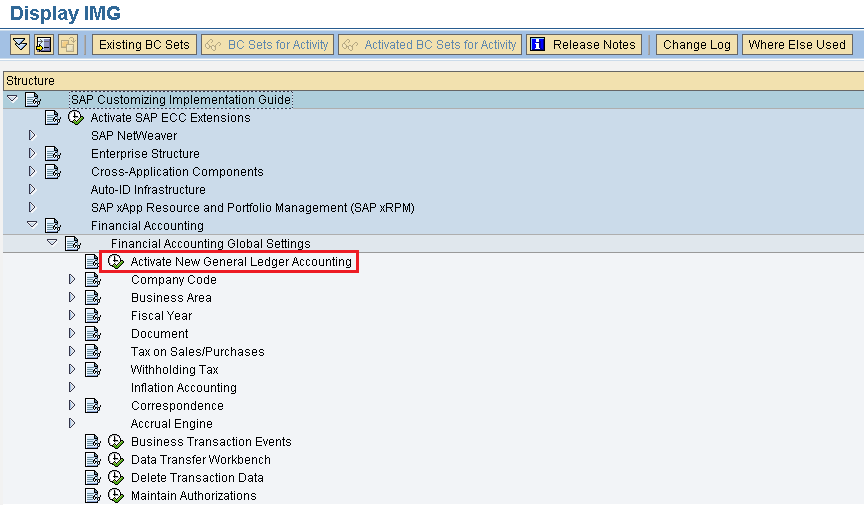
Step 3: In the Customizing Implementation Guide, follow this path: Financial Accounting > Financial Accounting Global Settings > Activate New General Ledger Accounting. Execute the activity.
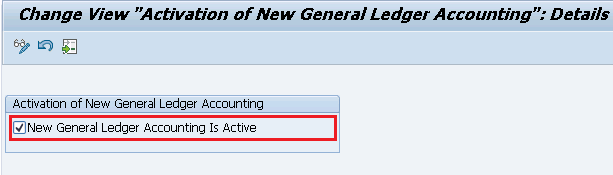
Step 4: On the change view named Activation of New General Ledger Accounting, select the checkbox New General Ledger Accounting Is Active.
Step 5: Choose Save. When prompted, assign the change to the appropriate Customizing transport request according to your project procedure.
You can also open the same activation activity directly with transaction code FAGL_ACTIVATION. Using SPRO is useful when you want to see the configuration in its IMG context.
How to verify that New G/L is active
After activation, reopen the SAP Reference IMG. A new Financial Accounting (New) node and its related subnodes should be available. The New G/L functions also become available under the General Ledger area of the SAP Easy Access menu.
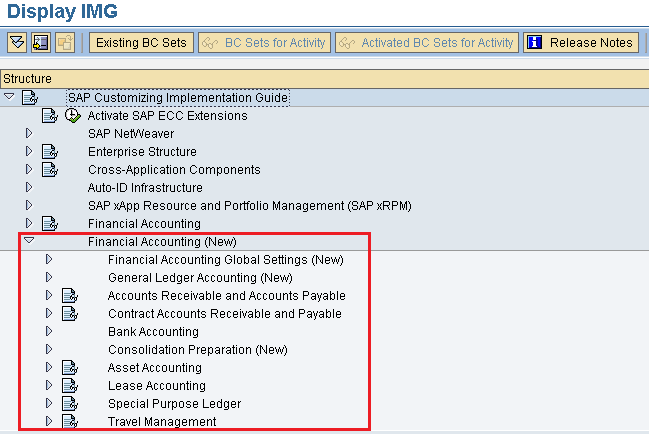
Confirm the activation flag again in FAGL_ACTIVATION, then verify that the planned New G/L configuration nodes are visible. In a migration project, also perform the project-specific ledger comparison, balance reconciliation, document checks, and test postings before the system is released for normal use.
New G/L configuration tasks after activation
- Define and review the leading ledger and any non-leading ledgers.
- Configure fiscal-year settings, posting periods, and ledger currencies.
- Assign accounting scenarios to the relevant ledgers where required.
- Configure document splitting if it is part of the approved design.
- Set up real-time integration between Controlling and Financial Accounting when applicable.
- Configure parallel accounting and ledger groups according to reporting requirements.
- Complete migration, reconciliation, authorization, transport, and regression testing activities.
SAP’s official documentation for activating General Ledger Accounting should be checked for the exact release used by your system.
Common New G/L activation issues
| Issue | What to check |
|---|---|
| The activation activity is not visible | Verify the SAP ERP release, installed components, user authorization, and the correct IMG path. |
| The activation view is display-only | Check the client change settings, Customizing authorization, system role, and whether the activity was opened through the permitted IMG context. |
| The Financial Accounting (New) node does not appear | Save the activation setting, exit and reopen SPRO, and confirm the flag in FAGL_ACTIVATION. |
| Postings or balances do not reconcile | Stop the cutover and review the migration status, ledger configuration, document splitting, currencies, and comparison results. |
| Users confuse activation with creating a G/L account | Use FS00 or the applicable Fiori app to create a G/L account. FAGL_ACTIVATION enables the New G/L application component. |
FAQs about FAGL_ACTIVATION and New General Ledger Accounting
What is the transaction code to activate New G/L in SAP?
The direct transaction code is FAGL_ACTIVATION. The same activity is available in SPRO under Financial Accounting > Financial Accounting Global Settings > Activate New General Ledger Accounting.
Is activating New G/L the same as creating a general ledger account?
No. New G/L activation enables the New General Ledger Accounting functions in an SAP ERP system. A G/L master account is created or maintained separately, commonly with transaction FS00 in SAP GUI or the relevant Fiori app in SAP S/4HANA.
Can New General Ledger Accounting be activated directly in production?
It should be activated in production only as part of an approved and tested implementation or migration cutover. Ledger design, data migration, reconciliation, posting controls, backups, and rollback planning must be addressed before the production change.
What appears in SPRO after New G/L activation?
The Financial Accounting (New) configuration area and related New G/L settings become available in the SAP Reference IMG. New G/L functions are also exposed in the General Ledger area of the application menu.
Does FAGL_ACTIVATION migrate existing accounting data?
The activation flag by itself is not a substitute for a complete migration project. Existing productive data must be handled through the migration scenario, tools, controls, and reconciliation steps applicable to the SAP ERP release and business design.
Editorial QA checklist for this New G/L activation procedure
- Confirm that FAGL_ACTIVATION and the SPRO path match the SAP ERP release being documented.
- Keep the distinction between New G/L activation and FS00 G/L account creation clear.
- State that productive-system activation requires a tested migration and reconciliation plan.
- Verify that the activation checkbox label and IMG node names match the system language and support package.
- Check that post-activation validation covers ledgers, currencies, document splitting, CO integration, balances, and test postings where applicable.